Logs in ReadyAPI
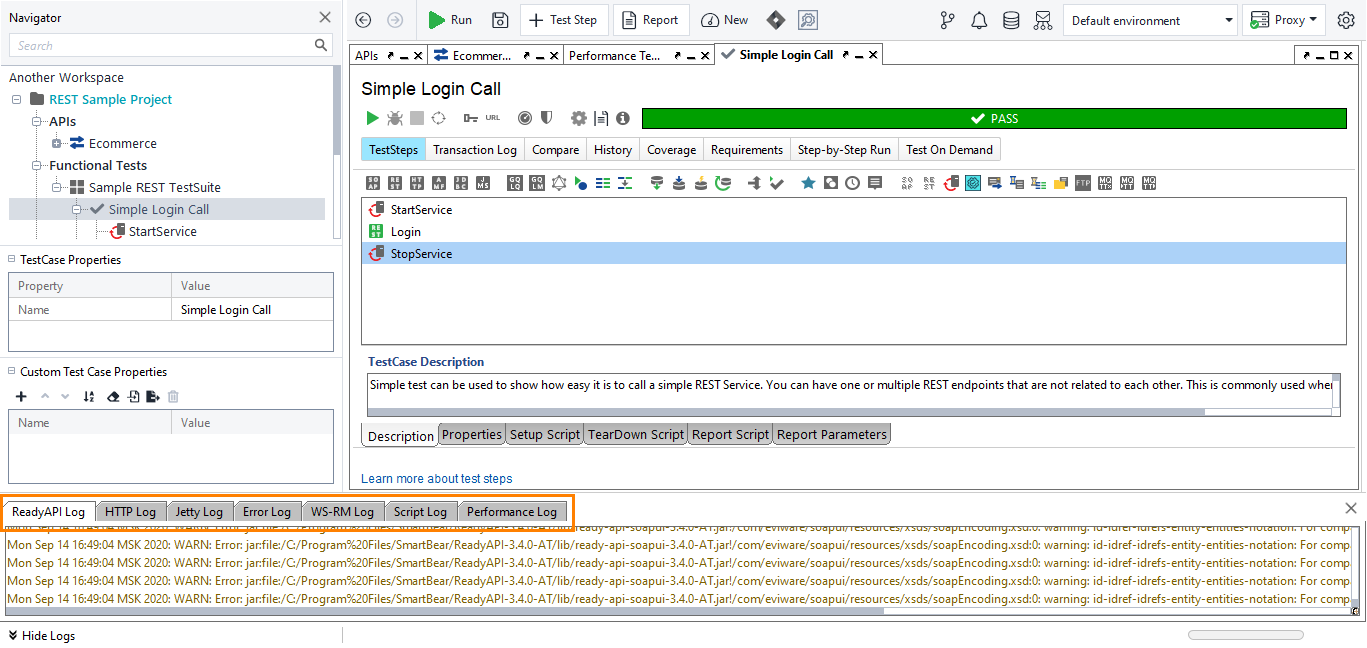
ReadyAPI logs provide information about events in ReadyAPI.
 |
View Logs
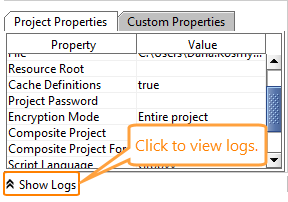
Click Show Logs in the lower-left corner.
Available Logs
You can access the following logs:
Log | Contains |
|---|---|
ReadyAPI log | Project-level events. |
HTTP log | HTTP message exchange. |
Jetty log | Information about the built-in Jetty web server. |
Error log | ReadyAPI application errors and their stack traces. |
WS-RM log | WS-Reliable messaging events in ReadyAPI. |
Script log | Information posted to the log by scripts. |
Performance log | Information about load test runs in ReadyAPI Performance. |
Download all logs as a ZIP File | Download available logs as a ZIP file for sharing in a support case. |
Log File Location
You can find the complete log files in the following directory: <user directory>\.readyapi\logs.
Enable Debug mode
If you cannot determine the cause of an issue from the standard logs, you can run ReadyAPI in Debug mode to generate more detailed logs.
To enable Debug mode:
Go to the ReadyAPI installation directory.
Open the bin folder.
Open the
soapui-log4j.xmlfile.Locate the following configuration:
<SOAPUI name="SOAPUI">
    <ThresholdFilter level="INFO" onMatch="ACCEPT" onMismatch="DENY"/>
</SOAPUI>
Change the log level from
INFOtoDEBUG.Example:
<SOAPUI name="SOAPUI">
    <ThresholdFilter level="DEBUG" onMatch="ACCEPT" onMismatch="DENY"/>
</SOAPUI>
Save the file.
Restart ReadyAPI.
ReadyAPI now writes additional diagnostic information to the logs.
Context Menu
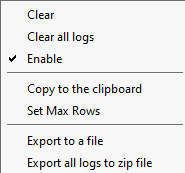
Right-click in the log editor to open the context menu. Use these commands to manage logs:
Option | Description |
|---|---|
Clear | Reset the log and remove all information from it. |
Clear all logs | Reset all available logs and remove all information from them. |
Enable | If selected, the log is enabled. Otherwise, no information is logged. |
Copy to clipboard | Copy the current log contents to the clipboard. |
Set Max Rows | Limit the number of log rows. The oldest entried are removed first. |
Export to File | Export the log information to a |
Export all logs to ZIP File | Export all logs to a ZIP file. |