4. Run Functional Tests
In ReadyAPI, you can run individual requests, test cases, test suites, or the entire project.
Run individual requests to quickly verify behavior. To simulate real scenarios, run test cases that include multiple requests. Test suites group test cases, and running a project executes all the test suites it contains.
Run individual requests
You typically run individual requests when you are creating tests. This way, you can quickly view response data, modify request parameters (if needed), or add assertions. In complex tests, requests often rely on data from the previous test steps. Some requests may fail when run individually if they depend on data from previous steps.
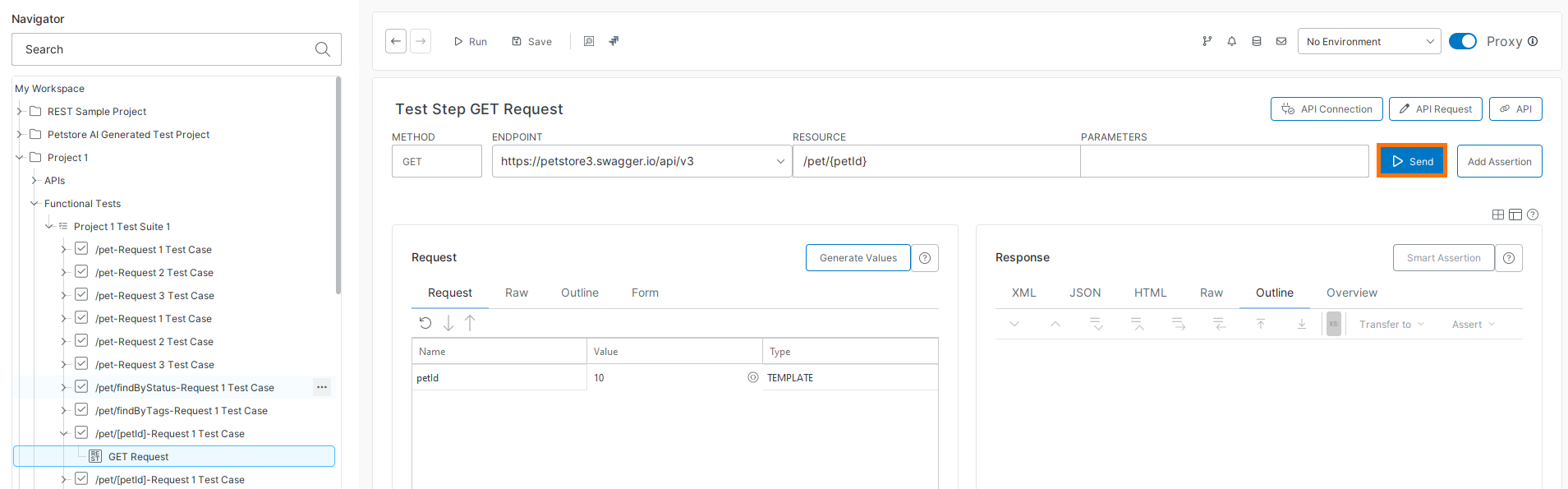
To run an individual request test step, select it in the Navigator panel on the left, and then click Send in the request editor toolbar. You can also click Run in the main toolbar.
 |
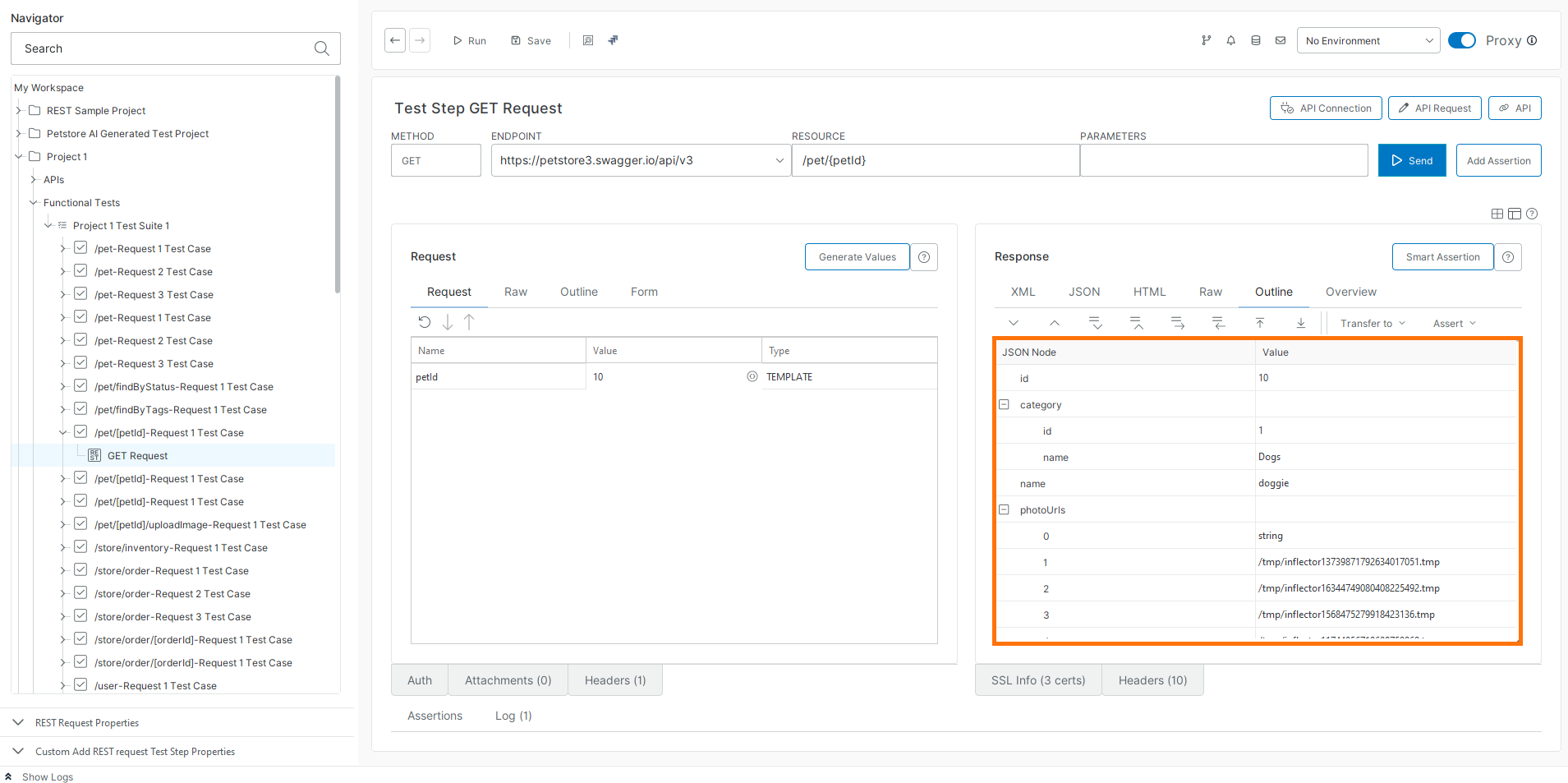
The response appears in the Response panel of the request editor.
 |
Run test cases
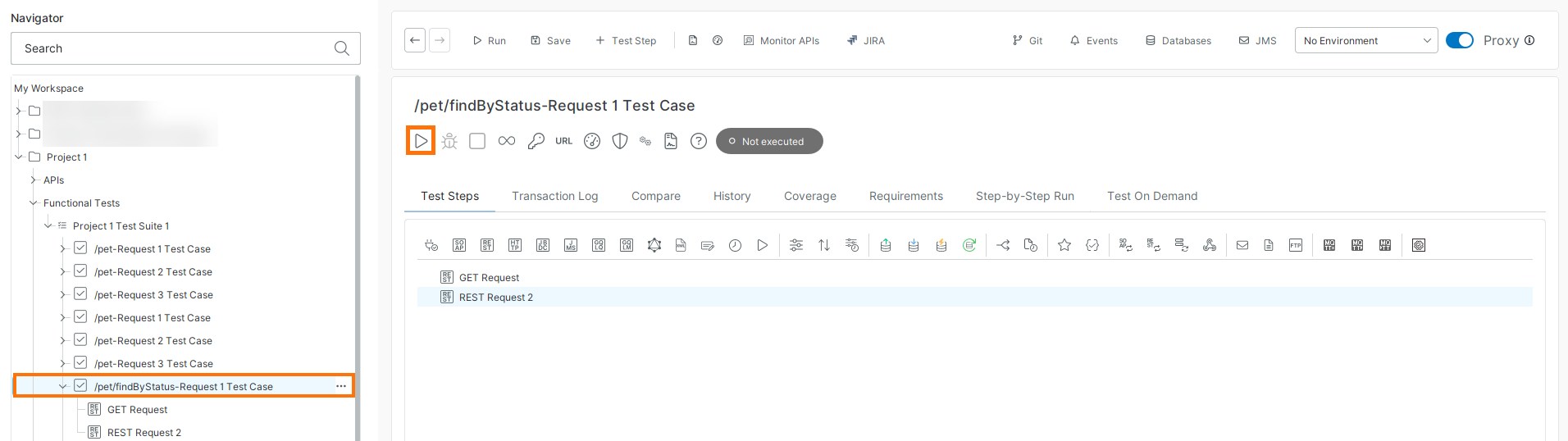
To run a test case, select it in the Navigator, then click Run in the editor toolbar. You can also click Run in the main toolbar.
 |
ReadyAPI runs the test steps in the test case one by one. You will see the results in the test case editor. The Transaction Log shows details of each executed test step.
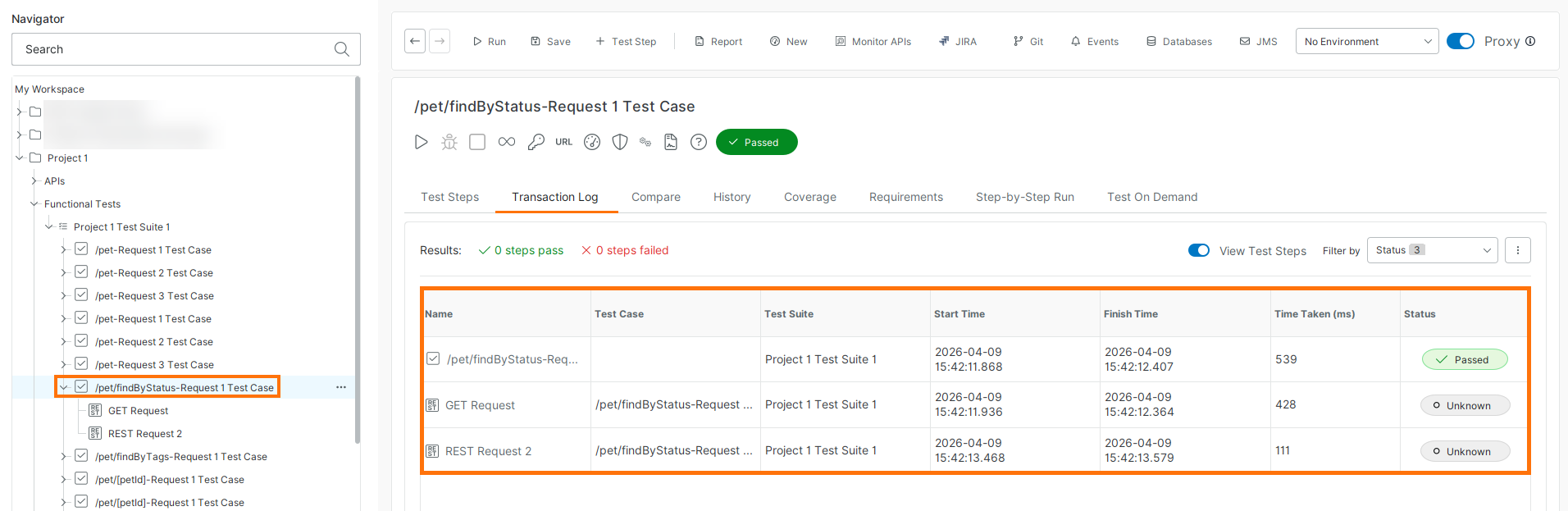 |
As you can see, the test case editor has pages that are not available on the test step level, such as History, where you can view the test run trends, or Compare, where you can compare two test logs.
The test case runs successfully, but the Transaction Log shows zero passed steps. This happens because the test steps do not include assertions to verify results. You will add assertions in the next step.
Run test suites and projects
To run a test suite or project, select it in the Navigator, then click Run in the editor toolbar. You can also click Run in the main toolbar.
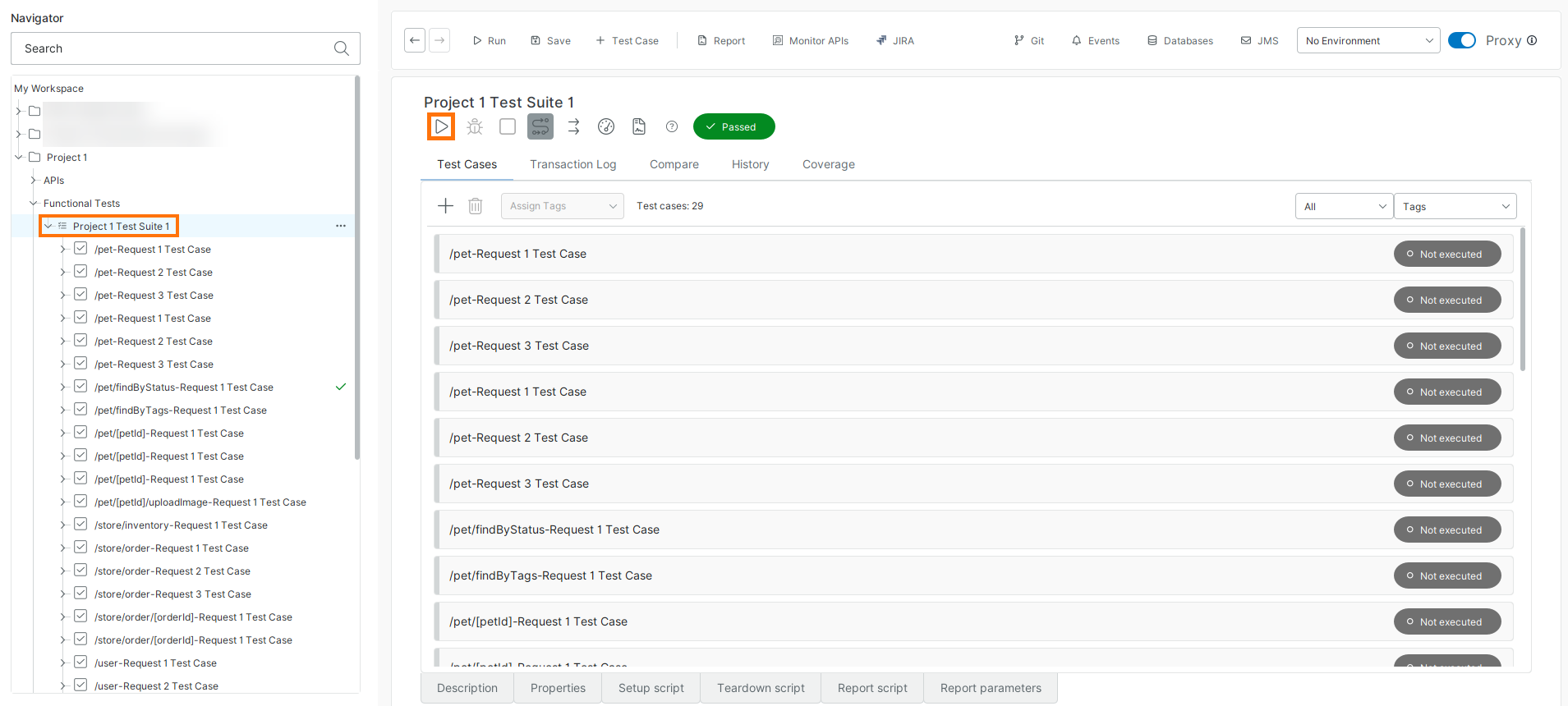 |
You will see the test results in the editor:
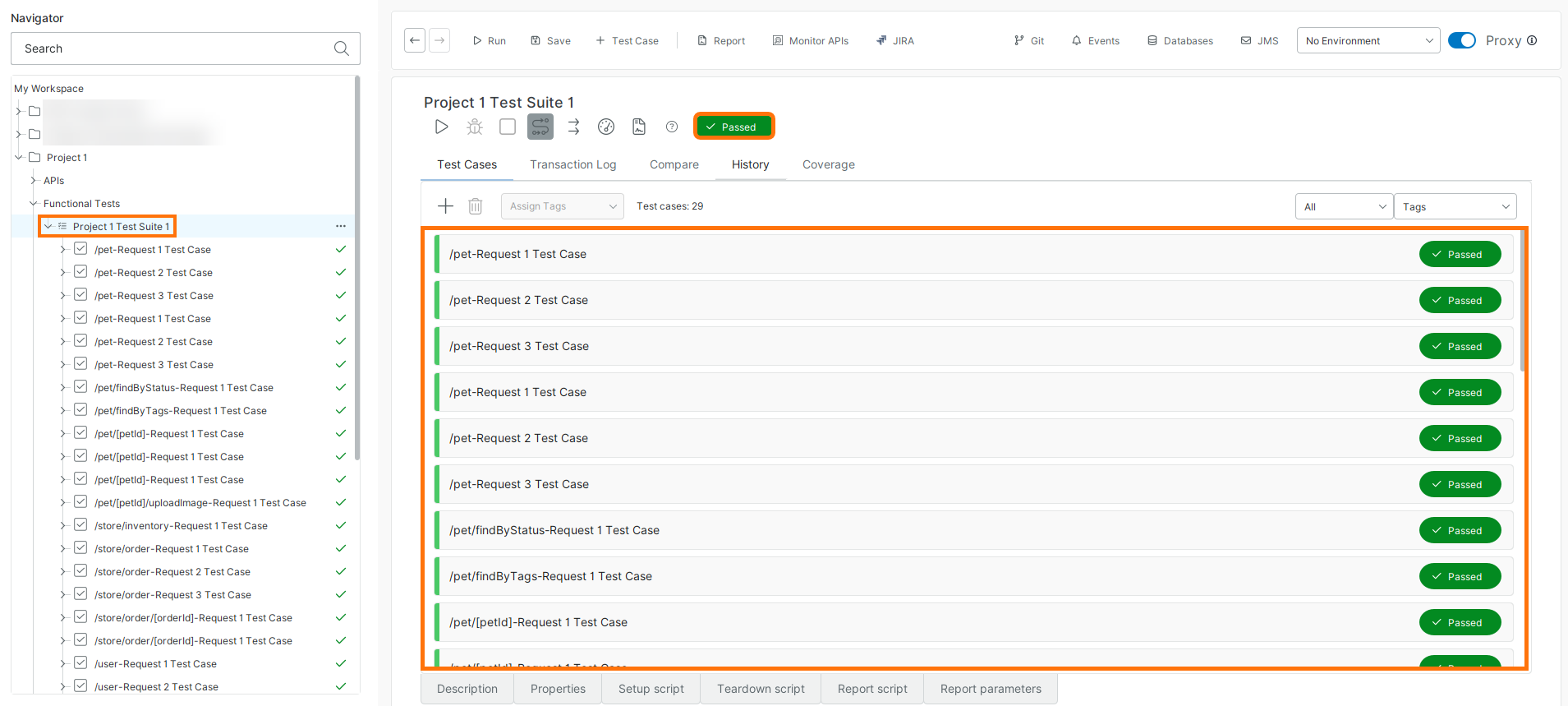 |
Important
By default, when you run a test suite, the test runner executes all test cases in sequence. To run them in parallel, click Run test cases in parallel  , then click Run .
Run: Starts execution.
 Run test cases in sequence: Executes test cases one by one (default).
- Run test cases in parallel: Executes test cases simultaneously.
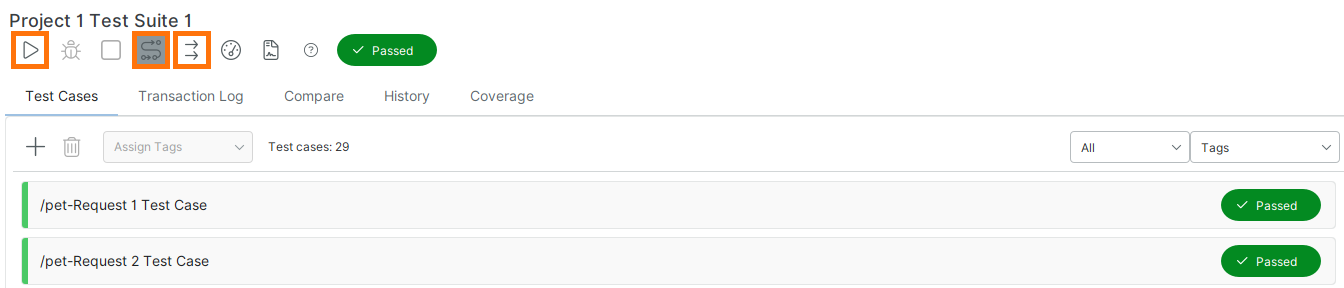
Projects offer similar functionality: By default, they run their test suites in series. The project editor has the Run test cases in parallel command on the toolbar to run test suites in parallel.
In the request, test case, or test suite editor, you can see whether execution was successful. To validate response data or execution time, use assertions.
Next step
In the next step of the tutorial, we will add assertions to our test steps.