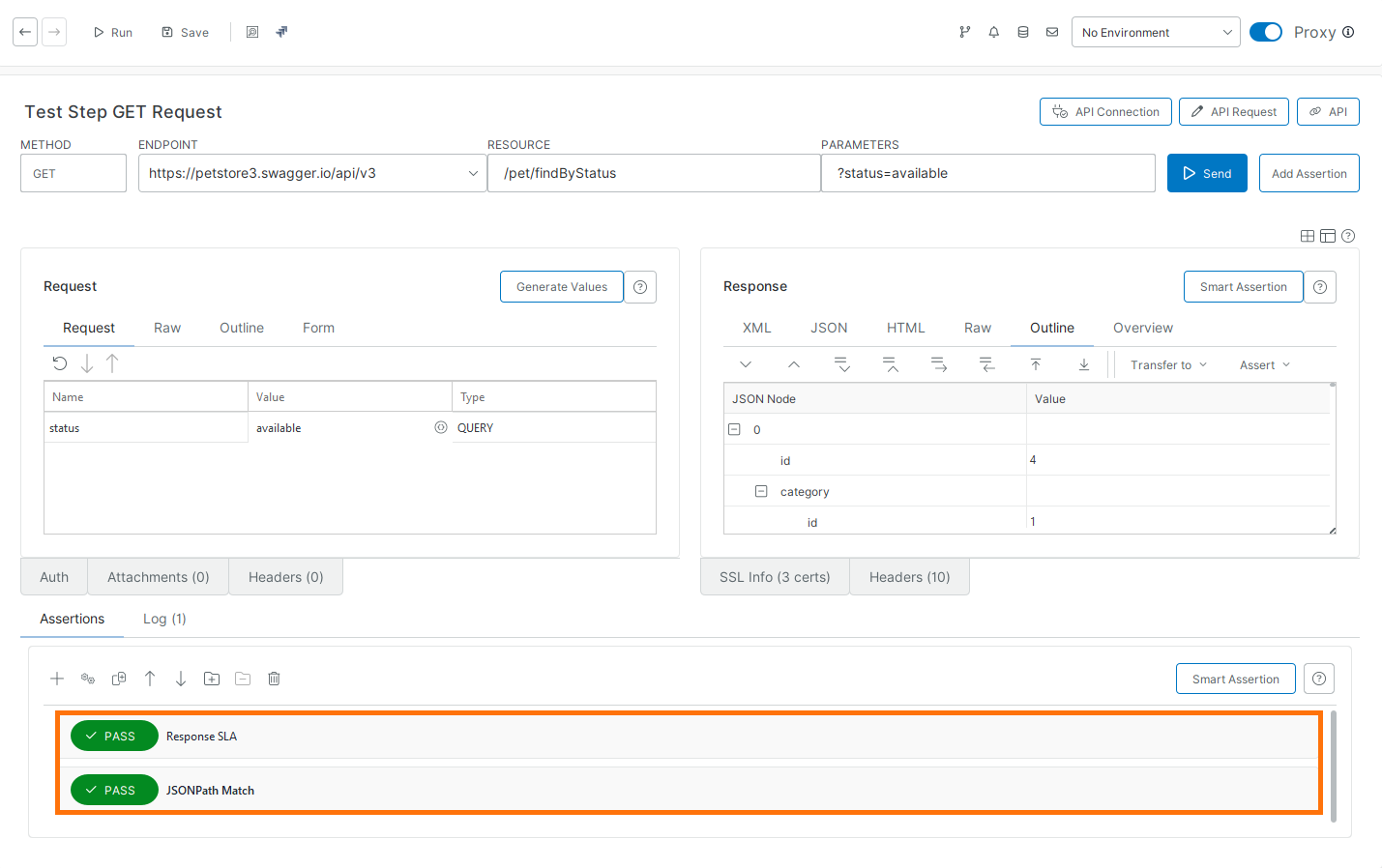
5. Add Assertions to Functional Tests
Assertions validate that your test results match the expected behavior. In ReadyAPI, use assertions to verify response codes, response headers, and individual values in response bodies, request execution time, and other checks. The test runner runs assertions after a test step (request) is over.
Example 1 – SLA Assertion
Use an SLA assertion to verify that the service responds within a defined time limit.
In the Navigator, in Functional Tests, select GET Request and click Add Assertion.
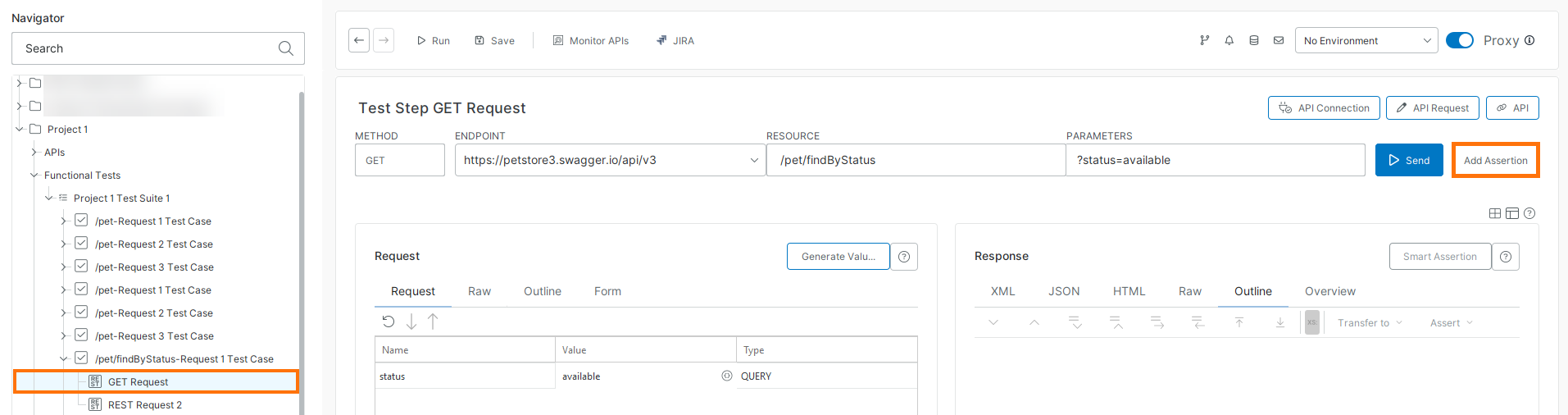
In the Add Assertion dialog, in Categories, select SLA, then Response SLA, and click Add Assertion.
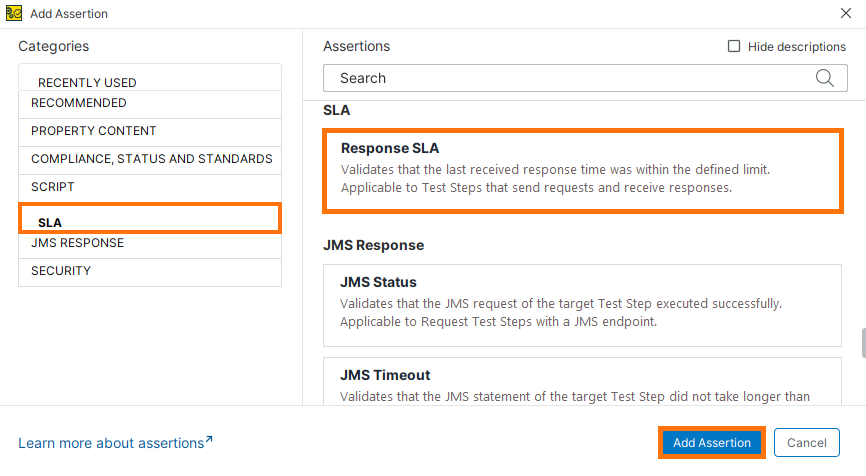
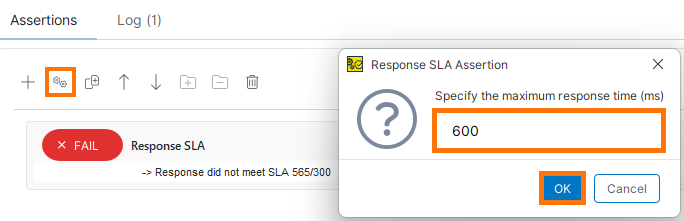
In the Response SLA Assertion dialog, enter the maximum response time (for example,
300ms), and click OK.Note
SLA (service-level agreement) defines the maximum acceptable response time.
ReadyAPI applies the assertion immediately if response data is available.
Open the Assertions tab to view the result:
If the response time is within the limit, the assertion passes.
If it exceeds the limit, the assertion fails.
In this example, the assertion fails because the request was executed for a longer time than expected.
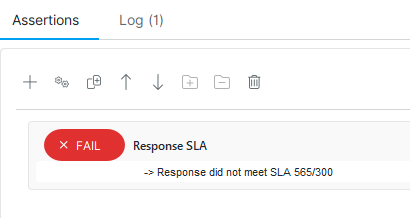
To increase the time limit, open Assertions, click Configure assertion
 or double-click the assertion, update the Response SLA value, and click OK.
Note
ReadyAPI evaluates the assertion each time the request runs.
Tip
You can add Response SLA and some other assertions to requests with the New Functional Test wizard.
The Response SLA now has the
PASSstatus.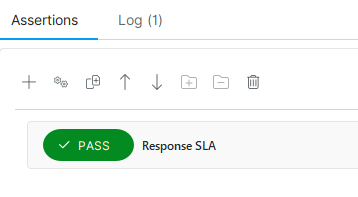
Example 2 – Check Response Contents
Use a JSONPath assertion to validate specific values in the response body.
Ensure the request returns a response. If needed, click Send to run it. For more details, see Run individual requests.
In Assertions, click Add assertion .
In the Add Assertion dialog, from Categories, select Property Content, then JSONPath Match, and click Add Assertion.
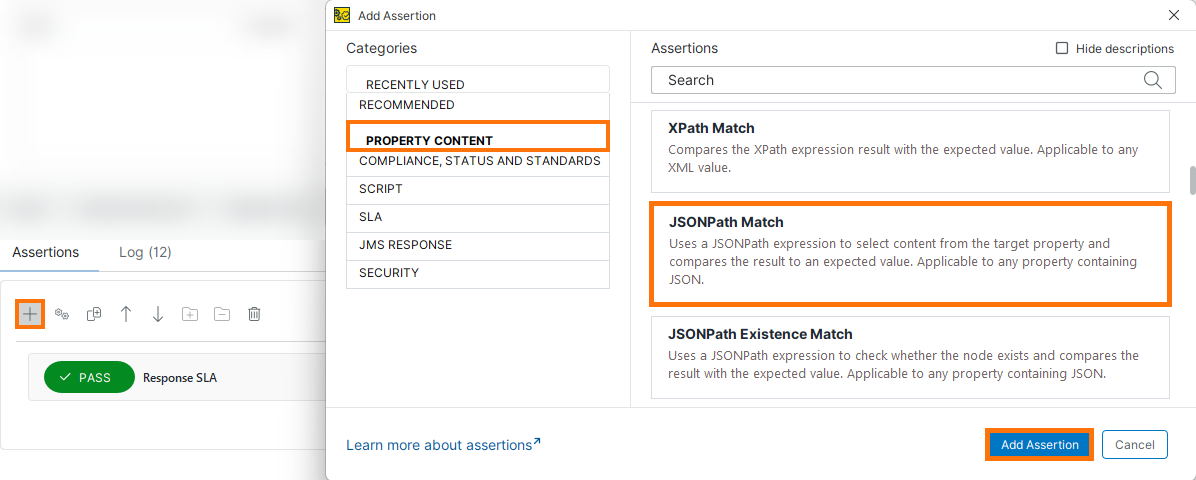
In the JSONPath Match Assertion dialog, enter a JSONPath Expression that will extract some field from the response body and the expected value of this field.
You have the following options to enter the expression:
Type the expression manually, or
Click Select node
 to choose a value from the response
Important
The Select node
option works only if the request returns a response.
For this tutorial, click Select node
, select the statusfield, and click OK.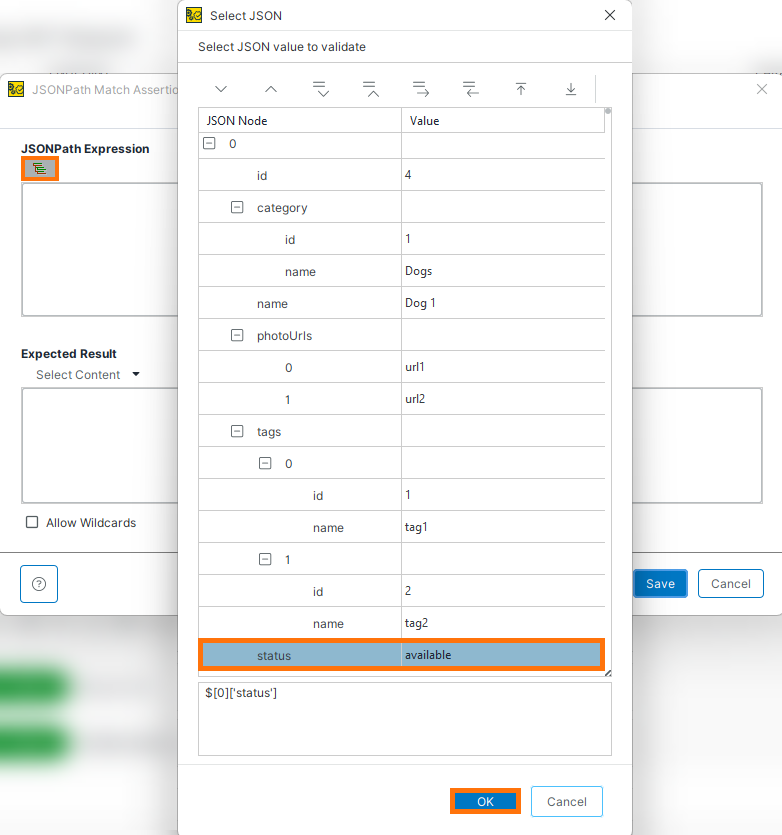
The JSONPath Expression field now contains the selector, and the Expected Result contains the value extracted from the current response data.
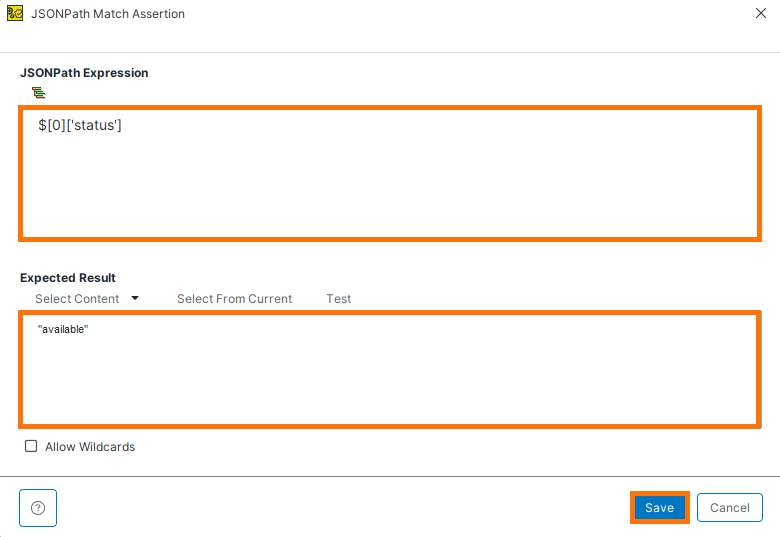
Click Save and view the result in the Assertions panel.
The assertion passes if the value matches.
The assertion fails if the value changes.