Generate Tests with SmartBear AI
ReadyAPI AI generates test cases from your API definition using natural language instructions. Import an API definition, describe the test scenario you want to test, choose a response profile, select the assertion types you need, and generate a complete test case in seconds. You can then review, edit, or run your generated test case.
Note
This release requires a license hosted in the SLM cloud environment. Support for test generation with on-premise SLM licensing is planned for the upcoming 4.1.0 release.
Requirements
To generate tests with SmartBear AI, the following requirements must be met:
A valid ReadyAPI license hosted in the SmartBear License Management (SLM) cloud environment is required.
For full details, see the ReadyAPI licensing requirements.
Note
SmartBear AI is now available for SLM on-premises floating license users. With an SLM on-premises license installed and SmartBear AI enabled, ReadyAPI automatically validates your license against SLM SaaS and connects to the SmartBear AI endpoint.
Important
Whitelist the SmartBear AI endpoint on your network before enabling SmartBear AI.
The machine running ReadyAPI must have uninterrupted network access to SmartBear cloud services as described in the licensing requirements.
Note
System administrators who manage networks with ReadyAPI desktop clients and plan to use SmartBear AI features must ensure that the AAA proxy is allowed to connect to SmartBear services and is not blocked by a firewall.
Install and enable SmartBear AI
Before you generate tests, install and enable the SmartBear AI plugin.
Install the plugin
Open ReadyAPI.
Click Integrations.
Find ReadyAPI AI Plugin.
Click Install.
In the Download Plugin dialog, click Yes to confirm.
After installation, ReadyAPI adds the Open SmartBear AI button to the top-right corner.
The Open SmartBear AI button appears disabled until you enable SmartBear AI.
Enable or disable SmartBear AI in ReadyAPI
Control SmartBear AI from the ReadyAPI UI
To enable the SmartBear AI features, follow these steps:
Note
If you use an SLM on-premises floating license, your license is automatically validated against SLM SaaS when you enable SmartBear AI. Whitelist the SmartBear AI endpoint on your network before enabling SmartBear AI.
Click Preferences.
In the ReadyAPI Preferences dialog, in the left pane, go to Integrations, and select SmartBear AI.
Select Enable SmartBear AI integration.
Select OK.
After you enable SmartBear AI, the Open SmartBear AI button becomes active in the navigation bar. Click this button to open the Generate Tests with SmartBear AI dialog.
Control SmartBear AI in managed deployments
Organizations that deploy ReadyAPI as a managed image can also control SmartBear AI availability with a JVM option. This setting disables AI features at startup and removes AI-related options from the ReadyAPI UI.
Use the following JVM option:
-Dreadyapi.enable.ai.features=<value>To turn off all AI features, set the value to:
-Dreadyapi.enable.ai.features=false
At a glance: Generate a test case with SmartBear AI
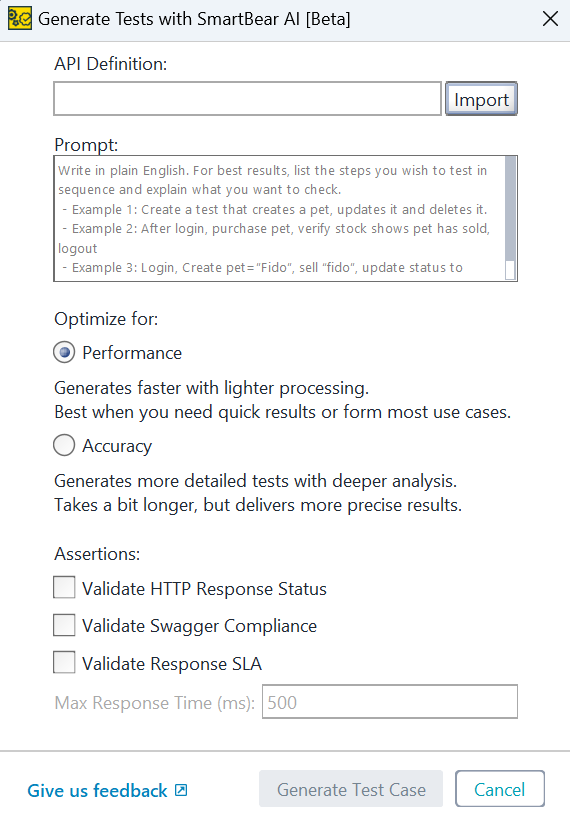
After you enable SmartBear AI integration, click Open SmartBear AI to open the Generate Tests with SmartBear AI dialog. You can now generate test cases:
Describe your test scenario in natural language.
Select a response profile (Performance or Accuracy).
Select the assertions you want included in the generated test case.
Click Generate Test Case to create the test.
Review and resolve validation errors, if any.
Steps 6–8 outline recommended follow-up actions to take after generating a test case.
 |
Import an API definition
Import your API definition from a local file or through your Swagger Studio integration. After import, ReadyAPI displays the operations and schemas available for test generation.
Note
If the imported definition file does not include a base URL, SmartBear AI creates a project property named baseURL. Use this property to define the base request URL for generated test steps. Each test step URL uses the following format: ${#Project#baseURL}/foo/bar
Describe your test scenario
Enter a natural-language description of the scenario you want to test. ReadyAPI uses this description to shape the request flow, data, and assertions included in the generated test case.
Examples of scenario descriptions:
Example 1: Create a test that creates a pet, updates it, and deletes it.
Example 2: After logging in, purchase a pet, verify the stock shows the pet is sold, and log out.
Example 3: Log in, create a pet named "Fido", sell “Fido,” update the status to "sold", verify the pet status is sold, and log out.
Select a response profile
Choose how SmartBear AI balances speed and analysis:
Performance: Generates results quickly with lightweight processing. Use this profile for rapid iteration or most everyday test-generation scenarios.
Accuracy: Generates more detailed and deeply analyzed test scenarios. This profile takes slightly longer but provides more precise and comprehensive results.
Select assertion types
Add the assertion types you want SmartBear AI to include in your generated test case.
Validate HTTP Response Status: Checks whether the test step receives an HTTP status code defined in the API specification.
Validate Swagger/OpenAPI Compliance: Verifies whether the response matches the API definition.
The assertion supports the following specifications:
Swagger 2.0 (OpenAPI 2.0)
OpenAPI 3.0.0
OpenAPI 3.1.0
Validate Response SLA: Checks whether the response arrives within a defined time limit.
Generate test cases
After you complete your inputs, generate your test cases with a single action. SmartBear AI creates the test steps and assertions based on your description and the imported API definition.
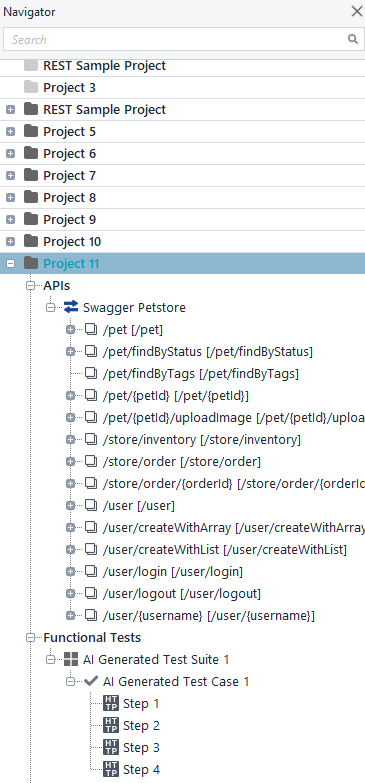
ReadyAPI creates a new project in the Project Workspace under Functional Tests and adds an AI-Generated Test Suite that contains the generated test case.
 |
Test naming behavior
ReadyAPI assigns test and test step names based on the generated scenario. The names reflect the actions performed in each step, such as creating, retrieving, updating, verifying, or deleting resources.
Run the generated test case
After the test case is generated, you can review and edit it in the ReadyAPI UI, or run it using the GUI, TestRunner, or TestEngine, depending on your testing workflow.
Review and resolve validation errors
SmartBear AI generates a test case from the imported API definition and your prompt. ReadyAPI parses the AI response and adds the generated test case to the Project Workspace Navigator for review.
In some cases, ReadyAPI displays validation or parsing error messages during this process. These messages usually indicate issues parsing the AI-generated response, such as formatting inconsistencies or incomplete data exchanged between SmartBear AI and ReadyAPI. The following image shows an example.
 |
Click OK to dismiss these messages and review the generated test case. If the test case fails to execute or behaves unexpectedly, include the error details when you submit a SmartBear Support request.
Review the generated test case
To review the test case after generation and confirm it behaves as expected, do the following:
Run the test case and check whether it executes successfully.
Review assertions and verify whether they pass or fail as expected.
If a test fails, check the following:
The API definition is complete and valid.
Requests and responses in the test case contain valid data.
Assertion logs to understand why the test failed and whether the failure reflects a real issue.
Disable SmartBear AI in SLM
By default, SmartBear AI features are enabled for ReadyAPI in SmartBear License Management (SLM) for your organization.
To disable SmartBear AI for all SLM users in your SLM organization, submit a SmartBear Support request with the following information:
Issue Type: Other
Request:
Disable SmartBear AI for your SLM organizationDetails: Include the exact SLM organization name
Disabling AI at the SLM level blocks all users in that organization from accessing AI features in ReadyAPI.
Connect ReadyAPI to your own LLMs
Beyond SmartBear AI, ReadyAPI works with your preferred large language models (LLMs). Install the ReadyAPI MCP Server plugin to connect ReadyAPI to any MCP-compatible AI assistant - including Claude, GitHub Copilot, ChatGPT, and Cursor.
The ReadyAPI MCP Server exposes your projects, APIs, and test suites to your chosen LLM through natural language, supporting workflows such as:
Detecting API spec changes and identifying impacted test cases.
Generating test remediation guides with before-and-after examples.
Querying test suite coverage and quality through a conversational interface.
For setup instructions, see MCP Integration.