Free Offline Fixed User License
Notice
This page is related to the new SmartBear ID-based licenses that we've introduced in ReadyAPI 3.8.1.
In this version, we included support for SmartBear-hosted ID-based (online) licenses. Furthermore, from version 3.40.0, we added support for on-premise hosted and offline ID-based licenses.
Why you may want to free a license
When you activate an Offline Fixed User License, the SmartBear License Servers bind the license to your computer. This means the license cannot run on any other machine. To move your ReadyAPI instance to another computer, you must release the license on your current machine first.
Requirements
Freeing a license requires assistance from your license administrator. The administrator performs actions in the SmartBear License Management portal.
1. User actions
Start ReadyAPI.
From the main menu, select Help, and then click License Manager.
If you have multiple licenses (for example, one for a ReadyAPI module and another for a different module), in the Manage Licenses dialog, select the license you want to uninstall, then click Uninstall Offline License. Confirm the uninstall when prompted.
The uninstall process does two things:
Removes the license data from your computer.
Generates fingerprint data with information about your computer and license.
In the Uninstall Offline License dialog, click Copy Text to Clipboard to copy the fingerprint data.
Important
License Fingerprint File
ReadyAPI also saves the deactivation key to disk during the uninstallation of an offline license. Share this file with your license administrator if the license needs to be restored for online use or updating.
File location:
<ReadyAPI home directory>/offline-license-deactivation-<license_number>-<timestamp-in-form-of-DD-MM-YY_HH-MM-SSS>.datSend the fingerprint data to your license administrator using your internal communication method (for example, email or Slack). The administrator must upload this data to the SmartBear Licensing Portal to complete the license removal.
After you send the fingerprint, close the dialog box and ReadyAPI. You may then uninstall ReadyAPI if needed.
For more information about freeing an offline fixed user license, see Free an Offline Fixed User License in our SmartBear License Management documentation.
2. License administrator actions
Requirements
You will work with the SmartBear License Management available on the web. If your network is private, use a computer that has internet access.
Steps to follow
Log in to the SmartBear License Management portal as a license administrator.
Locate your Offline Fixed User License, then click Free Offline License.
In the Free Offline License dialog, follow these steps:
Click Insert Its Content to upload the fingerprint data received from the licensed user.
Click Upload the file and free the seat to update the license database.
Note
The Upload the File and Free the Seat button remains disabled until you provide valid fingerprint data.
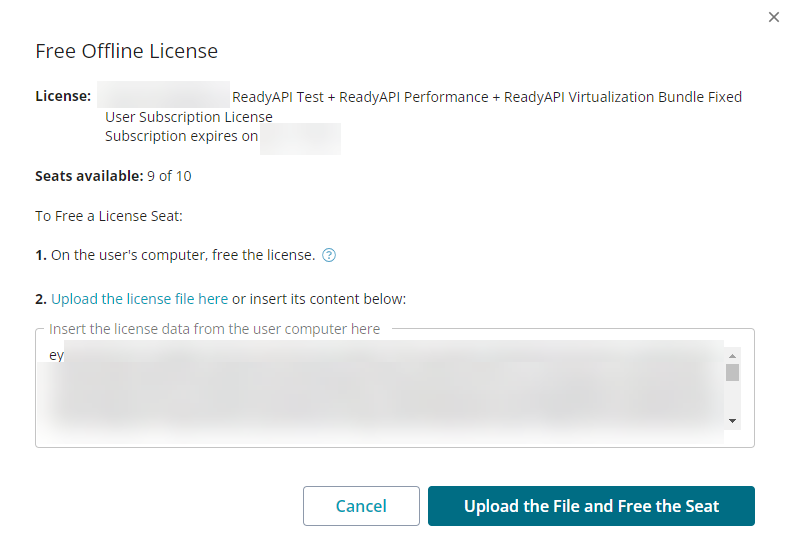
After uploading the file, the seat is freed, and you can activate it on another computer.
Convert Offline Fixed User license to Online
To convert an offline fixed user license to an online license, follow these steps:
Log in to the SmartBear License Management portal.
Locate the license you want to convert.
Click Convert License for the license seat.
Confirm the conversion when prompted.
For more information, see Convert offline fixed user license back to online in the SmartBear License Management documentation.