How to Use Conditional Match
Overview
Using Conditional Match in ReadyAPI involves creating signatures, defining matches, and configuring requests and responses.
Note
ReadyAPI limits Conditional Match logging to reduce disk usage when running large virtual services. Enable Debug mode to view detailed Conditional Match logs, including messages that indicate which response ReadyAPI selects. For more information, see Enable Debug mode in Logs in ReadyAPI.
Comparison operators
The Conditional Match uses the following comparison operators:
Operator | Description |
|---|---|
Equals | Checks whether the actual node value equals the expected value. |
Does not Equal | Checks whether the actual node value does not equal the expected value. |
Equals (One of) | Checks whether the actual node value equals one of the expected values specified in the comma-separated format inside square brackets (for example, |
Equals (None of) | Checks whether the actual node value does not equal any of the expected values specified in the comma-separated format. |
Contains | Checks whether a node contains the expected value. |
> | Checks whether the actual node value is greater than the expected value. For non-numeric values it always fails. |
>= | Checks whether the actual node value is not less than the expected value. For non-numeric values it always fails. |
< | Checks whether the actual node value is less than the expected value. For non-numeric values it always fails. |
<= | Checks whether the actual node value is not greater than the expected value. For non-numeric values it always fails. |
Is Empty | Checks whether a node exists and is empty in the received message. |
Is not Empty | Checks whether a node exists and is not empty in the received message. |
Does not Contain | Checks whether a node does not contain the expected value. |
Exists | Checks whether a node exists in the received message. |
RegEx | Checks whether the actual value matches the specified regular expression. |
* | Accepts any value. |
_ | Accepts empty value. |
1. Create a Signature
A signature defines the expected structure of incoming requests. To create one:
Navigate to Virtual Service Configuration:
Go to Virtual Service > Dispatch Method > Conditional Match > Configure.

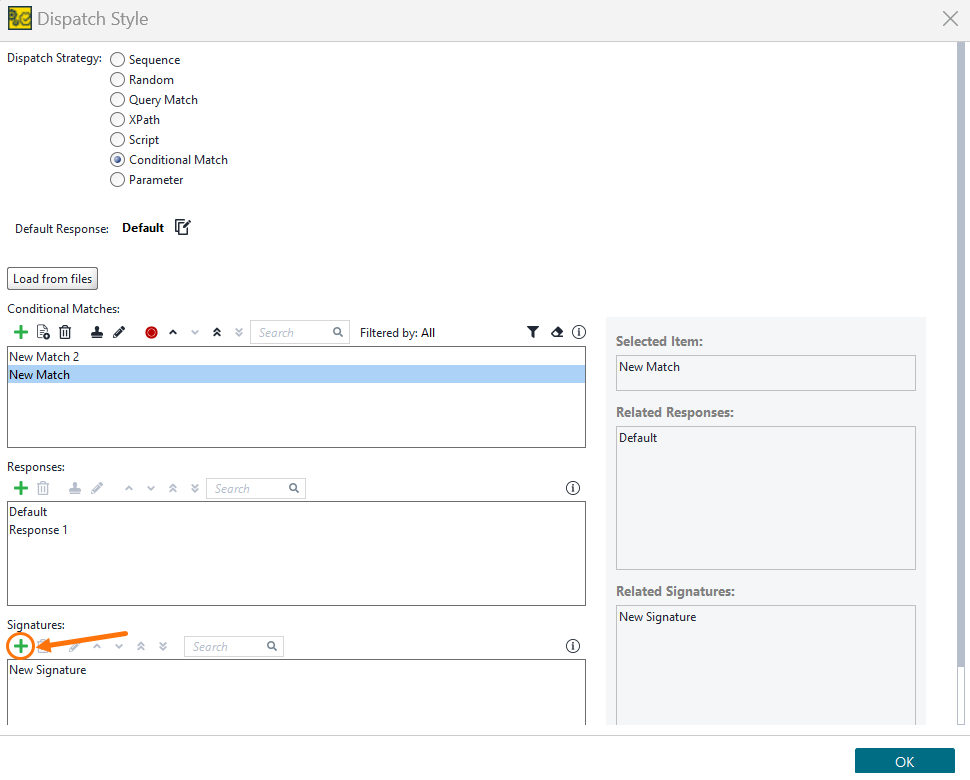
Add a New Signature:
Click the icon next to Signatures.
Define Signature Details:
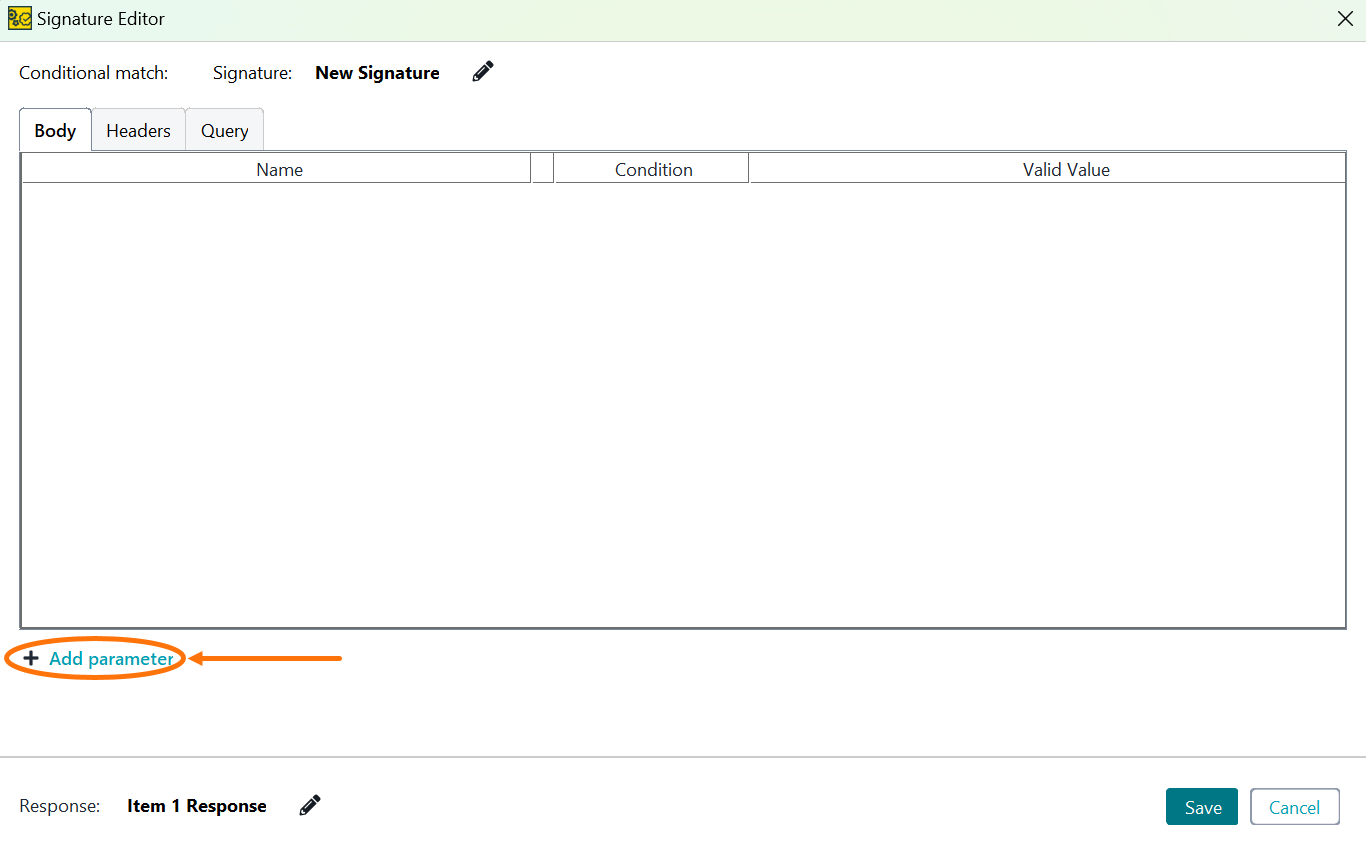
In the Signature Editor, add parameters to define your request structure.
To add child parameters or remove a parameter, click the
 icon.
icon.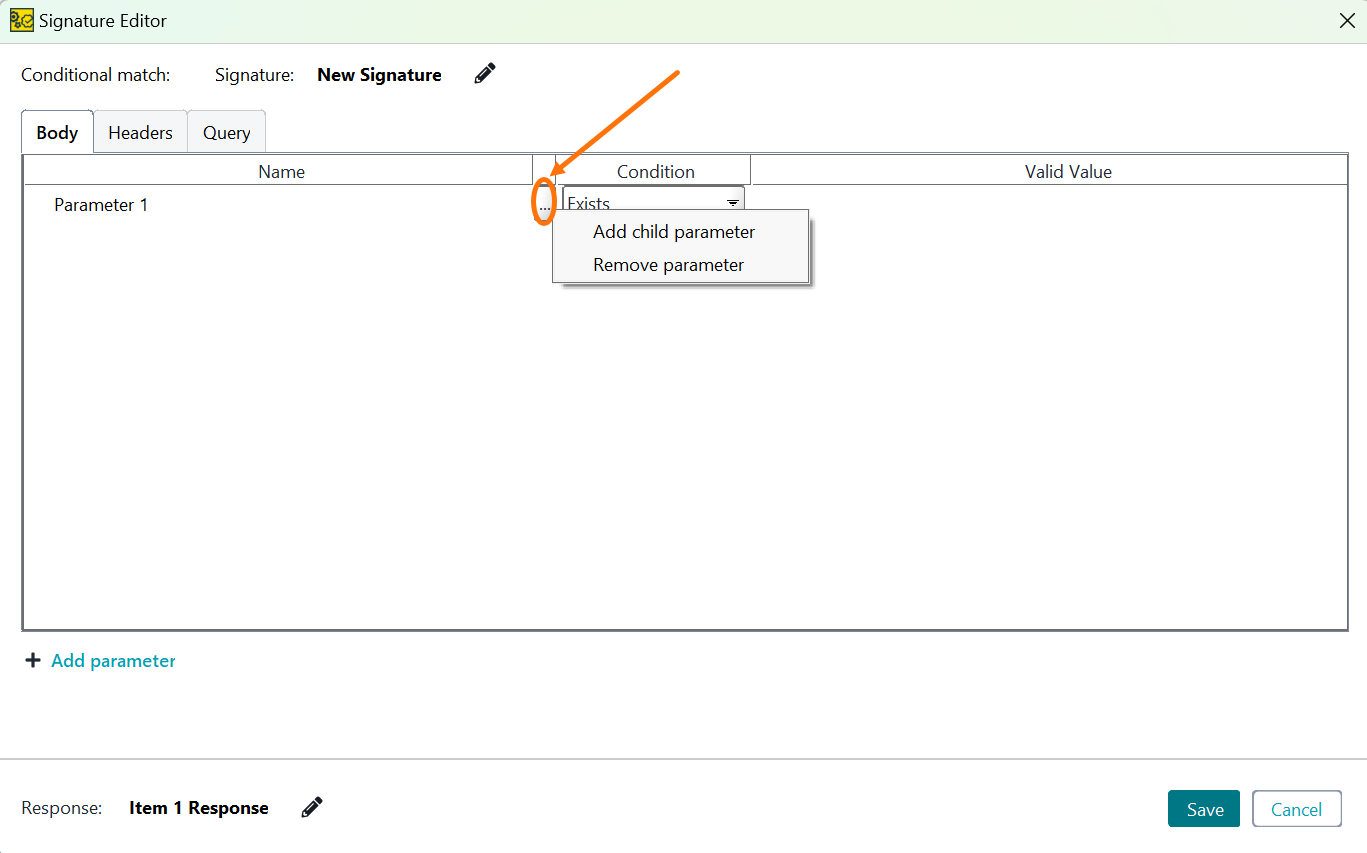
Optional: Use the Signature Editor to define match conditions directly. When finished, click Save to set up the conditional match.
Configure your signatures and assign requests to signatures to enable validation and match/no-match response expectations.
Deploy and run the virtual service.
2. Create a Match
Creating a match involves defining the conditions that link requests to responses. When recording from an API or traffic, Conditional Match also captures query parameters, which appear under the Query tab in the Conditional Match Editor.
You have several options to create a match:
Important
The system automatically pairs matches with signatures. When a matching signature is found, its name appears in the Signature field in the Conditional Match Editor. If no matching signature exists, use the Save as signature button to create a new signature based on the match.
Note
ReadyAPI limits Conditional Match logging to reduce disk usage when running large virtual services. Enable Debug mode to view detailed Conditional Match logs, including messages that indicate which response ReadyAPI selects. For more information, see Enable Debug mode in Logs in ReadyAPI.
Import Settings
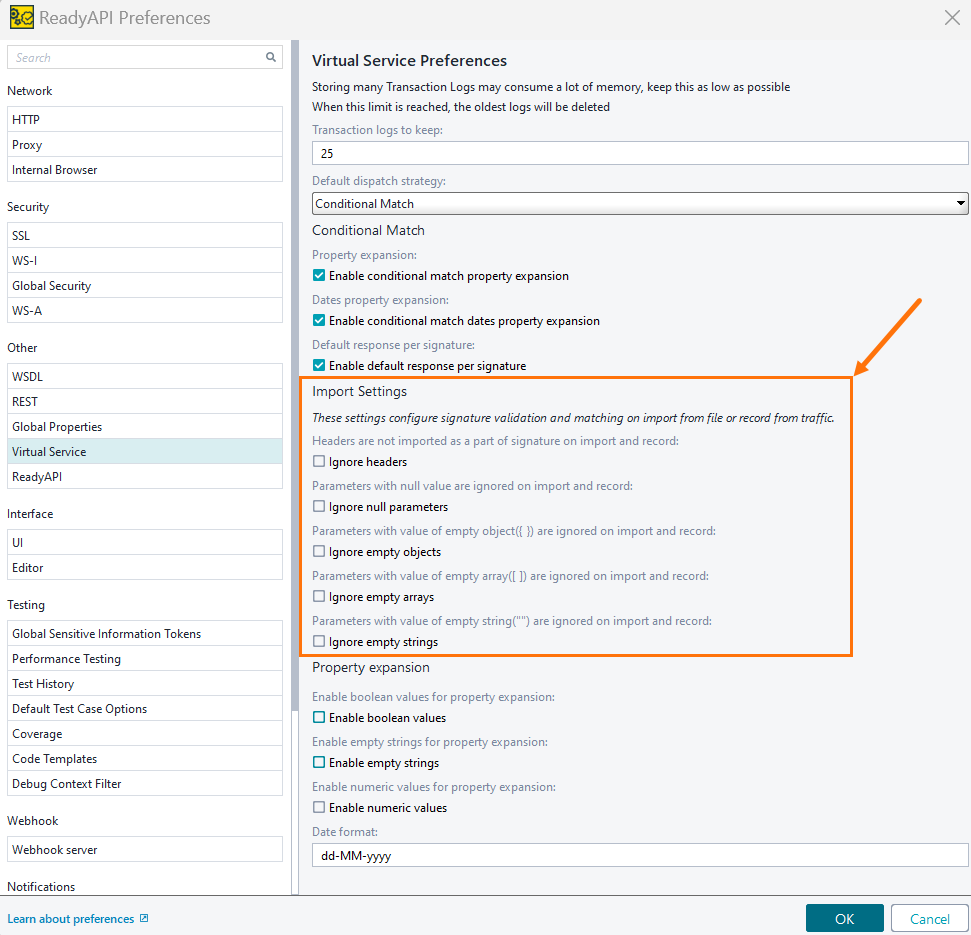
Before using the Import from a File or Record from Traffic options, you can customize the import mechanism to match the signature matching settings:
 |
Setting | Description |
|---|---|
Ignore Headers | If set to |
Ignore Null Parameters | Parameters with |
Ignore Empty Objects | Parameters with a value of an empty object ( |
Ignore Empty Arrays | Parameters with a value of an empty array ( |
Ignore Empty Strings | Parameters with a value of an empty string ( |
This option allows you to build requests from scratch using the Empty Request option, enabling you to add parameters individually.
Navigate to Virtual Service Configuration:
Go to Virtual Service > Dispatch Method > Conditional Match > Configure.
Add a Conditional Match:
Click the icon next to Conditional Matches.
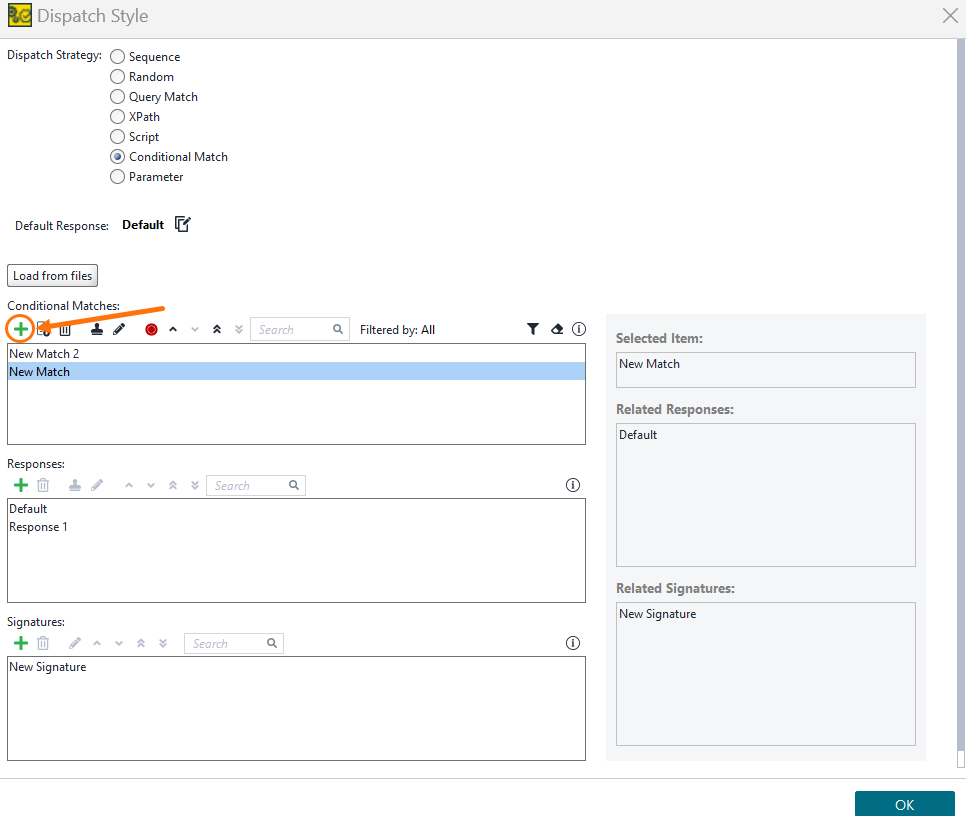
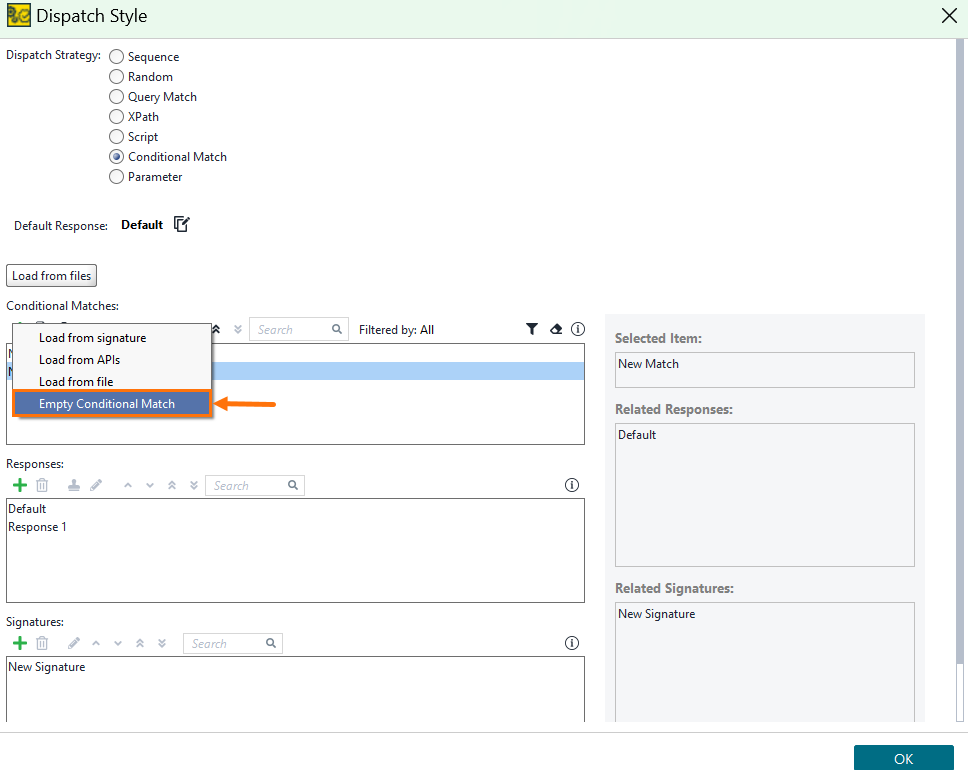
Select Empty Conditional Match:
Choose Empty Conditional Match.
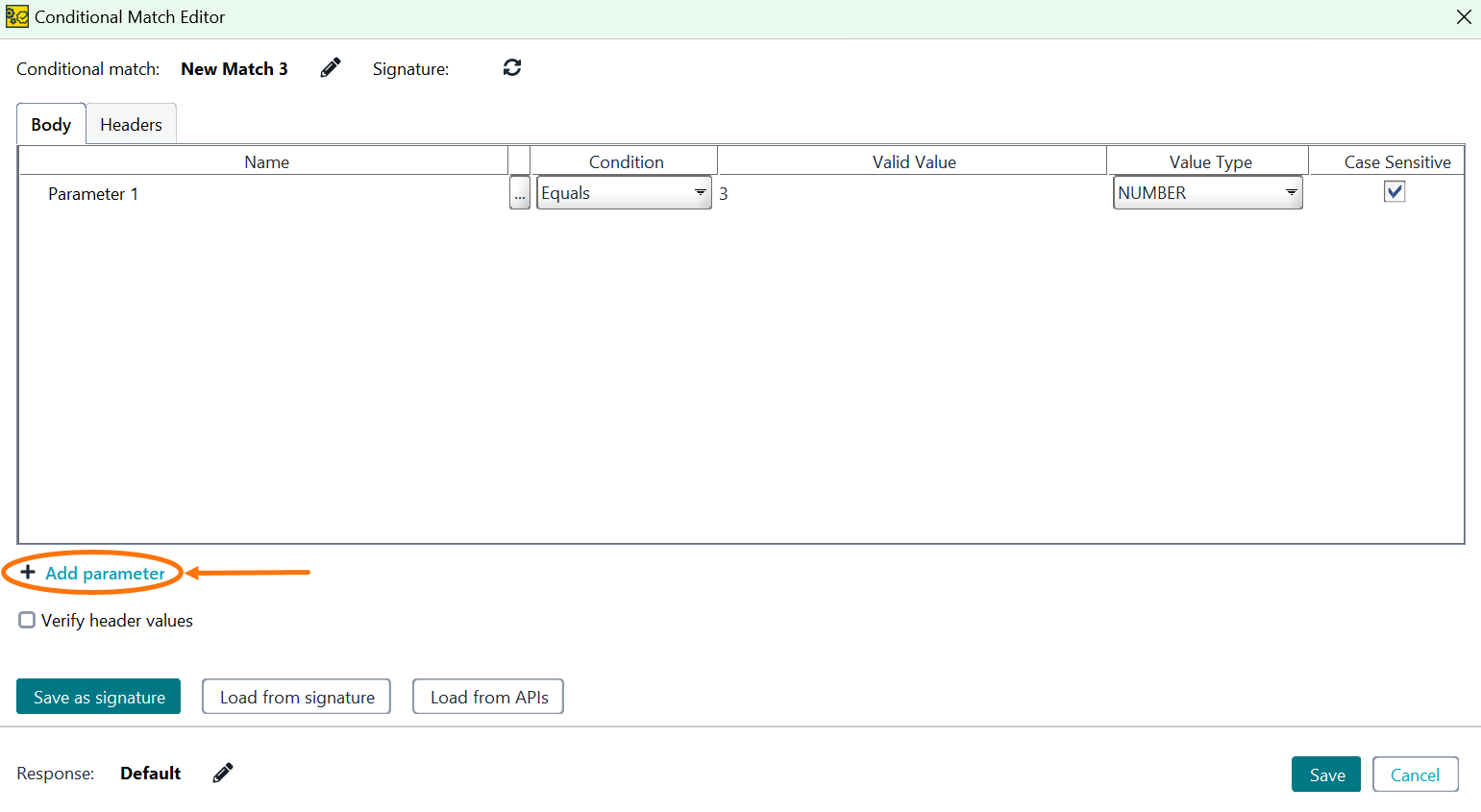
Define Match Conditions:
Use the Conditional Match Editor to add parameters, set conditions, and specify valid values. Additionally, select the appropriate value type to define how the editor interprets these values for more accurate matching. For more details on value types, see Parameter Value Types in Conditional Match Editor.
Tip
Use ARRAY_TEXT for mixed-type arrays. The editor does not support matching mixed-type values by type.
To add child parameters or remove a parameter, click the
icon.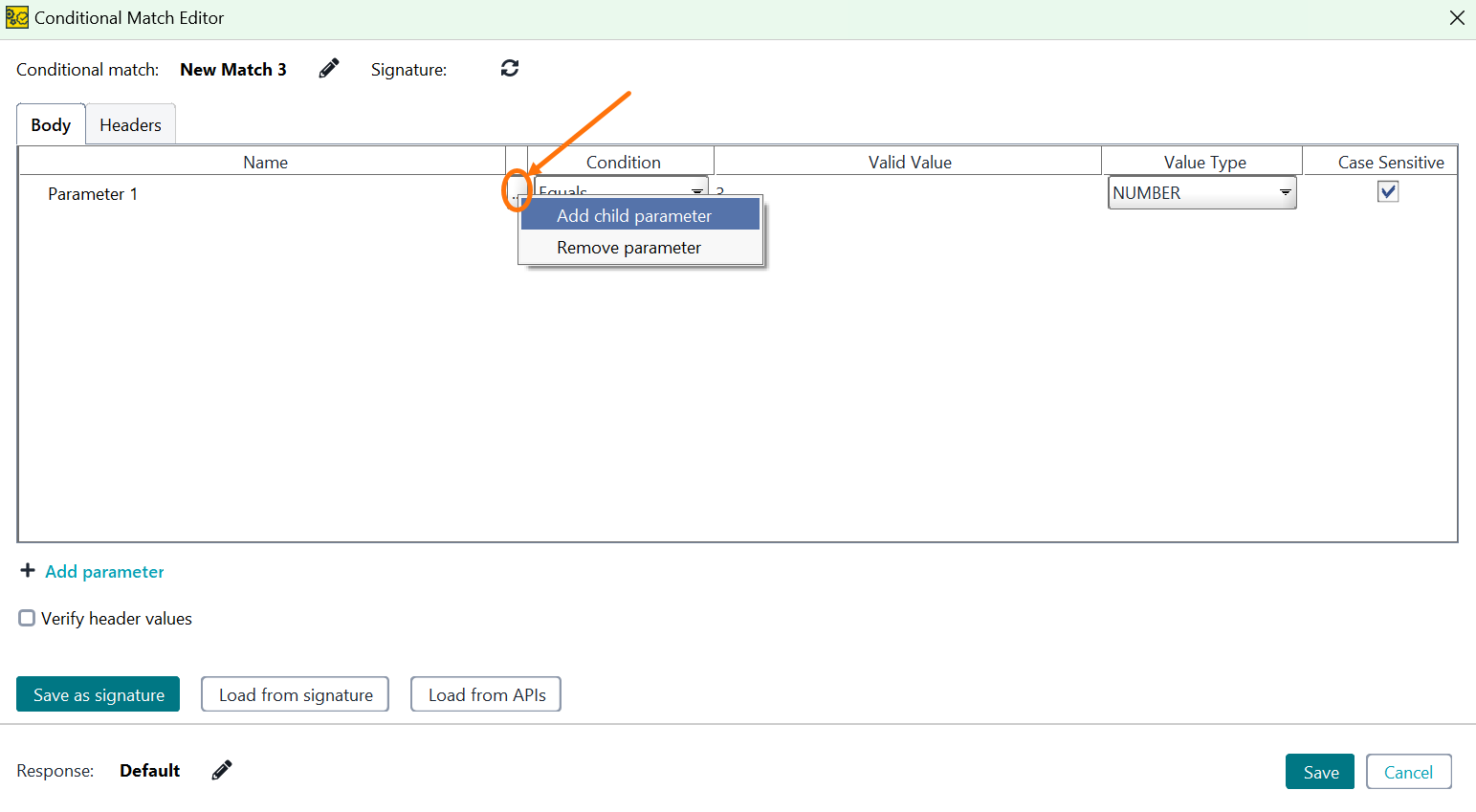
This option allows you to import an existing API definition in ReadyAPI.
Navigate to Virtual Service Configuration:
Go to Virtual Service > Dispatch Method > Conditional Match > Configure.
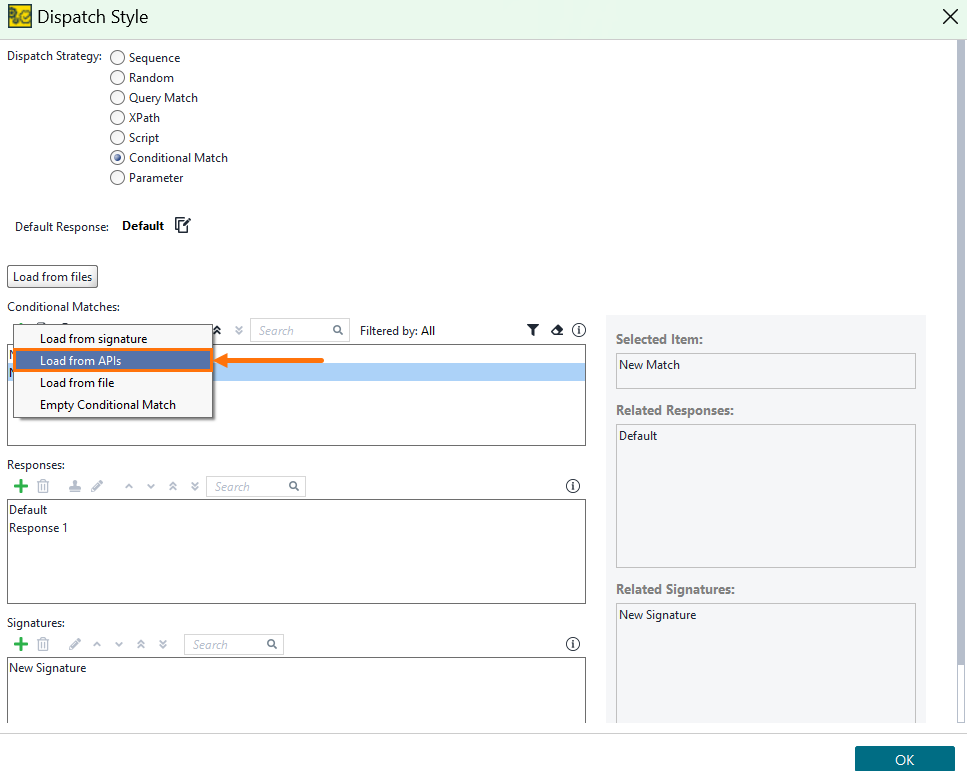
Load from APIs:
Click the icon next to Conditional Matches.
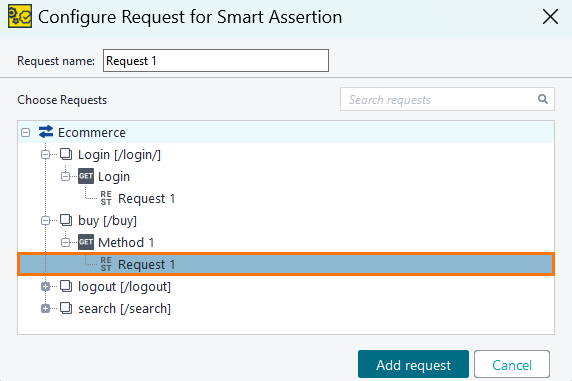
Select Load from APIs to open the API explorer window.
Select an API:
Choose an API to import as a match. The new match will then appear in the list.
Important
The request body of the API must be in valid JSON format to be imported as a match.
Note
Conditional Match now records query parameters included in the request. Single-value parameters appear in the Query tab with the Value Type set to TEXT. Array parameters are recorded as ARRAY_TEXT. ReadyAPI recognizes repeated parameter names (?foo=bar&foo=qux), empty bracket arrays (c), and comma-separated values (?foo=bar,qux).
Conditional Match also supports dynamic path variables in REST endpoints. You can use these variables to route requests based on values in the URL path. For example, if your endpoint is /myApi/{version}/login, you can use the version variable in Conditional Match to define different responses for each API version.
This option lets you import an API definition from a file, allowing you to select both requests and responses for conditional matching.
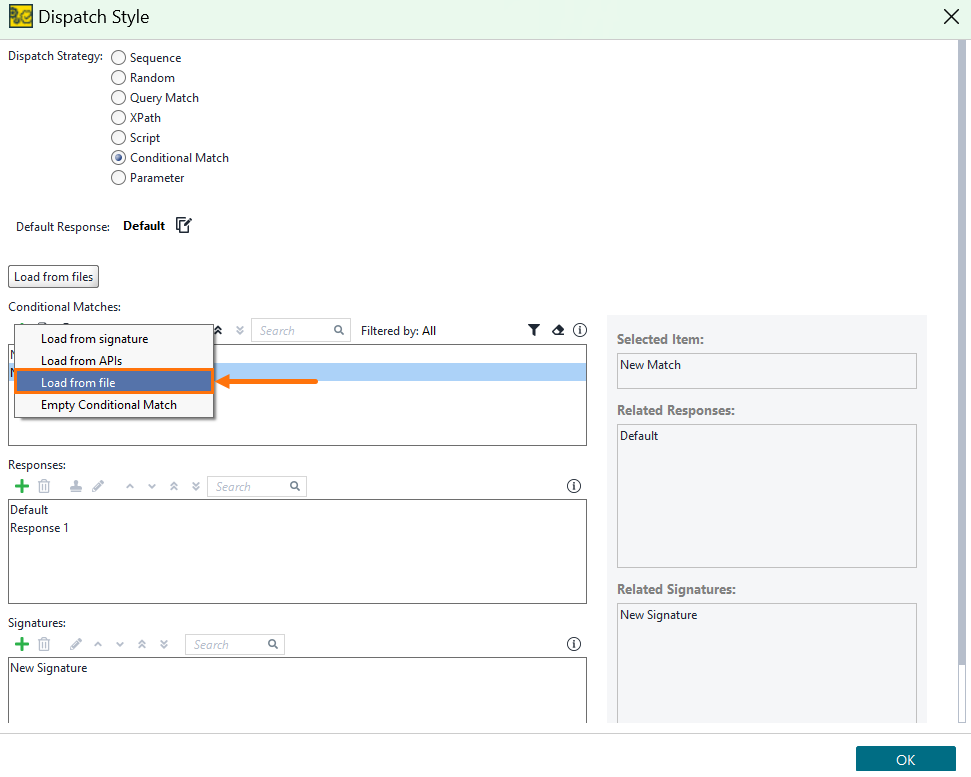 |
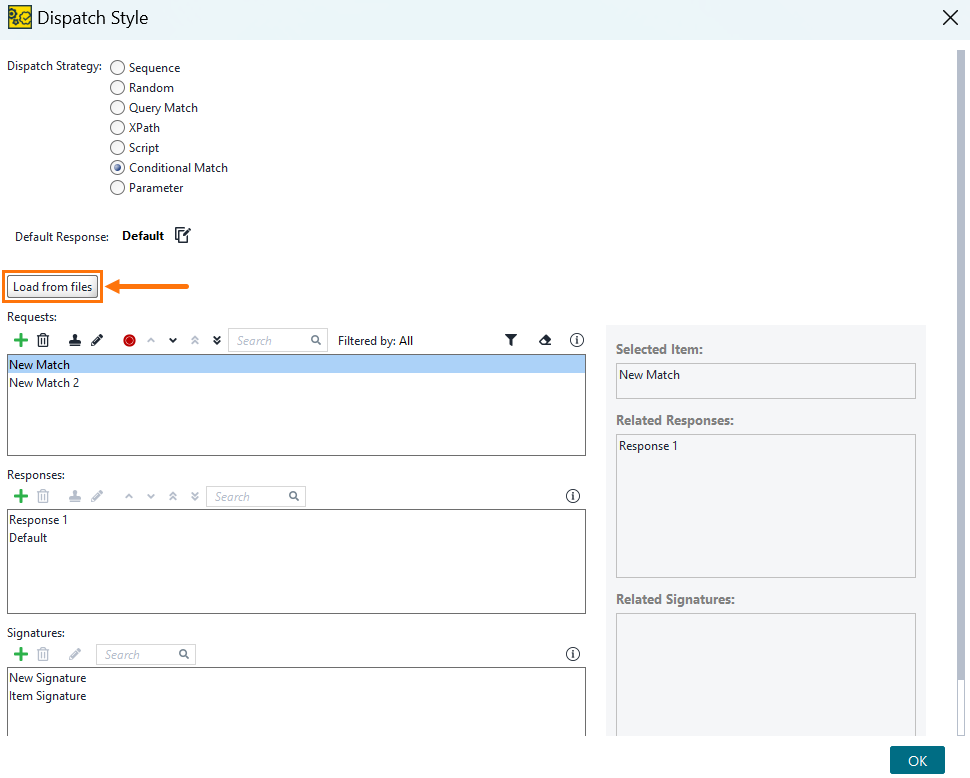
Import and Pair
To import multiple files, click the Load from files button. Request and response files will be automatically paired based on their respective file names.
 |
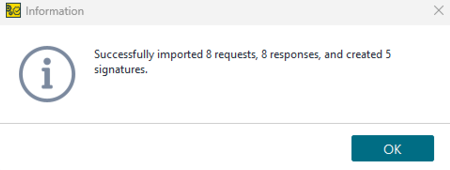
Confirmation Popup for Successful Import
When request/response pairs are imported from files, a confirmation message indicates success.
 |
Examples
Explore examples of request and response file configurations, including complex scenarios, to understand their implementation in different contexts:
POST /myAPI/v2/endpoint HTTP/1.1
{
    "parameter1": {
        "child_parameter": "value"
    },
    "parameter2": "value"
}
Basic Example of Response File
{
"status": 200,
"message": "Ok"
}POST /myAPI/v2/endpoint HTTP/1.1
{
"info": {
"_postman_id": "12345678-abcd-efgh-ijkl-0123456789ab",
"name": "ReadyApi",
"schema": "https://schema.getpostman.com/json/collection/v2.1.0/collection.json",
"_exporter_id": "9876543"
},
"item": [
{
"name": "http://localhost:8084/test",
"protocolProfileBehavior": {
"disabledSystemHeaders": {
"user-agent": true,
"accept-encoding": true,
"connection": true
}
},
"request": {
"method": "POST",
"header": [],
"body": {
"mode": "raw",
"raw": "{\n\t\"field\": \"1\",\n \"array\": [1,2,3],\n \"obj\": {\n \"foo\": \"bar\"\n },\n \"objArr\": [\n {\n \"a\": \"a\"\n },\n {\n \"a\": \"b\"\n }\n ]\n}",
"options": {
"raw": {
"language": "json"
}
}
},
"url": {
"raw": "http://localhost:8084/test",
"protocol": "http",
"host": [
"localhost"
],
"port": "8084",
"path": [
"test"
]
}
},
"response": []
}
]
}Advanced Scenario of Response File
{
    "status": 200,
    "message": "Ok"
}
Importing query and path parameters
When you import request/response file pairs, ReadyAPI reads query parameters and dynamic path variables from the request URL and adds them to the Conditional Match configuration. You can use these parameters in match conditions in the same way as body parameters.
Example request template:
POST /foo/bar/{version}/parameters?queryParameter=queryParameterValue HTTP/1.1
{
  "requestData": {
    "parameter": {
      "childParameter": "childParameterValue"
    },
    "parameter2": "Parameter 2 value",
    "requestId": 1234,
    "isREST": true
  }
}
Where:
{version}is a dynamic path parameter that you can use in Conditional Match rules.queryParameteris a query parameter that can be:Included in a Signature.
Used in Conditional Match rules.
ReadyAPI imports these parameters and makes them available for use in Conditional Match rules.
Note
ReadyAPI stores each new path parameter in its own separate match request without overwriting existing entries.
Import validation
Before importing a request file, ReadyAPI validates the request against the target Virtual Action.
If validation fails, ReadyAPI does not import the file.
ReadyAPI verifies the following:
The endpoint in the request file matches the Virtual Action's endpoint.
The HTTP method (for example,
POST,PUT) matches the method configured for the Virtual Action.
The file names in a request/response pair consist of a prefix, a suffix, and a file extension.
<prefix><suffix>.<extension>
The following example has one request and one response:
depositMoney-req.txtdepositMoney-req.txt
The following example has one request and three responses:
depositMoney-req.txtdepositMoney-rsp1.txtdepositMoney-rsp2.txtdepositMoney-rsp3.txt
Note
Request files must begin with the method and path on the first line, formatted as follows: POST/rateCal/v4/rates/quotes HTTP/1.1
Note
The request body must be in JSON format.
Name | Description |
|---|---|
Prefix | A unique identifier prepended to a file name to denote its association with a specific context or category. NoteMaintain consistency by using this prefix across all files associated with a transaction. Example: |
Suffix | A distinctive identifier appended to file names to denote specific purposes or contexts within a transaction. Example: Request file suffix: Example: Response file suffix: |
Extension | A file type identifier appended to the end of a file name, always preceded by a dot. It defines the format or type of data contained within the file. Example: |
This option allows you to import an API signature to select and load requests for conditional matching.
Navigate to Virtual Service Configuration:
Go to Virtual Service > Dispatch Method > Conditional Match > Configure.
Load from Signature:
Click the icon next to Conditional Matches.
Select Load from signature to open the signature selector dialog.
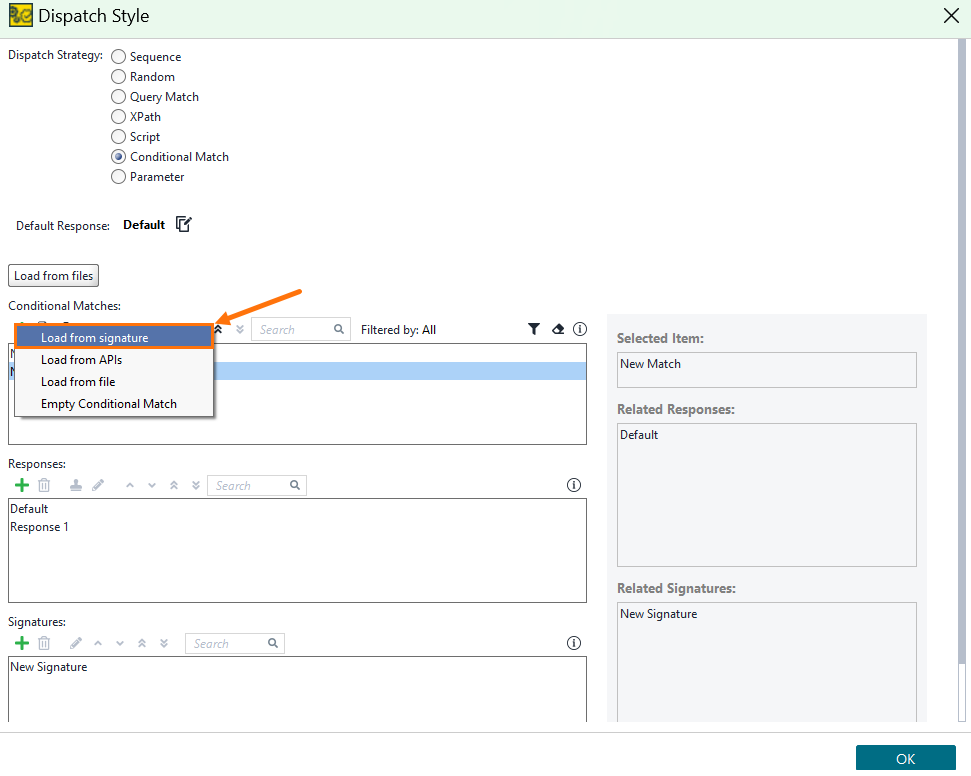
Select a Signature:
Choose a signature as the basis for your match. A new match will display with all fields from the selected signature. Define your match conditions by selecting the match and clicking the
 icon.
icon.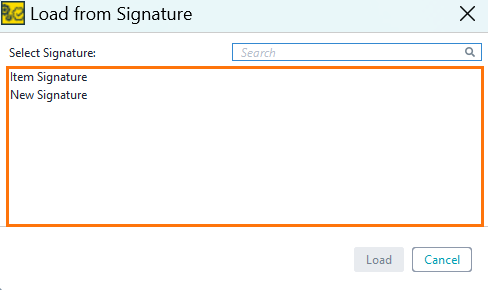
This option enables loading the request from traffic data.
Navigate to Virtual Service Configuration:
Go to Virtual Service > Dispatch Method > Conditional Match > Configure.
Record Traffic:
Click the icon next to Conditional Matches.
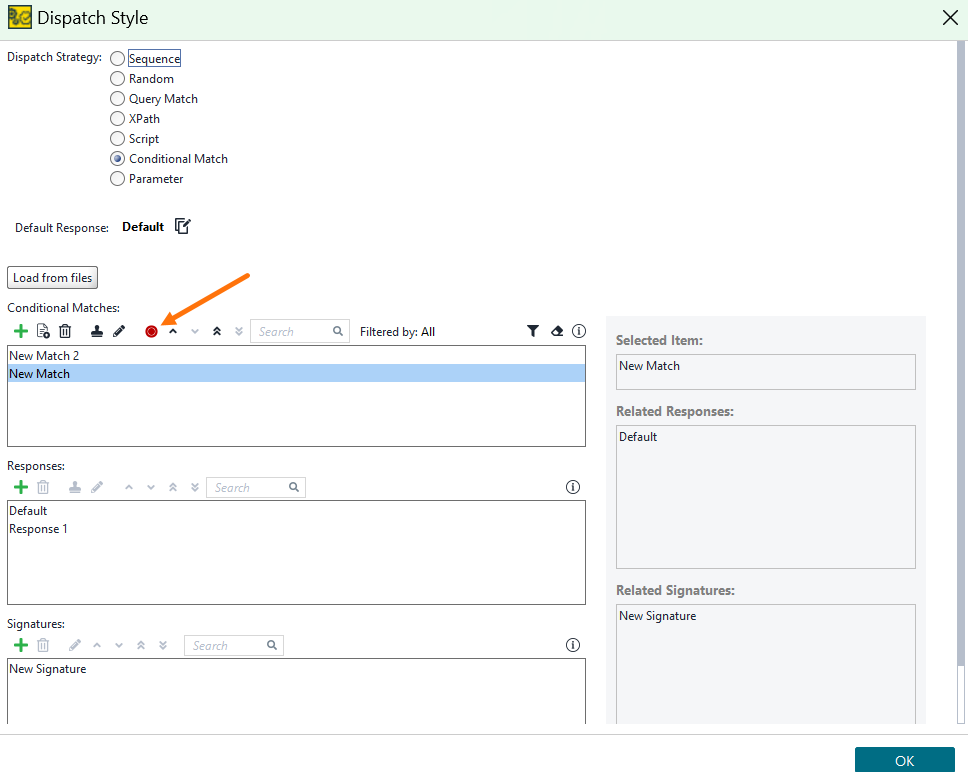
Select a Proxy as the recording method.
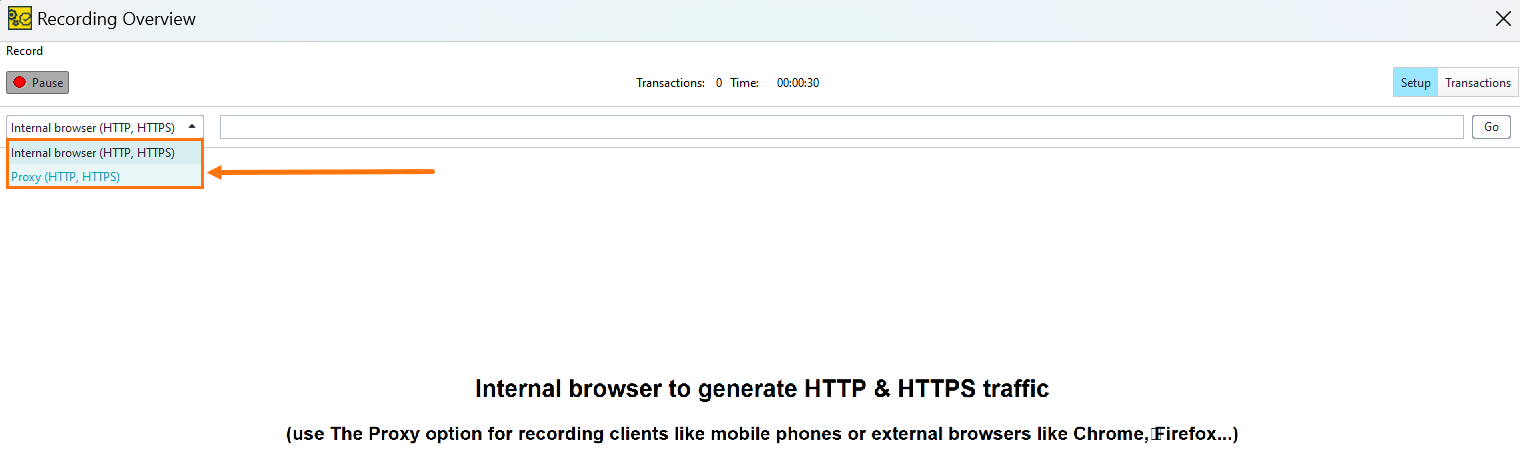
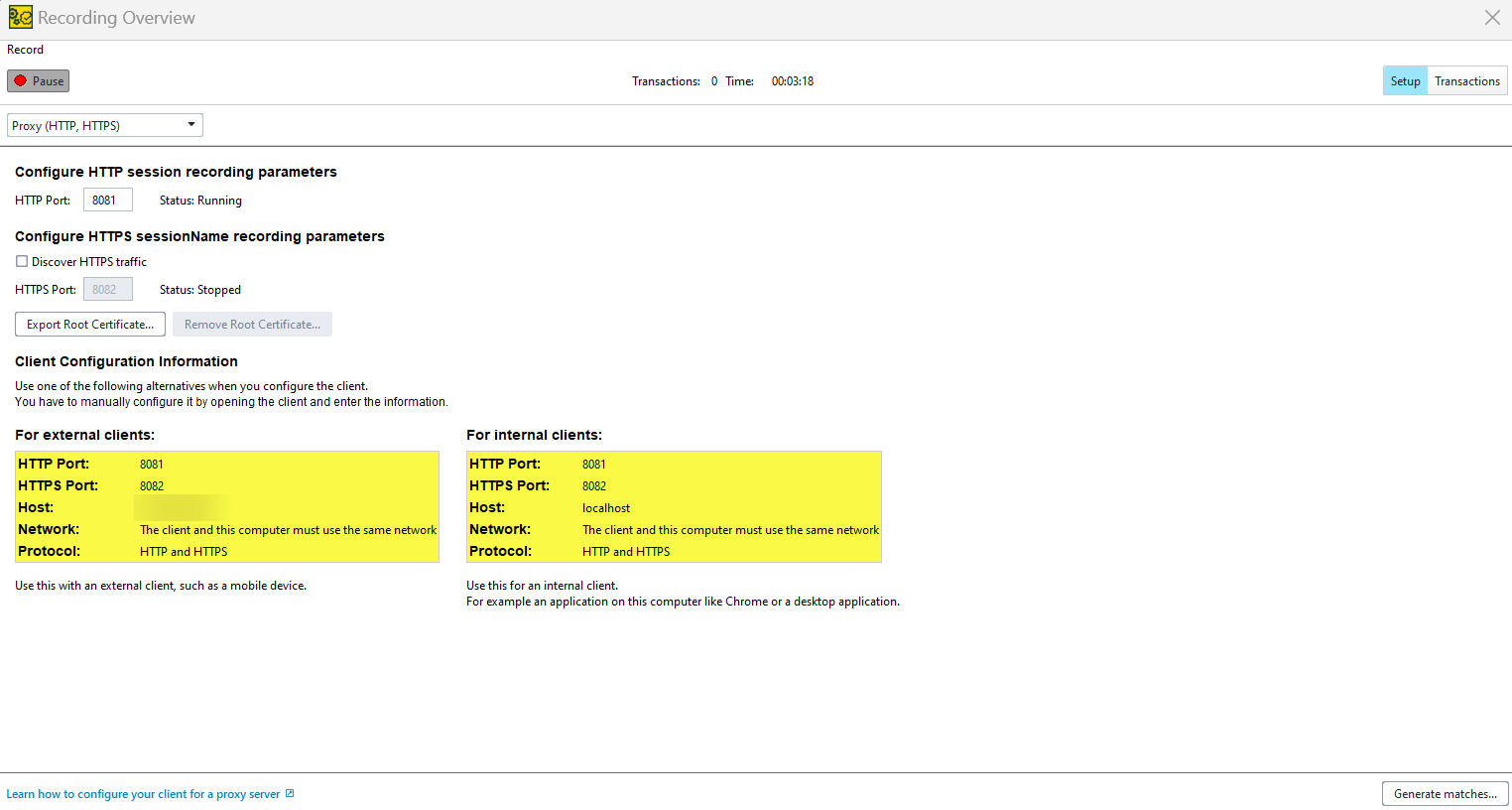
Set up the proxy in your client as per the on-screen instructions.
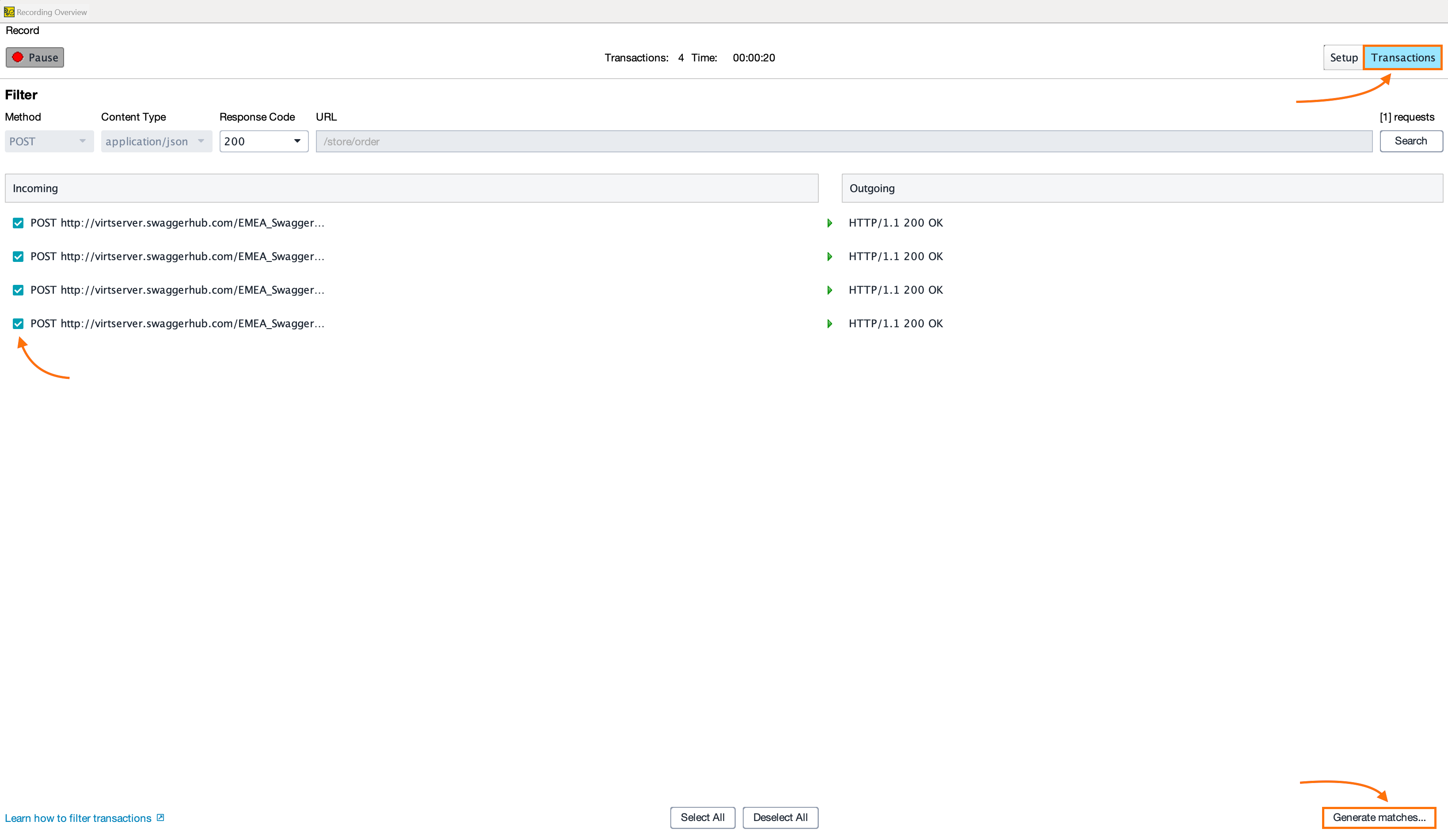
Begin sending requests. View requests and responses in the Transactions tab. Select those you wish to import and click Generate matches.
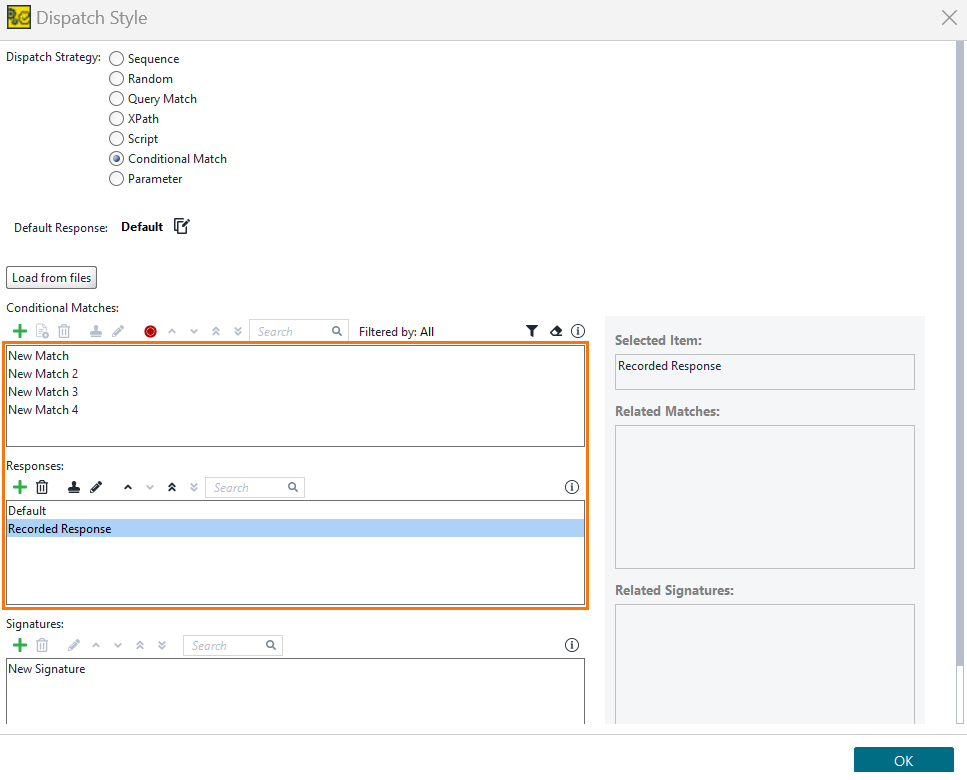
The imported request/response pairs will be visible in the Conditional Match configuration dialog.
Note
ReadyAPI will consolidate identical responses into a single instance.
Query and path parameters in recorded traffic
Conditional Match automatically captures query and path parameters from recorded traffic and saves them in the match configuration.
Query parameters
Single-value parameters appear in the Query tab with the Value Type set to
TEXT.ReadyAPI records array parameters as
ARRAY_TEXT.ReadyAPI recognizes repeated parameter names (
?foo=bar&foo=qux), empty bracket arrays (?foo[]=bar&foo[]=qux), and comma-separated values (?foo=bar,qux).
Path parameters
Dynamic path parameters are captured for each recorded request/response pair, replacing the static URL in the match.
ReadyAPI captures multiple path parameters in the same URL without data loss.
ReadyAPI preserves special characters and leading zeros exactly as recorded.
Use path variables to route requests based on URL path values. For example, if your endpoint is
/myApi/{version}/login, use the version variable in Conditional Match to define different responses for each API version.
Note
ReadyAPI stores each new path parameter in its own separate match request without overwriting existing entries.
3. Create a Response
Important
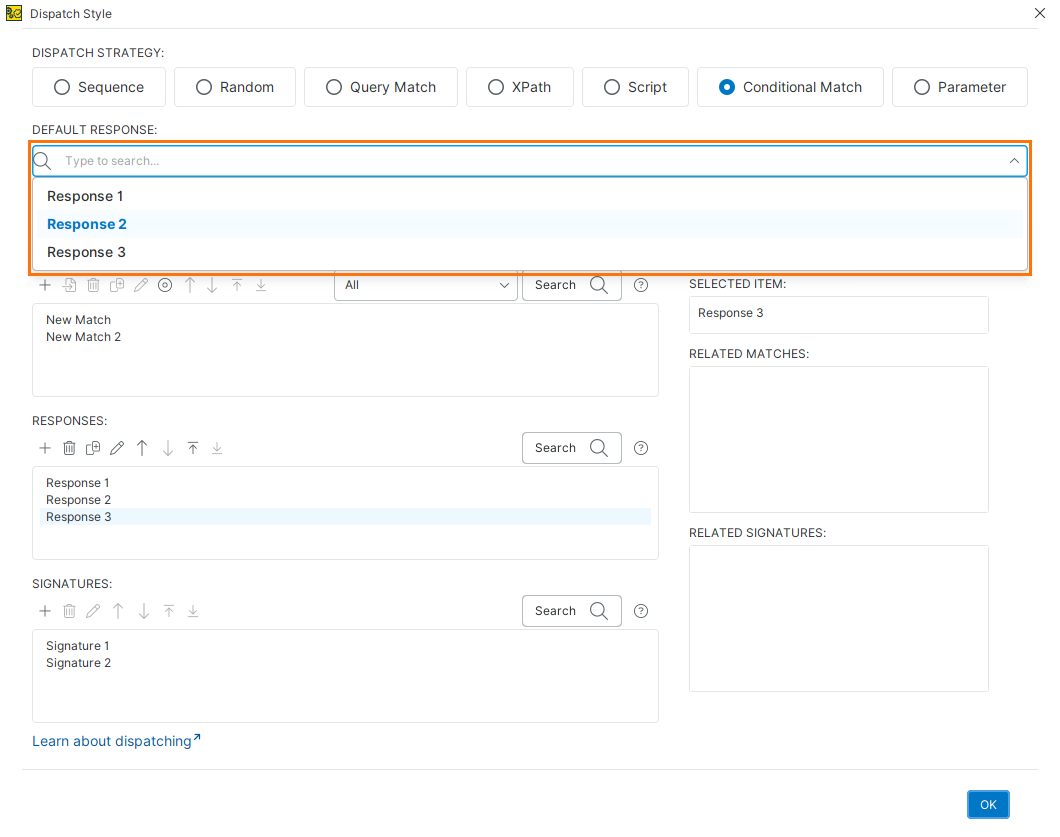
Select the default response from the Default Response dropdown in the Dispatch Style dialog. The default response is returned when no conditional match is found.
 |
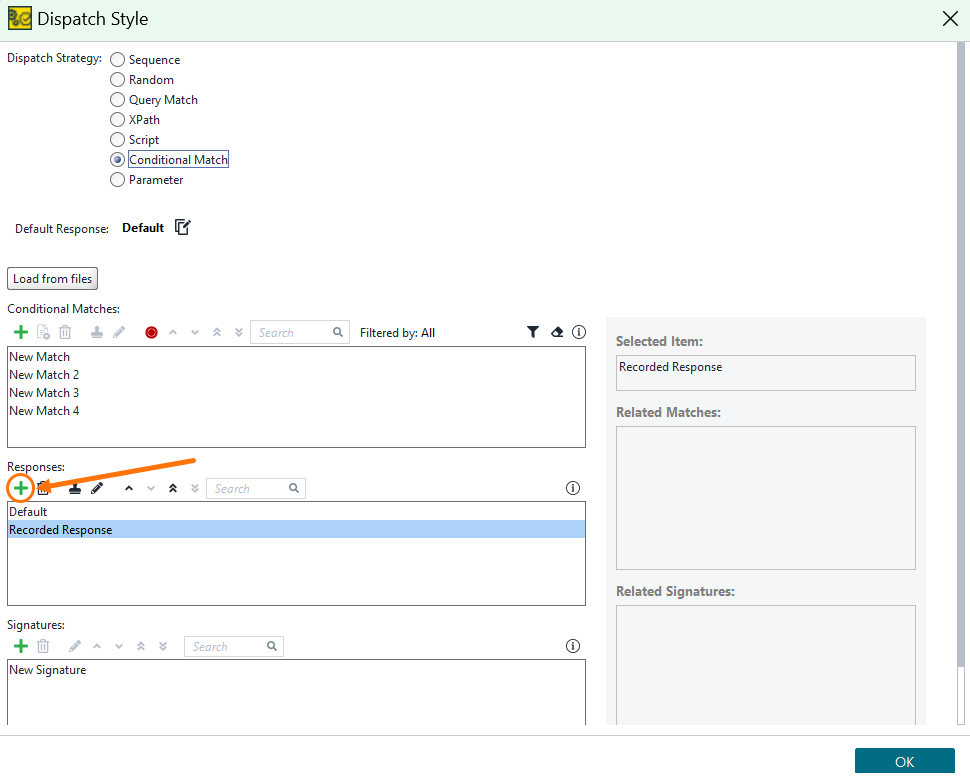
You can create a new response manually by clicking the icon next to the Conditional Matches section.
 |
Property Expansion
To include request values in a response, use property expansion in the response body using the following syntax:
${#MockRequest#$['requestParameterPath'];?:['defaultValue']}defaultValue: Serves as a fallback when the property expansion cannot access the specified request parameter (for example, when the parameter is missing from the incoming request).requestParameterPath: Specifies the path to a request parameter. Construct the path by placing each JSON level in square brackets. For example:{ "parameter1": "child1": "value1", "child2": "value2", "parameter2": "value3" }To retrieve the value of
child2, use${#MockRequest#$['parameter1']['child2'];?:['defaultValue']}.Example 6. Response Example{ "id" : ${#MockRequest#$['id'];?:9841}, //this will populate the 'id' fields value from received request. If request does not have id field, default value of 9841 will be used instead "petId" : 0, "quantity" : 0, "shipDate" : "MASKED", "status" : "placed", "complete" : false }
You can explicitly define the data type of a default value in a property expansion to control how Conditional Match evaluates the value at runtime.
Example: Adding a type to a property expansion
Before
"someIntRsp": "${#MockRequest#$['someIntReq'];?:21}"
After
"someIntRsp": "${#MockRequest#$['someIntReq'];?:<integer>21}"
Supported types
You can prefix the default value with one of the following types:
<boolean><integer><long><double><string><bigdecimal><biginteger>
Type casting behavior
When you enable Advanced type casting for property expansion in Preferences, Virtual Service, ReadyAPI attempts to cast the value extracted from the request to the type specified for the default value. In this example, ReadyAPI casts the value of someIntReq to an integer.
If casting fails, ReadyAPI uses the original value and writes a message to the logs indicating that the casting attempt failed.
ReadyAPI determines the default value type based on the value matched in the imported request and response pair.
For information about enabling Conditional Match property expansion and advanced type casting, see Enabling Conditional Match Property Expansion in Conditional Match Overview.