Inferring REST Schemas
REST schema inference creates a schema for a service when the service definition does not provide one or when it is outdated. This topic describes how to infer a schema for a web service.
Sample Request
To demonstrate how ReadyAPI uses schemas, this topic uses a demo response from the Flickr REST example service. Here is the sample URL:
https://www.flickr.com/services/rest/?method=flickr.test.echo&format=rest&foo=bar&api_key=YOUR_API_KEY
Important
The API key changes frequently. Go to the Flickr REST demo website to get an up-to-date API key. Open the demo response, copy the api_key node value, then replace the api_key parameter in the URL with the new value.
If the request succeeds, it returns the following response:
<rsp stat="ok">
    <method>flickr.test.echo</method>
    <format>rest</format>
    <foo>bar</foo>
    <api_key>YOUR_API_KEY</api_key>
</rsp>
1. Create the Project and Service
Create a project with the REST service:
From the main menu, select File and then New Functional Test.
In the New Functional Test dialog, click Endpoint.
The Endpoint Setup flow guides you through several steps.
The Endpoint Setup flow guides you through several steps. Confirm that
GETis selected in the Type dropdown.Enter the following API URL in the URL field:
https://www.flickr.com/services/rest/?method=flickr.test.echo&format=rest&foo=bar&api_key=YOUR_API_KEY
Important
The API key changes frequently. Go to the Flickr REST demo website to get an up-to-date API key. Open the demo response, copy the
api_keynode value, then replace theapi_keyparameter in the URL with the new value.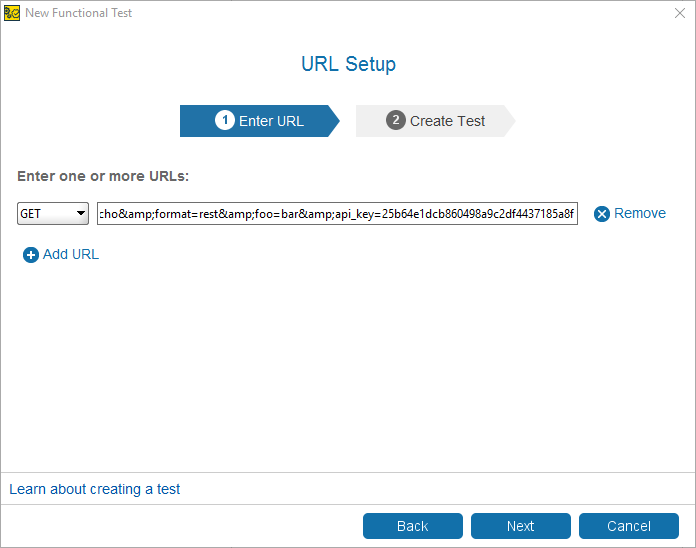
Click Next.
In the Specify Project step, select where to add the test:
Select <New project> to create a new project
Or select an existing project
Click Next.
Note
If no project is open in your workspace, ReadyAPI creates a new project automatically.
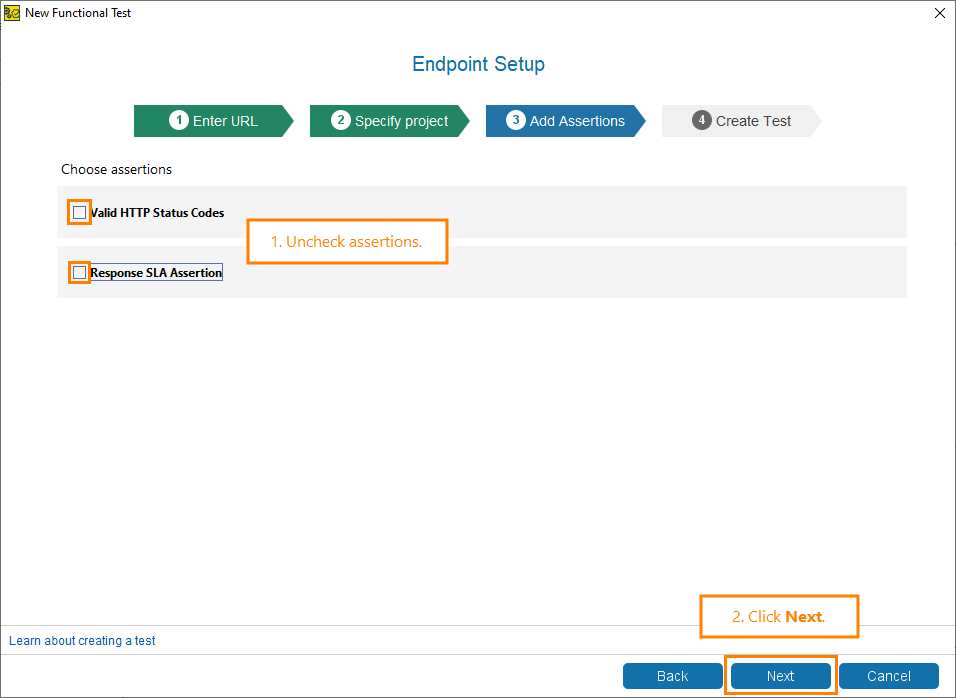
In the Add Assertions step, deselect all selected assertions, then click Next.
In the Confirmation dialog, choose one of the following:
Run Test Suite to run the generated test cases
Add a Data Source to add external data (for example, from a file)
For this tutorial, close the dialog.
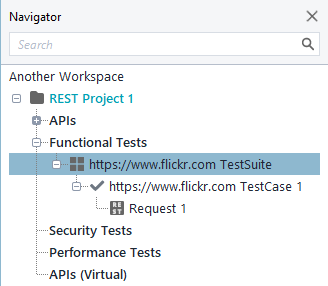
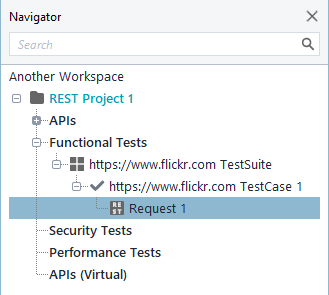
Your test project and test cases are ready. Find them in the Navigator panel.
2. Get Response
The request is now available to evaluate.
In the Navigator, click Request 1 to open it in the request editor.
In the request editor, verify that the METHOD is set to
GETand the ENDPOINT is set tohttps://www.flickr.comwith the RESOURCE/services/rest/. In the Request panel, confirm the following query parameters are populated: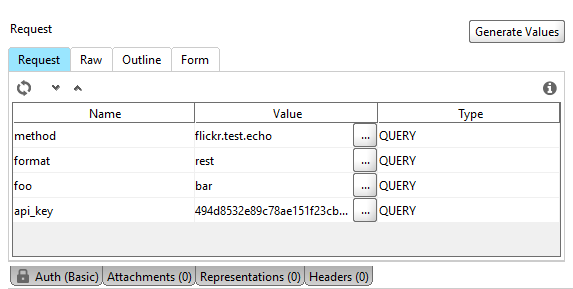
The request contains all parameters defined in the URL. The Response section is empty because you have not sent the request yet.
Click Send to retrieve the response from the server.
The Response panel displays the parsed XML outline of the Flickr API response. The
rsproot node contains the echoed request parameters, confirming the request succeeded (@stat: ok).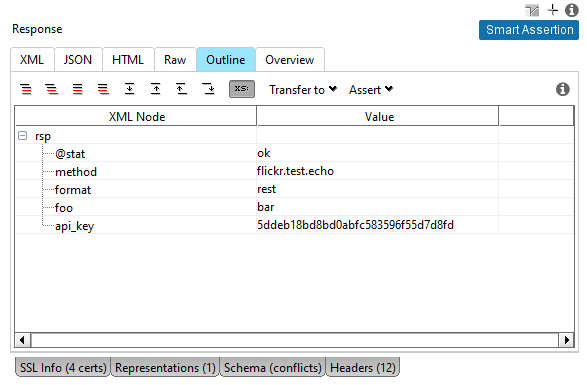
3. Create a Schema
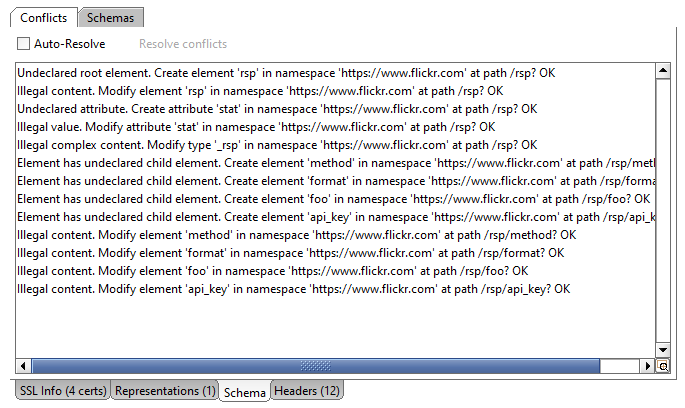
The Schema (conflicts) tab lists any conflicts between the response and the defined schema. Select Auto-Resolve to let ReadyAPI resolve conflicts automatically, or click Resolve conflicts to address them manually.
 |
To create a schema manually, ReadyAPI infers it from the response.
Confirm that the Auto-Resolve in the Schema (conflicts) panel is deselected.
Click Resolve Conflicts to resolve conflicts manually.
ReadyAPI detects each undeclared element in the response schema and prompts you to create it. Click Yes to create the
rspelement in the Flickr namespace. Click Yes to all to resolve all similar conflicts at once, or No to skip.Note
No previous schema exists, so you can resolve all conflicts at once. Click Yes to all.

ReadyAPI resolves all conflicts and adds them to the Schema panel.
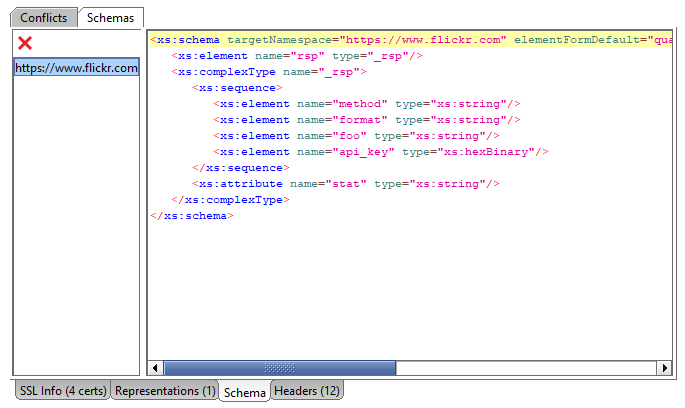
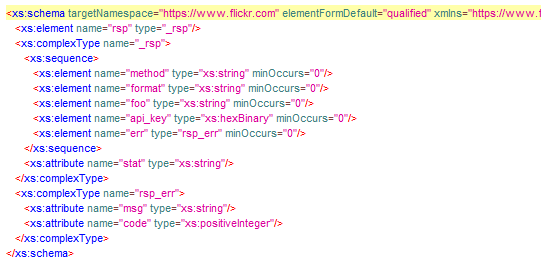
Select the Schemas tab to view the XML schema generated by ReadyAPI from the resolved conflicts.
Tip
You can improve this schema by sending more requests with different parameters. For example, send an invalid request to infer the schema for a fault, or send a request that returns an empty result set.
4. Add More Requests to Schema
To add more definitions to the schema, send a different request. Since we can assume the responses will be valid, you can use the Auto-Resolve option.
Open the Conflicts tab and select the Auto-Resolve option.
To get a different response, remove the
api_keyparameter value from the request.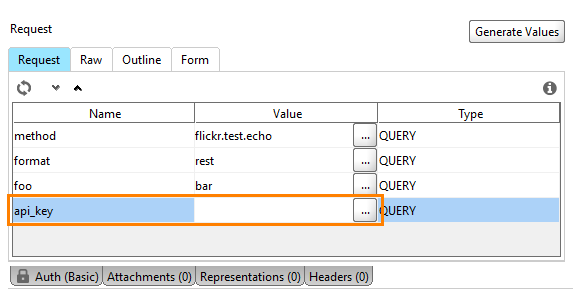
Click Send to receive the response from the server.
The Response panel displays the parsed XML outline of the Flickr API response.
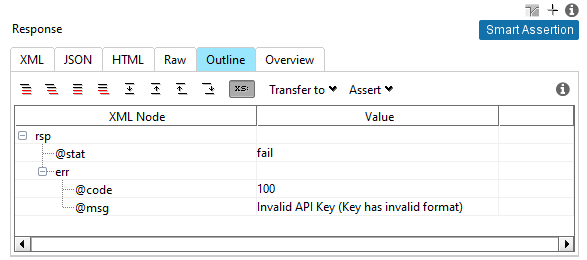
With Auto-Resolve enabled, ReadyAPI automatically resolves new schema conflicts triggered by the invalid request, without prompting you each time.
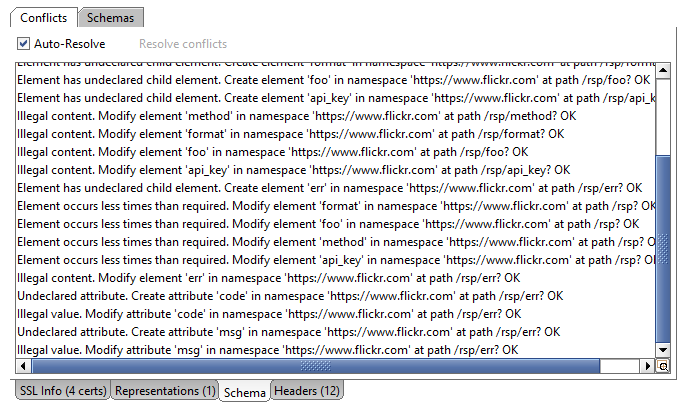
Select the Schemas tab to view the updated XML schema. The
rsp_errcomplex type is now included in the schema definition, capturing the error structure returned by an invalid request.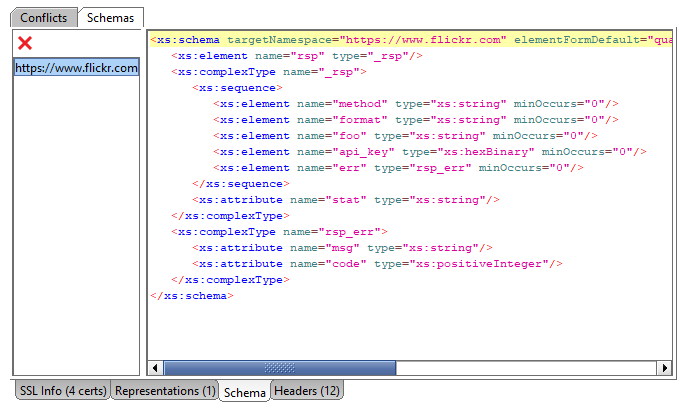
Tip
Further modify the request to elicit different responses and build a more complete schema.
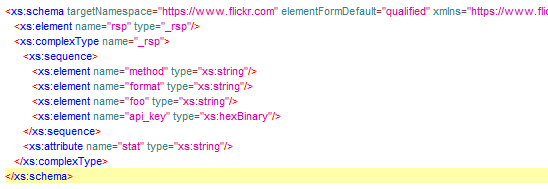
The following table compares the XML schema before and after sending the invalid request:
Before | After | ||
|---|---|---|---|
Initial XML schema generated from the valid request, defining the
| Updated XML schema extended with optional elements (
|
5. Use the Schema
Inferred schemas verify that the service response contains no unexpected elements. Use the Schema Compliance assertion to do this:
Expand the Assertions panel and click .
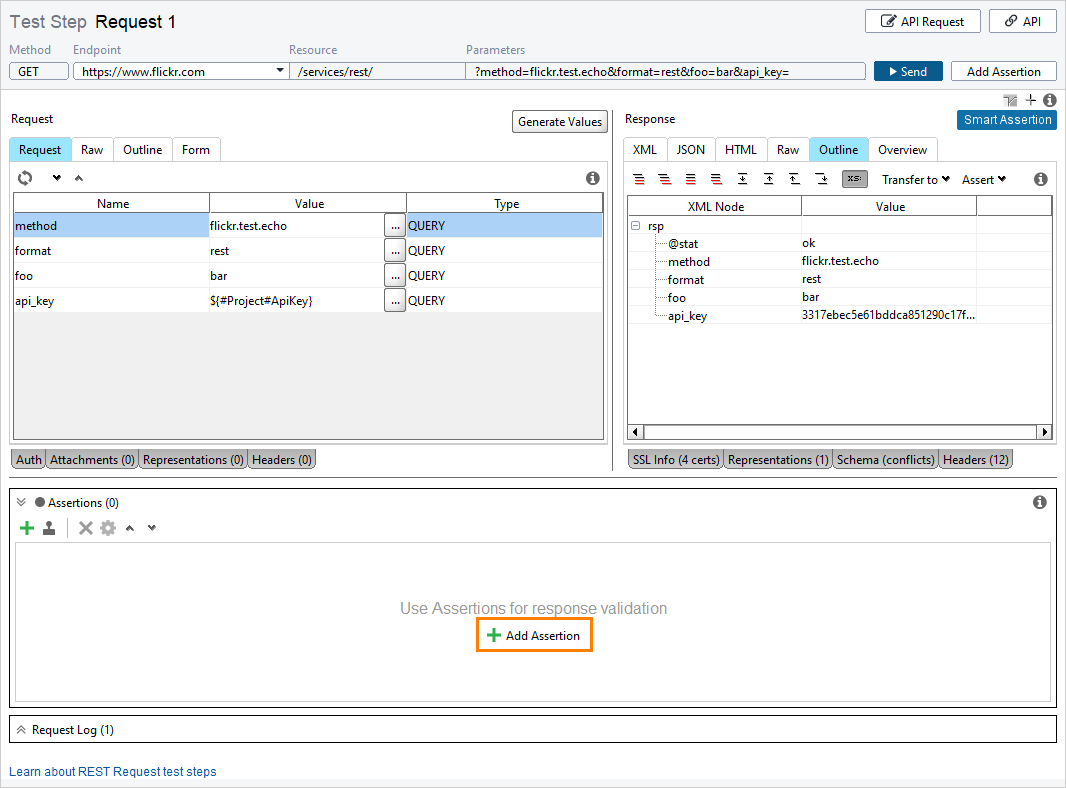
In the Add Assertion dialog, click Compliance, Status and Standards , then click Schema Compliance. Click Add Assertion.
ReadyAPI adds the assertion and automatically verifies the incoming responses.
Tip
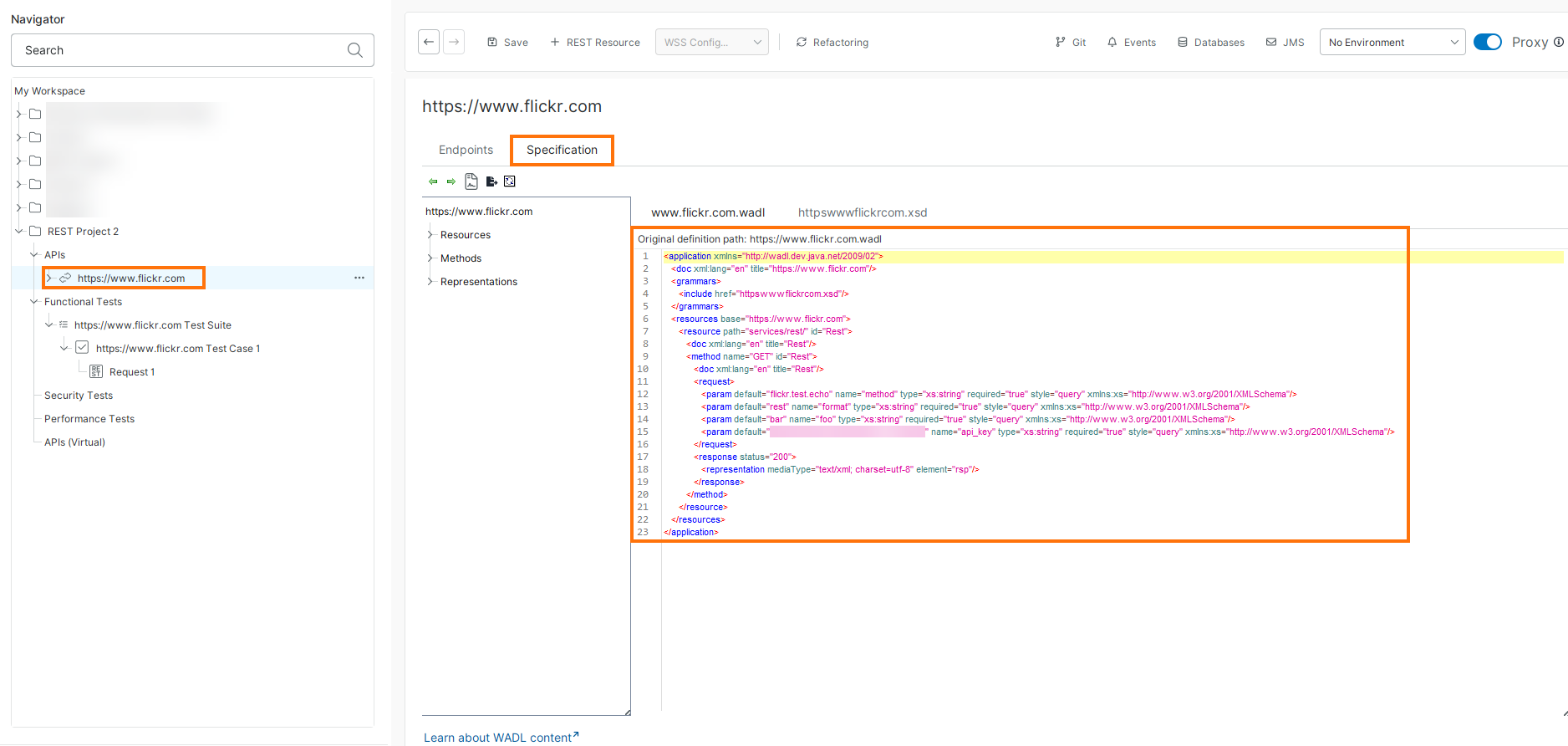
The schema also appears on the Specification tab of the API editor. In the Navigator, select your API under APIs to open it. If the schema does not appear, click the Recreate WADL icon in the toolbar to refresh the definition.