Attachments Panel
You can use the response Attachments panel to access attachments of the current response message. The panel lists all the attachments available in the response with their name, content-type, size and other parameters. Double-click an attachment to open it in a browser.
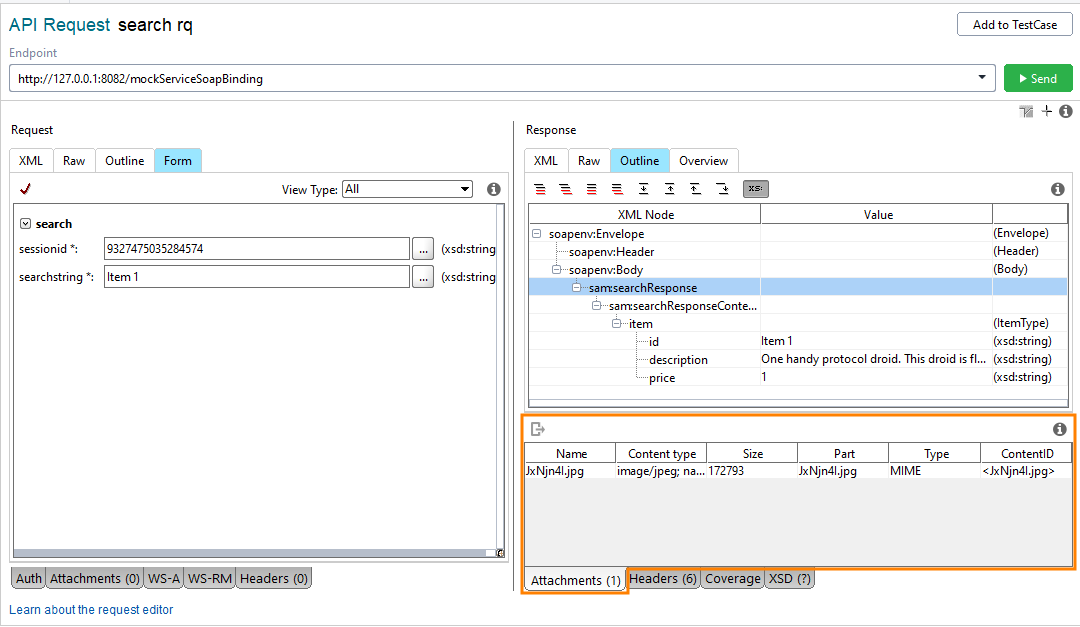 |
The panel lists the attachments in a tabular form:
Column | Description |
|---|---|
Name | The filename of the attachment, relative to the resource root. |
Content-Type | The MIME content type of the attachment. ReadyAPI may display legacy MIME types such as |
Size | The size of the attached file in bytes. |
Part | The part of the response this attachment is associated with. |
Type | The response attachment type. |
ContentID | The attachment |
Cached | Indicates whether the attachment is cached in the project file. |
Edit the Content-Type of an attachment
You can edit the Content-Type value directly in the Attachments panel. Double-click the Content-Type cell and enter the MIME type you want to use.
Some services require modern MIME types such as application/json or application/xml. ReadyAPI may display legacy values like text/javascript or text/xml depending on how the service defines the attachment. Update the value manually if your service expects a different MIME type.
Name | Content-Type |
|---|---|
|
|
|
|
Name | Content-Type |
|---|---|
|
|
|
|
Exporting Response Attachments
To export an attached file, select the attachment you need and click  on the toolbar. Then specify the location where the file should be saved.