Swagger Studio
Use the Swagger Studio page to manage Swagger Studio accounts.
To open the account manager:
Click
 on the ReadyAPI toolbar.
Select the Swagger Studio tab in the left part of the ReadyAPI Preferences window and configure the needed options.
Add account
If you haven't set up a Swagger Studio account in ReadyAPI yet, the account manager will have the Log in to Swagger Studio button. Click the button and set up your connection:
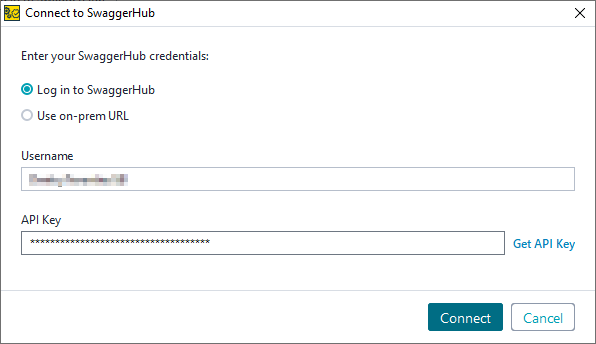
If you use Swagger Studio On-Premise, select Use on-prem URL and enter the URL of your Swagger Studio instance.
In the Username field, enter your Swagger Studio username.
Note
The Swagger Studio integration does not support logging in with a GitHub account.
In the API Key field, enter your API key.
Tip
If you click Get API Key, you will be taken to the Swagger Studio API Keys page in your web browser. You can copy your API key from there.
Note
You can only add one Swagger Studio account to ReadyAPI.
Edit account
If you already have a Swagger Studio account added to ReadyAPI, but you want to edit it, select Edit Account:
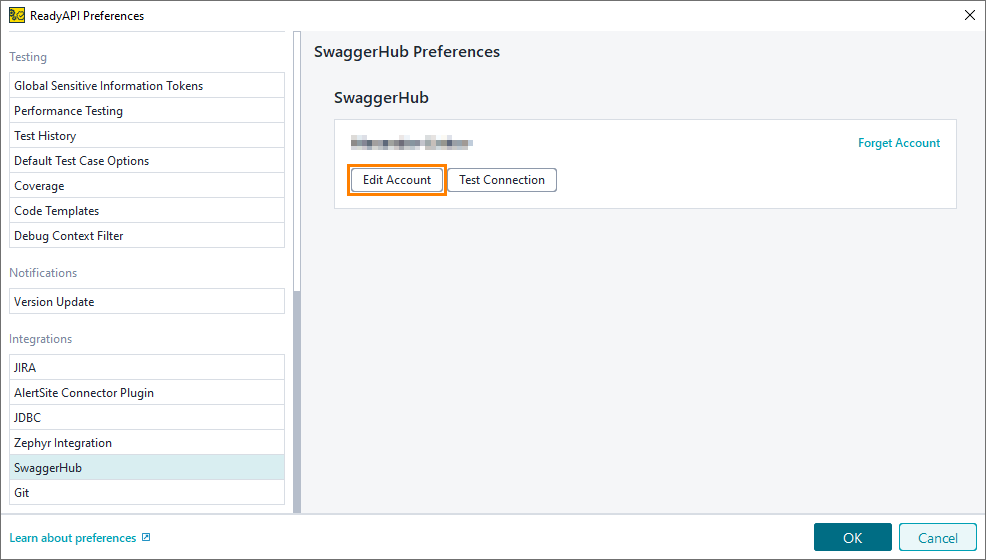 |
To test if your account can connect to the server, select Test Connection.