3. Modify Functional Test
Add a request test step to a test case and update its parameters.
Add request test step
In the Navigator, hover over the test case, click the ellipsis , and select Add REST request.
Tip
Use the search field to quickly find the REST request option.
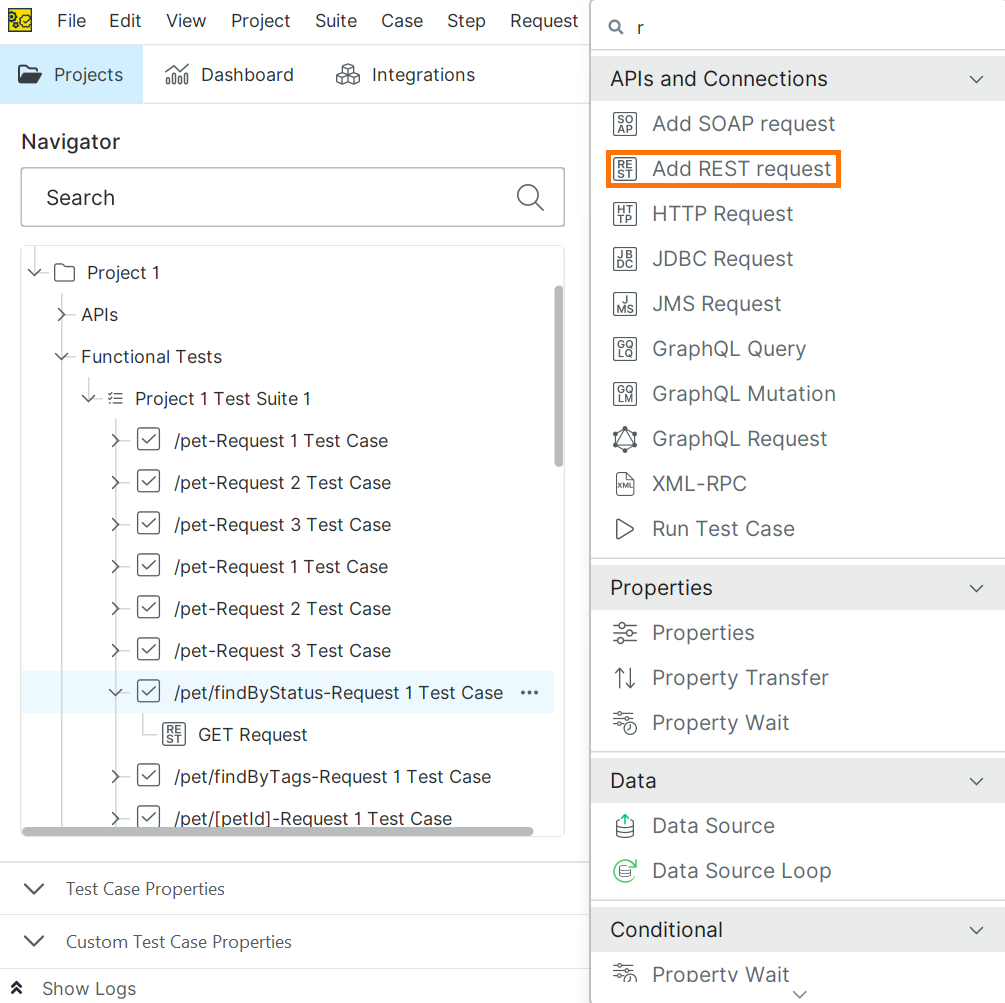
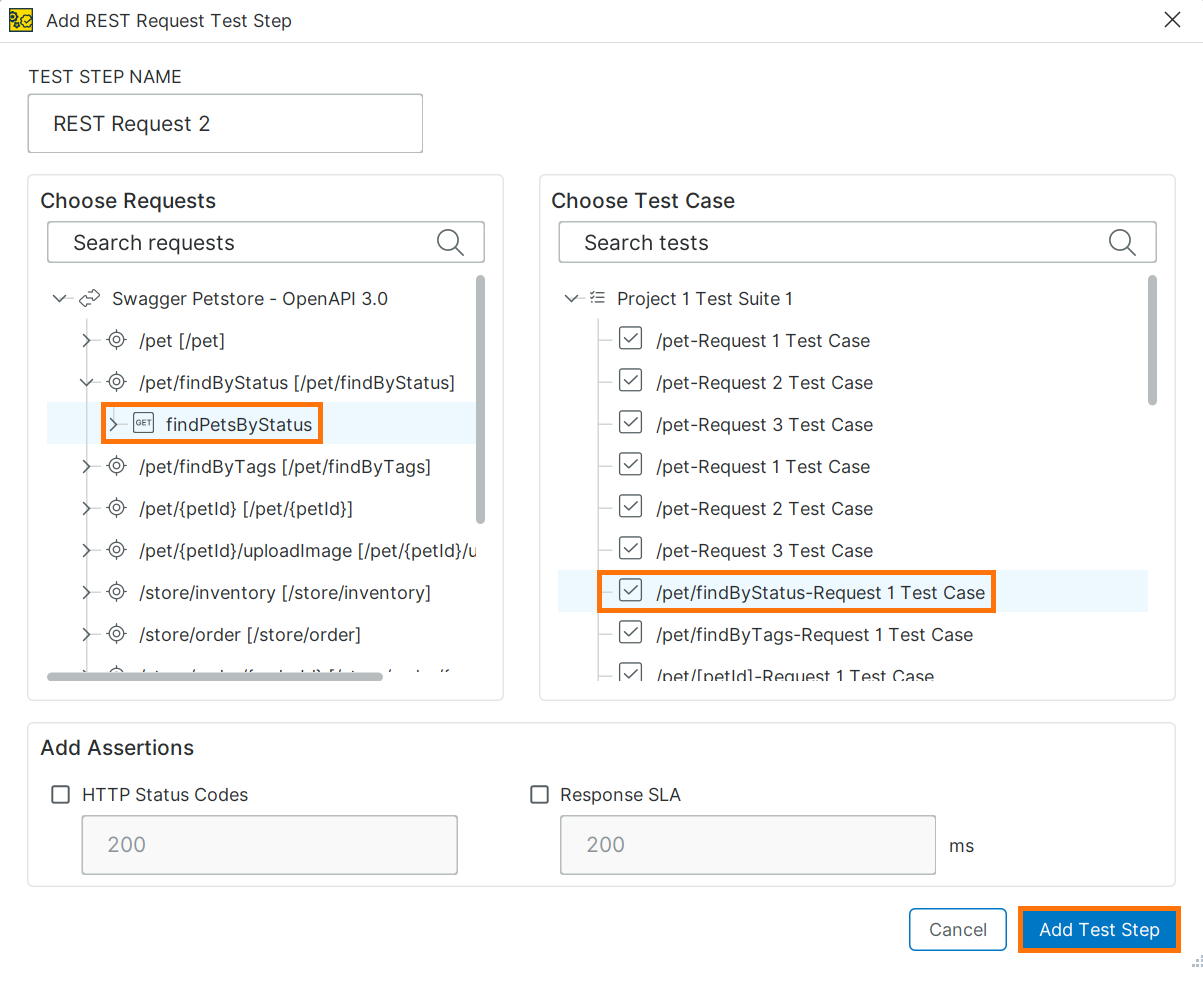
In the Add REST Request Test Step dialog:
Enter a name.
Select a request.
Clear unnecessary assertions.
Click Add Test Step.
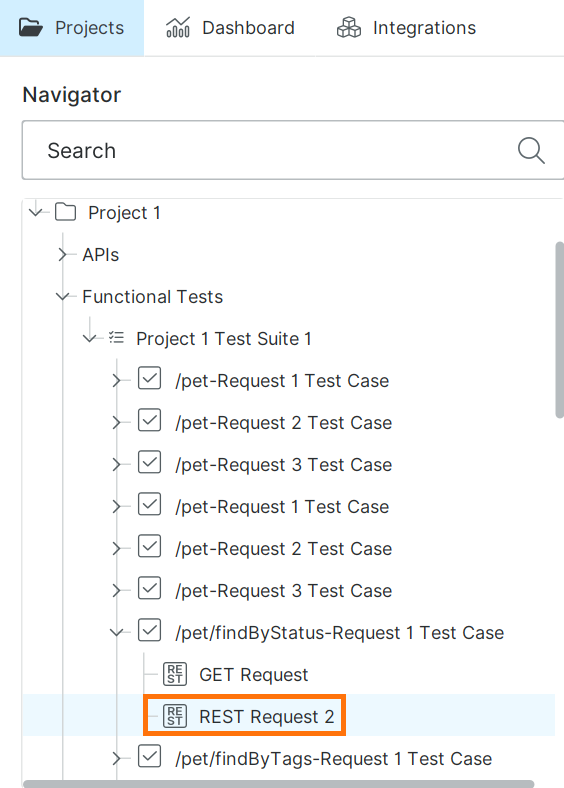
The new request appears under the selected test case in the Navigator.
Modify request parameters
You now have two requests for the same operation. Update their parameters to return different results.
In the Navigator, select the GET Request test step.
In the request editor, in the Value cell for the
statusparameter, enteravailable. Press Enter to apply the change.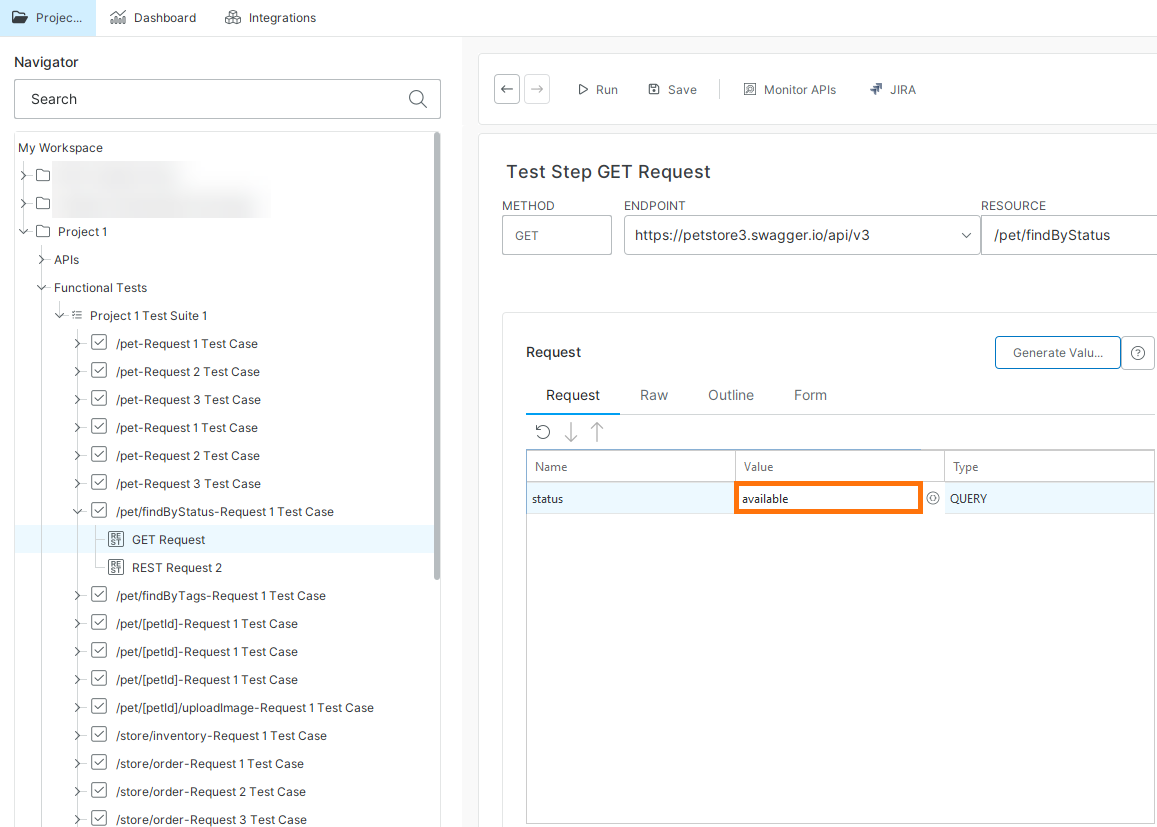
Select the second request in the test case. Then, in the Value cell for the
statusparameter, entersold. Press Enter to apply the change.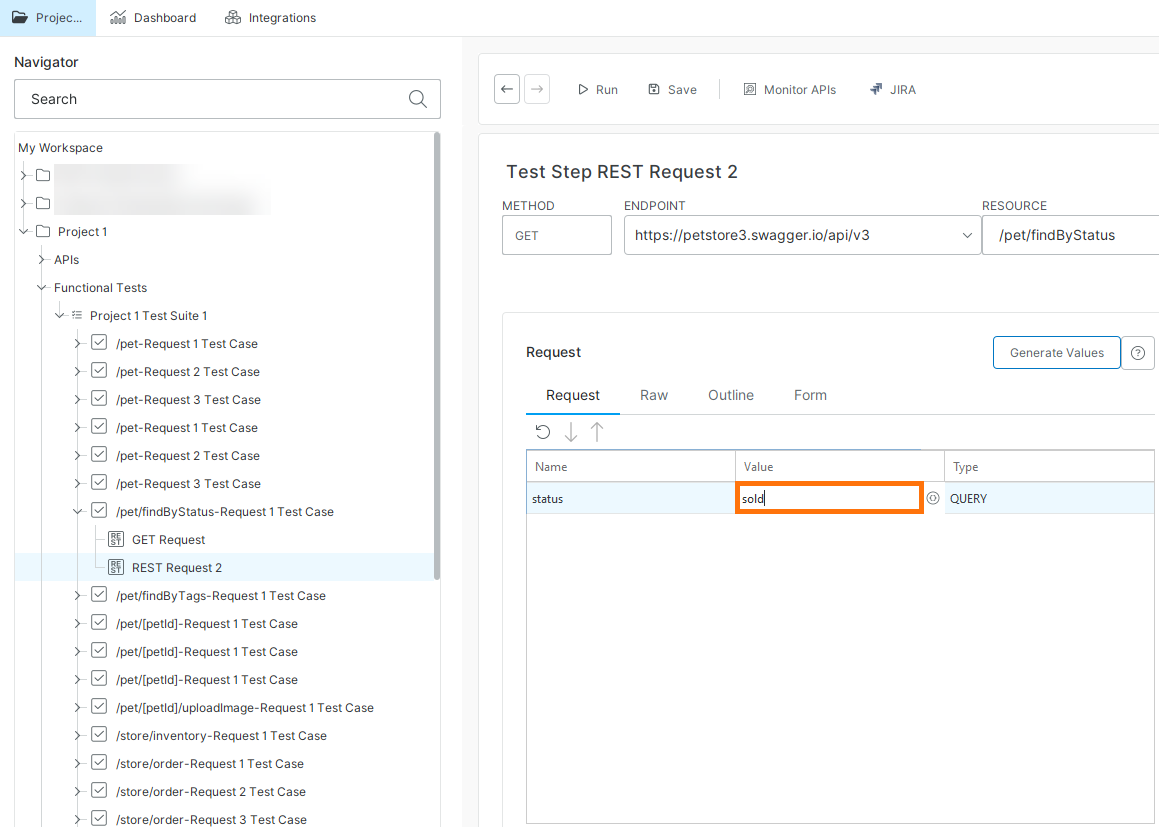
Next step
Run the test case to verify that each request returns different results.