Compare Tab
The Compare feature lets you use your execution history and transaction logs to compare the outcomes of different runs.
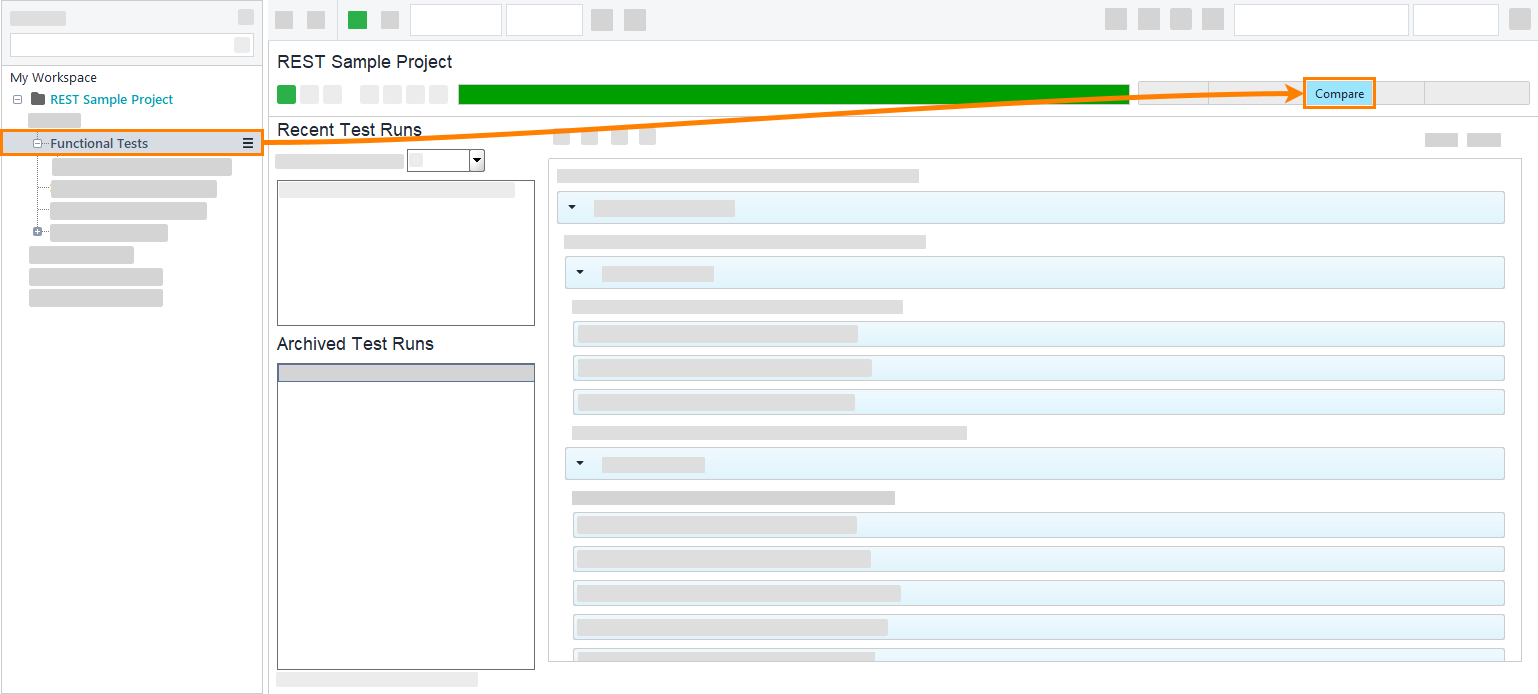
The Compare tab is available at the following levels:
Project
Test suite
Test case
 |
Test Run Panel
The Test Run panel on the left side of the Compare tab includes two lists: Recent Test Runs and Archived Test Runs.
Recent Test Runs
The Recent Test Runs list shows recent runs in order by date, with the latest at the top.
Select a run on the list to display it on the log panel. You can also select a number of tests to save in the Number of runs to save drop-down list.
When the number of runs reaches the limit, new runs will replace older ones, starting with the oldest. To keep runs for a longer time, use the Archived test Runs list.
Archived Test Runs
The Archived Test Runs list shows the runs you have manually selected for storage.
To archive the test run, right-click its name and select Archive Run in the context menu. You can also set the run as a baseline: it will then appear on the Archived Test Runs list and become the baseline test.
The archived runs are listed by date, with the latest at the top.
Select a run on the list to display it on the log panel.
Log Panel
The Log panel on the right side of the Compare tab shows a transaction log of events, transactions, and results for the run you have selected.
The Log panel has several functional buttons:
Click
 to open the Log Options dialog.
Note
The log settings are identical to those on the Transaction Log page.
Click
 to clear the log.
Click
 to export the log.
Click
 or
 to expand or collapse the log records.
You can switch between log panel modes using the Show drop-down list.
Diff Mode
To switch to the Diff mode, select Diff in the Show drop-down list.
In the Diff mode, the log area shows the differences between the baseline and the run you have selected.
During runs, you can click nodes to expand them. Double-click a node item to view its details.
Log Mode
To switch to the Log mode, select Log in the Show drop-down list.
In the Log mode, the log shows both transactions and the baseline comparison at the end. You can use it if you want to know the run’s details and the individual test results.
During the runs, you can double-click nodes to expand them. Double-click a node item to view its details.
Set a Baseline
The baseline is a run that ReadyAPI uses as a template for comparing subsequent runs.
A project can have only one baseline per level at a time.
To set a run as a baseline, right-click the run on the Recent Test Runs or Archived Test Runs list and select Set as baseline. The run will appear in Archived Test Runs if it is not already there. Its name will be highlighted, with (baseline) at the end.
You can also set a run as a baseline from the log panel. To do that, click Set this run as baseline.