Getting Started
UI Update Notice
ReadyAPI 4.0.0 introduced a refreshed user interface.
During the documentation update process, some screenshots and videos may display the previous UI. Functionality and workflows remain unchanged.
Welcome to ReadyAPI - a unified platform for functional, security, performance, and virtualization testing of APIs.
This guide helps you start using the product and get value quickly. It walks you through core workflows step by step, then helps you expand your skill set into advanced capabilities. Whether you evaluate ReadyAPI on a trial or set it up for your team, follow the path below.
ReadyAPI starts with the Project Starter tab, so you always know where to begin and what to do next.
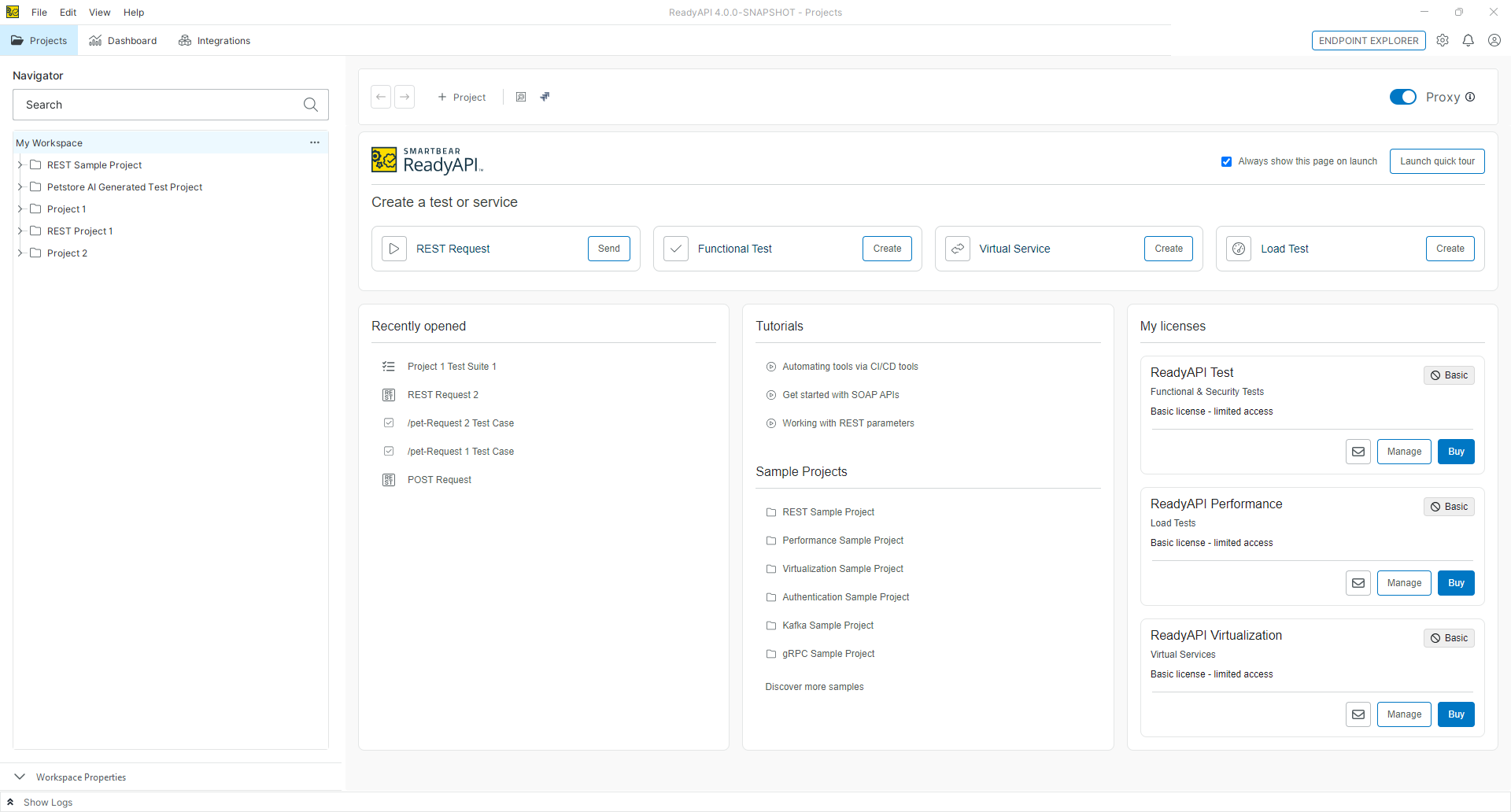 |
Where to begin: Project Starter tab overview
When you open ReadyAPI:
Activate your license
Open the Project Starter tab
Access quick actions and guides for your first tests
Explore sample projects
From the Home tab, you can:
Create a Functional Test
Create a Security Test
Create a Load Test
Create a Virtual Service
Open Sample Projects
1. Quick start: your first functional test
Start here. Building a functional test is the fastest way to validate your API and see value.
In this guide, you can learn how to:
Import your API definition (see Creating Functional Tests)
Add API to a ReadyAPI project (see Working with Projects)
Create test suites and test cases (see Managing Tests)
Add assertions (see Working With Assertions in Functional Tests)
Run tests and verify results (see Running Tests)
2. Next: explore additional test types
After you complete your first functional test, continue with:
Security Testing
Security Test Quick Start Guide: Scan for vulnerabilities and secure your APIs.
Load Testing
Load Test Quick Start Guide: Simulate heavy user traffic and analyze performance.
Virtual Services
Virtual Service Quick Start Guide: Build simulations for systems that are not yet available.
3. Explore Sample Projects
Sample projects help you learn by example:
Sample Projects Overview: Open and run real test suites to see how they work.
4. Your Workspace and Projects
After you create your first tests, navigate to:
Projects tab → My Workspace
Use this area to do the following:
Organize test suites
Configure environments
Manage test data
View results
To learn more, see Working with Projects.
Tip
To open My Workspace at startup, go to Preferences, select UI, then enable Always show My Workspace on launch.
5. Automate and integrate
ReadyAPI supports automation and CI/CD workflows:
Command-Line Execution
TestRunner CLI
CI/CD Integrations
Jenkins, Azure DevOps, GitHub Actions, and more
Source Control
Git integration
6. Continue learning
Deepen your skills and unlock more ReadyAPI capabilities:
7. Support and troubleshooting
If you need help, SmartBear provides several ways to get assistance with ReadyAPI:
Report bugs or provide feedback
In the product: Help → Report an Issue
Revert to version 3.67.0 if you encounter a blocking issue.
Find installer links at our ReadyAPI Downloads Center. Backward compatibility remains supported.