Installation Guide
UI Update Notice
ReadyAPI 4.0.0 introduced a refreshed user interface.
During the documentation update process, some screenshots and videos may display the previous UI. Functionality and workflows remain unchanged.
This topic explains how to install ReadyAPI. Binary installers are available for Windows, Linux, and macOS.
To install VirtServer, see VirtServer Installation.
To install ReadyAPI from the command line or in silent mode, see Installing ReadyAPI from the Command Line.
Before installation
Ensure your system meets the system requirements.
Make sure you have a valid ReadyAPI license (trial license, or a commercial Pro license for one or all ReadyAPI modules (ReadyAPI Test, ReadyAPI Performance, ReadyAPI Virtualization). A Pro license for one of the modules enables the basic functionality of the other ones.)
Note
When you start ReadyAPI for the first time, the product prompts you to activate your license.
Ubuntu only: Run the following command before or during installation:
sudo apt-get install fontconfig
For existing ReadyAPI users:
If you already have an active ReadyAPI license, you do not need to activate it again.
VirtServer requires a separate license.
Installation steps
Download the installer from the ReadyAPI Downloads Center.
Important
On Linux, ensure the installer has the appropriate permissions. Run:
chmod +x ./ReadyAPI-x64-4.2.0.shRun the installer. The Setup Wizard opens.
If ReadyAPI is not installed, the Welcome dialog opens. Click Next.
If ReadyAPI is already installed, choose whether to update the existing installation or install in a different directory, then click Next.
Tip
Point to the information icon to view the current installation location.
Important
If you downloaded the installer using ReadyAPI Updater and chose to run it later, click Next in the wizard.
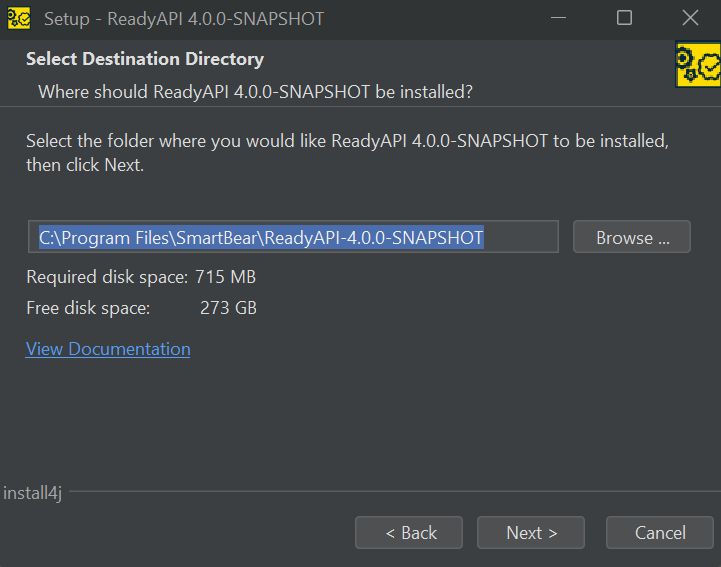
If prompted, specify the installation folder.
When installation completes, select Run ReadyAPI to start the application. Optionally, select Create a desktop icon.
Click Finish.
Install using ReadyAPI Updater (optional)
Open ReadyAPI.
From the main menu, click Help, and then select Check for Updates.
Click Download in the New Version Check dialog.
Specify the download location and click Next.
Select whether to run the installer now or later, and click Finish.
Note
If you run the installer later, the steps in the installation wizard may differ.