Deactivate Fixed License Online
Important Notice for ReadyAPI Customers
Starting from ReadyAPI 3.62.0, VirtServer 3.29.0, and TestEngine 1.34.0, SmartBear has deprecated file-based licenses in favor of the ID-based SmartBear License Management (SLM) system. As of October 1, 2025, file-based licenses are no longer issued, activated/deactivated, or supported; all new and updated licenses are managed through SLM. For further information and timelines, refer to the File-Based License End-of-Life Policy page.
During online deactivation, ReadyAPI License Manager exchanges information with the SmartBear website to deactivate your license and export it to a file.
Requirements
To deactivate a fixed license online, you need a functioning Internet connection.
The firewalls and proxies in your network should allow access to the
https://activation.smartbear.comwebsite through port443.You need to have access to ReadyAPI on the computer on which the license was activated. If it is inaccessible (for example, the computer is broken) and you want to deactivate the license, contact our Support Team. We will be glad to help you.
Deactivation steps
Select Help > License Manager in the ReadyAPI main menu.
In the License Manager dialog, select the desired tool, or select any tool if you want to uninstall a bundle license. Click Uninstall License.
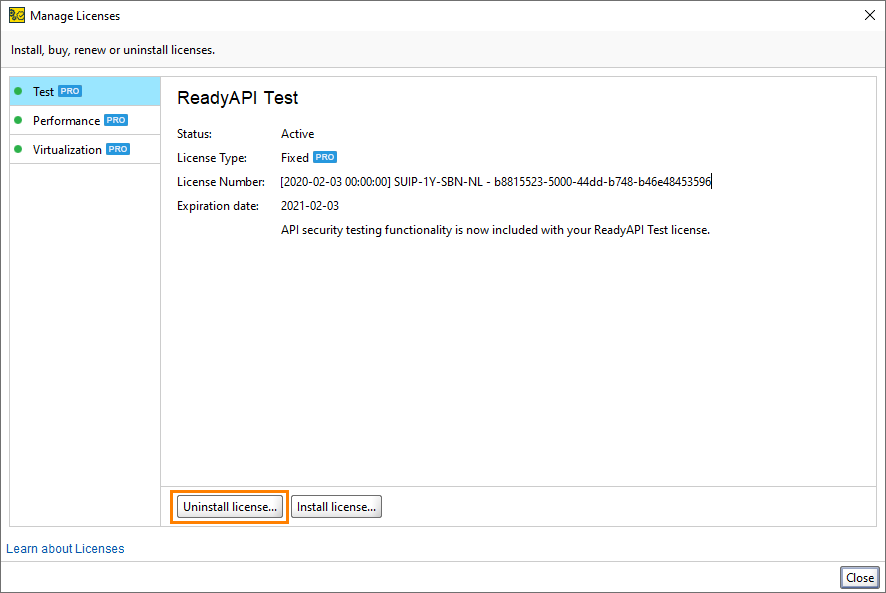
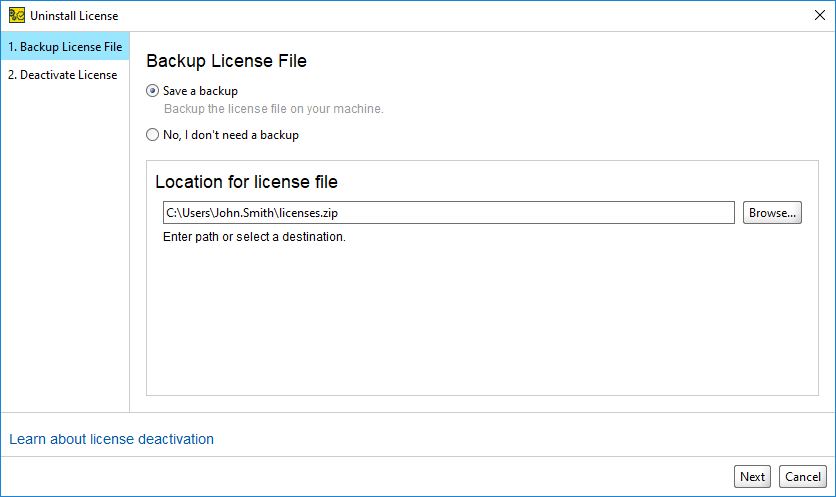
The invoked Uninstall License wizard allows you to create a backup file of your license. In other words, Export it to a file. Select Save a Backup and specify the path to where you want to store the file. Click Next.
Important
If you do not want to export your license, you can select No, I don't need a backup. In this case, the License Manager deactivates your license without a backup. This action cannot be undone.
On the next page of the wizard, select
Online if you do not use a proxy to connect to the Web.
– or –
Online with Proxy if you connect to the Web via a proxy. In this case, you need to specify the proxy settings.
Note
If you do not know what option to choose, or if you do not know the proxy settings, ask your system administrator for assistance.
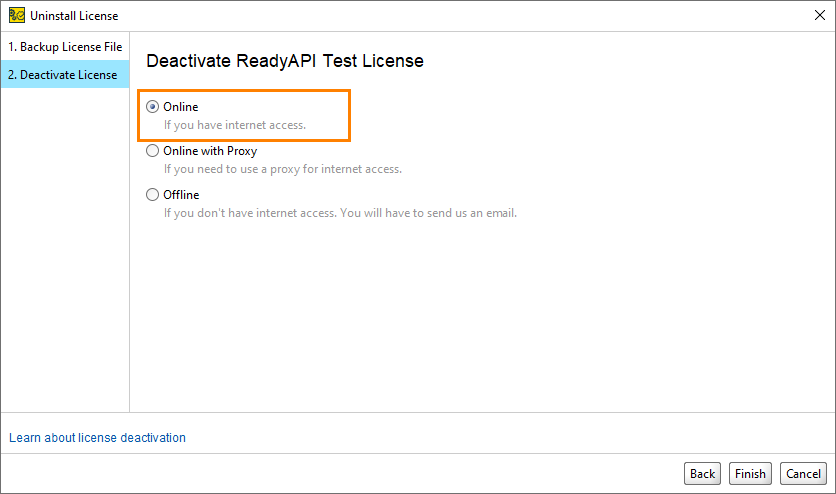
Click Finish to send data to SmartBear.
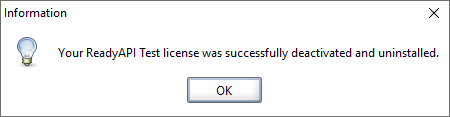
ReadyAPI will inform you about successful deactivation:
In case of an error
In case of an error, you will see a message explaining the problem.
If you are unable to solve the problem, contact our Support Team. We will be glad to help you.