License Manager Dialog
Important Notice for ReadyAPI Customers
Starting from ReadyAPI 3.62.0, VirtServer 3.29.0, and TestEngine 1.34.0, SmartBear has deprecated file-based licenses in favor of the ID-based SmartBear License Management (SLM) system. As of October 1, 2025, file-based licenses are no longer issued, activated/deactivated, or supported; all new and updated licenses are managed through SLM. For further information and timelines, refer to the File-Based License End-of-Life Policy page.
You can use the License Manager dialog to view and manage ReadyAPI licenses, including activating, renewing, and deactivating the SmartBear ID-based SLM licenses.
Opening License Manager
Start ReadyAPI.
From the main menu, select Help, and then click License Manager.
Important
Active licenses display the
 icon.
icon.
License status views
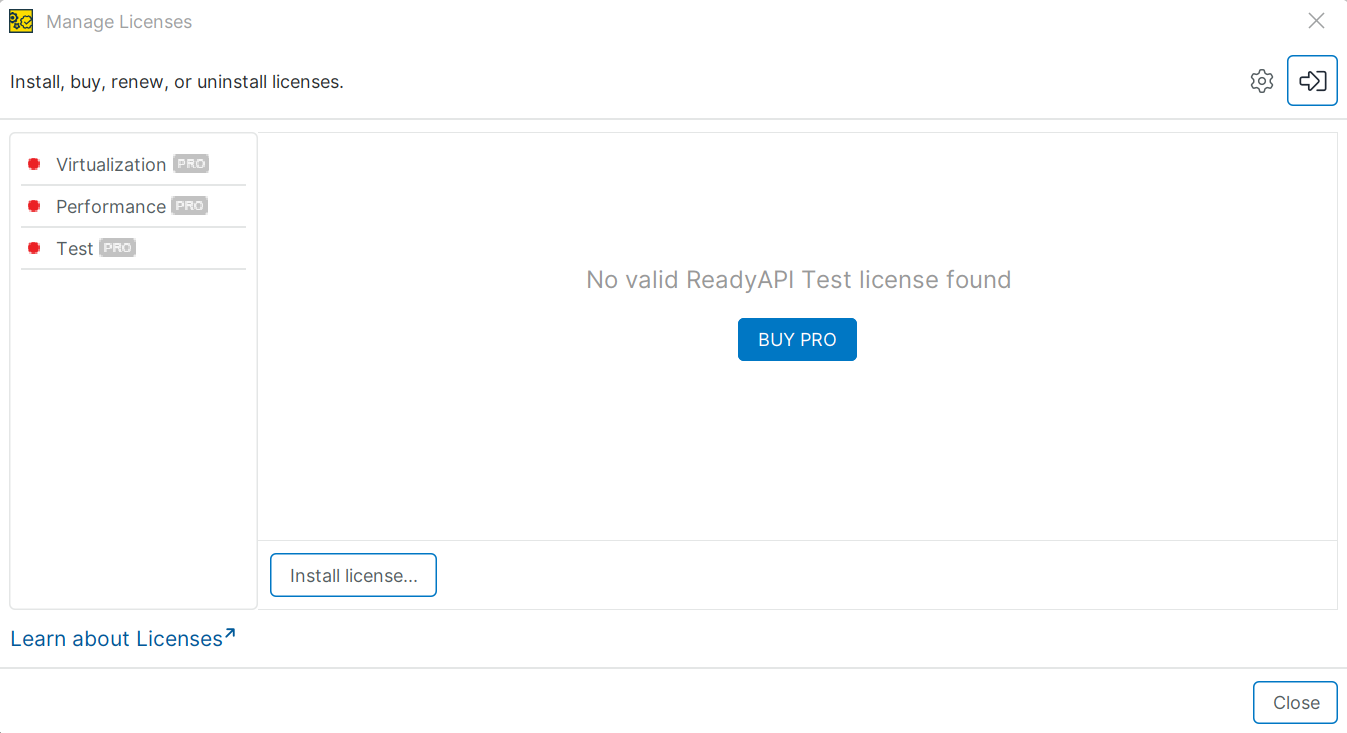
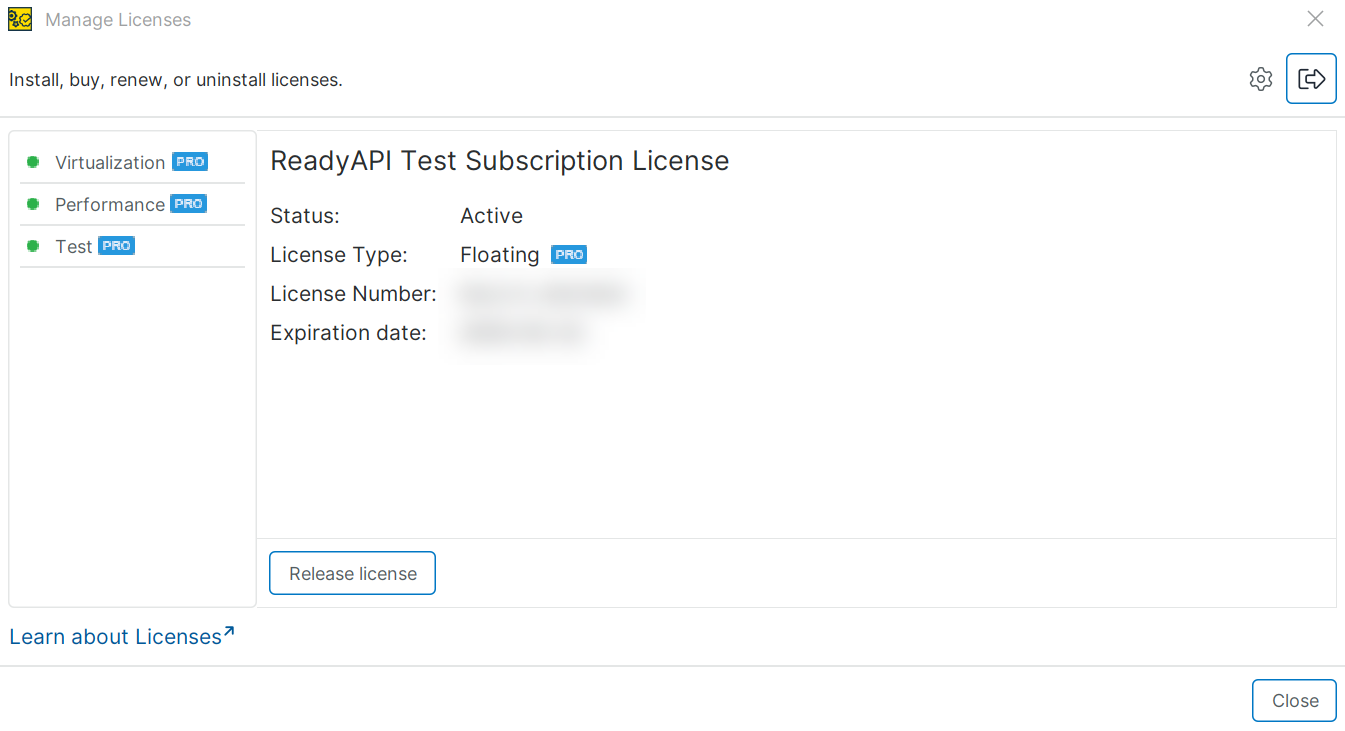
The License Manager dialog displays different license statuses:
No license is installed
License is installed
License will expire soon
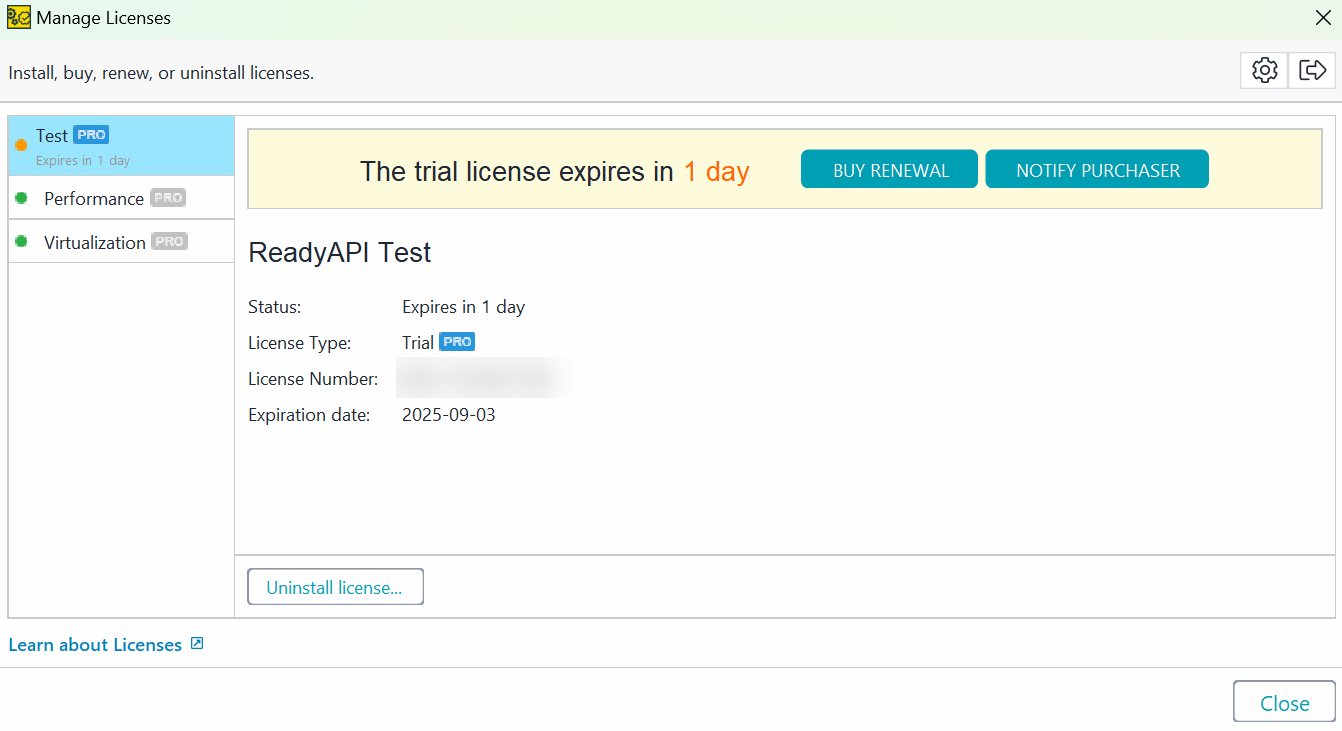
For each module, you can view:
License Status
License Type
License Number
Expiration Date
Managing licenses
To manage your ReadyAPI licenses:
Switch to the tab corresponding to the module you want to work with (Test, Performance, or Virtualization).
Use the buttons below to perform actions:
Button
Description
Start Pro Trial
Activates a trial license of the selected module (Test, Performance, or Virtualization). From October 2023, all ReadyAPI trials use ID-based licenses.
Install License
Opens the License Activation wizard to activate or update a commercial license. Supports SmartBear ID-based licenses as well as legacy Floating or Fixed User commercial licenses.
Uninstall License
Uninstalls a SmartBear ID-based license.
Buy Renewal
Opens the online store with the selected license in your cart. Complete the checkout to renew. This option appears only when the license is near expiration or has already expired.

Logs you in using your SmartBear ID or Swagger credentials.

Logs you out and releases licenses so they can be used on another computer.
Opens the Preferences dialog.