Transaction Log Page
About Transaction Log
The Transaction Log page of the virtual service editor displays information on incoming requests and outgoing responses that happened during the current service run. Here is a sample view of the page:
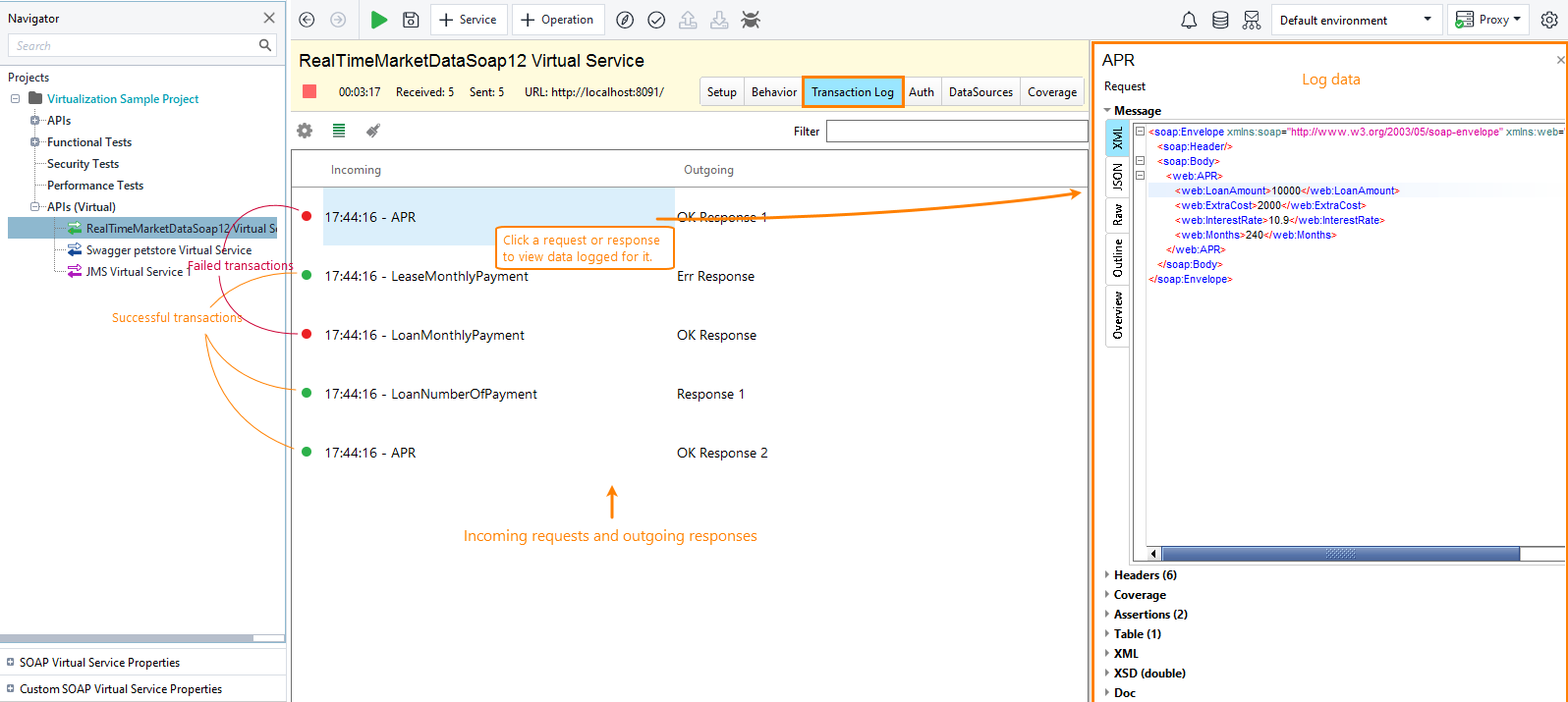 |
The page contains information on all requests sent to the virtual service, including those for which this service does not have a virtual operation.
To view the contents of a request or response, select this request or response on the page. The request (or response) data – body contents, headers, and other information will be on the right (see the image above).
Successful and Failed Transactions
The page marks successfully processed requests with green dots and failed requests with red dots. Note that even if the virtual service responds with an error code, the entire transaction can be marked as successful, because an error code could be a normal response to an invalid request.
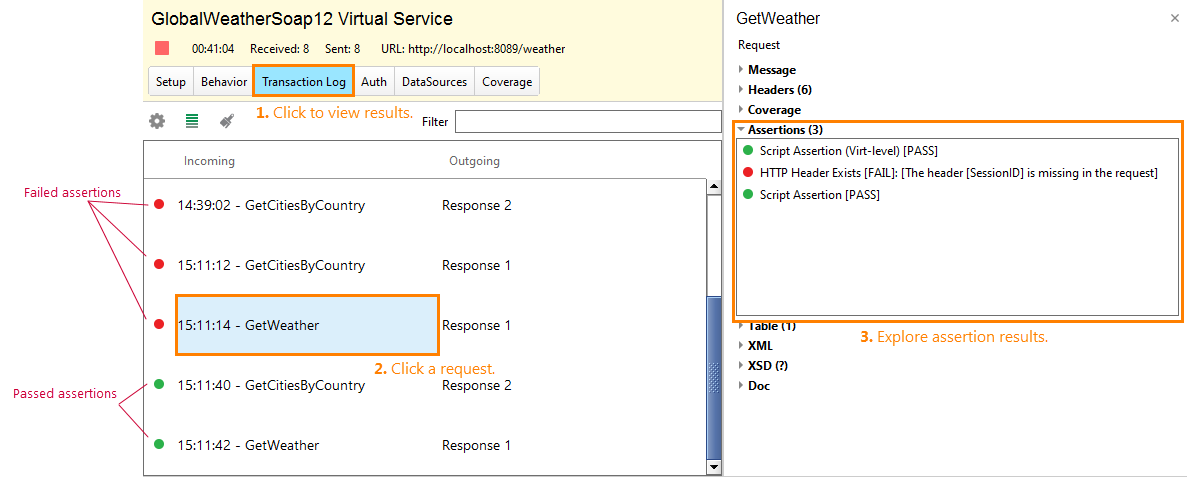
Virtual services treat transactions as successful or failed based on the assertion results. To find out what assertion failed:
Select the request (the assertions check incoming requests). Information on the request will be displayed on the right.
Expand the Assertions section and find the failed assertion there. The section will also mention the reason for the failure:
Quick Filter
To find a record on the list quickly, type any part of its contents in the Filter edit box. The panel applies the filter and displays matching items on-the-fly:
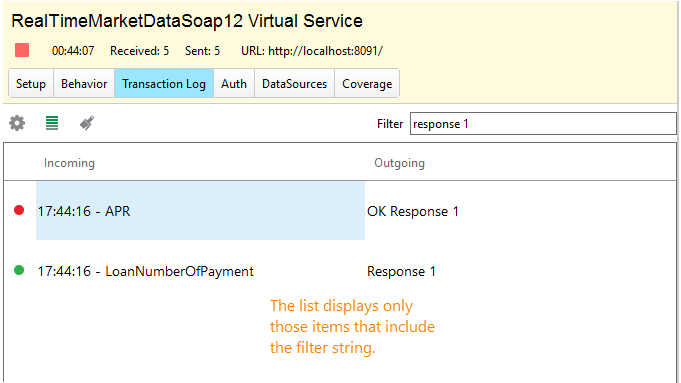 |
You can type any part of the displayed item: request header details, response code, log timestamp, and so on.
Log Capacity
As we said above, the log stores information on transactions that happened during the current run. By default, the page displays the last 25 transactions. This number is specified by the setting. To access it quickly, click  on the Transaction Log toolbar. Alternatively, you can get to the option through the Preferences > Virtual Service Transactions dialog.
Note that storing a large amount of log data can consume significant memory. We do not recommend setting this for high values. Keep it as low as possible for your tests.
To clear the log data manually, click  Clear transaction log on the log toolbar.
Total Number of Requests and Responses
You can find the total number or received requests and sent responses in the toolbar of the virtual service editor, or in the property editor on the right:
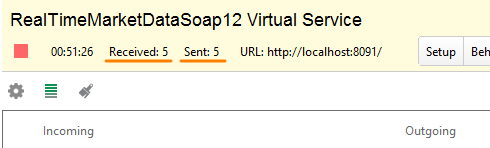
Enable and Disable Logging
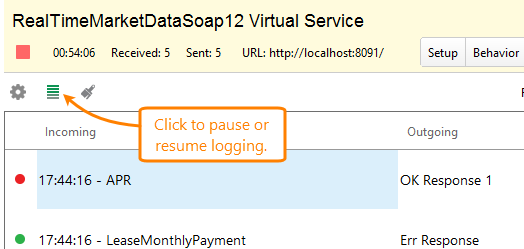
To disable logging, click  Pause continuous updates in the log toolbar. The toolbar item will change to
  Resume continuous updates. Click this button to enable logging:
Download Transaction Log
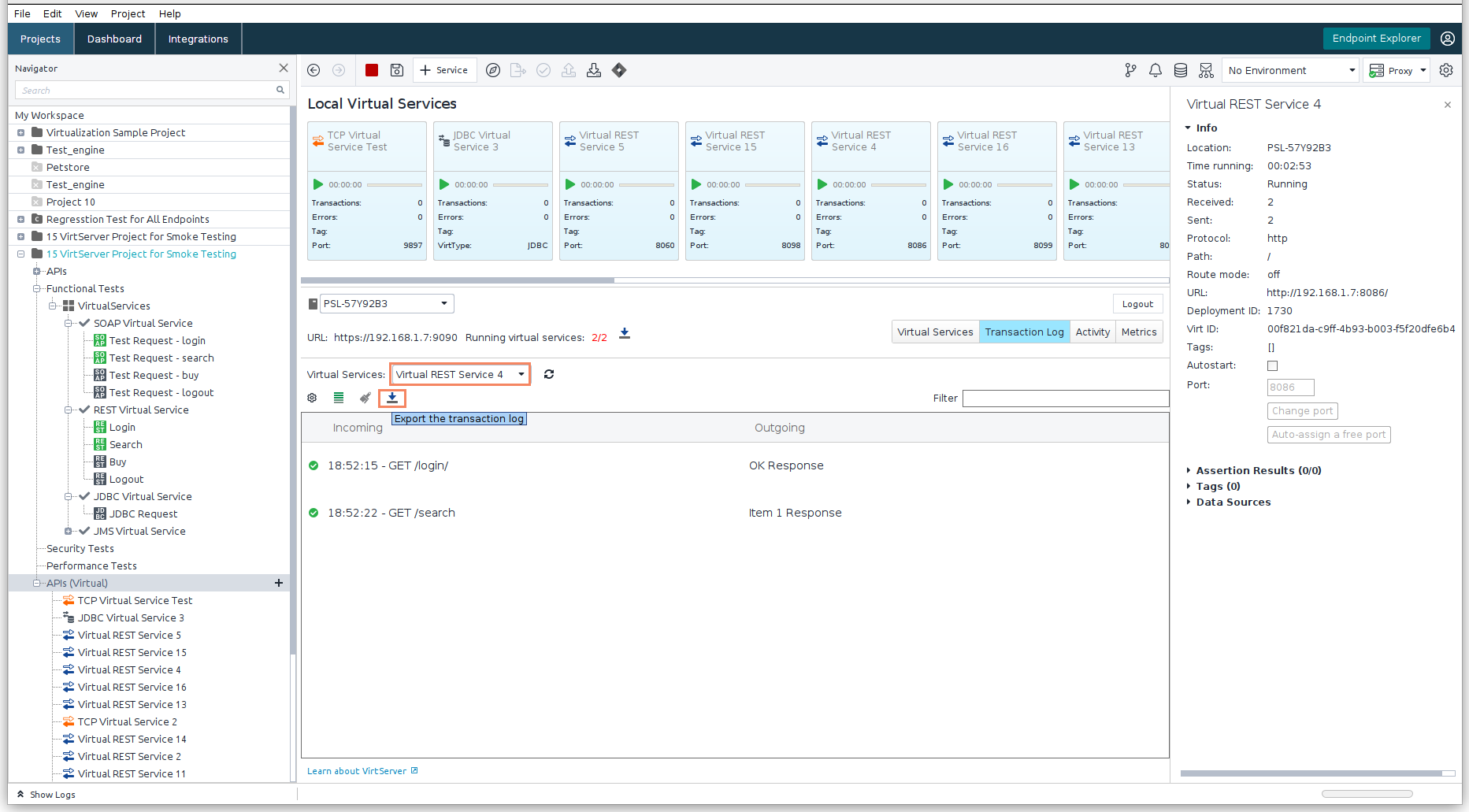
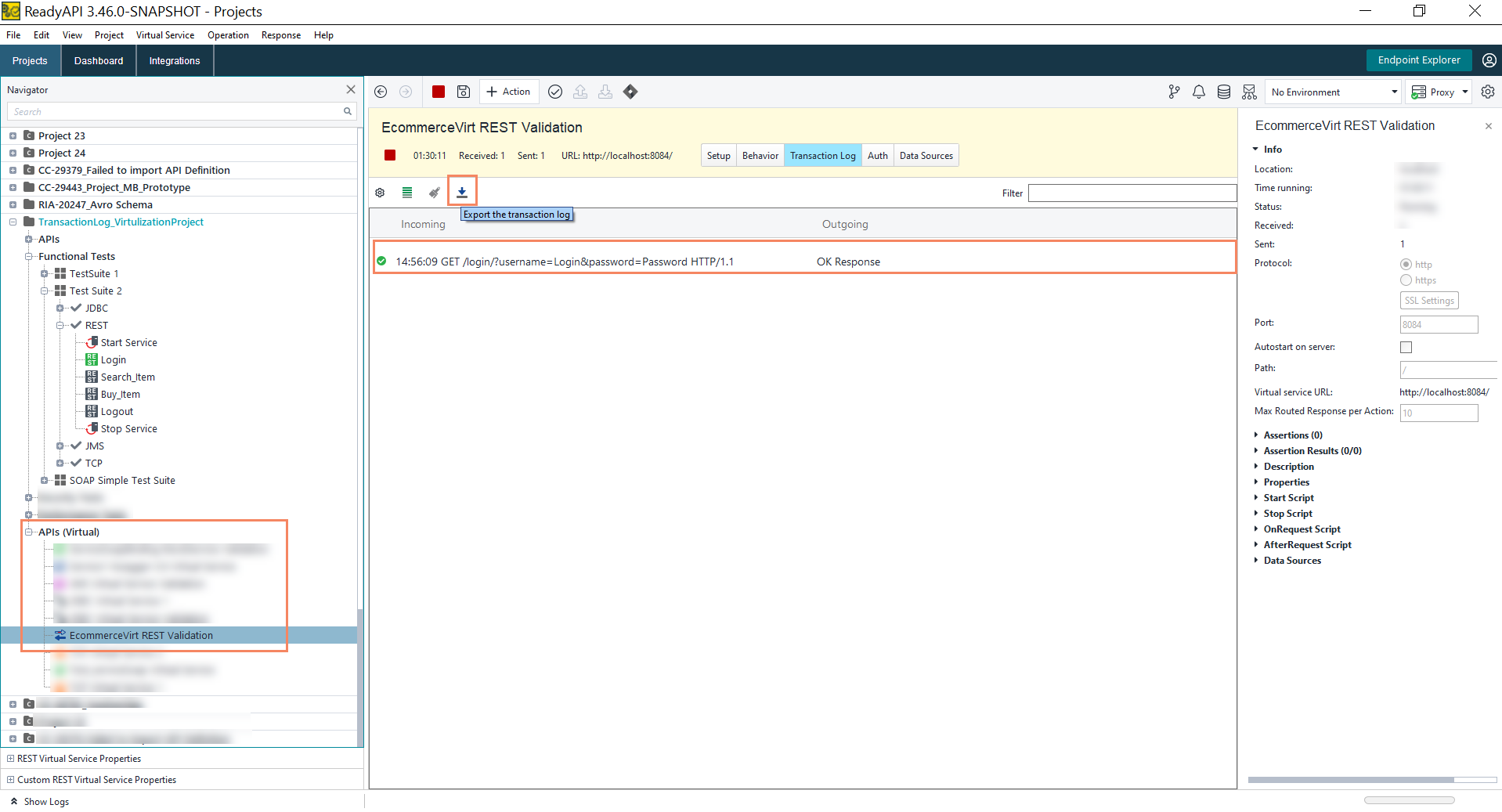
Go to APIs (Virtual) in the Navigation Panel and select the required Virtual Service. In the Transaction log options, you can check the download symbol.
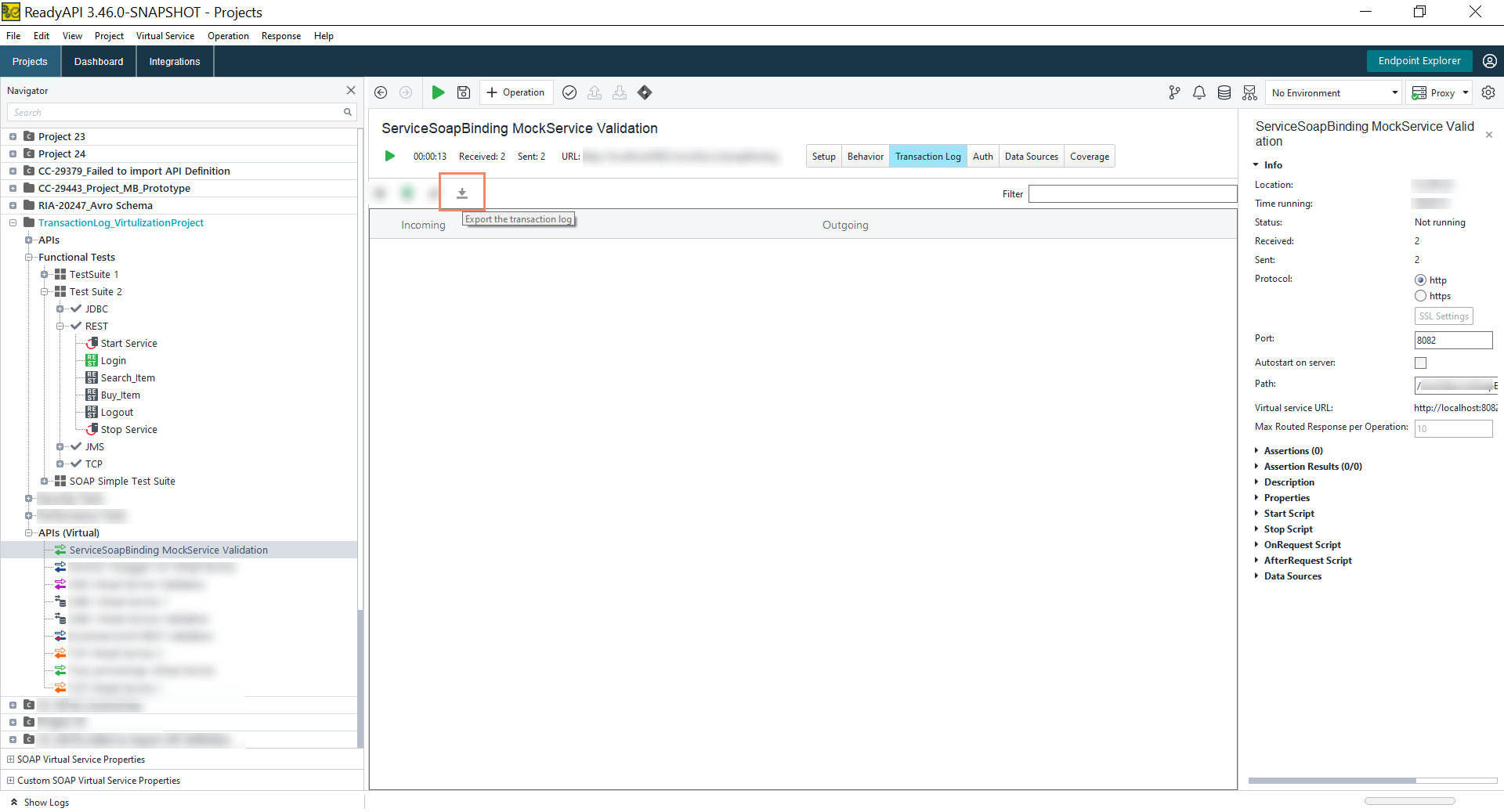
However, if there are no transactions logged in the transaction log, the download transaction log icon/button will be disabled.
In the transaction log options, click on the download symbol. This action will trigger a pop-up window with a File Explorer, allowing the user to specify the location and file name for the log. The file name will be specific to the VirtService and include the VirtService name and a timestamp.
Choose the desired location to save the file. The transaction log will be stored in a file specific to the selected VirtService, with the name of that VirtService and the time stamp.
The file is saved in JSON format. The file contains all the transaction details: virtName, requestData, and responseData. is The following is a sample of the downloaded file:
[
  {
    "virtName": "EcommerceVirt REST Validation",
    "requestData": {
      "time": "2023-04-20 14:56:09.253: [login] 13ms",
      "method": "GET",
      "path": "/login/",
      "queryString": "username=demo&token=sample",
      "protocol": "HTTP/1.1",
      "headers": {
        "Accept": ["application/json"],
        "Connection": ["keep-alive"],
        "User-Agent": ["Apache-HttpClient/4.5.2 (Java/17.0.5)"],
        "Host": ["localhost:8084"],
        "Accept-Encoding": ["gzip,deflate,br"],
        "Content-Length": ["0"]
      }
    },
    "responseData": {
      "message": "{ \"sessionid\" : \"SAMPLE_SESSION_ID_1\" }",
      "headers": {
        "Content-Encoding": ["gzip"],
        "Content-Length": ["57"],
        "Date": ["Thu, 20 Apr 2023 07:56:09 GMT"],
        "Content-Type": ["application/json"]
      }
    }
  },
  {
    "virtName": "EcommerceVirt REST Validation",
    "requestData": {
      "time": "2023-04-20 16:36:06.238: [login] 9ms",
      "method": "GET",
      "path": "/login/",
      "queryString": "username=demo&token=sample",
      "protocol": "HTTP/1.1",
      "headers": {
        "Accept": ["application/json"],
        "Connection": ["keep-alive"],
        "User-Agent": ["Apache-HttpClient/4.5.2 (Java/17.0.5)"],
        "Host": ["localhost:8084"],
        "Accept-Encoding": ["gzip,deflate,br"],
        "Content-Length": ["0"]
      }
    },
    "responseData": {
      "message": "{ \"sessionid\" : \"SAMPLE_SESSION_ID_2\" }",
      "headers": {
        "Content-Encoding": ["gzip"],
        "Content-Length": ["57"],
        "Date": ["Thu, 20 Apr 2023 09:36:06 GMT"],
        "Content-Type": ["application/json"]
      }
    }
  },
  {
    "virtName": "EcommerceVirt REST Validation",
    "requestData": {
      "time": "2023-04-20 16:36:08.429: [logout] 105ms",
      "method": "GET",
      "path": "/logout",
      "queryString": "sessionid=SAMPLE_SESSION_ID_2",
      "protocol": "HTTP/1.1",
      "headers": {
        "Accept": ["application/json"],
        "Connection": ["keep-alive"],
        "User-Agent": ["Apache-HttpClient/4.5.2 (Java/17.0.5)"],
        "Host": ["localhost:8084"],
        "Accept-Encoding": ["gzip,deflate,br"],
        "Content-Length": ["0"]
      }
    },
    "responseData": {
      "message": "{\"Successfully logged out session\" : \"OK\"}",
      "headers": {
        "Content-Encoding": ["gzip"],
        "Content-Length": ["61"],
        "Date": ["Thu, 20 Apr 2023 09:36:08 GMT"],
        "Content-Type": ["application/json"]
      }
    }
  },
  {
    "virtName": "EcommerceVirt REST Validation",
    "requestData": {
      "time": "2023-04-20 16:36:11.019: [buy] 66ms",
      "method": "GET",
      "path": "/buy",
      "queryString": "sessionid=SAMPLE_SESSION_ID_2",
      "protocol": "HTTP/1.1",
      "headers": {
        "Connection": ["keep-alive"],
        "User-Agent": ["Apache-HttpClient/4.5.2 (Java/17.0.5)"],
        "Host": ["localhost:8084"],
        "Accept-Encoding": ["gzip,deflate,br"],
        "Content-Length": ["0"]
      }
    },
    "responseData": {
      "message": "{\n  \"purchasestatus\": {\n    \"id\": \"Item 1\",\n    \"stockStatus\": \"1 unit\",\n    \"expectedDelivery\": \"2000 years from now\"\n  }\n}",
      "headers": {
        "Content-Encoding": ["gzip"],
        "Content-Length": ["119"],
        "Date": ["Thu, 20 Apr 2023 09:36:11 GMT"],
        "Content-Type": ["application/json"]
      }
    }
  }
]
In ReadyAPI 3.49.0, you can download transaction logs directly from virtual services hosted on VirtServer. This feature applies to various transaction log types, including REST, SOAP, TCP, JDBC, and JMS.
You can select the specific virtual service to download the transaction logs.