Project Settings
The Project Settings dialog allows you to configure various settings and script options for a project.
Opening Project Settings Dialog
Open the Project Settings dialog in one of the following ways:
Right-click a project in the Navigator panel and select Project Settings.
You can also select the project in Projects, then select Project > Project Settings.
Description Tab
On the Description tab, you can enter the project description. This does not affect the project functionality and describes what the project is created for. You can also modify the project description in the Description project property.
Properties Tab
On the Properties tab, you can configure the project Custom Properties. Requests and test steps can get data from these properties.
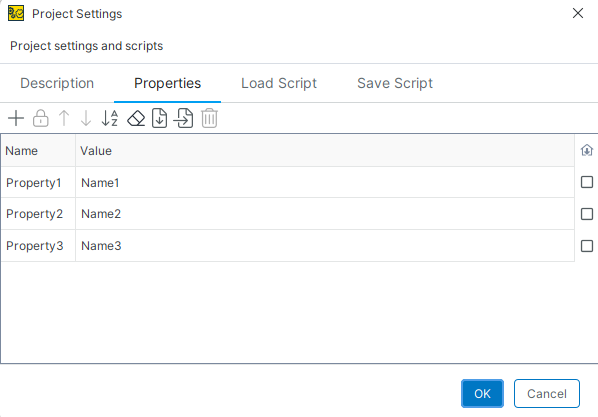 |
You use the following commands to configure project properties:
Property | Description |
|---|---|
Create a new property. | |
Disable encryption for the selected property. | |
Move the selected property up. | |
Move the selected property down. | |
Sort properties alphabetically. | |
| Clear all property values. |
| Load properties from a file. |
| Save the property list to a file. |
Remove the selected property. | |
| Store the property value locally without saving it to the project. |


Load Script
The Load script is run when the project is imported. You can use the Load script to create shared objects or import external data.
Note
By default, ReadyAPI does not run the Load script for security reasons. To turn off this restriction, deselect the Disable the Load and Save project scripts option on the Global Security page of the ReadyAPI preferences.
Save Script
The Save script is run when you save the project. You can use the Save script to store external information used in the project.
Note
By default, ReadyAPI does not run the Load script for security reasons. To turn off this restriction, deselect the Disable the Load and Save project scripts option on the Global Security page of the ReadyAPI preferences.