1. Create Functional Test
Requirements
To test a SOAP service in ReadyAPI, you need a WSDL definition. The WSDL describes the service operations, request structure, and response formats that ReadyAPI uses to generate and simulate requests.
REST also use definitions. Common formats include OpenAPI (formerly Swagger), WADL, and others. Load these definitions into ReadyAPI to automatically create test cases based on the available endpoints and operations.
Some REST services do not provide a definition. In this case, you can create tests by recording requests sent to the service (API Discovery). ReadyAPI captures request and response data from the traffic and uses it to build test cases. However, this observational data is less precise than a formal definition, so using an API definition is recommended whenever possible.
Web service definition used in this tutorial
This tutorial uses the Petstore sample REST service. The API definition describes the available operations, request formats, and responses that ReadyAPI uses to generate test cases.
Use the following OpenAPI 3.0 definition:
https://petstore3.swagger.io/api/v3/openapi.json
Note
You do not need to download the definition. ReadyAPI retrieves it during test creation.
Create a test
Open ReadyAPI.
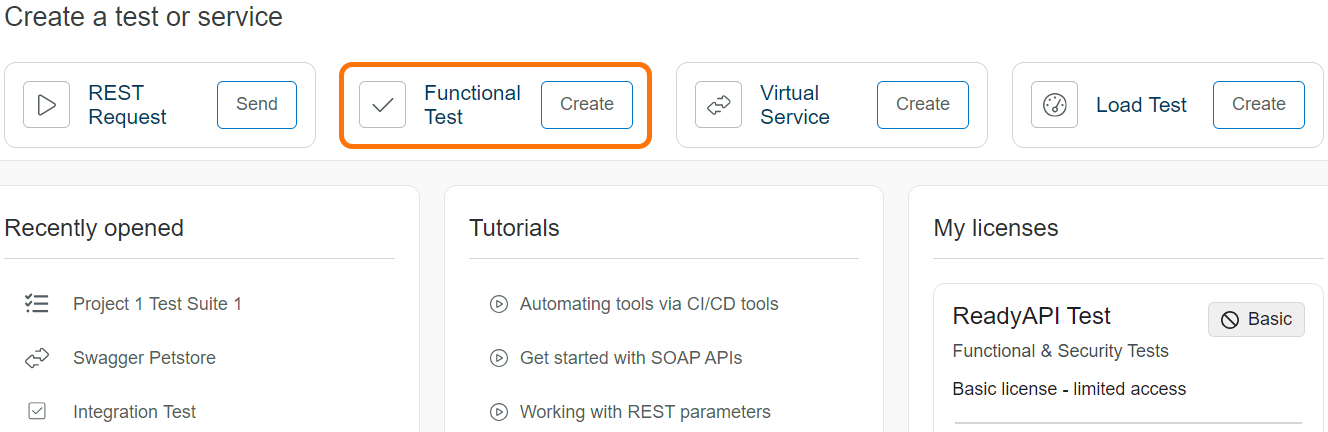
On the Starter Page, in the Functional Test tile, click Create.
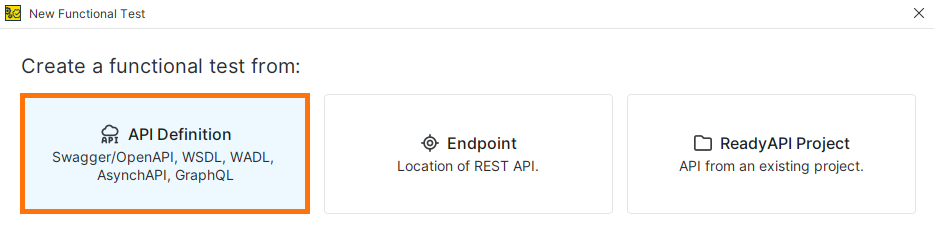
In the New Functional Test dialog, click API Definition.
The API Definition Setup flow guides you through several steps.
In the API Definition Setup flow, in the Specify File step, enter the URL of your web service’s definition. For this tutorial, use the following URL:
https://petstore3.swagger.io/api/v3/openapi.json
Click Next.
If the Specify Endpoint step appears, review the endpoint and click Next.
In the Specify Project step, select where to add the test:
Select <New project> to create a new project
Or select an existing project
Click Next.
Note
If no project is open in your workspace, ReadyAPI creates a new project automatically.
In the Add Assertions step, clear all selected assertions, then click Next.
Assertions validate API behavior. Add them later if needed.
In the Create Test step, select how to group the requests:
Single Test Case: adds all requests to one test case
Multiple Test Cases: creates one test case per operation
Select Multiple Test Cases, then click Create test.
In the Confirmation dialog, choose one of the following:
Run Test Suite to run the generated test cases
Add a Data Source to add external data (for example, from a file)
For this tutorial, close the dialog.
Your test project and test cases are ready. Find them in the Navigator panel.
Next, we will explore the created project, its service, and available operations.