Adding More APIs to Existing Projects
A ReadyAPI project usually contains at least one API, but you can add additional APIs at any time.
You can add APIs to a project in the following ways:
Import an API definition such as Swagger/OpenAPI, GraphQL, AsyncAPI, gRPC, or WSDL from a local file, URL, or Swagger Studio.
Create a REST or Kafka API definition from scratch.
Record requests while interacting with a service to automatically generate an API definition.
Import from Definition
To import the API from the definition:
Click next to the APIs node and select Import API Definition, or
Right-click the APIs section in the Navigator and select Import API Definition.
The Import API Definition dialog provides the following import options:
Tab | Description |
|---|---|
My Computer or URL | Import the definition from a definition file: Swagger/OpenAPI, GraphQL, AsyncAPI (Kafka), gRPC, WSDL, or WADL. |
Swagger | Import the definition from Swagger Studio. |
OAS 3.1 | Displays OpenAPI Specification version 3.1 definitions. |
Note
ReadyAPI replaces special characters like {,} in automatically generated test case names derived from request URLs due to compatibility issues with Groovy scripts.
Import from file
To import an API from a definition file, specify the path to a local file or its URL in the Source field and click Import API:
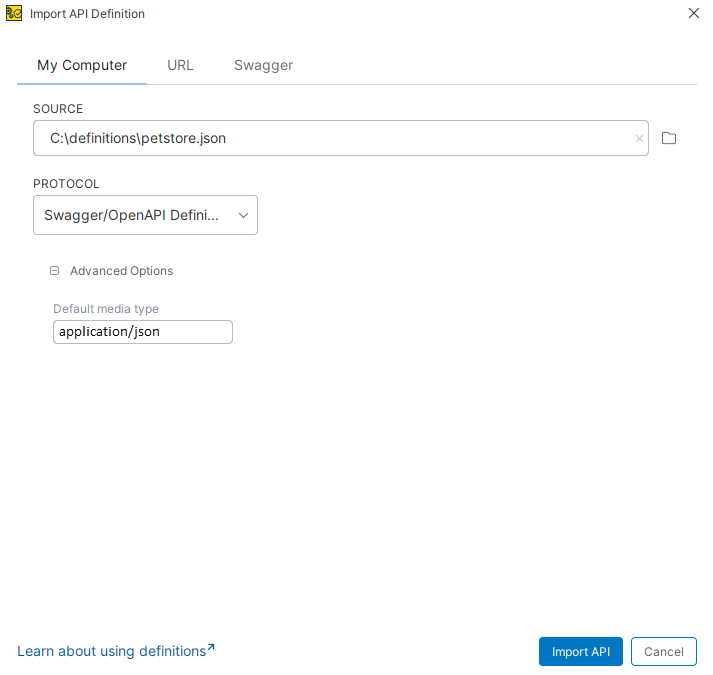 |
ReadyAPI detects the definition type automatically. To configure advanced options, enter the required definition type manually in the Default media type field.
Advanced Options
Below, you can find descriptions of the advanced options for different definition types:
Swagger/OpenAPI Definition (REST)
Default Media Type - Specifies the media type that ReadyAPI uses when a request does not define one.
Important
When you load a large definition, ReadyAPI may fail to save the project because of the lack of Java heap space. To fix the issue, you can disable creating request samples.
GraphQL schema
Endpoint - Specify an endpoint to be added to the service endpoints.
WSDL Definition (SOAP)
Create sample requests for all operations - Creates sample requests for all WSDL operations.
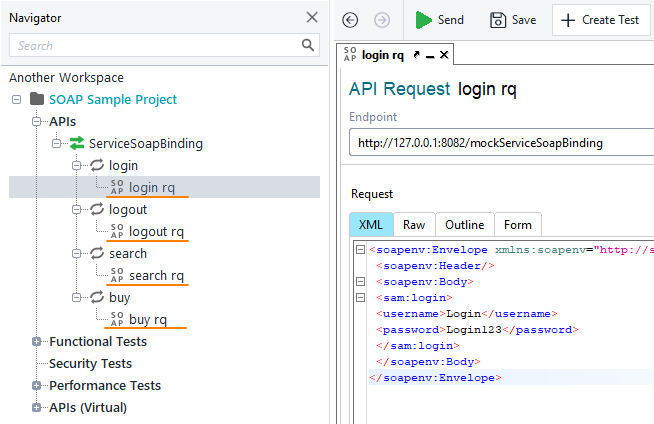
Create a test case for the imported WSDL - Generate test cases for each operation in WSDL.
Create a virtual service for the imported WSDL - Creates a virtual API based on the imported WSDL.
WADL Definition (REST)
Create a test case for the imported WADL - Select this option if you want ReadyAPI to generate test cases
AsyncAPI Definition
There are currently no advanced options for AsyncAPI definitions.
gRPC Definition
There are currently no advanced options for gRPC definitions.
Working with Callbacks
Callbacks describe asynchronous responses in your REST APIs, such as webhook events sent after a request completes. These callback definitions often come embedded within API definition files (like OpenAPI 3.0+ files) that you import from your computer, a URL, or API hubs. ReadyAPI displays these asynchronous interactions as part of the imported API structure.
Each API method can have multiple callbacks defined.
Callbacks are read-only: you cannot send requests to them or modify them directly.
Each callback inherits the endpoint from its parent method.
ReadyAPI organizes and displays callbacks automatically when you import an API definition that includes them.
Note
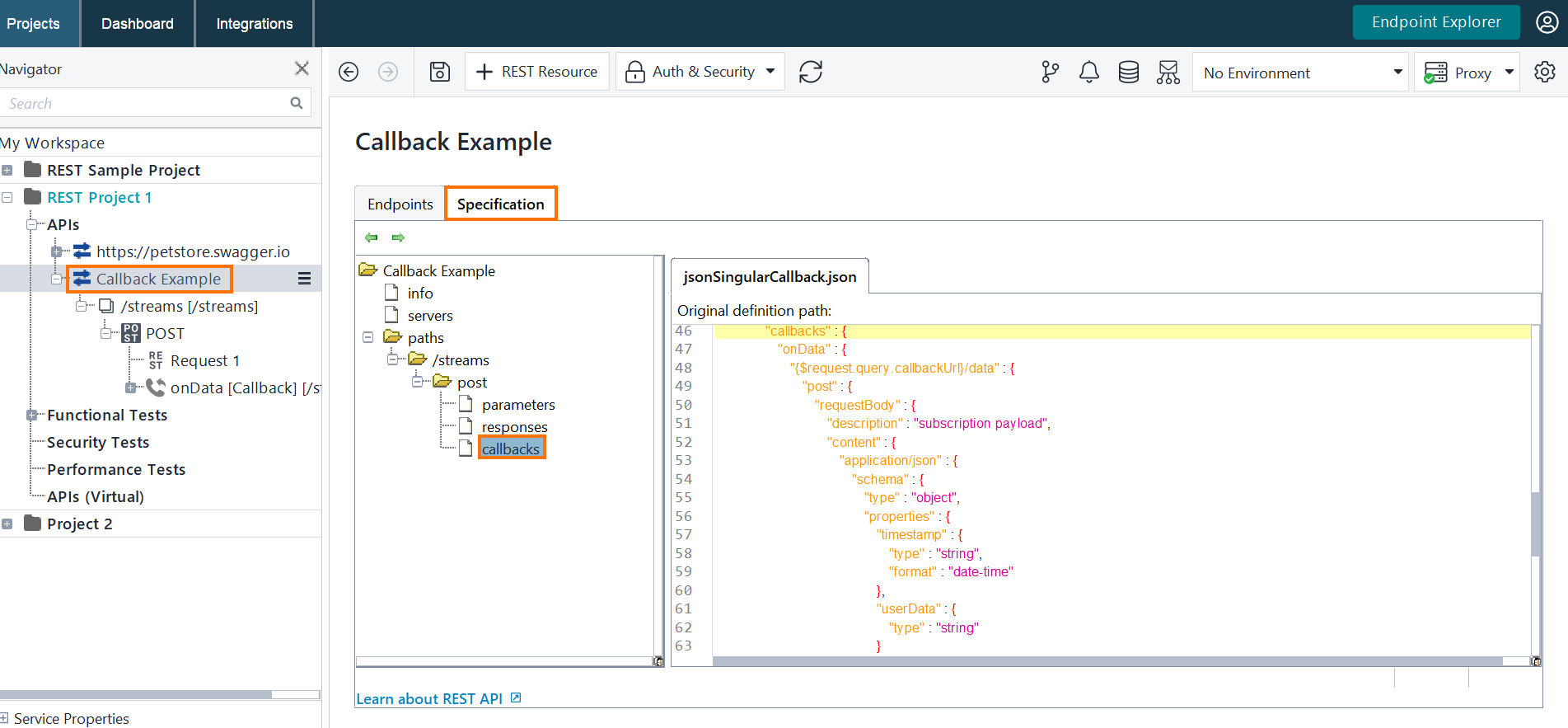
To view callbacks, first import an API definition that includes callback objects (for example, OpenAPI 3.0+ files with callbacks defined). ReadyAPI places them in the Navigator under the corresponding method and in the Specifications tab.
Importing API definitions with callbacks allows you to test and explore asynchronous interactions, such as webhooks, directly in ReadyAPI.
In the Navigator tree, hover over the APIs node and click .
From the context menu, select Import API Definition.
In the Import API Definition dialog, choose one of the tabs - My Computer, URL, or SwaggerHub - to import an API definition that includes callbacks. You can import from a local file (such as a
.jsonor.yaml), a URL, or SwaggerHub. Click Import API to load it into ReadyAPI.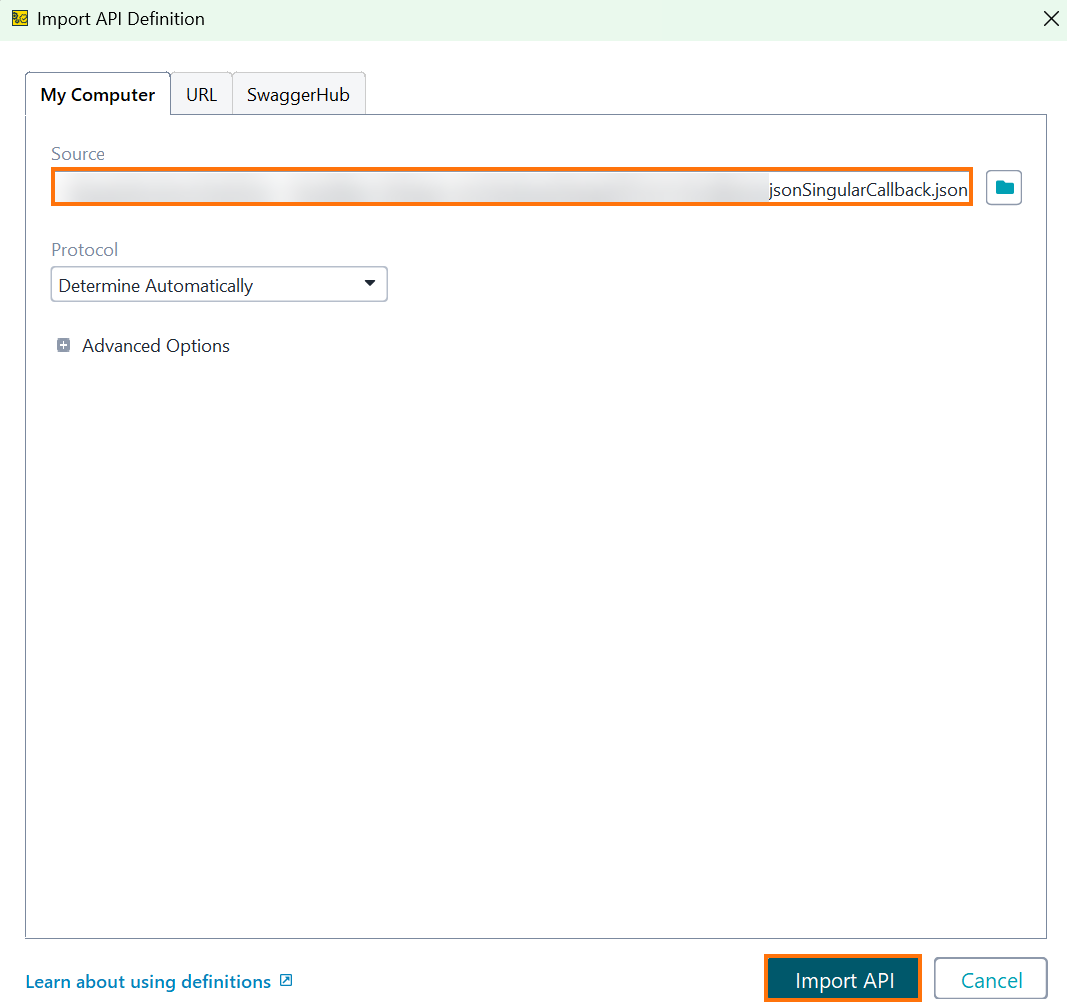
ReadyAPI displays the callbacks below the related REST methods in the Navigator. You can also view them in the Specifications tab.
Import from Swagger Studio
Important
ReadyAPI supports Swagger Studio SaaS and Swagger Studio On‑Premise 1.23.0-46 or later.
Use the Swagger tab to import public or private API definitions from Swagger Studio:
Select the API definition that you want to add to your project.
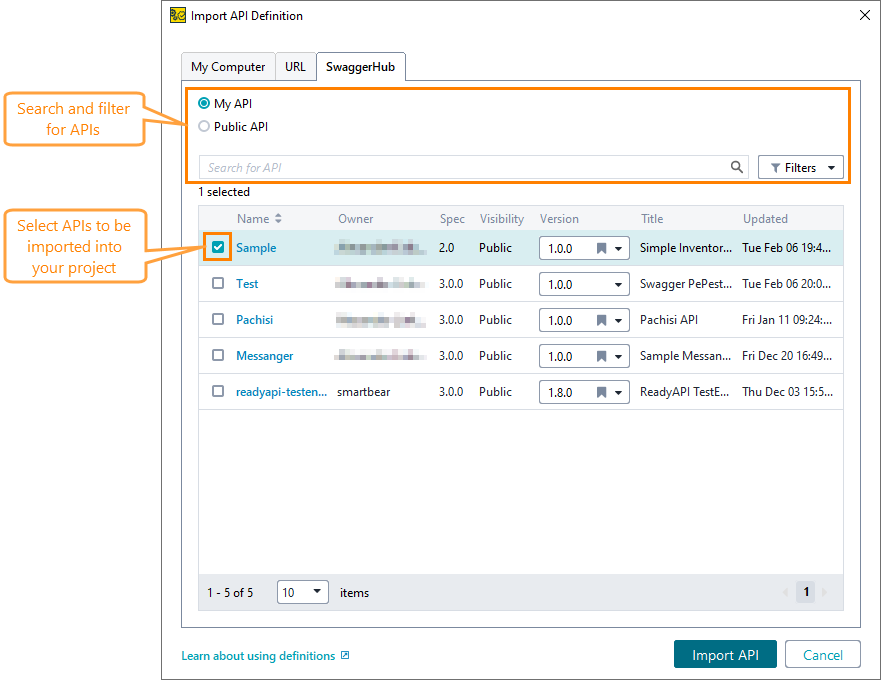
The My API option contains APIs created by or shared with your connected Swagger Studio account. If you have not connected an account yet, click Log In to Swagger Studio.
The Public API option contains all accessible APIs in Swagger Studio.
Tip
Use search and filters to quickly locate APIs.
Select versions of definitions that will be imported. The default version (marked with ) of the definition is selected by default:
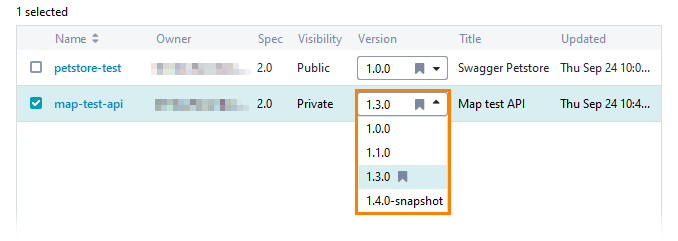
Click Import API.
You can also publish your API definition to Swagger Studio or Swagger Studio On-Premises. See Export to Swagger Studiofor details.
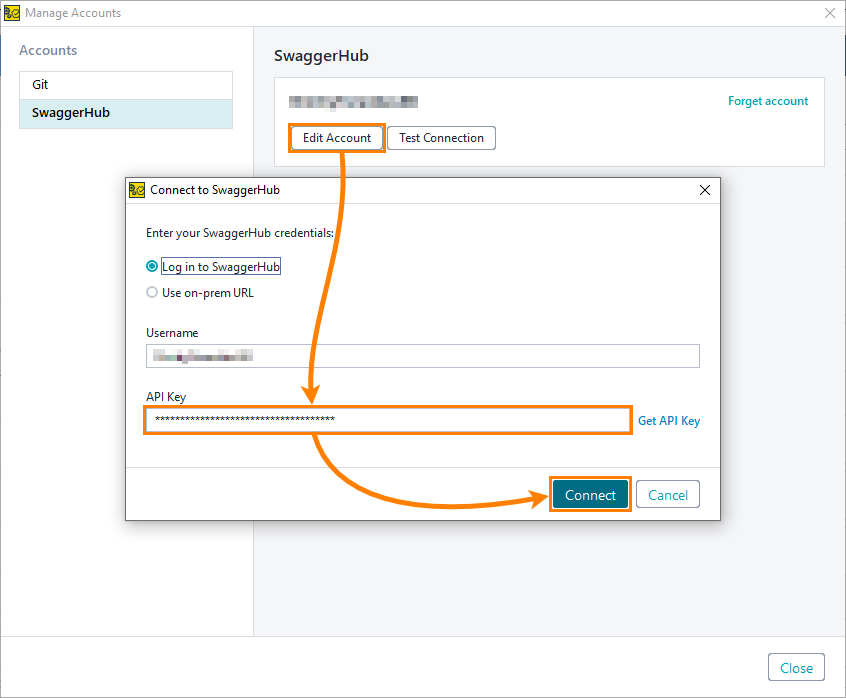
Swagger Studio connection issue
If you cannot connect to Swagger Studio with your current credentials, regenerate your API key in Swagger Studio and update it in ReadyAPI.
Sign in to Swagger Studio.
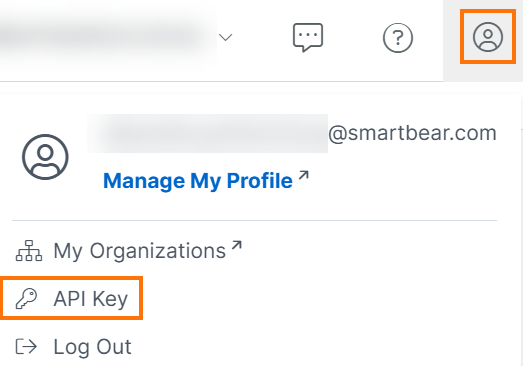
Click the My Profile icon, and then API Key.
Click More options and select Regenerate API Key.
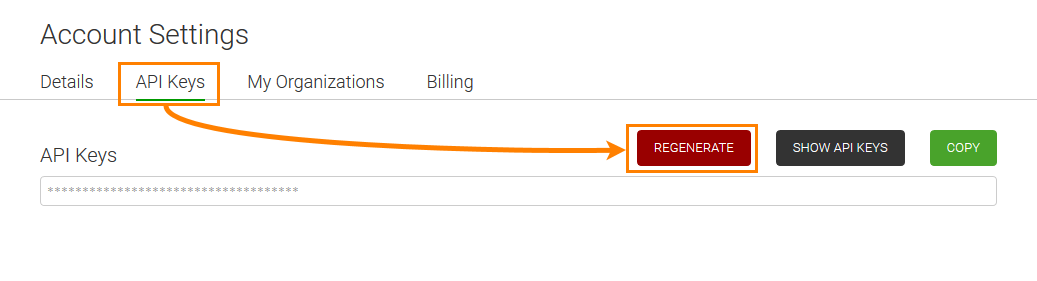
In ReadyAPI, update your Swagger Studio account information with the new API key, then click Connect.
Important
If you use this API key to access the Swagger Studio Public API, update the key in your applications and scripts as well.
Import GraphQL API from Introspection Query
Import a GraphQL API directly from a running service by providing the GraphQL endpoint URL. You do not need a predefined schema file.
Enter the GraphQL endpoint URL. By default, GraphQL services commonly use the
/graphqlendpoint.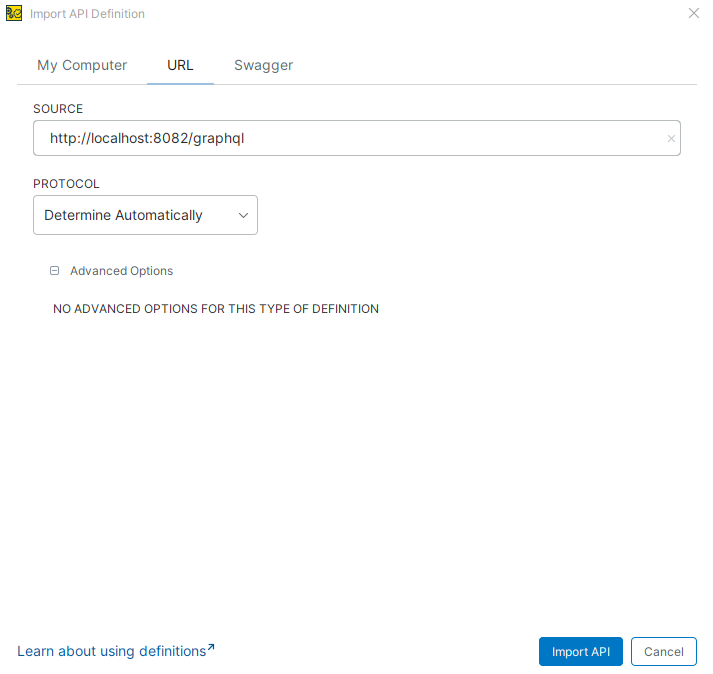
Ensure that introspection queries are enabled on the server. ReadyAPI uses introspection to automatically generate the schema.
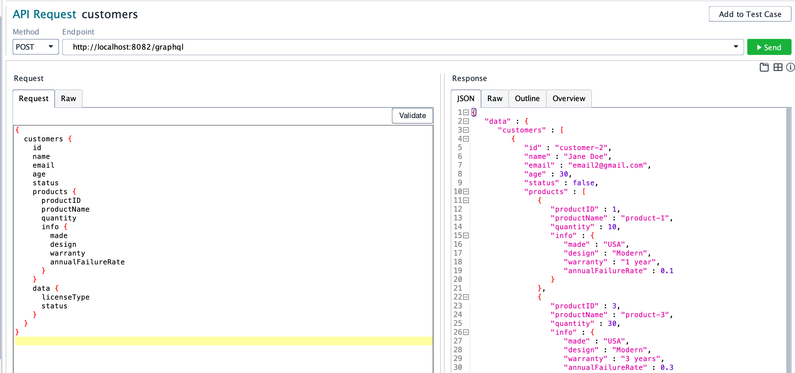
Click Import API.
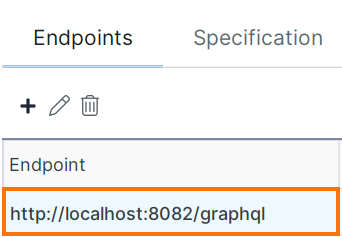
ReadyAPI generates the GraphQL schema automatically and adds the endpoint URL to the API definition.
Create API Definition (For REST and Kafka services)
In the Navigator, click next to the APIs node and select Create API Definition.
Alternatively, in the Navigator, right-click the APIs node and select Create API Definition from the context menu.
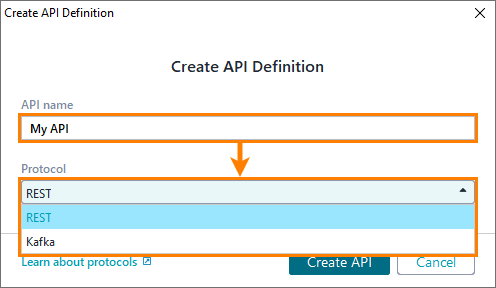
In the Create API Definition dialog, enter a name in the API name field, select REST or Kafka from the Protocol dropdown, and click Create API.
Tip
To populate the new API, see Managing REST APIs or Managing Kafka APIs.
Other ways to add APIs
New XML-RPC service from URL
Add an XML-RPC service to your project.
In the Navigator, right-click the APIs node and select New XML-RPC Service from URL.
In the New XML-RPC Service from URL dialog, enter the service
.remURL in the XML-RPC Location field.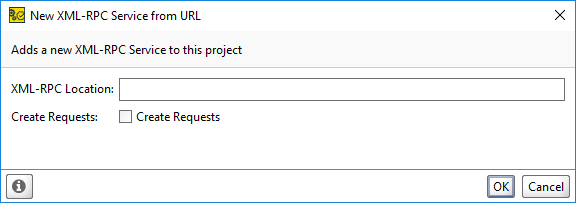
Optional: To create sample requests, select Create Requests.
Click OK.