Kafka APIs
Use the Navigator panel to manage your Kafka APIs, channels, and endpoints. This page describes how to add channels, configure endpoints, and organize your Kafka service.
Kafka service
A Kafka service is a top-level node within the Kafka services in the Navigator panel. Select it to see and modify endpoints.
Channels
A channel (or topic, in Kafka terms) is a category on a broker to which publishers send data and from which subscribers read data. In ReadyAPI, channels are child nodes of the Kafka API. In their turn, channels have child nodes for publish and subscribe operations.
Note
In AsyncAPI 3.0, publish and subscribe operations are replaced with send and receive respectively.
Add channels
Click next to the Kafka under the APIs node. Alternatively, right-click Kafka and select Add Channel from the context menu.
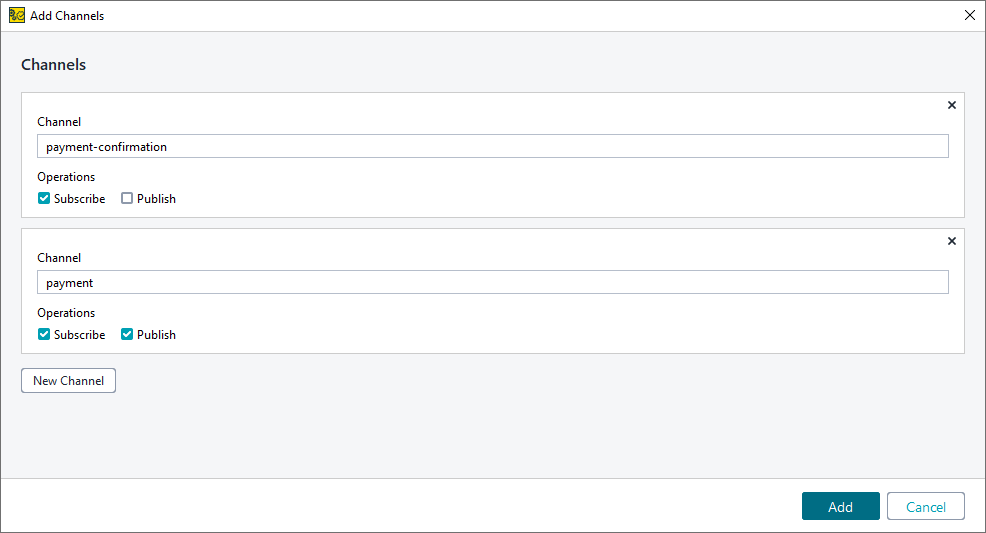
In the Add Channels dialog, specify the channel name and select which operations with the channel will be added to ReadyAPI. Click New Channel to specify additional channels to create.
Click Add.
Servers
The Servers tab is the central place where you manage endpoints used in the Kafka API.
Note
For AsyncAPI 3.0 definitions, the Endpoints tab is renamed to Servers and displays separate Host, Pathname, and Protocol columns instead of a combined endpoint URL.
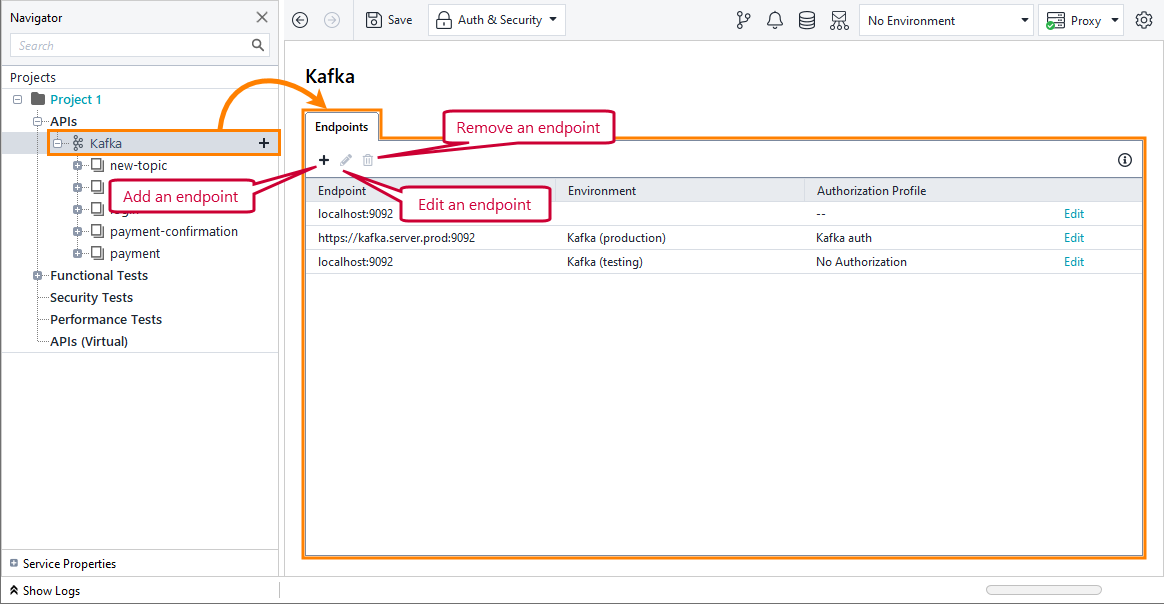 |
You can configure the following options:
Option | Description |
|---|---|
Endpoint | The endpoint URL or destination. |
Environment | An environment associated with the endpoint. ImportantYou can create only one endpoint per environment. When you add a new endpoint in the same environment, it will overwrite the existing one. |
Authorization Profile | An authorization profile used to access the endpoint. |
Work with environments
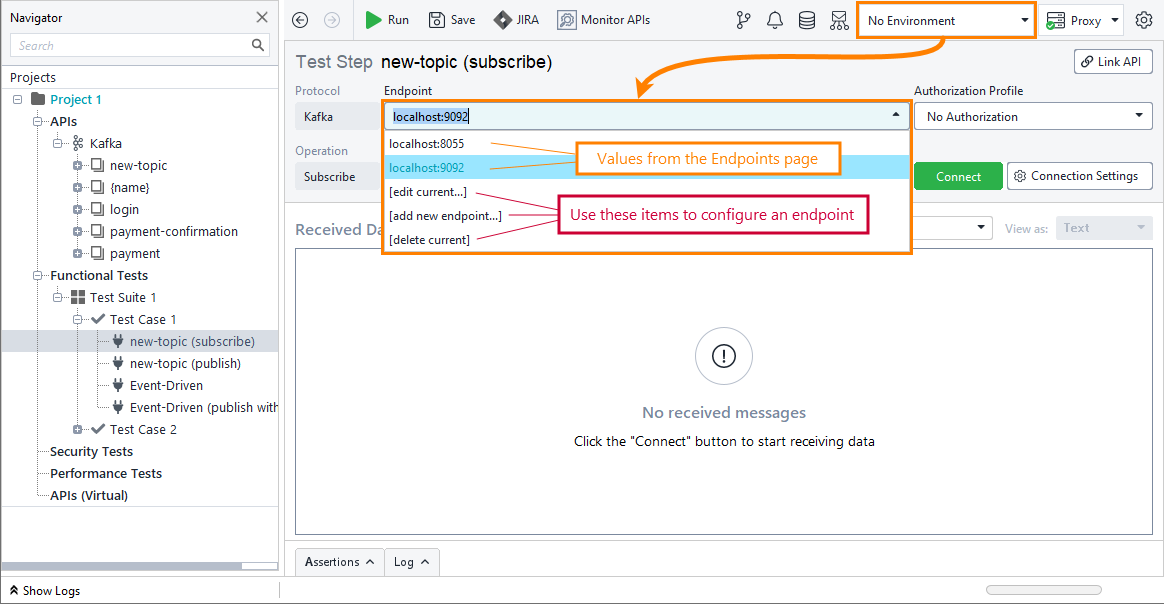
When you do not use an environment, you can enter any endpoint in an API Connection test step or select one of the values specified in the Kafka API node:
 |
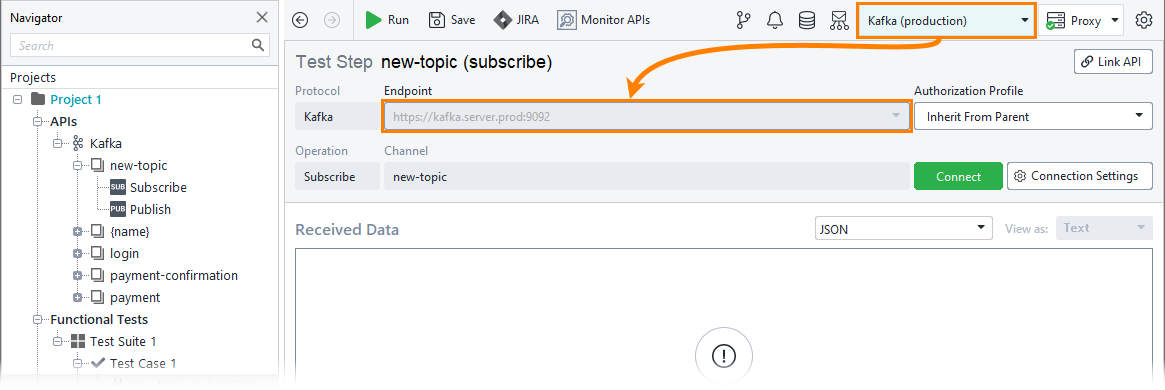
When you set an environment, the test step will use the endpoint associated with this environment:
 |
Organize Kafka service
Renaming items
To rename an item:
Right-click it in the Navigator panel and select Rename from the context menu.
Enter a new item name.
Important
Renaming an item in a composite project will change the matching item's filename.
Deleting items
To delete an item, select it in the Navigator panel and click Delete, then confirm you no longer need it.
Adding operations to functional tests
To add an operation to a functional test:
Right-click the operation in the Navigator panel and select Add to Test Case.
Select the test case to add the created API Connection test step to. You can also create a new test case or test suite and place the request there. Click Add Test Step.