Discovery Tutorial
In this tutorial, you record a simple interaction with a web service that has no API definition.
1. Open the Discover API Dialog
From the main menu, select File and then New Empty Project.
In the Navigator, click next to the APIs node, and select Discover API.
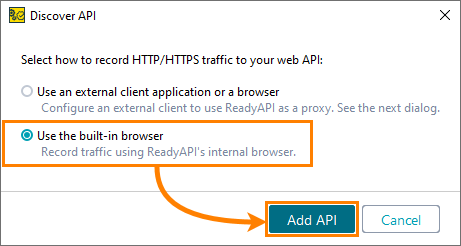
Select Use the built-in browser and click Add API.
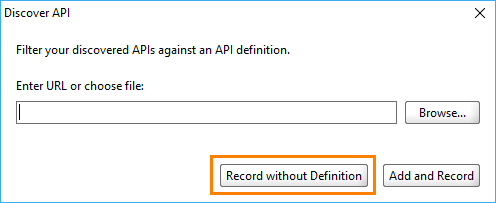
In the Discover API dialog, click Record without Definition.
2. Record Requests
ReadyAPI opens the Recording Overview dialog when the test recording starts.
In the Recording Overview dialog, click Pause to pause the recording, then enter
https://petstore.swagger.io/in the URL field and click Go.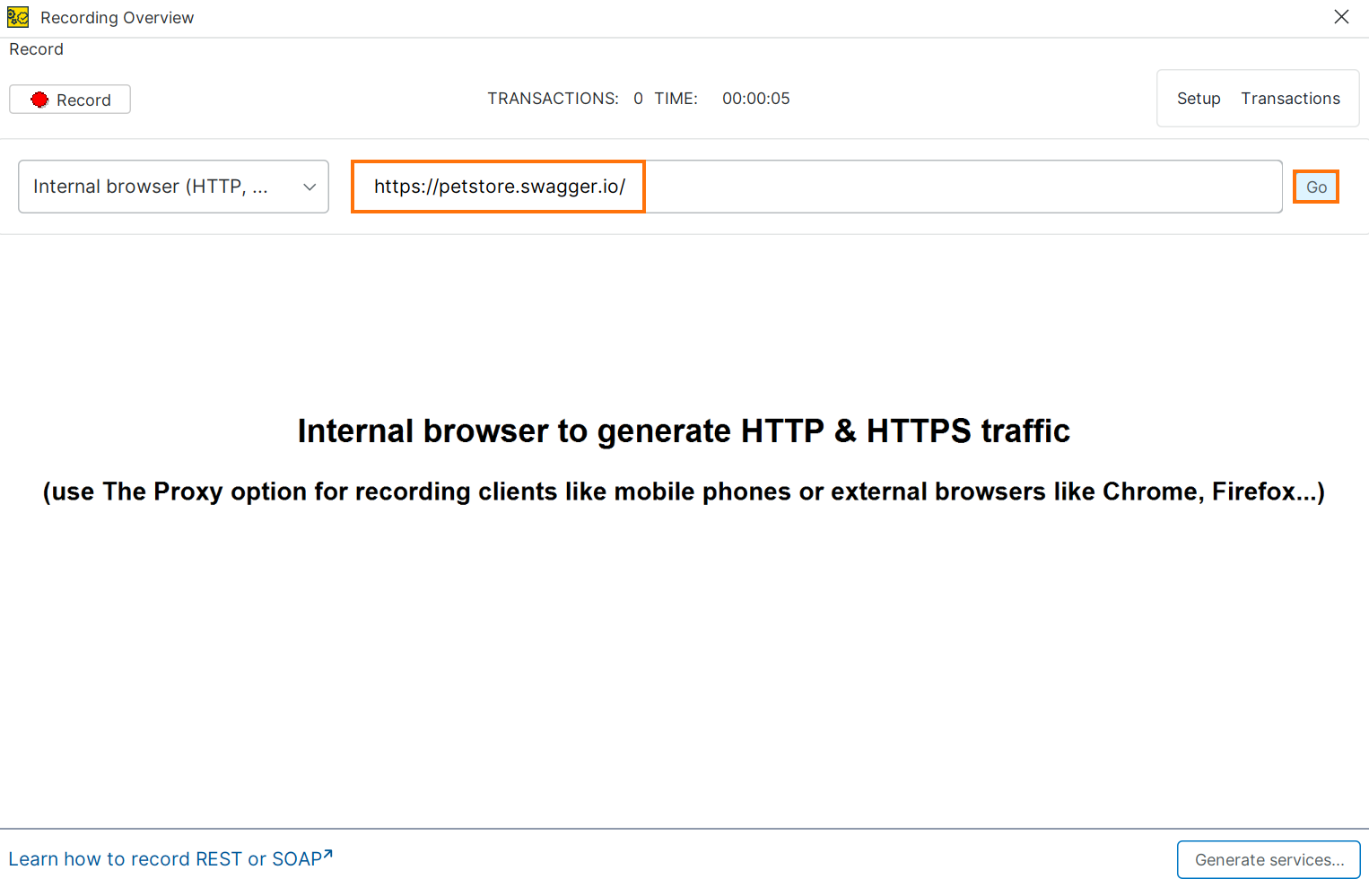
In the pet Everything about your Pets section, expand the POST method for the
/petresource and click Try it out.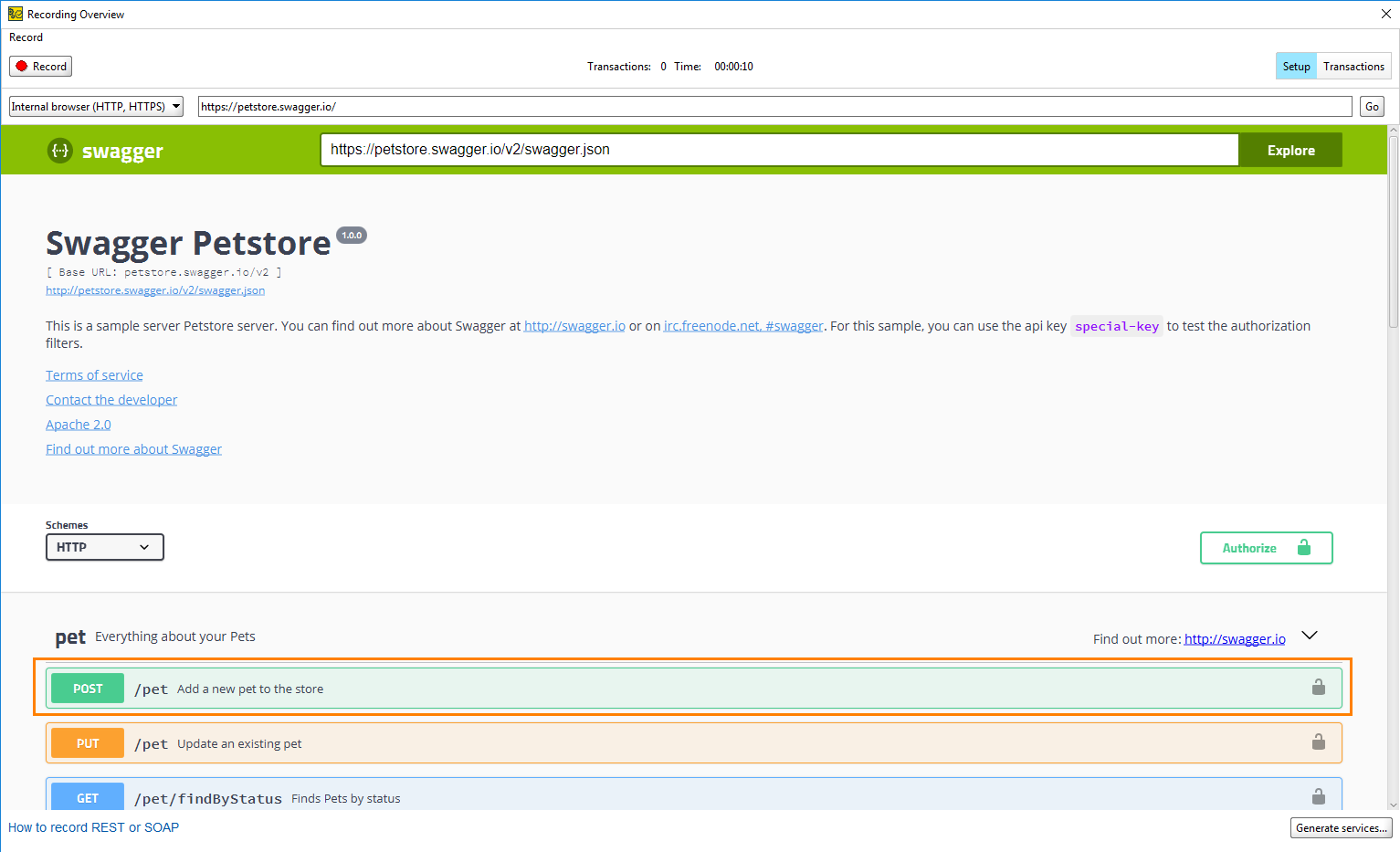
Click Record to resume the recording.
Click Execute to send the request.
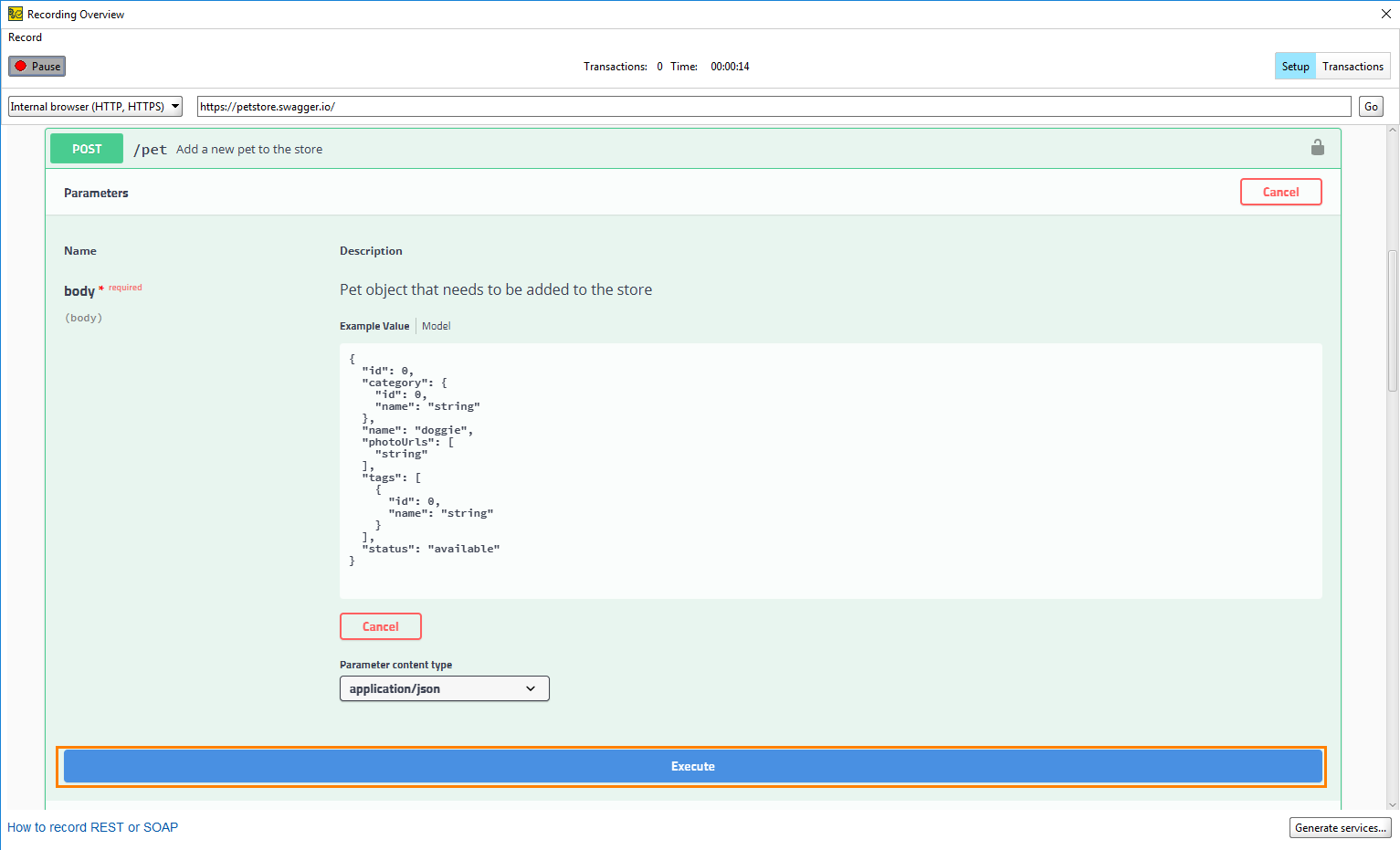
ReadyAPI records the interaction. The transaction counter confirms one recorded request.
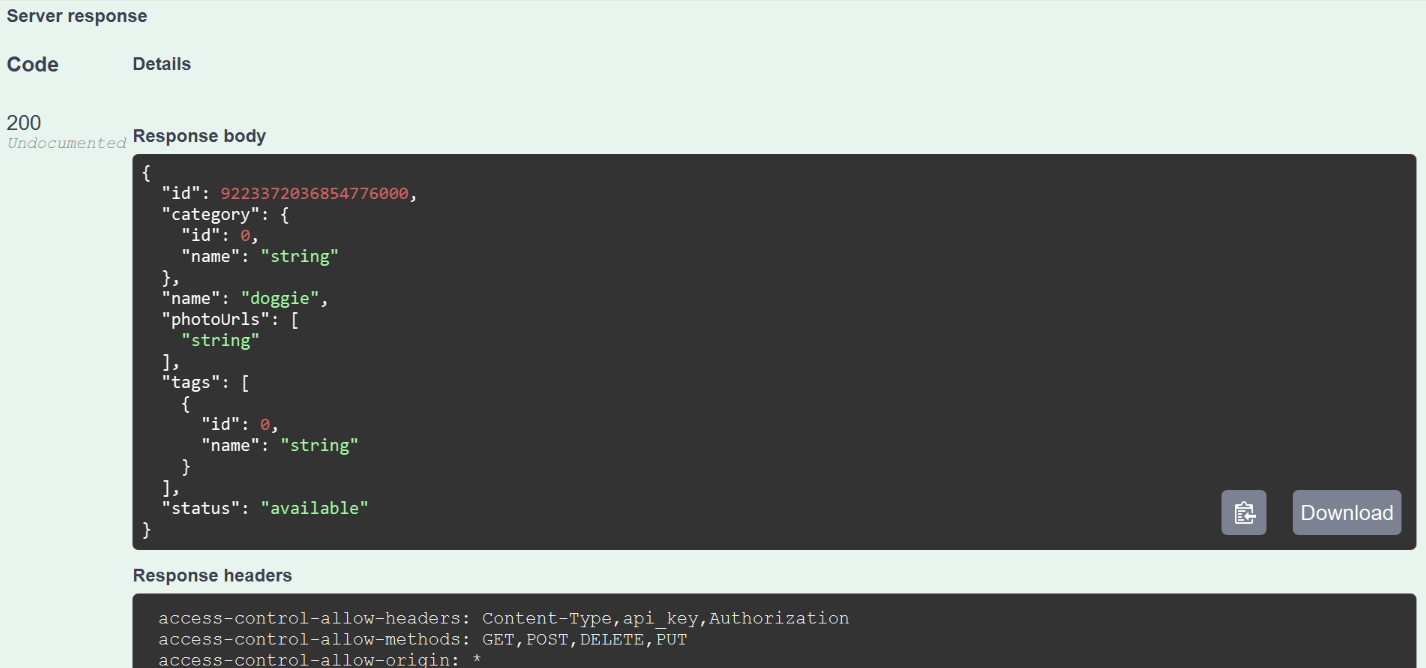
Note
The next section covers generating service definitions from the recorded requests.
3. Create Service Definitions
Generate service definitions from the recorded requests.
In the Recording Overview dialog, click Transactions to view the recorded requests and responses.
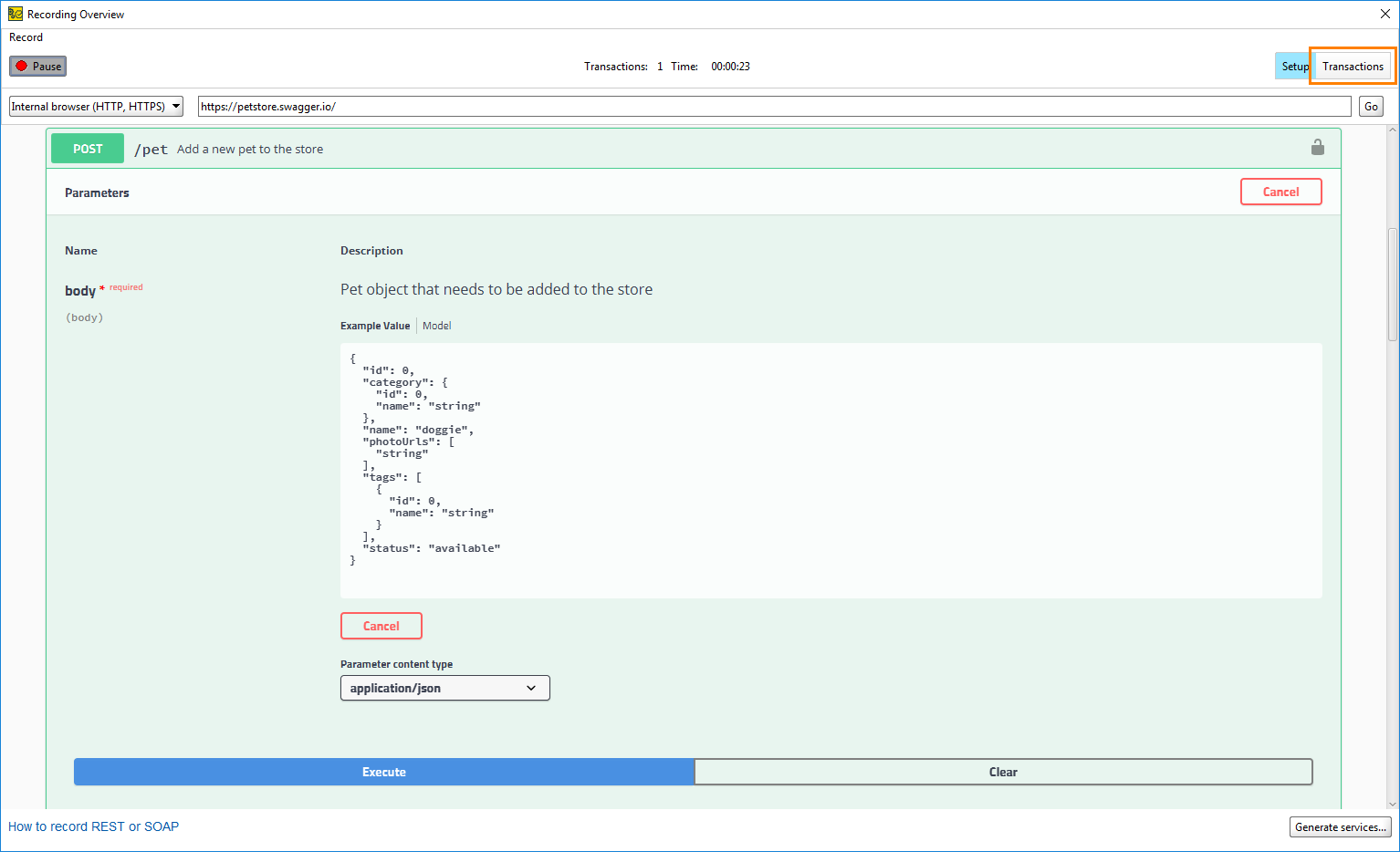
ReadyAPI displays the recorded request. You can click requests and responses to examine details of the recorded operations.
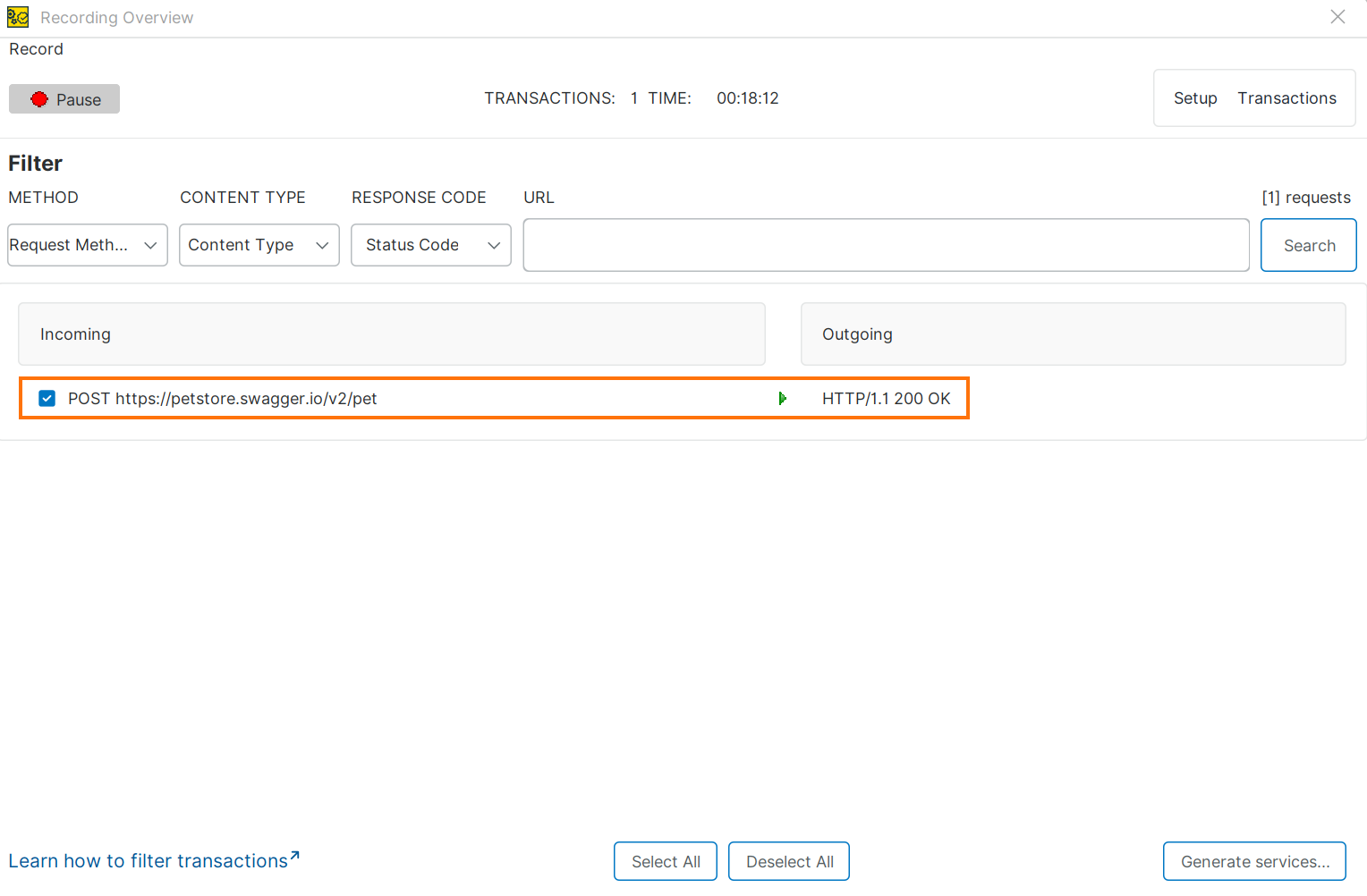
Select the recorded request and click Generate services.
Tip
If you recorded several requests, deselect any you do not need. Select only the
/v2/petPOST request with theapplication/jsoncontent type.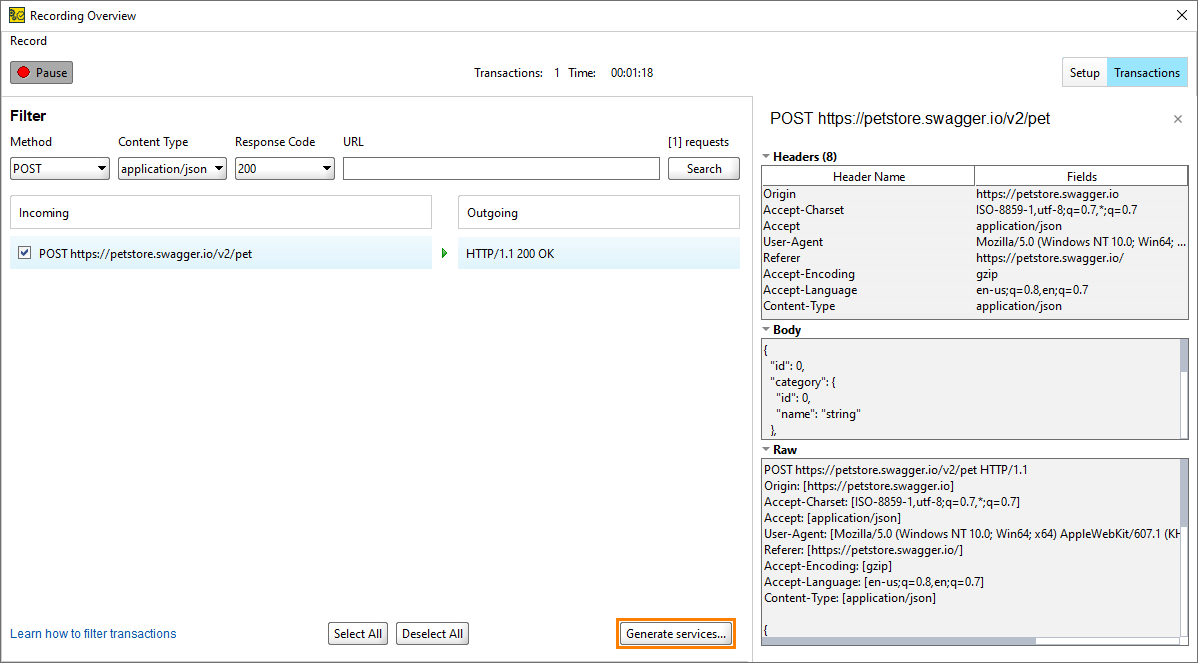
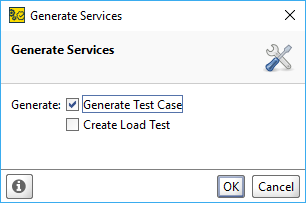
In the Generate Services dialog, select the Generate Test Case option, and click OK.
In the Create Test Suite dialog, enter a name and click OK.
In the Create Test Case dialog, enter a name and click OK.
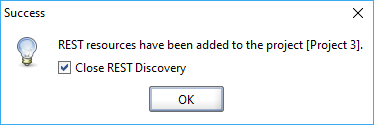
Select Close REST Discovery and click OK.
ReadyAPI creates a test case with the recorded request.
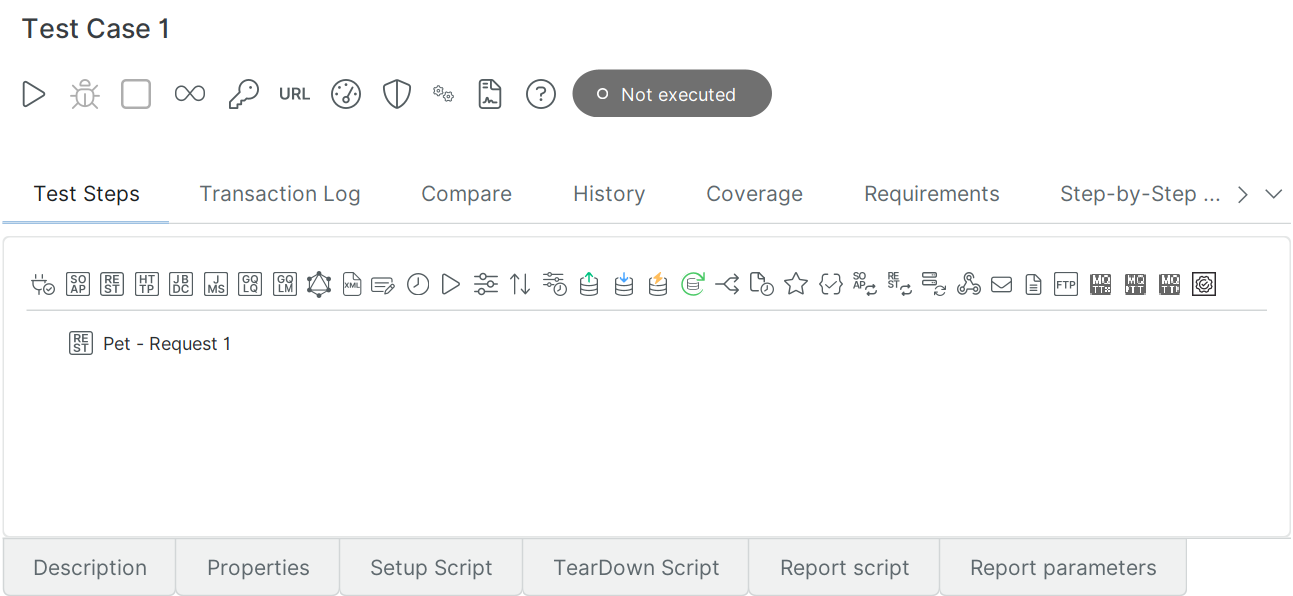
You have recorded the API request and can now run it as a test case in ReadyAPI.