Record Test Case Tutorial

In this tutorial, you record a simple interaction with a website and generate a test case from it.

1. Open the Discover API dialog

  1. From the main menu, select File and then New Empty Project.

  2. In the Navigator, click next to the APIs node, and select Discover API.

  3. Select Use the built-in browser and click Add API to start recording.
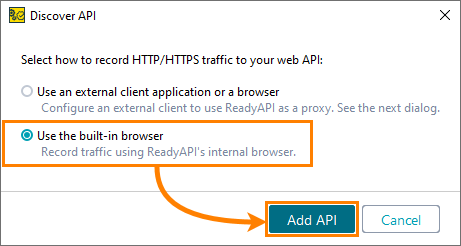
    Discover API dialog with two options for recording HTTP/HTTPS traffic: "Use an external client application or a browser" and "Use the built-in browser," which is selected.

2. Specify definition

  • In the Discover API dialog, enter https://petstore.swagger.io/v2/swagger.json in the Enter URL or choose file field and click Add and Record.

    Tip

    A definition file lets you filter recorded requests and display only those sent to the specified web services.
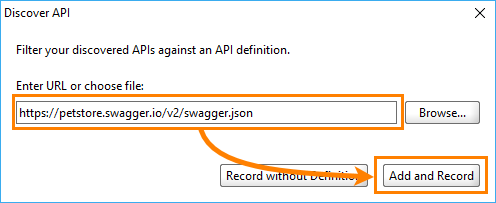
    Discover API dialog with the URL field containing "https://petstore.swagger.io/v2/swagger.json" and the Add and Record button highlighted.

3. Record requests

ReadyAPI opens the Recording Overview dialog when the test recording starts.

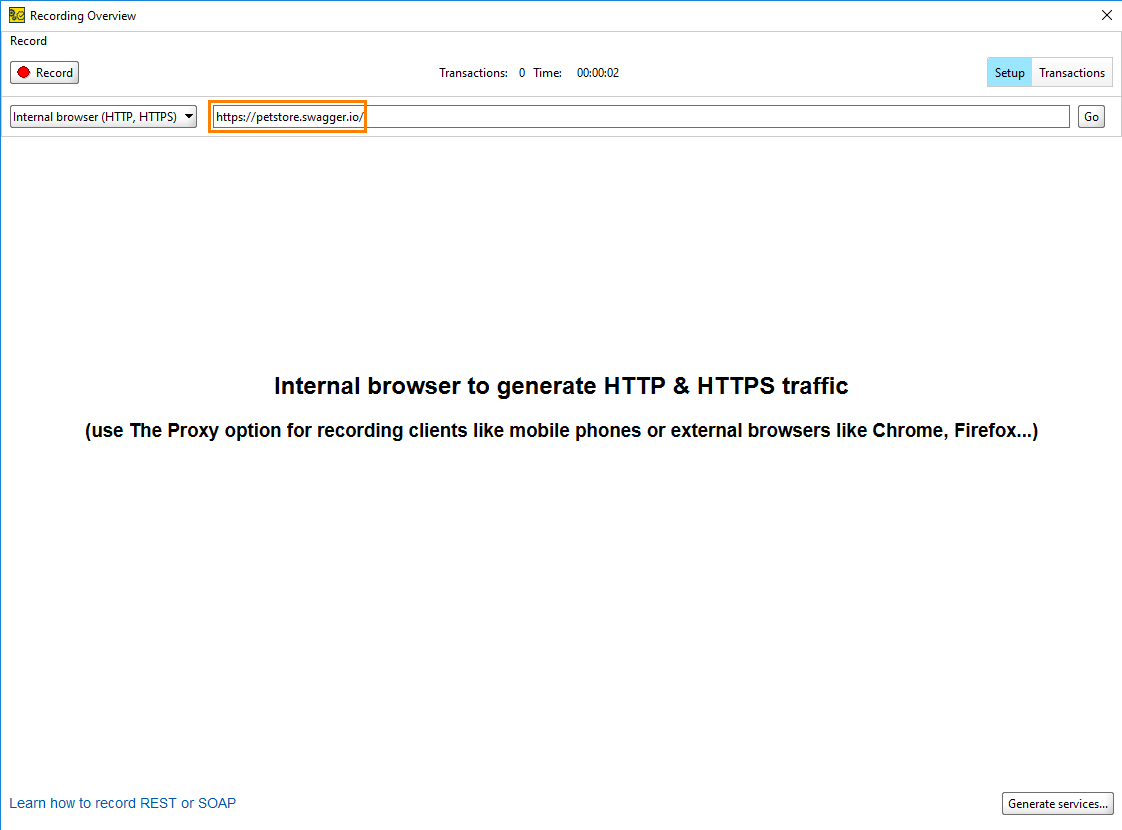
  1. In the Recording Overview dialog, enter https://petstore.swagger.io/ in the URL field and click Go.

    Recording Overview window showing the internal browser with https://petstore.swagger.io in the URL field, a Pause button, and a transaction counter showing 0 transactions at 1 minute 57 seconds.
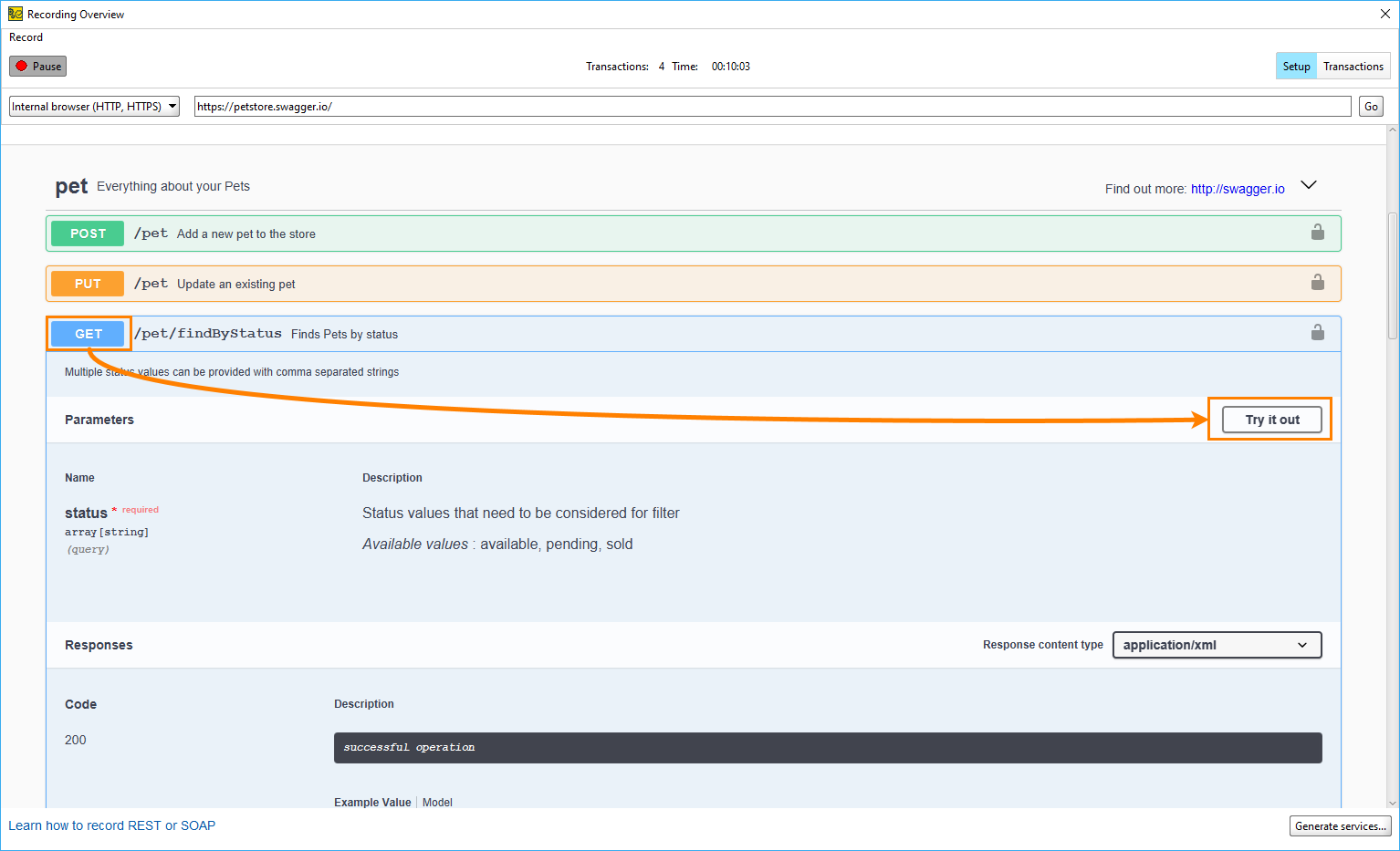
  2. In the pet Everything about your Pets section, expand the GET method for the /pet/findByStatus resource and click Try it out.

    Recording Overview window showing the Petstore API in the built-in browser, with the GET /pet/findByStatus endpoint expanded and the Try it out button highlighted.
  3. In the status parameter field, select available and click Execute.
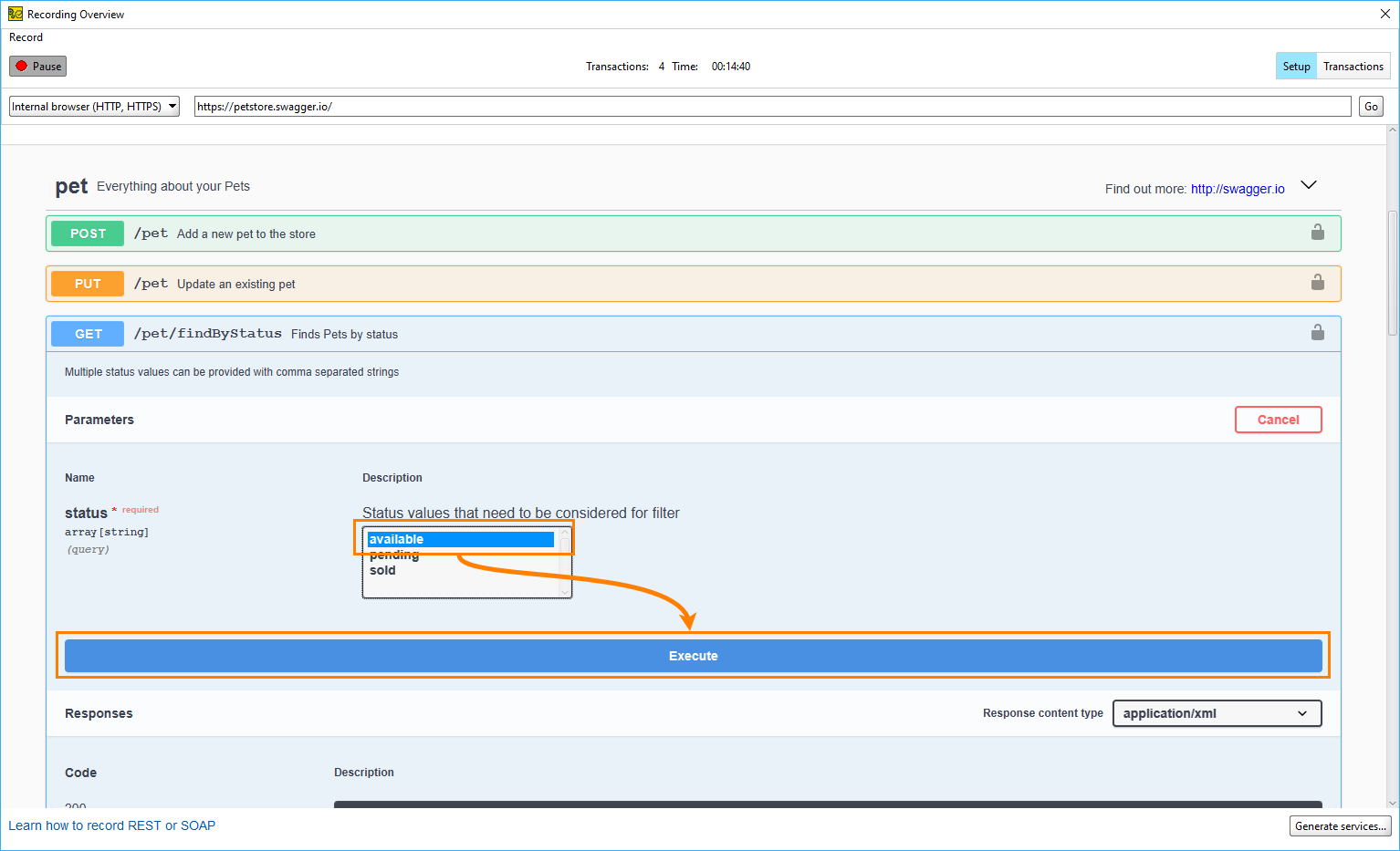
    Recording Overview window showing the GET /pet/findByStatus endpoint with the status parameter dropdown open, "available" selected, and the Execute button highlighted.
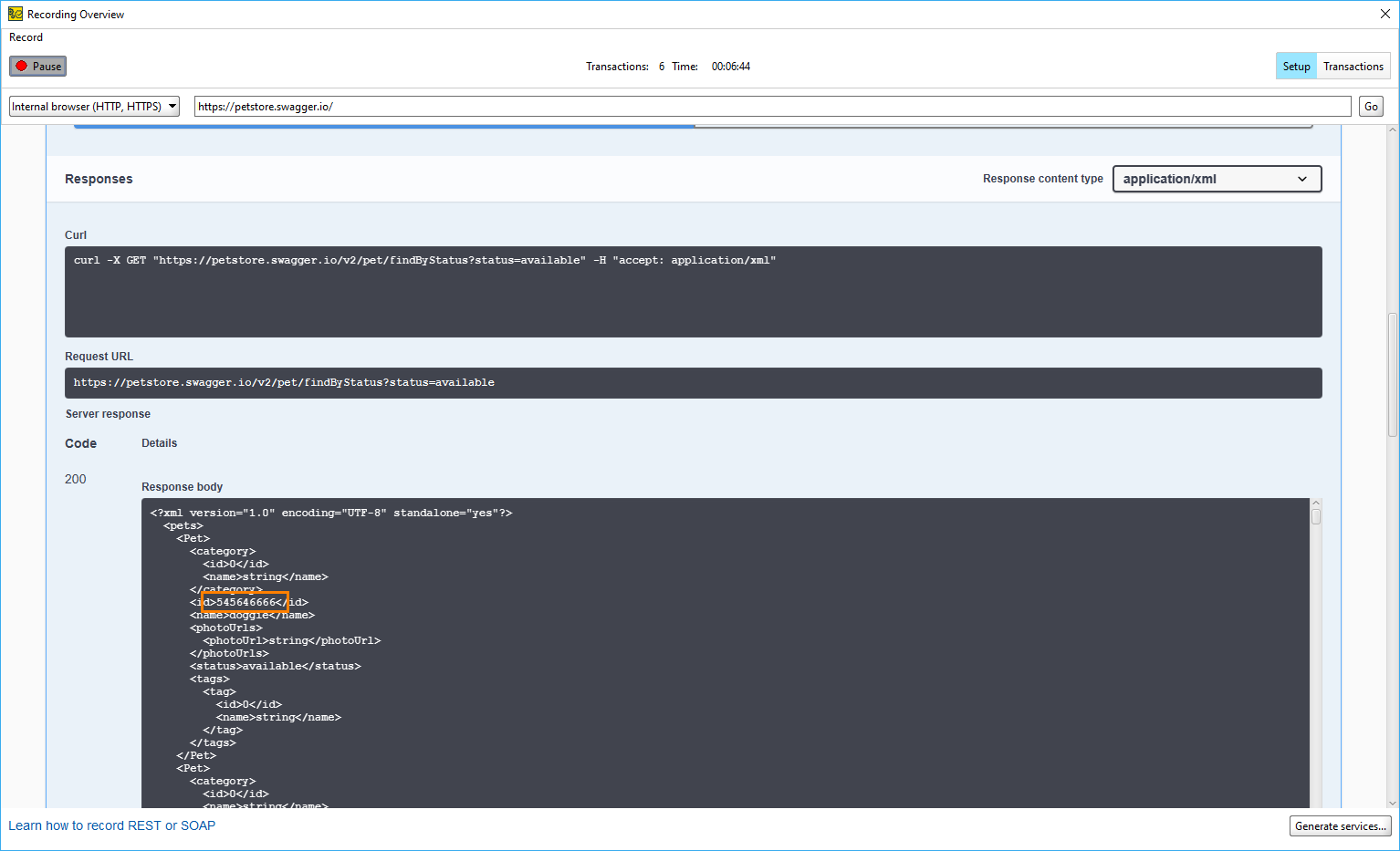
  4. Scroll down to the Responses section and locate the response body. A list of pets represented by the Pet object. Copy the value of the id element.

    Recording Overview: GET /pet/findByStatus Response Body
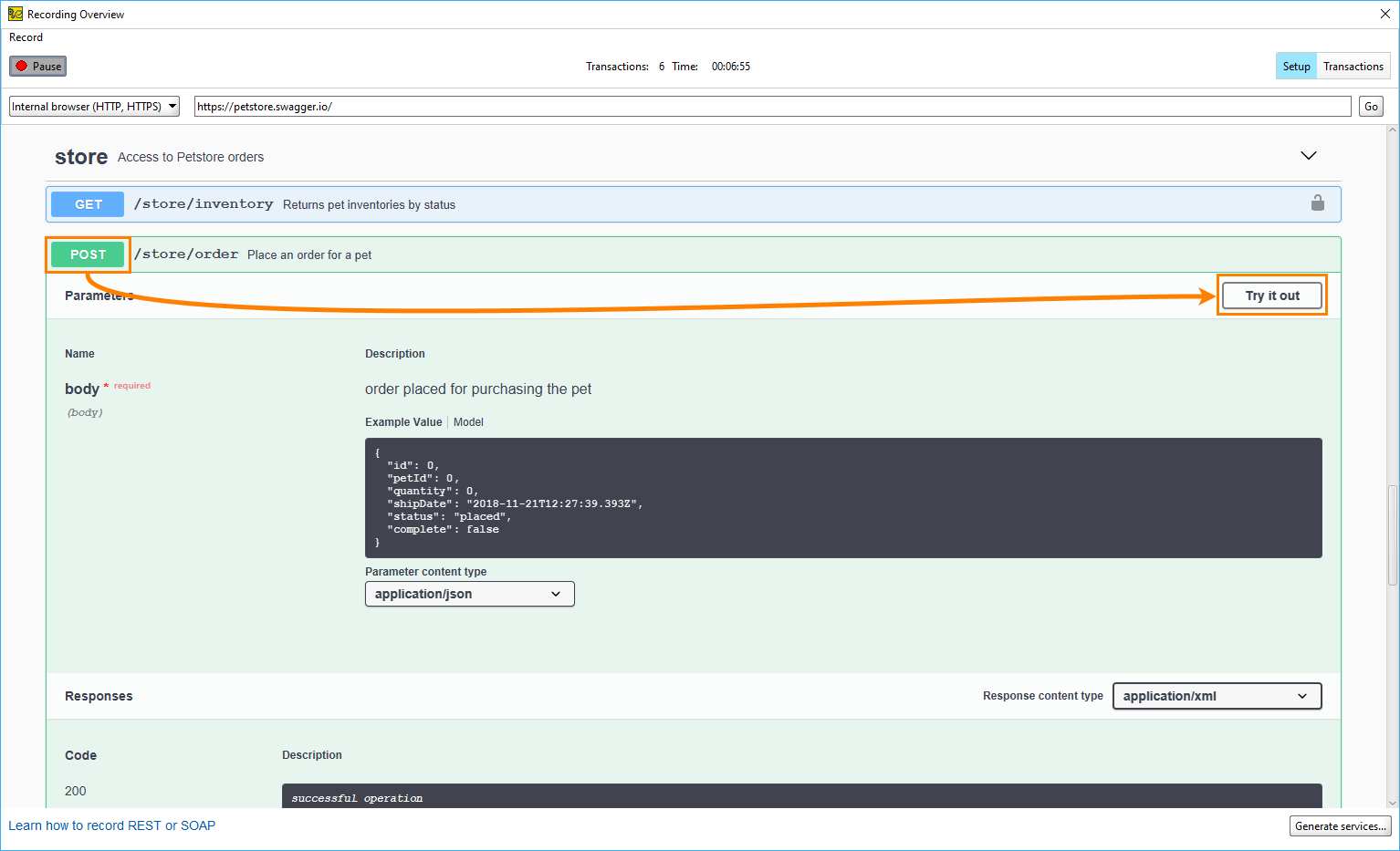
  5. Go to the store Access to Petstore orders section, click the POST method for the /store/order resource, and click Try it out.

    Recording Overview window showing the POST /store/order endpoint expanded, with a required body parameter containing an example JSON order object and the Try it out button highlighted.
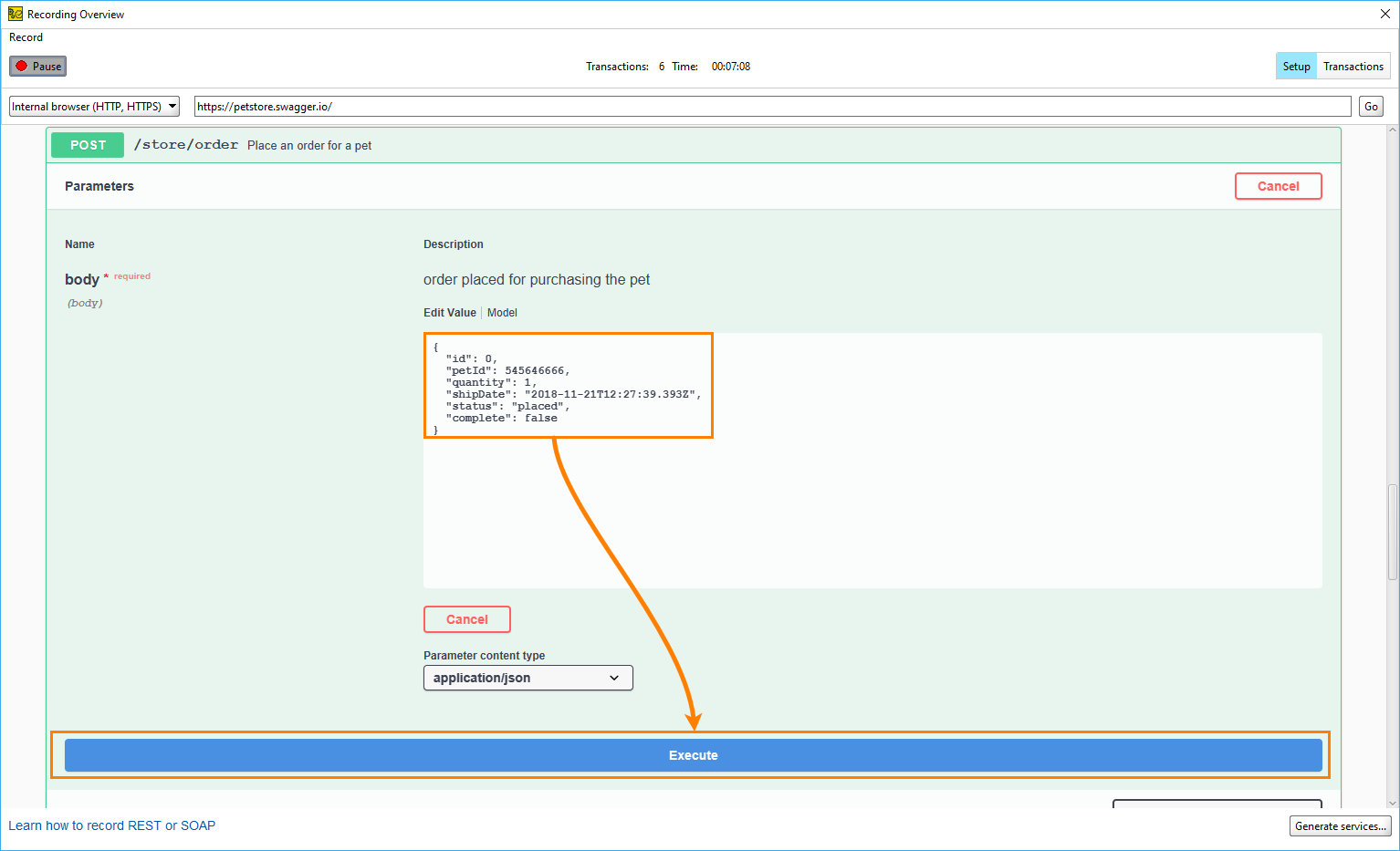
  6. In the sample request body, paste the copied pet ID into the petId parameter. For the quantity parameter, enter 1. Click Execute to send the request.

    Recording Overview: POST /store/order with petId and Execute

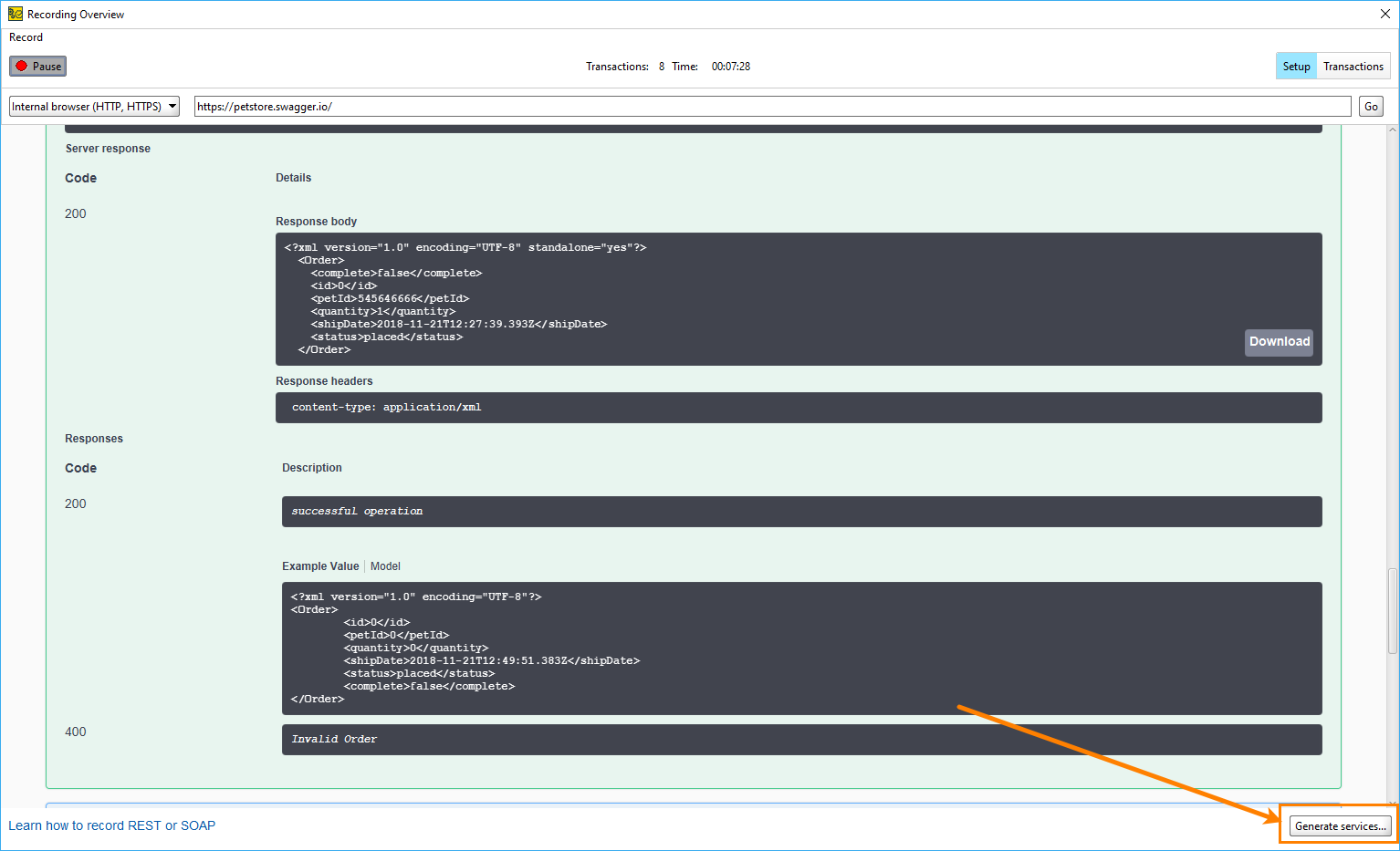
    ReadyAPI sends the request and displays a 200 server response, confirming the order was placed successfully.
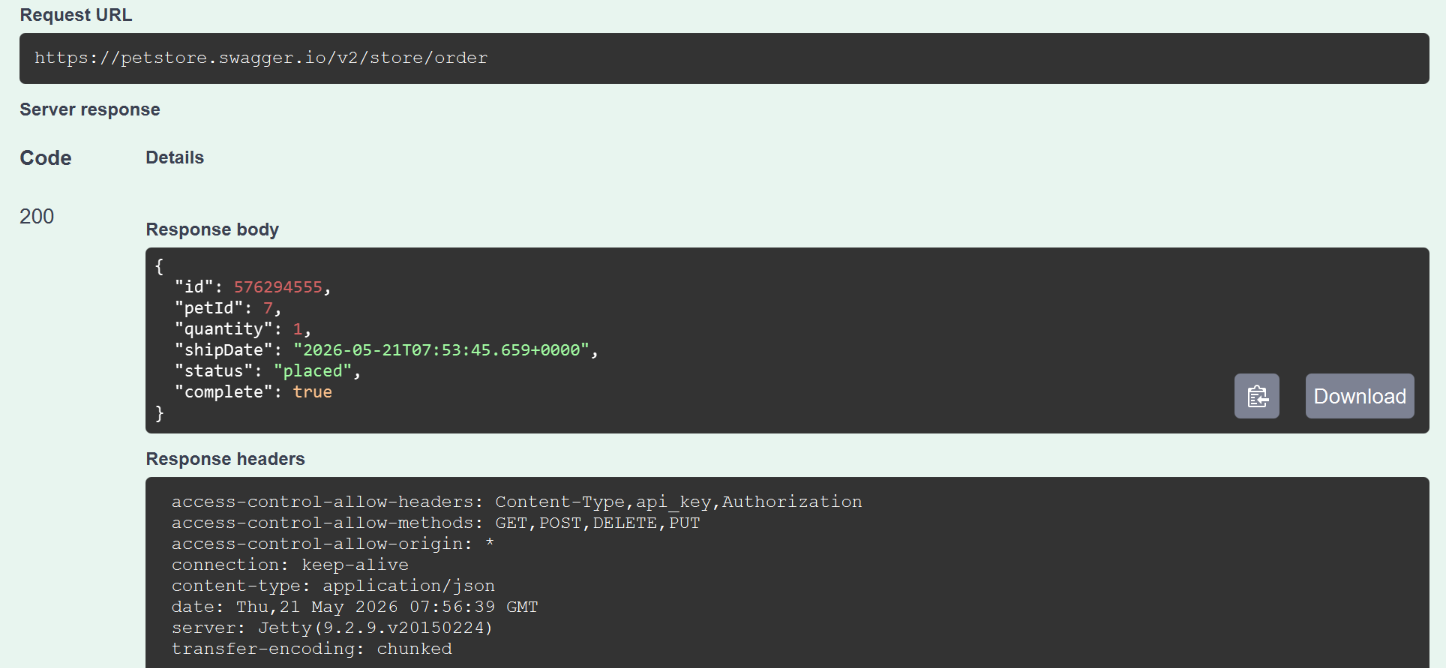
    Server response section showing a 200 response code with a JSON response body confirming the order was placed, with quantity set to 1 and status set to "placed".

Note

The next section covers generating a test case from these recorded requests.

4. Create test

After you record the scenario, you can generate a test case.

  1. Click Generate services.

    Recording Overview window showing a 200 server response body with status "placed" and quantity 1, and the Generate Services button highlighted in the bottom-right corner.
  2. In the Generate Services dialog, select the Generate Test Case option, and click OK.
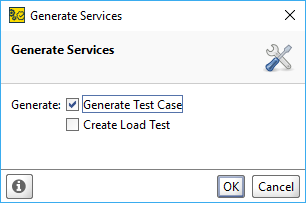
    Generate Services dialog with the Generate Test Case checkbox checked and highlighted, Create Load Test unchecked, and the OK button highlighted.
  3. In the Create Test Suite dialog, enter a name and click OK.

  4. In the Create Test Case dialog, enter a name and click OK.

  5. Select Close REST Discovery and click OK.
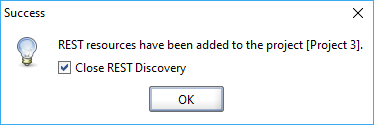
    Success dialog confirming that REST resources have been added to Project 3, with the Close REST Discovery checkbox checked and the OK button visible.

    ReadyAPI creates a test case with a sequence of recorded requests.
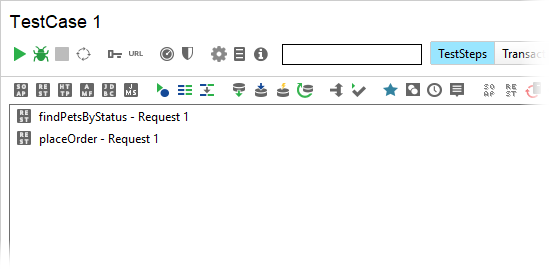
    Test Case 1 editor showing two recorded REST test steps: findPetsByStatus - Request 1 and placeOrder - Request 1, with status showing Not executed.

See Also

Publication date: