Filtering Recorded Transactions
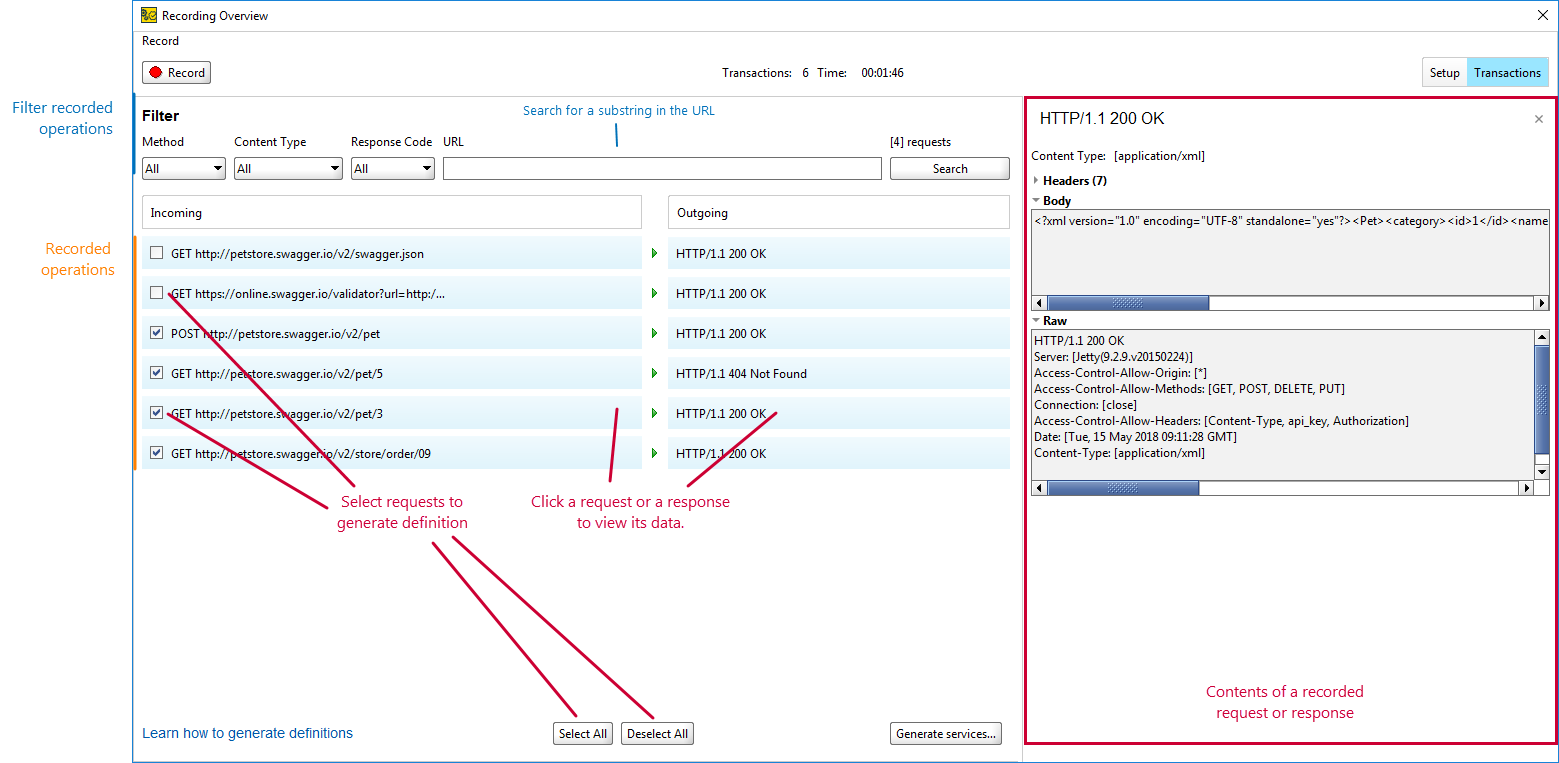
All requests recorded during your session appear on the Transactions page.
 |
View Transactions Details
Click any recorded request or response to view its details in the panel on the right.
Filter Requests
Use the following filters to display only the requests you need:
Parameter | Description |
|---|---|
Method | Filter by HTTP method. For example, display only GET requests. |
Content Type | Filter by content type. For example, |
Response Code | Filter by HTTP response code. For example, |
URL | Filter by URL. Enter a full or partial URL to show matching requests. |
Select Requests to Generate
Deselect any transactions you do not want to include when generating definitions. Use Select All or Deselect All to manage the entire list.
Generate Service Definitions
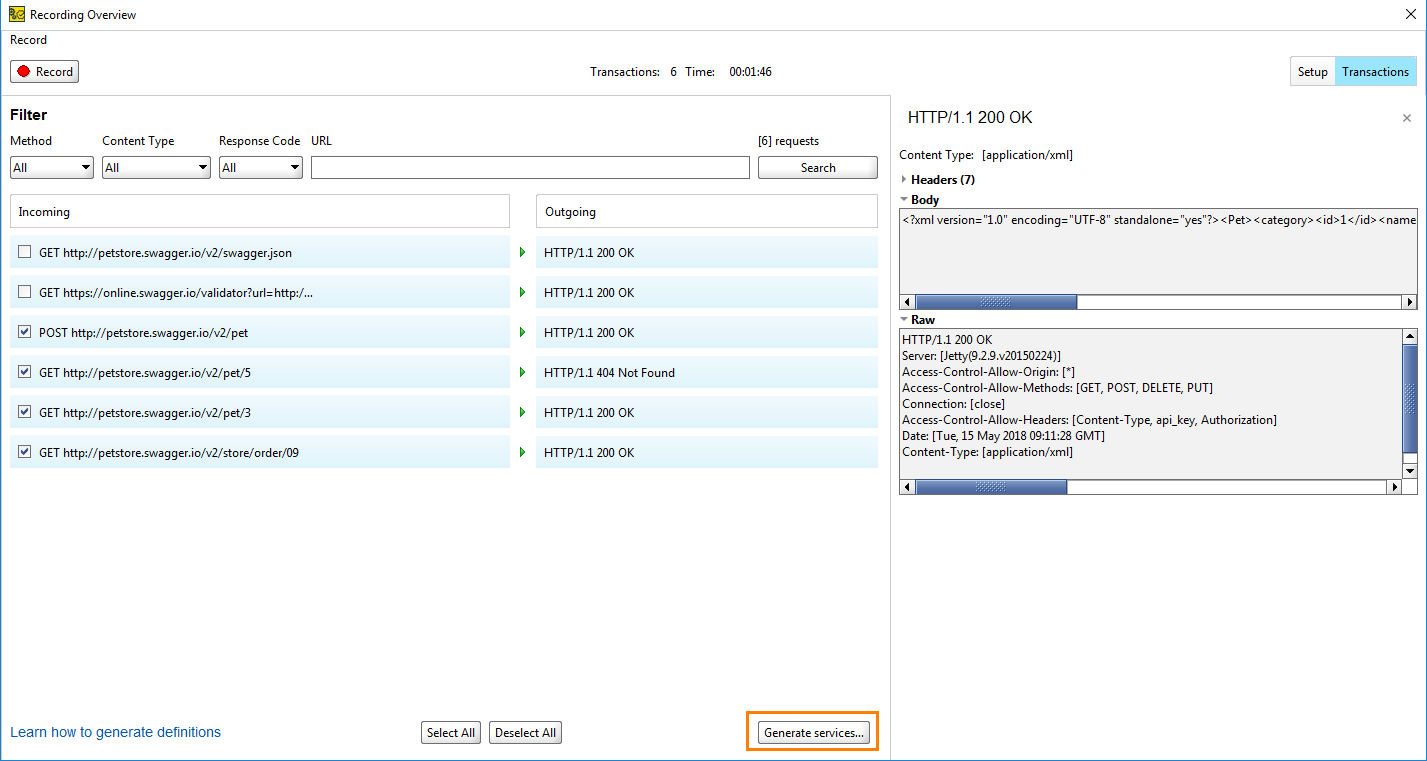
In the Recording Overview dialog, click Transactions to view the recorded requests and responses.
Select the recorded requests you need and click Generate services.
Tip
If you recorded several requests, deselect any you do not need. Otherwise, ReadyAPI creates API definitions for all available requests.
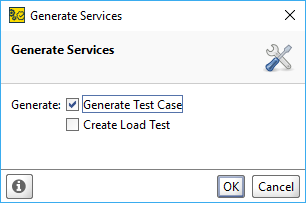
In the Generate Services dialog, select Generate Test Case to create a functional test or Generate Load Test to create a performance test. Click OK.
In the Create Test Suite dialog, enter a name and click OK.
In the Create Test Case dialog, enter a name and click OK.
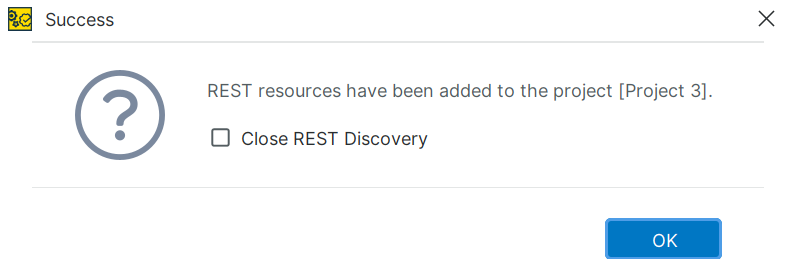
Click OK to close the Success dialog.
Tip
To generate additional API definitions from the recorded requests, deselect Close REST Discovery before clicking OK.
ReadyAPI creates a test case with the recorded request.