Internal Browser Discovery
Use the built-in browser to record requests to a website, filter the results, and generate an API definition. ReadyAPI calls this process Discovery.
1. Start Browser Discovery
From the main menu, select File and then New Empty Project.
In the Navigator, click next to the APIs node, and select Discover API.
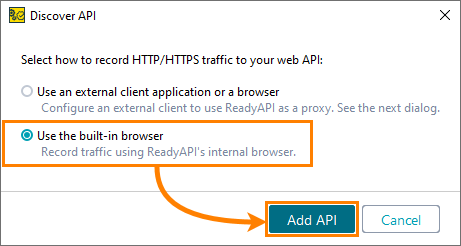
Select Use the built-in browser and click Add API.
In the Discover API dialog, enter the definition URL or file path. You can take one of the following actions:
To record requests against an API definition, click Add and Record.
To record without a definition, click Record Without Definition.
ReadyAPI opens the Recording Overview window.
2. Record Requests
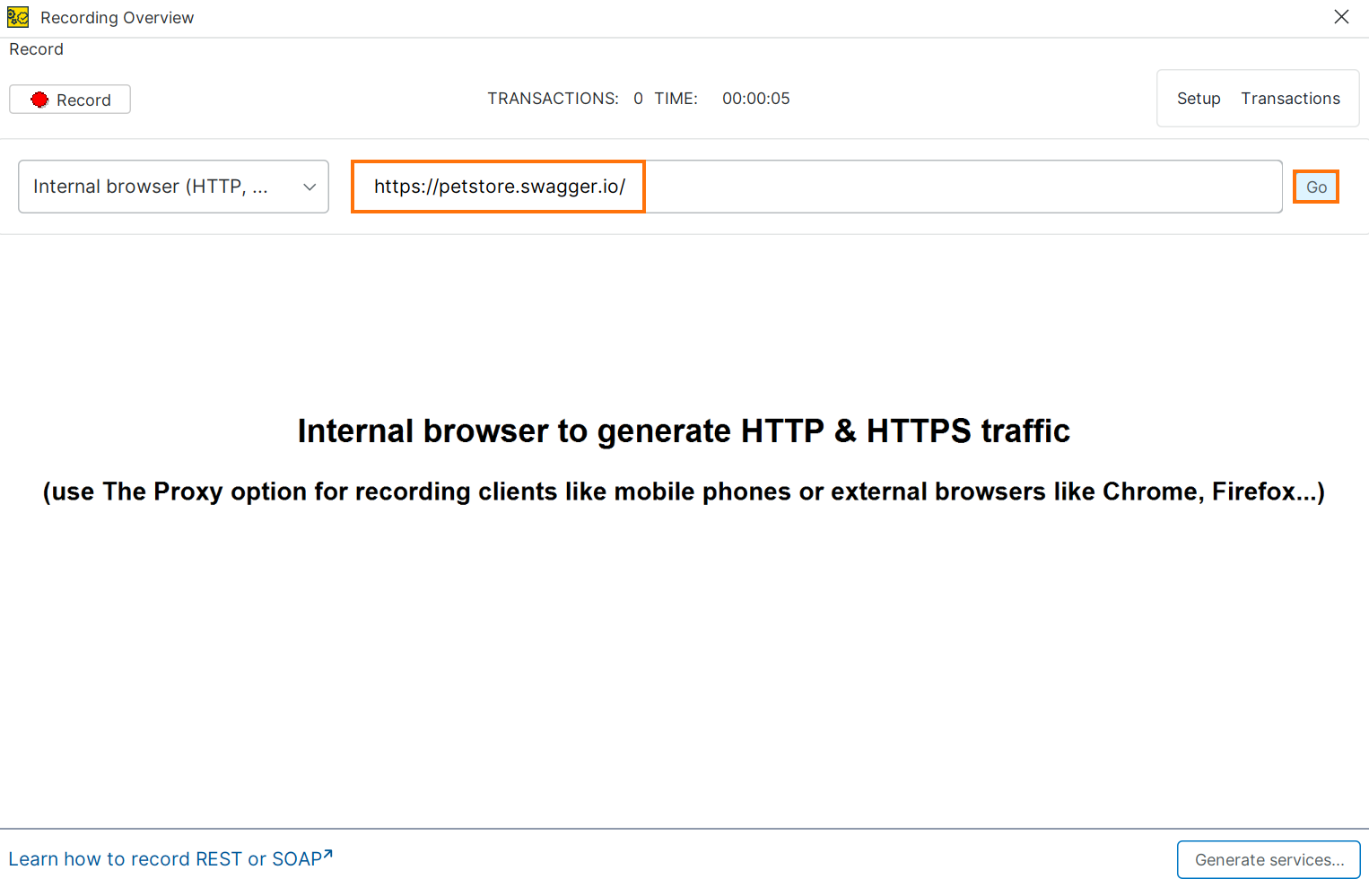
In the Recording Overview dialog, confirm that Internal browser (HTTP, HTTPS) is selected in the dropdown, then enter the target URL. Click Go.
Tip
If your service generates many API calls on load, click Pause before navigating to the target page. Click Record to resume when ready.
Note
Some websites make additional API calls after the page loads. ReadyAPI records these automatically.
3. Generate Service Definitions
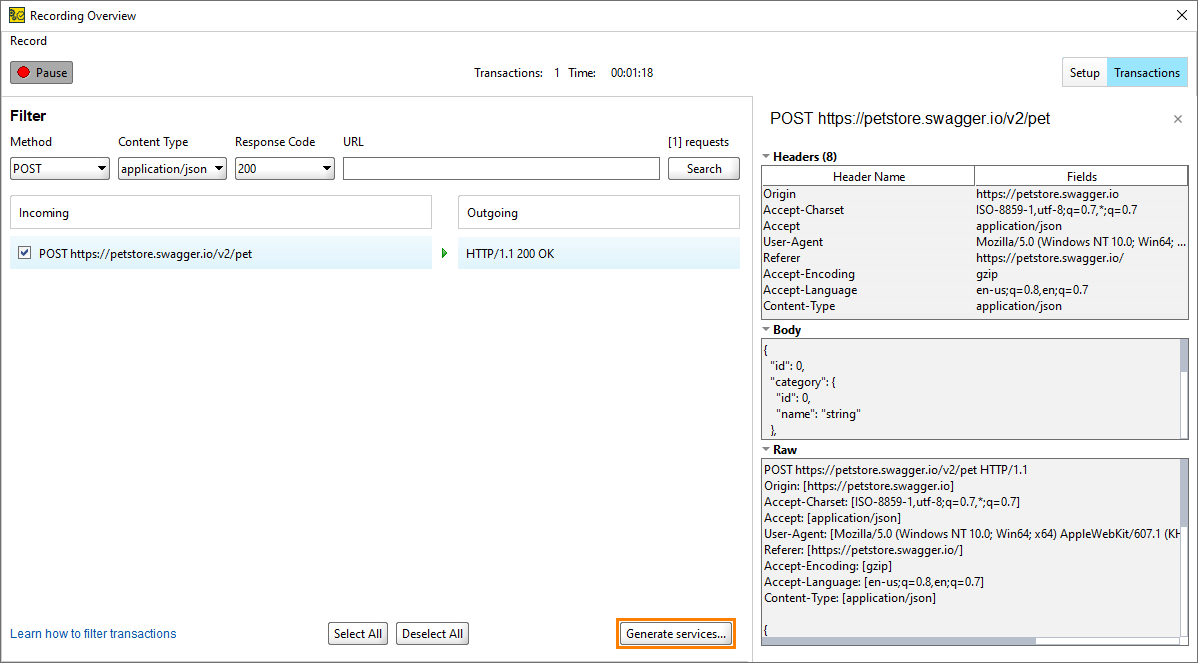
In the Recording Overview dialog, click Transactions to view the recorded requests and responses.
ReadyAPI displays the recorded requests and responses. Click any entry to view its details.
Select the recorded requests you need and click Generate services.
Tip
If you recorded several requests, deselect any you do not need. Otherwise, ReadyAPI creates API definitions for all available requests.
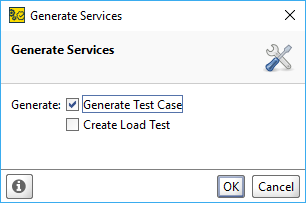
In the Generate Services dialog, select Generate Test Case to create a functional test or Generate Load Test to create a performance test. Click OK.
ReadyAPI generates service definitions.
In the Create Test Suite dialog, enter a name and click OK.
In the Create Test Case dialog, enter a name and click OK.
Confirm Close REST Discovery is selected and click OK.
Tip
To generate additional API definitions from the recorded requests, deselect Close REST Discovery before clicking OK.

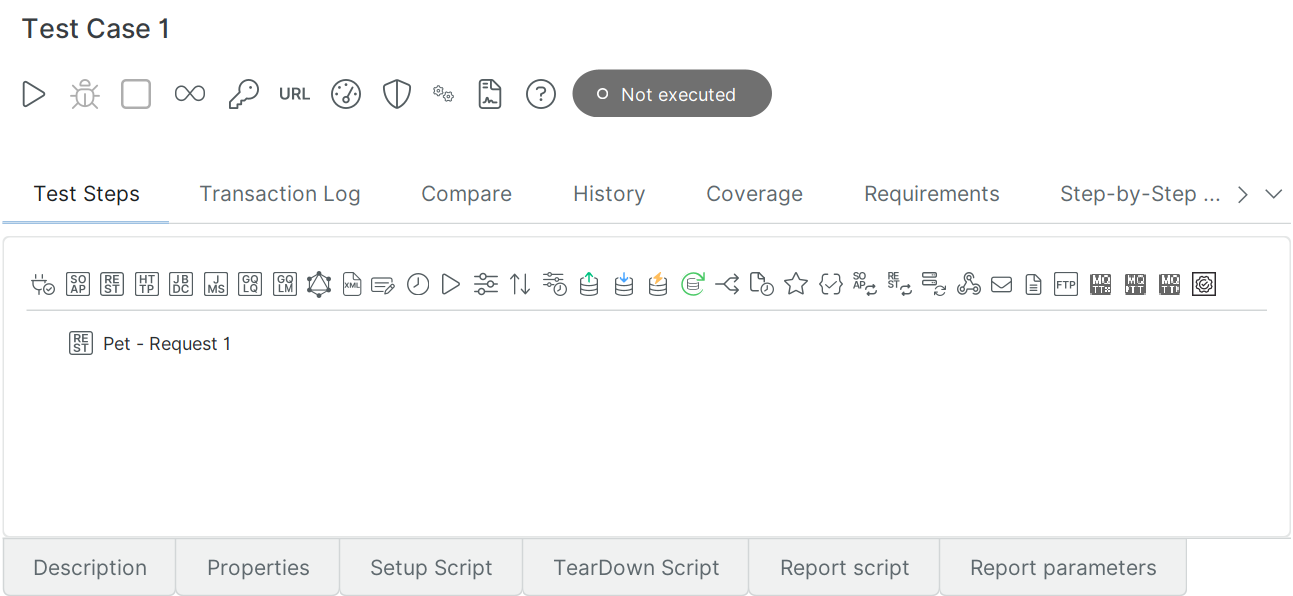
ReadyAPI creates a test case with the recorded request.
HTTPS Service Specifics
When you discover an HTTPS service, the browser establishes a secure connection and verifies whether the server certificate is trusted. If it is not, the browser displays a warning and stops creating the connection.
Internal test services often use self-signed certificates that are not trusted by default. To work with them, enable the Self-signed certificate option in the Internal Browser properties.
The browser uses SNI to verify that the certificate hostname matches the server hostname. If they do not match, the connection is blocked. To disable verification, deselect the Hostname verification option in the Internal Browser properties.
Important
These options pose a security risk when working with untrusted websites.