Using ReadyAPI as Proxy
Use an external client application or browser to record requests to a website, filter the results, and generate an API definition. ReadyAPI calls this process Discovery.
When you cannot record requests directly from a browser, configure ReadyAPI as a proxy. ReadyAPI then records only the requests you send through it, filtering out unnecessary traffic.
1. Open the Discovery API Dialog
From the main menu, select File and then New Empty Project.
In the Navigator, click next to the APIs node, and select Discover API.
Select Use an external client application or a browser and click Add API.
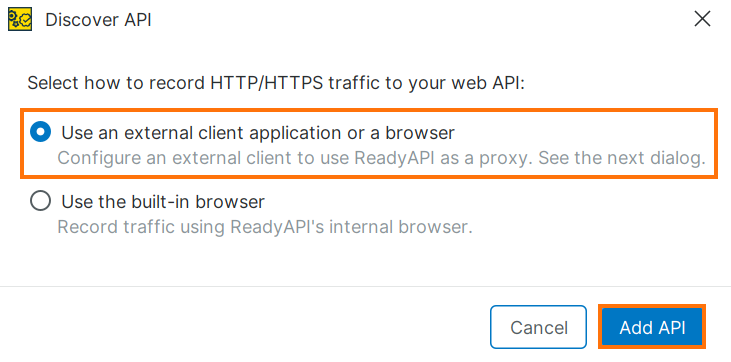
In the Discover API dialog, enter the definition URL or file path. You can take one of the following actions:
To record requests against an API definition, click Add and Record.
To record without a definition, click Record Without Definition.
ReadyAPI opens the Recording Overview window.
In the Recording Overview dialog, confirm that Proxy (HTTP, HTTPS) is selected in the dropdown.
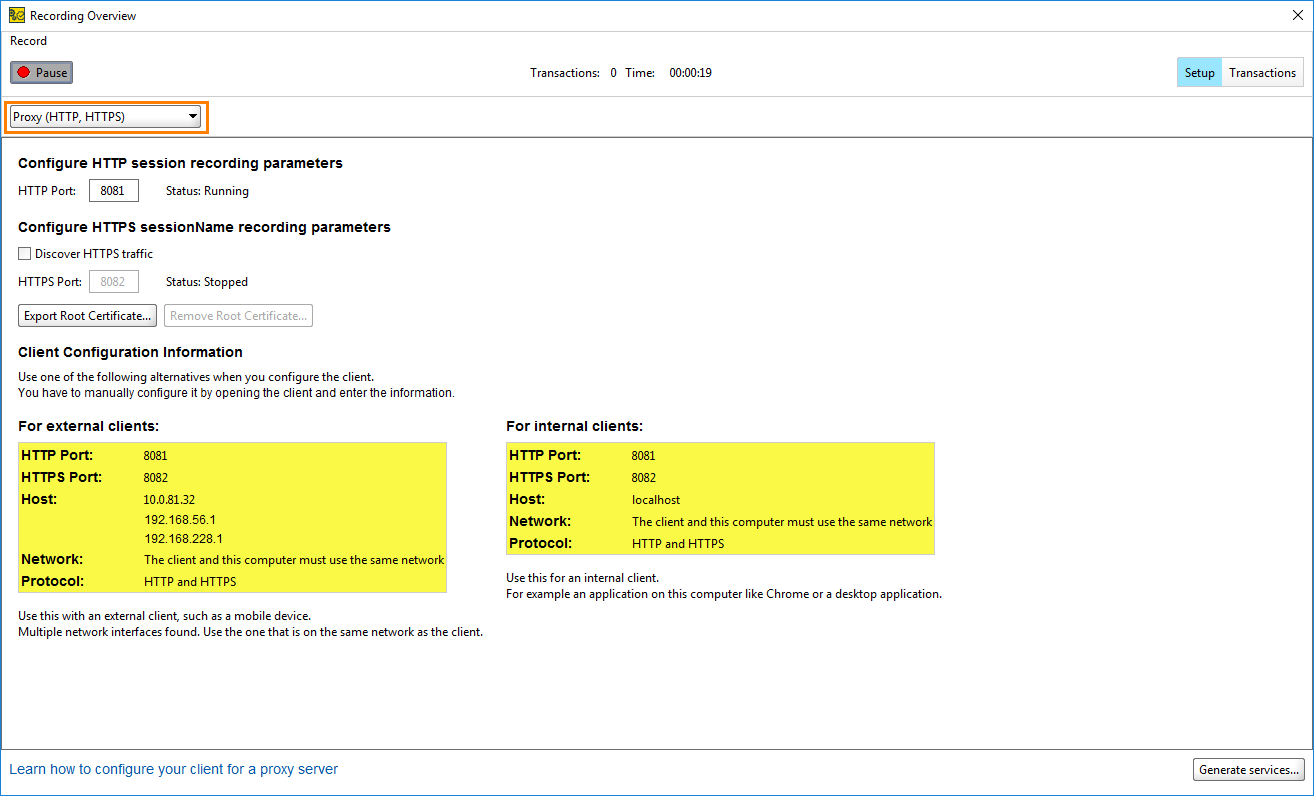
2. Record Requests
In Proxy mode, ReadyAPI records all requests and responses that pass through it. Configure your browser to use ReadyAPI as the proxy - refer to your browser documentation for instructions. You can also route traffic from external clients such as virtual machines, mobile devices, or other networked computers.
Warning
ReadyAPI records HTTP and HTTPS on separate ports. You cannot use the same port for both protocols.
Configure Proxy Address
In the Recording Overview dialog, use the HTTP Port and HTTPS Port fields to set the ports on which the proxy runs. Ensure no other application uses these ports.
The For external clients and For internal clients sections show the connection details you need to configure your client.
External clients are devices or applications on the same network as ReadyAPI, such as mobile devices.
Internal clients run on the same host as ReadyAPI, such as a desktop browser.
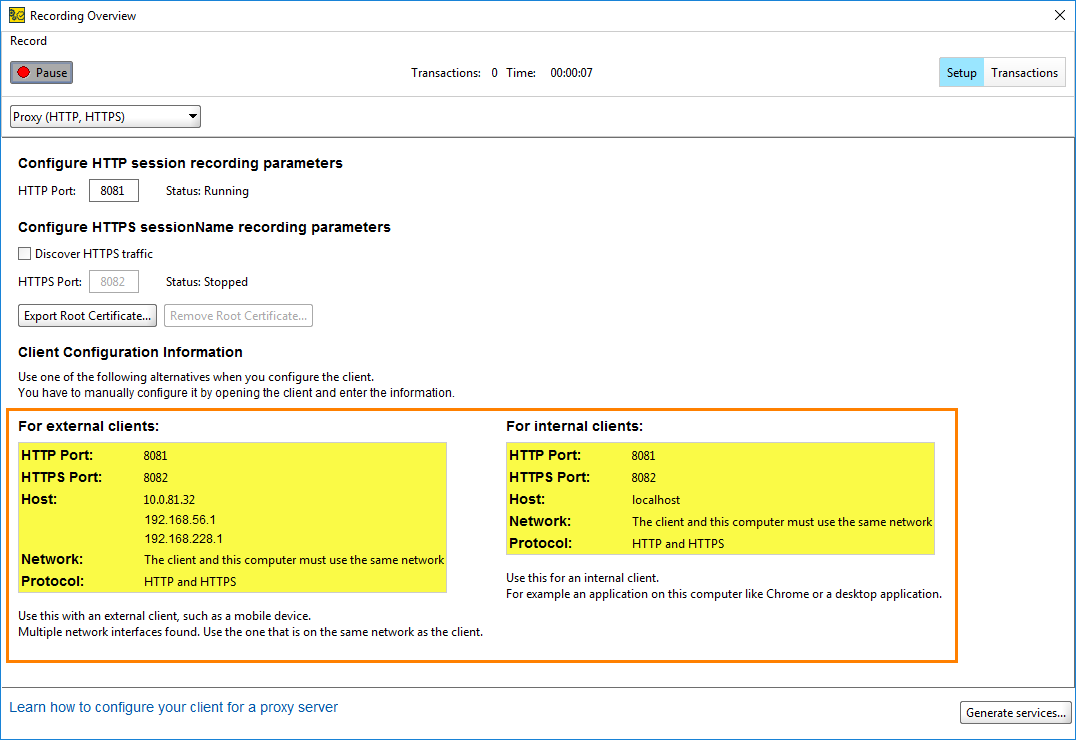 |
Configure Client
Desktop Browser
When you enable routing, ReadyAPI is set as a system proxy. Most browsers use system proxies by default and require no additional configuration. If requests are not recorded, check your browser network settings and confirm the proxy is set to ReadyAPI.
Android Device
To record requests from an Android device, configure the Wi-Fi network's HTTP proxy settings to route traffic through ReadyAPI. These instructions apply to Android 4.0 and later. Steps may vary depending on your device.
Requirements
Your Android device must be connected to a Wi-Fi network that supports proxy servers. Some devices do not support proxy servers. Refer to your device manual or contact your manufacturer for more information.
The application must use HTTP or HTTPS. ReadyAPI cannot record both protocols on the same port.
Set the Device Proxy
Open Settings, and tap Wi-Fi.
Press and hold your Wi-Fi network and select Modify network.
In Advanced options, tap Proxy and select Manual.
In the Hostname field, enter the IP address. In the Port field, enter the port number displayed in the For external clients section of the Recording Overview dialog.
Tap Save.
ReadyAPI records the requests you send from your Android device.
Warning
Remove the proxy settings after recording. Leaving them in place prevents mobile applications from accessing the internet.
iOS Device
To record requests from your iOS device, configure the Wi-Fi network's HTTP proxy settings to route traffic through ReadyAPI.
Requirements
Your iPhone or iPad must be connected to a Wi-Fi network.
The application must use HTTP or HTTPS. ReadyAPI cannot record both protocols on the same port.
Set the Device Proxy
Open Settings, and tap Wi-Fi.
Tap the icon next to your Wi-Fi network name.
Scroll down to the HTTP Proxy section and select Manual.
Enter the Server IP address and the Port displayed in the For external clients section of the Recording Overview dialog. Confirm Authentication is disabled.
Tap Back to save the settings.
ReadyAPI records the requests you send from your iOS device.
Warning
Remove the proxy settings after recording. Leaving them in place prevents mobile applications from accessing the internet.
Record HTTP Traffic
Configure your browser or application to route traffic through the proxy and send the requests you want to record. ReadyAPI records all HTTP requests automatically.
To view the recorded transactions, switch to the Transactions page.
Record HTTPS Traffic
ReadyAPI requires a trusted certificate. Without it, the HTTP proxy cannot intercept HTTPS messages.
To record HTTPS traffic:
Select Discover HTTPS traffic.
ReadyAPI displays a Security Warning dialog asking whether to trust the SmartBear Software. Click Yes to continue.
Warning
Remove the SmartBear Software CA certificate from your operating system's trusted authorities after recording. Do not use it outside of testing.
ReadyAPI signs all HTTPS requests with the certificate so the proxy can intercept and read them. The certificate is self-signed by SmartBear and may cause security warnings in some browsers.
On Windows, ReadyAPI installs the certificate automatically. On Linux and Mac, install it manually. See Install and Remove the HTTPS Certificate Manually for instructions.
Send requests to your service. ReadyAPI signs all HTTPS requests with the SmartBear certificate.
After recording, remove the SmartBear certificate by clicking Remove Root Certificate or removing it manually.
To view the recorded transactions, click Transactions in the Recording Overview dialog.
3. Generate Service Definitions
In the Recording Overview dialog, click Transactions to view the recorded requests and responses.
Select the recorded requests you need and click Generate services.
Tip
If you recorded several requests, deselect any you do not need. Otherwise, ReadyAPI creates API definitions for all available requests.
In the Generate Services dialog, select Generate Test Case to create a functional test or Generate Load Test to create a performance test. Click OK.
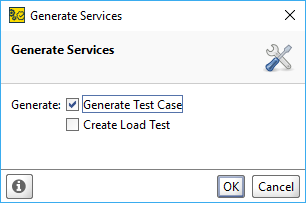
In the Create Test Suite dialog, enter a name and click OK.
In the Create Test Case dialog, enter a name and click OK.
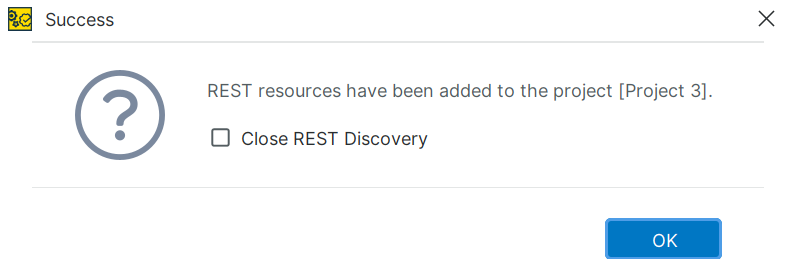
Click OK to close the Success dialog.
Tip
To generate additional API definitions from the recorded requests, deselect Close REST Discovery before clicking OK.
ReadyAPI creates a test case with the recorded request.
Install and Remove the HTTPS Certificate Manually
ReadyAPI installs the SmartBear certificate automatically on Windows. On Linux, macOS, or Windows computers without ReadyAPI, install the certificate manually.
In the Recording Overview dialog, click Export Root Certificate and select a folder to save the certificate.
Install the certificate:
On Windows, use the command-line
certutilprogram:certutil -addstore -f "ROOT" SmartBearCADoNotTrust.cer
On Linux, copy the certificate to the
/usr/local/share/ca-certificates/folder and update the certificate store:Note
The path may vary depending on your Linux distribution. Refer to your distribution's documentation if the path does not exist.
sudo cp SmartBearCADoNotTrust.cer /usr/local/share/ca-certificates/SmartBearCADoNotTrust.cer
sudo update-ca-certificates
On macOS, use the terminal to install the certificate:
sudo security add-trusted-cert -d -r trustRoot -k /Library/Keychains/System.keychain ~/SmartBearCADoNotTrust.cer
Record the API traffic. See Record HTTP Traffic or Record HTTPS Traffic for instructions.
After recording, remove the SmartBear certificate.
On Windows, use the command-line
certutilprogram:certutil -delstore "ROOT" <serial-number-hex>
Note
Replace
<serial-number-hex>with the certificate's serial number. To find it, open Certificate Manager (certmgr.msc) and locate the SmartBear certificate.On Linux, remove the certificate file from the
/usr/local/share/ca-certificates/folder and update the certificate store:sudo rm /usr/local/share/ca-certificates/SmartBearCADoNotTrust.cer sudo update-ca-certificates
On macOS, use the terminal command to remove the certificate:
sudo security delete-certificate -c "<name of existing certificate>"