Enabling OAuth 2.0 Authentication
This tutorial explains how to enable OAuth 2.0 authorization for a REST request.
Overview
To configure OAuth 2.0 authorization, complete the following steps:
Create and configure an authorization profile.
Retrieve an access token.
1. Add an Authorization Profile
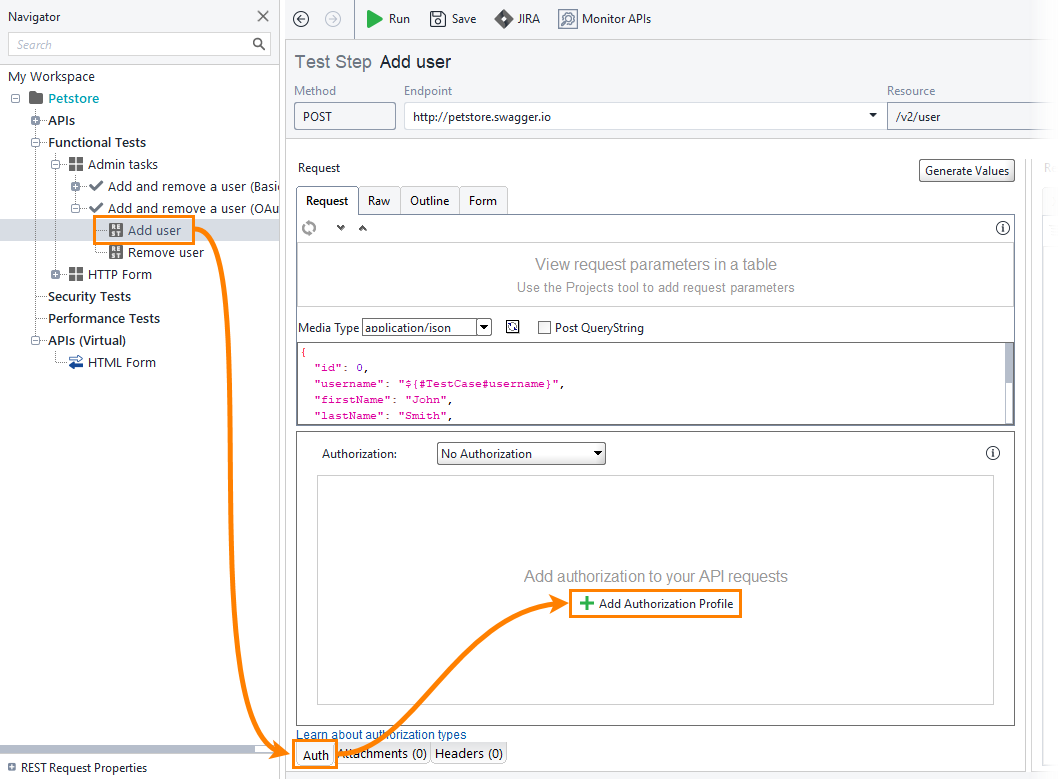
Open a REST request.
Open the Auth panel and click Add Authorization Profile.
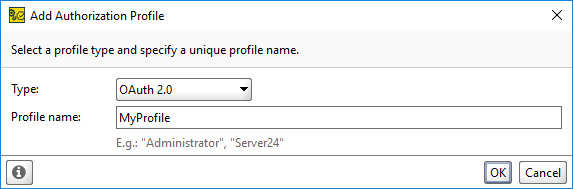
In the Add Authorization Profile dialog, select OAuth 2.0 from the Type dropdown and enter a profile name. Click OK.
2. Configure Authorization
To get an access token from the server, this tutorial uses the Authorization Code grant type.
Expand the Get Access Token dropdown.
Specify the authorization data. For the required parameters, see the OAuth 2.0 Grant Types section.
Note
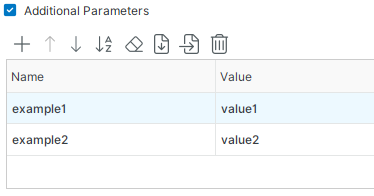
To add custom name-value pairs to the OAuth 2.0 access token request body, enable Additional Parameters. This field also supports property expansion.
Click Get Access Token:
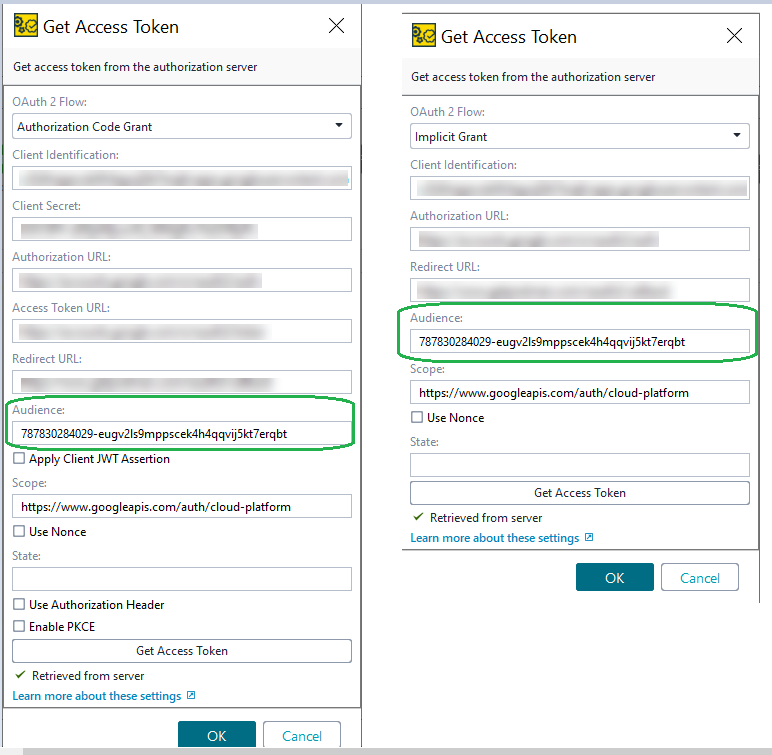
ReadyAPI retrieves the access token from the server and displays it in the Access Token field.
Note
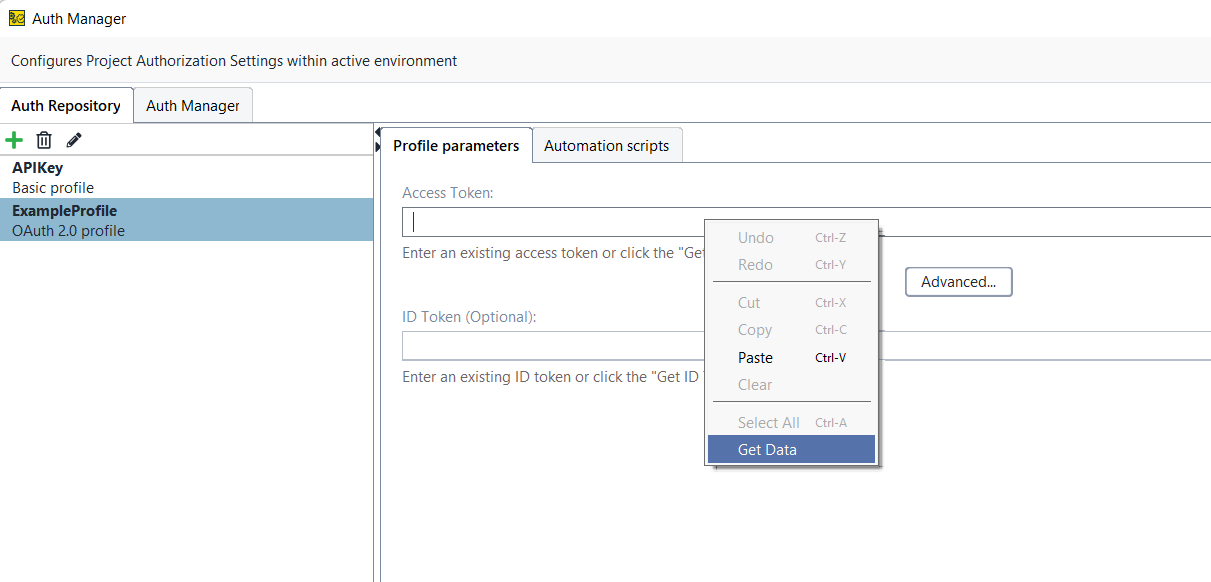
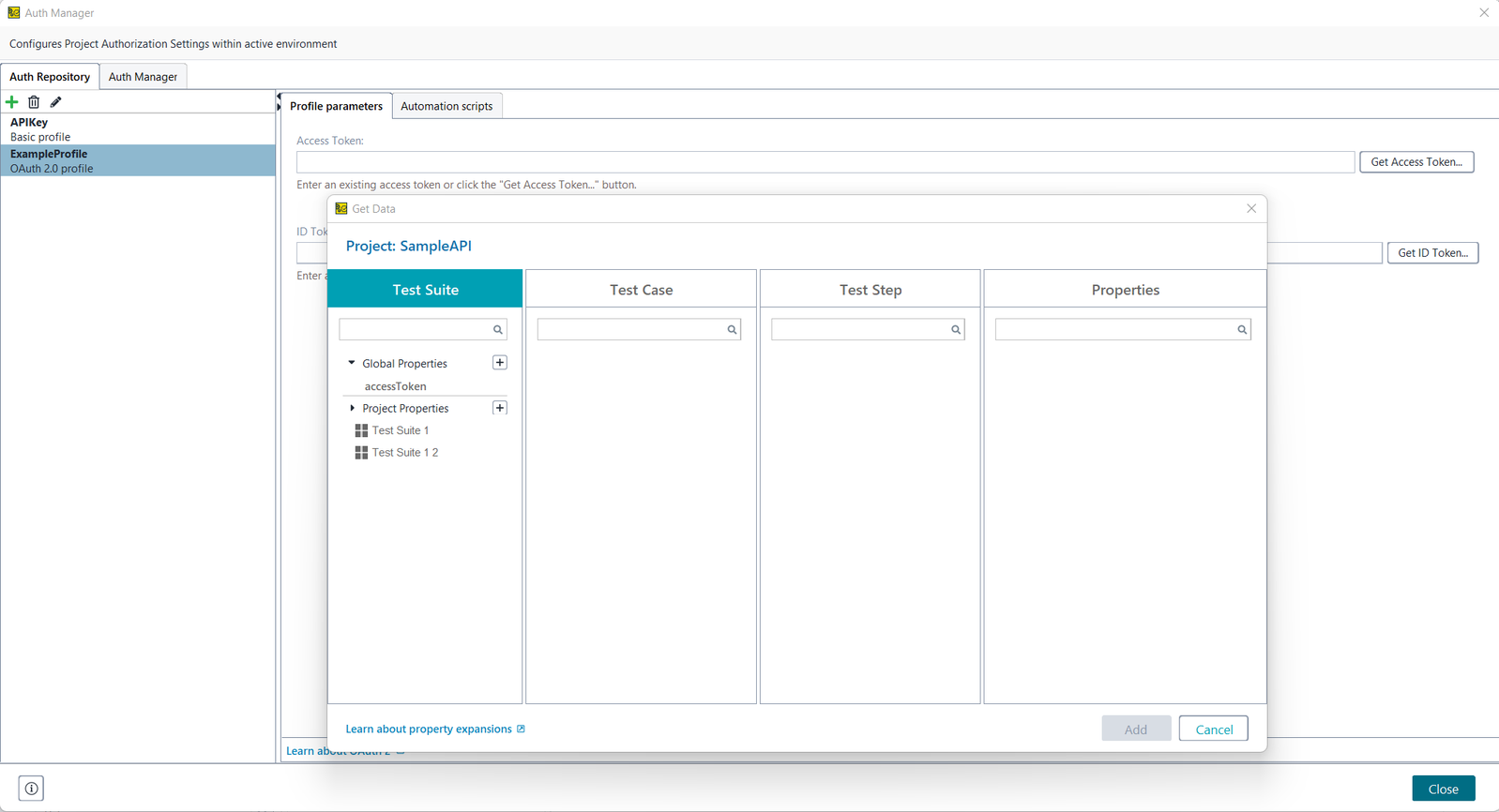
From version 3.42, you can use and insert Property Expansions in the authentication types by selecting Get Data from the context menu. For details, see Get Data Dialog.
 |
 |
After You Configure Authorization
OAuth 2.0 tokens change periodically. To avoid the need to update them manually, configure ReadyAPI to check whether a token is current before sending a request and to retrieve a new token automatically. For details, see the Automating Token Retrieval section.