Enabling OAuth 2.0 Authentication

This tutorial explains how to enable OAuth 2.0 authorization for a REST request.

Overview

To configure OAuth 2.0 authorization, complete the following steps:

  • Create and configure an authorization profile.

  • Retrieve an access token.

1. Add an Authorization Profile

  1. Open a REST request.

  2. Open the Auth panel and click Add Authorization Profile.
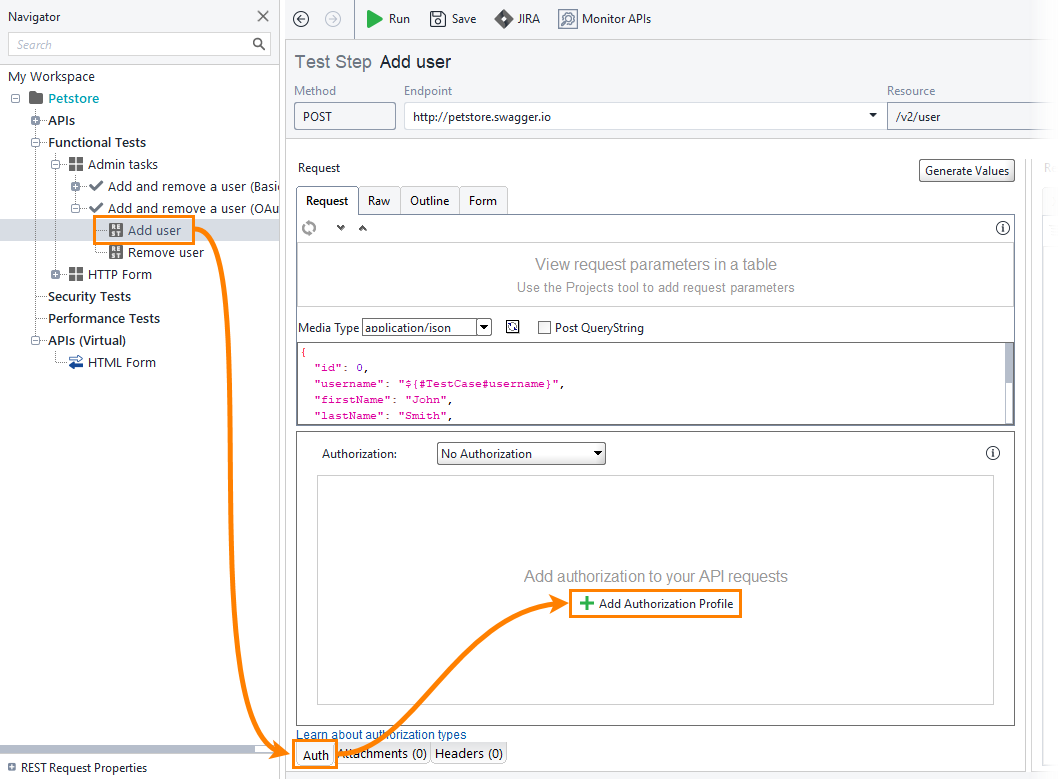
    ReadyAPI Navigator panel showing REST Sample Project expanded with the Login request selected and highlighted in orange under Simple Login Call test case in the Sample REST Test Suite. The main editor shows Test Step Login as a GET request to the localhos
  3. In the Add Authorization Profile dialog, select OAuth 2.0 from the Type dropdown and enter a profile name. Click OK.
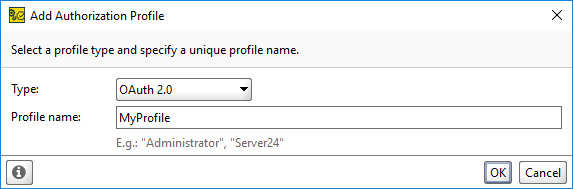
    ReadyAPI Add Authorization Profile dialog showing the Type dropdown set to "OAuth 2.0" and the Profile Name field set to "MyProfile". A placeholder hint below the field shows example names "Administrator" and "Server24". OK and Cancel buttons appear at th

2. Configure Authorization

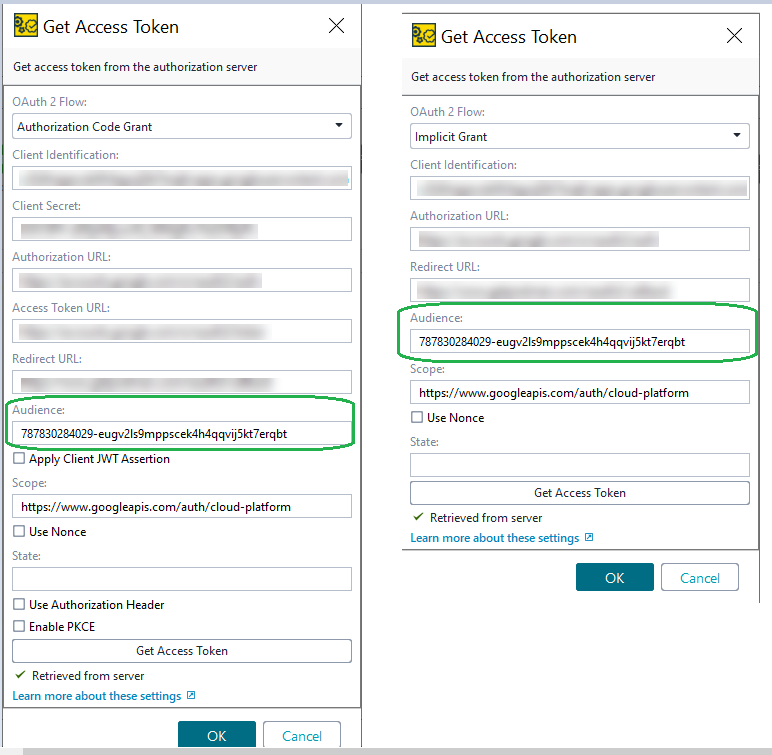
To get an access token from the server, this tutorial uses the Authorization Code grant type.

  1. Expand the Get Access Token dropdown.

  2. Specify the authorization data. For the required parameters, see the OAuth 2.0 Grant Types section.

    Note

    To add custom name-value pairs to the OAuth 2.0 access token request body, enable Additional Parameters. This field also supports property expansion.
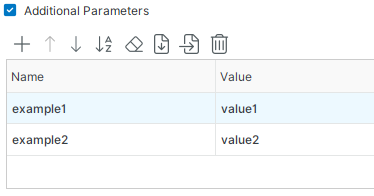
    ReadyAPI Additional Parameters panel shown expanded with the checkbox selected. A toolbar with add, move up, move down, sort, clear, import, export, and delete icons appears above a two-column table. The table contains two rows: example1 set to "value1" a
  3. Click Get Access Token:

    ReadyAPI Get Access Token from the authorization server form showing the OAuth 2 Flow set to "Authorization Code Grant". The following fields are empty: Client Identification, Client Secret, Authorization URL, Access Token URL, Redirect URL, Audience, Sco

    ReadyAPI retrieves the access token from the server and displays it in the Access Token field.

Note

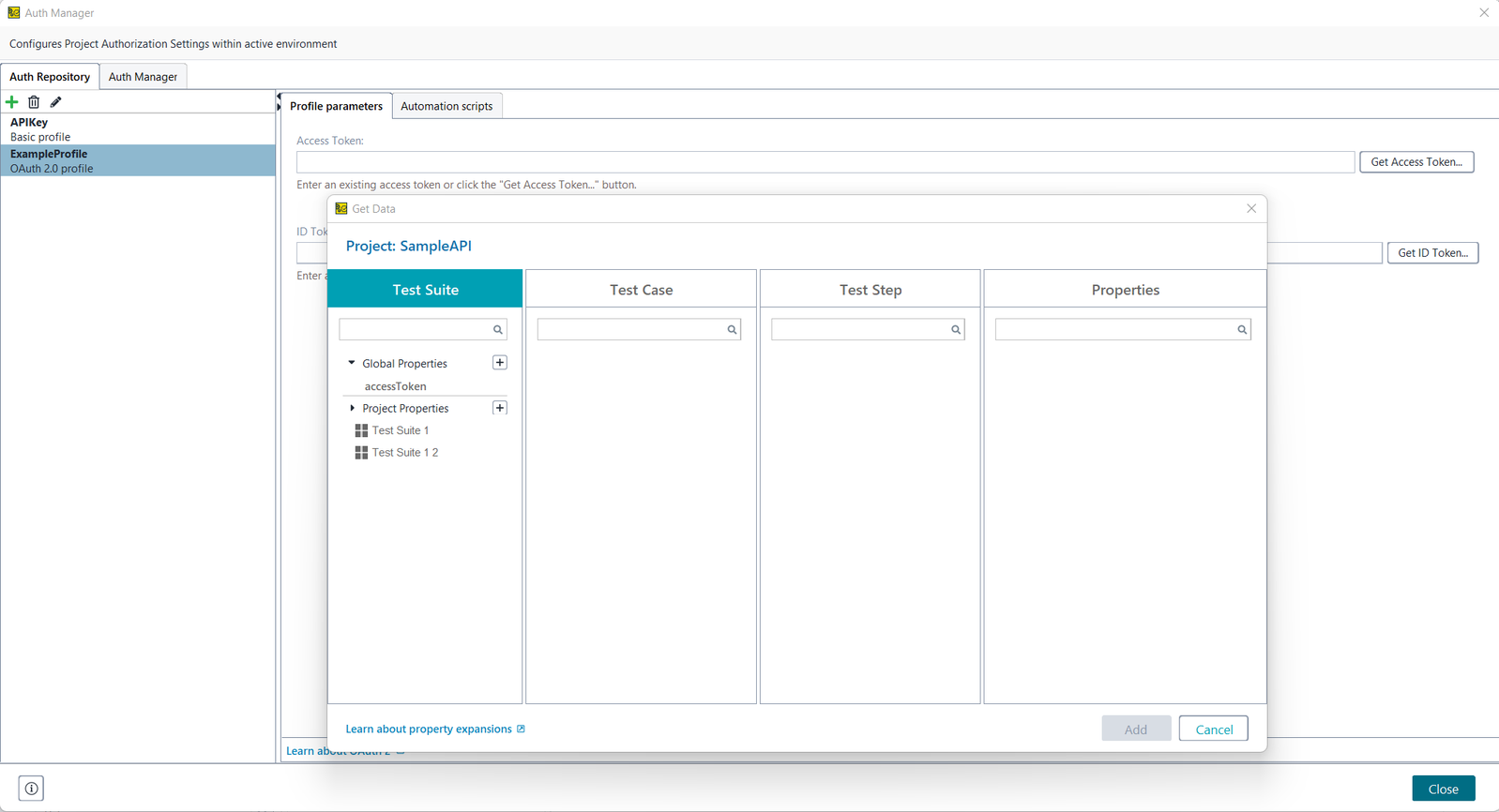
From version 3.42, you can use and insert Property Expansions in the authentication types by selecting Get Data from the context menu. For details, see Get Data Dialog.
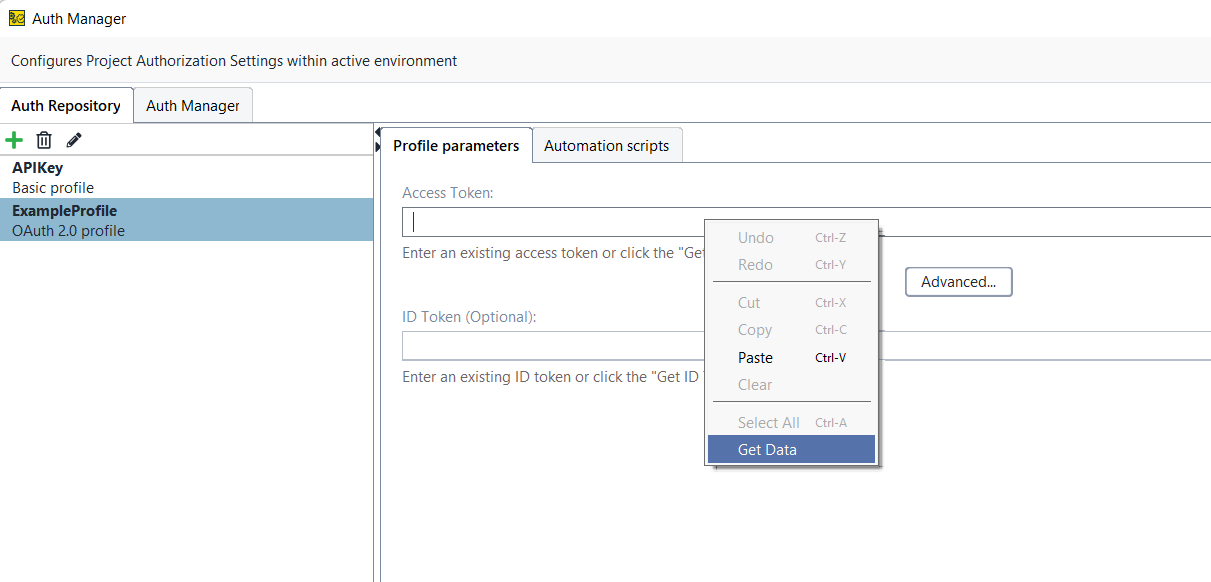
ReadyAPI Auth Manager dialog showing the Auth Repository tab with MyProfile OAuth 2.0 profile selected on the left. The Profile parameters tab is active on the right, showing the Access Token and ID Token (Optional) fields. A right-click context menu is o
Get Data via Property Expansion dialog showing four columns: Test Suite, Test Case, Test Step, and Properties, each with a search field. The Test Suite column lists Global Properties, Project Properties, and Sample REST Test Suite. The Test Case, Test Ste

After You Configure Authorization

OAuth 2.0 tokens change periodically. To avoid the need to update them manually, configure ReadyAPI to check whether a token is current before sending a request and to retrieve a new token automatically. For details, see the Automating Token Retrieval section.

See Also

Publication date: