Transaction Log Page
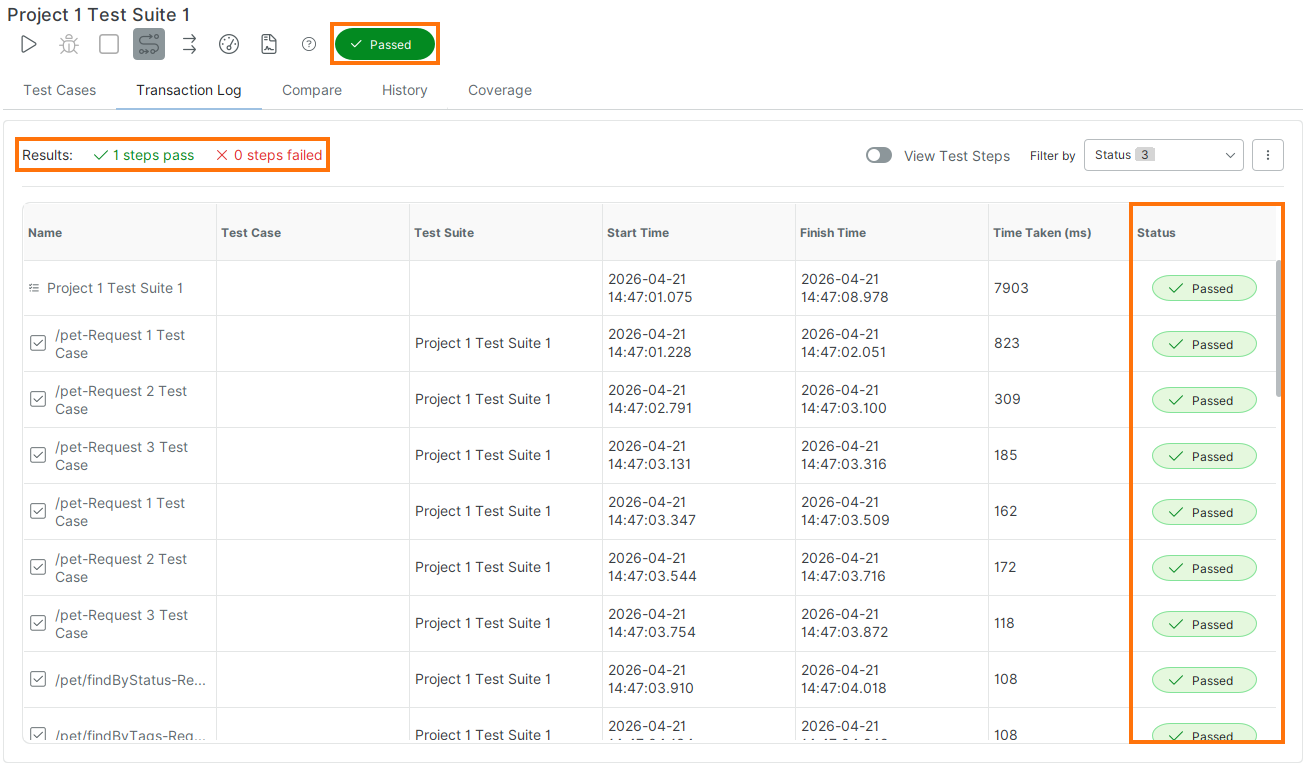
The Transaction Log page displays the results of the most recent test run at the selected level.
You can view the Transaction Log at the following levels:
Project
Test suite
Test case
 |
You can also view results on the Test Suite Status and Test Case Status tiles on the Dashboard. If these tiles are not visible, you can add them at any time.
Configure Transaction Log
To configure the transaction log, click .
You can perform the following actions:
Log Options - Open the Log Options dialog.
Export Results - Export the log to a file.
Reset Sort Order - Resets the table’s sorting order to the default value:
Run Date (Ascending).Clear Results - Delete results from the log.
Log Options Dialog
The Log Options dialog contains settings for the log's behavior.
Disable logging – Turn off logging.
Errors Only – Log only errors and skip all other information about test steps.
Follow – Automatic scrolling to the current log position.
Filter Test Results
ReadyAPI allows filtering visible test step results using the assertion results. Use the following filtering rules:
Fail – Show results with assertions failed.
Pass – Show results with successful assertions.
Unknown – Shows results without assertions.
Note
If no filters are selected, all test steps are shown. If all filters are selected, canceled steps are hidden.
Test Step Details
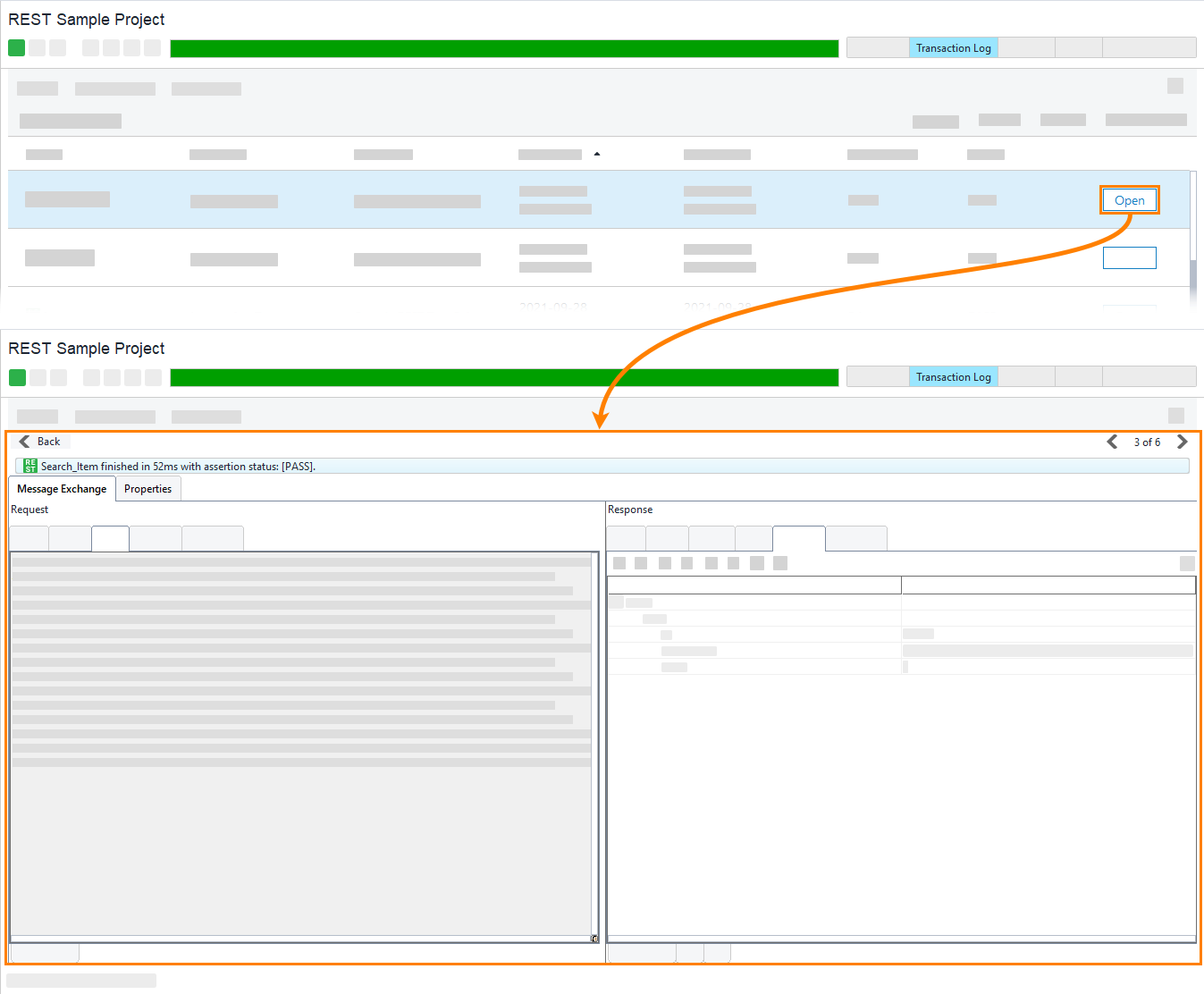
To view details for a test step, click Open next to the step in the Transaction Log.
For test suites and test cases, ReadyAPI opens the corresponding editor.
For test steps, ReadyAPI displays a short summary of the test step execution results. For example, if you open the request test step, you will see the request ReadyAPI sent and the response it received
 |
Stored Results Location
To prevent the project file from growing with each test run, ReadyAPI stores functional test results in a separate database file:
<user folder>/.readyapi/db/readyapi.h2.db
You can control how many results are stored in the Test History settings.