Test Suite Status Tile
The Test Suite Status tile shows the status of recently run functional test suites and helps you assess your API quality. To view information about recently run test cases, use the Test Case Status tile.
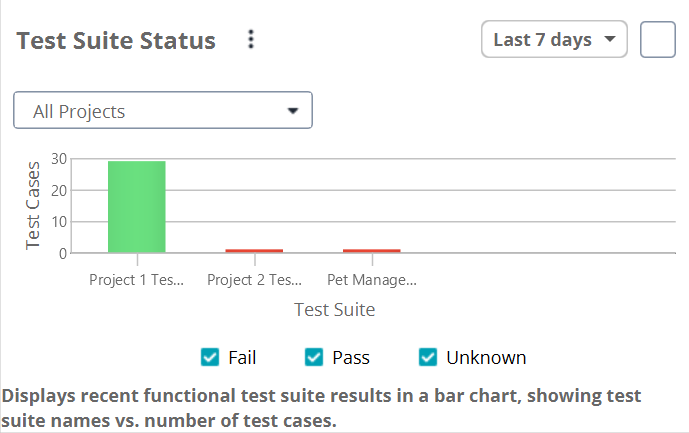
The tile displays this data as a bar chart:
The horizontal axis shows test suite names.
The vertical axis shows the total number of test cases in each suite.
Below is a sample view of the tile:
 |
If you have not run any functional tests, the tile displays sample data. To learn how to create functional tests, see Your First Functional Test.
Requirements
To use the Test Suite Status tile, you need a ReadyAPI Test Pro license. If you do not have it, you can either request it on our website or start a trial.
Filter Test Statuses
Select the checkboxes at the bottom of the tile to filter results by status:
Option | Description |
|---|---|
Fail | Shows the results with failed assertions. |
Pass | Shows the results with successful assertions. |
Unknown | Shows the results that do not have assertions. |
For information about assertions, see Verifying Results.
Filter Projects
By default, the Test Suite Status tile shows test case and test suite data for all recently run projects. To focus on a specific project, select it from the project drop-down list.
Set Time Interval
The Test Suite Status tile displays recent data for the selected time interval. Click the time interval selector in the top-right corner and choose one of the following options: Today, Yesterday, Last 7 days, Last 30 days, and Custom. Select Custom to define your own time range.
View Details
To view a summary of a test suite, point to a bar in the chart:
To open detailed results about a test suite:
Click a bar in the chart, or
Right-click anywhere in the tile and select View Details.
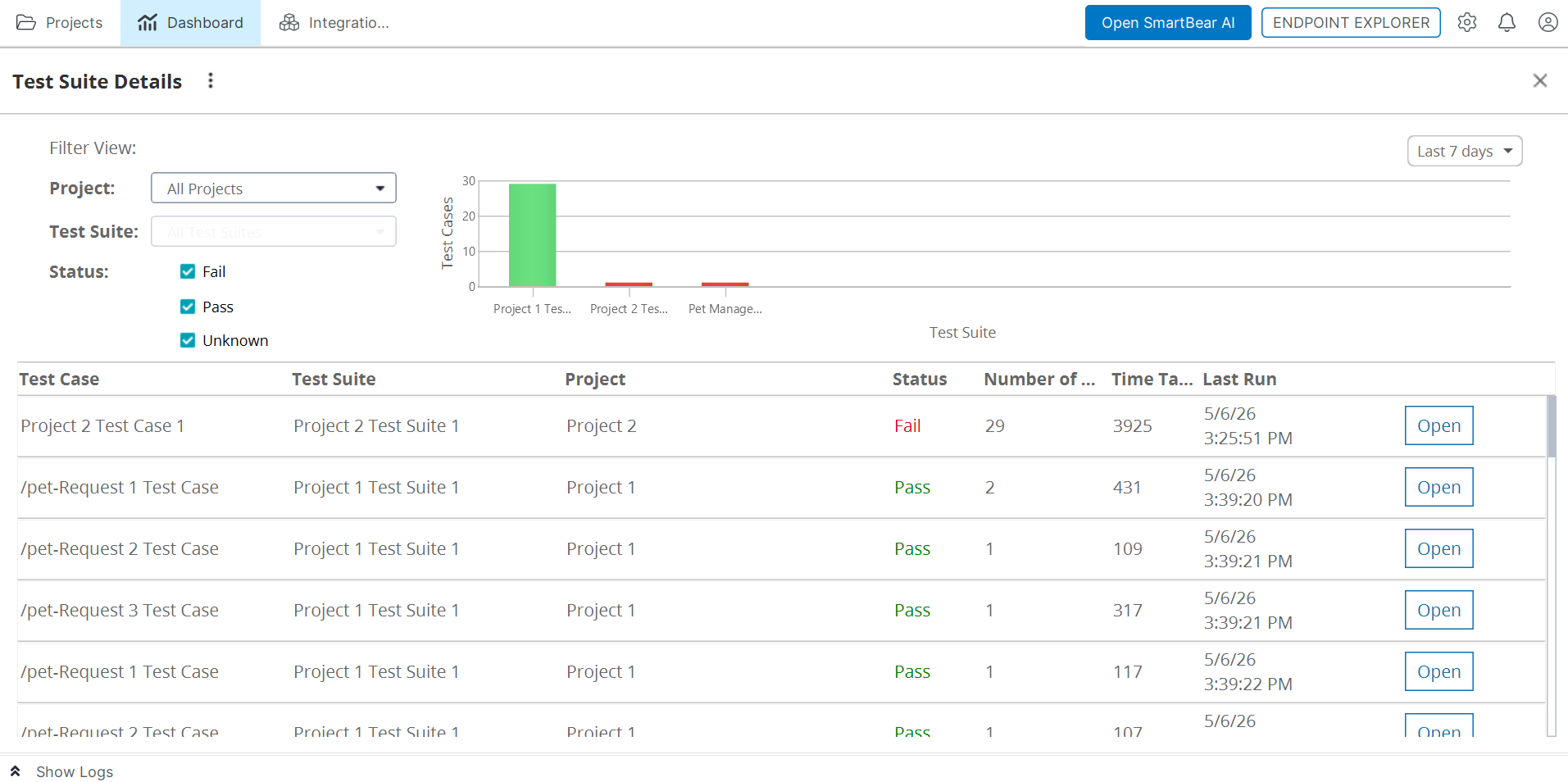 |
The Test Suite Details section opens and displays:
A bar chart for the selected test suite
A table with:
Test case, test suite, and project names
Test suite status (Fail, Pass, Unknown)
Number of test steps in each test case
Execution time (in milliseconds)
Date and time of the last test run
You can filter the data by project, test suite, test status, and time.
To view details for a specific test case, click Open. ReadyAPI opens the test case in editor.
Export Details
Click More options or right-click anywhere in the Test Suite Status tile and select Generate Report. ReadyAPI generates and opens the report. Use the report toolbar to save or print the report.