API Connection
About API Connection test step
The API Connection test step is a protocol-agnostic test step you use to send requests to and verify responses from various types of APIs. Currently, the test step supports gRPC, Kafka, and REST.
Tip
For full REST testing functionality, use the REST Request test step.
Supported Protocols
The API Connection test step can be used for testing gRPC services. Currently, ReadyAPI supports only the Unary operation. It is similar to a usual request. ReadyAPI sends a request and waits for a single response from a server.
For more information on gRPC support, see gRPC Testing.
Important
To use the API Connection test step for gRPC testing, you need to add a gRPC service to your project first.
The API Connection test step can be used for working with asynchronous APIs, in particular Kafka. In their case, publishers send messages (or events) to a channel on a broker, and subscribers get those messages (events) by subscribing to the channel.
In ReadyAPI, the API Connection test step can operate in two modes:
In Publish mode, it acts as an event publisher (or producer): it connects to a broker, sends an event, and then disconnects.
In Subscribe mode, it acts as an event subscriber (or consumer): it connects to a broker and continues consuming events as long as the connection is open.
In other words, to send requests and get responses in ReadyAPI, you must take two test steps: the first one sends requests as a publisher, and the second one gets responses as a subscriber.
For more information on Kafka support, see Kafka Testing.
Important
To use the API Connection test step for Kafka testing, you need to first add a gRPC service to your project.
The API Connection test step can be used to test REST services. It offers a simplified and streamlined interface compared to the original REST Request test step.
Editing API Connection test step
Each API Connection test step is based on an operation defined in your API. ReadyAPI takes the protocol and operation specified for this request. You can link your test step to another request if needed.
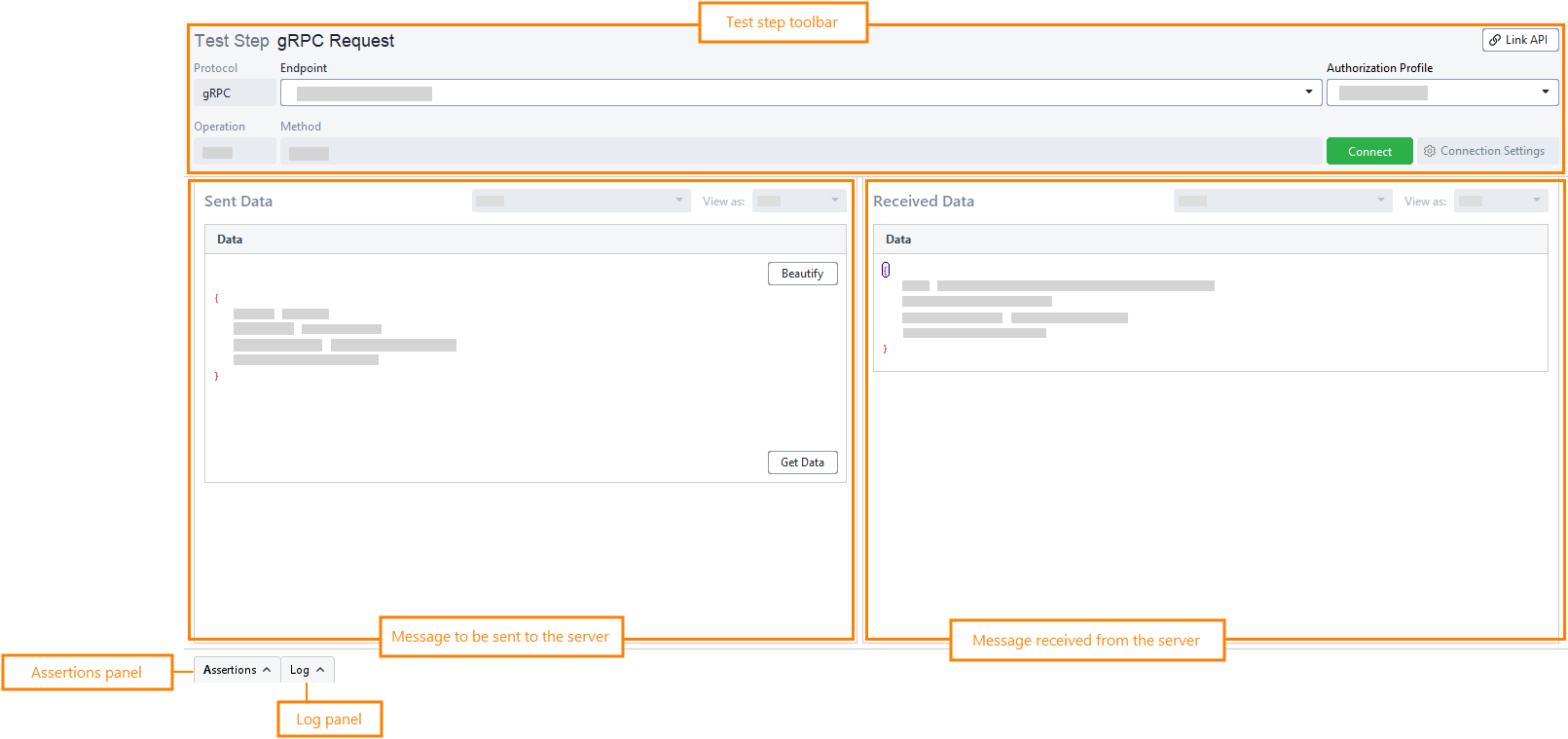
Here is a brief description of the API Connection test step editor:
 |
Item | Description |
|---|---|
Protocol | The protocol that will be used for the test step. |
Endpoint | The endpoint of the service. TipYou can use environments to set up the endpoint. |
Authorization Profile | The authorization profile that will be used to authenticate to the service. To learn more, see Authentication. ImportantgRPC requests support only OAuth 2.0 authentication. |
Operation | The gRPC method that will be used for the request. TipTo change the method, use the Link API button to link the test step to another request. ImportantCurrently, ReadyAPI supports only Unary operations. |
Method | The method that will be called from a server. TipTo change the method, use the Link API button to link the test step to another request. |
Link API | Allows linking the test step to another request to change its operation or method. |
Data – A message to be sent to a server.
Data – A message returned from a server.
Each API Connection test step is based on a request defined in your API. The protocol, operation, and channel are configured when the API is created and are read-only in the test step editor.
In the editor, you review these values and update the endpoint, connection, and message data as needed. You can link the test step to another operation of the same type to use a different channel.
The following sections describe how to use the API Connection test step in Publish and Subscribe modes. A reference to the editor fields is provided below.
Publish mode
Review and update the Kafka test step
In Endpoint, review or update the Kafka broker address (for example,
localhost:9092).Click Connect to verify that ReadyAPI can reach the broker.
Review the Operation and Channel fields (read-only).
In the Data section, update the message payload in JSON format.
In Key Type and Message Type, select the format of the key and payload (for example, JSON).
Note
In ReadyAPI, the Channel field represents the Kafka topic. The protocol, operation, and channel are defined by the API and are read-only in the test step editor. If your Kafka setup uses a schema registry, select JSON via Avro or JSON via Protobuf to match your message format. Ensure the Kafka broker is running and reachable at the specified endpoint before sending the request.
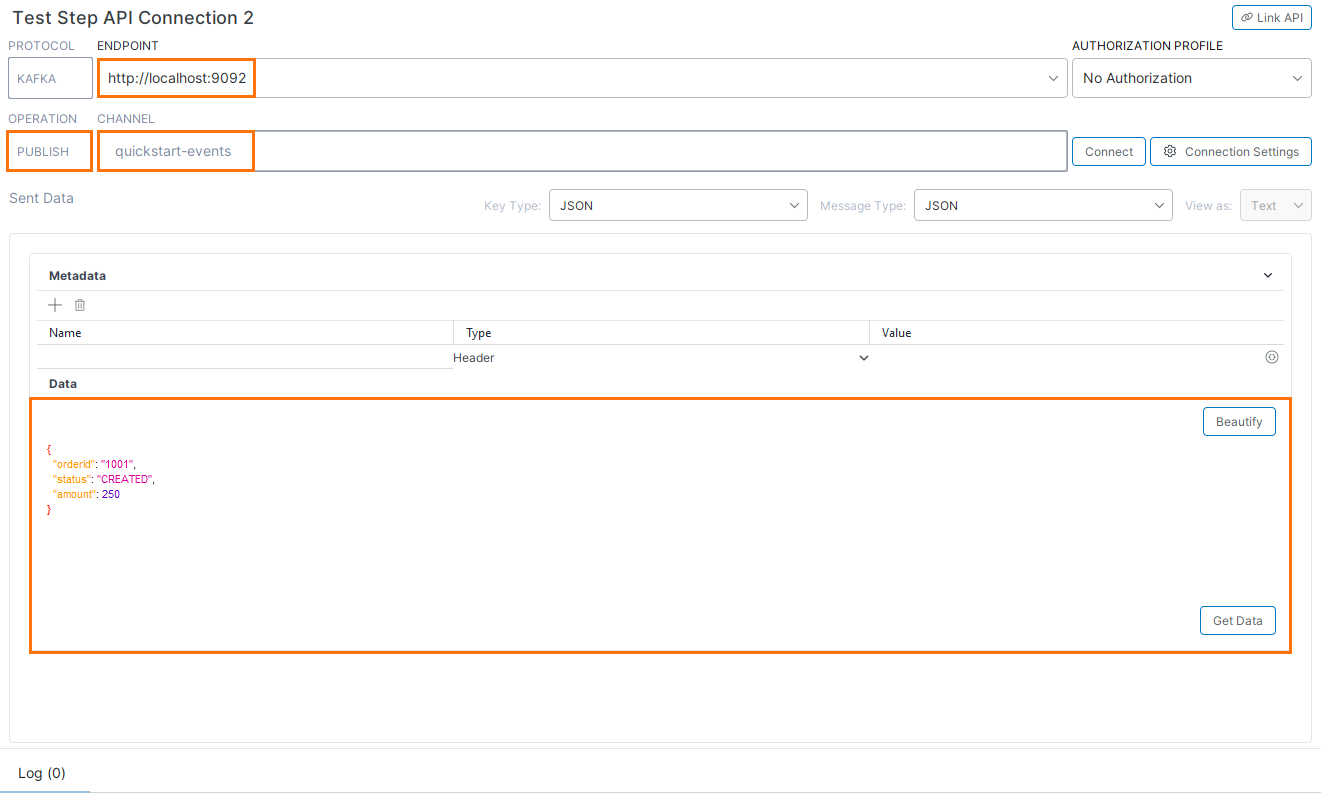 |
Sample message payload
{
  "eventId": "1",
  "message": "Test event",
  "status": "NEW"
}
Subscribe mode
Subscribe to messages from a topic
Use the same topic as in Publish mode to receive the messages you send.
Review the Kafka test step and start receiving messages:
Verify the Endpoint and click Connect to start listening.
Ensure the Operation is set to Subscribe.
Confirm the Channel (topic) from which to receive messages.
View incoming messages in the Received Data section.
Note
Messages appear only when data is published to the topic. Use a Publish test step or an external producer to generate messages.
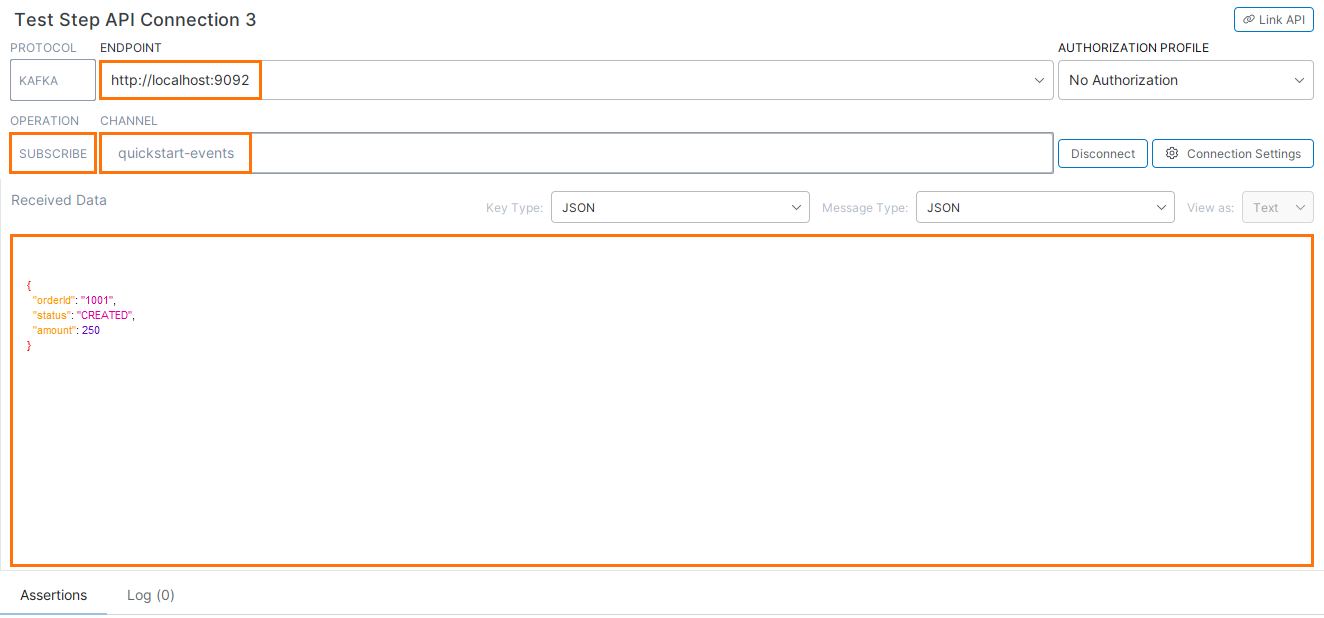 |
Example received message
{
  "orderId": "1001",
  "status": "CREATED",
  "amount": 250
}Item | Description |
|---|---|
Protocol | The protocol used for the test step. |
Endpoint | The broker endpoint used by the test step. TipYou can use environments to manage broker endpoints. |
Authorization Profile | The authorization profile used to authenticate to the broker. To learn more, see Authentication in Kafka. |
Operation | The mode in which the test step operates: Publish or Subscribe. |
Channel | The channel (Kafka topic) used by the test step. TipTo change the channel, use the Link API button to link the test step to another operation. |
Link API | Links the test step to another operation and updates the channel. |
Connection Settings | Opens the connection settings. |
To learn specifics of using the API Connection test step for sending and receiving Kafka messages, see the following topics:
 Simulate Producers (Publish mode)
Simulate Consumers (Subscribe mode)
Each API Connection test step is based on a request defined in your API. ReadyAPI uses the protocol, operation (HTTP method), resource, endpoint, and parameters defined for that request. You can link your test step to another request.
In the test step editor, you can review these values and update the endpoint, parameters, and request body as needed. Changes made in the test step do not affect the base request.
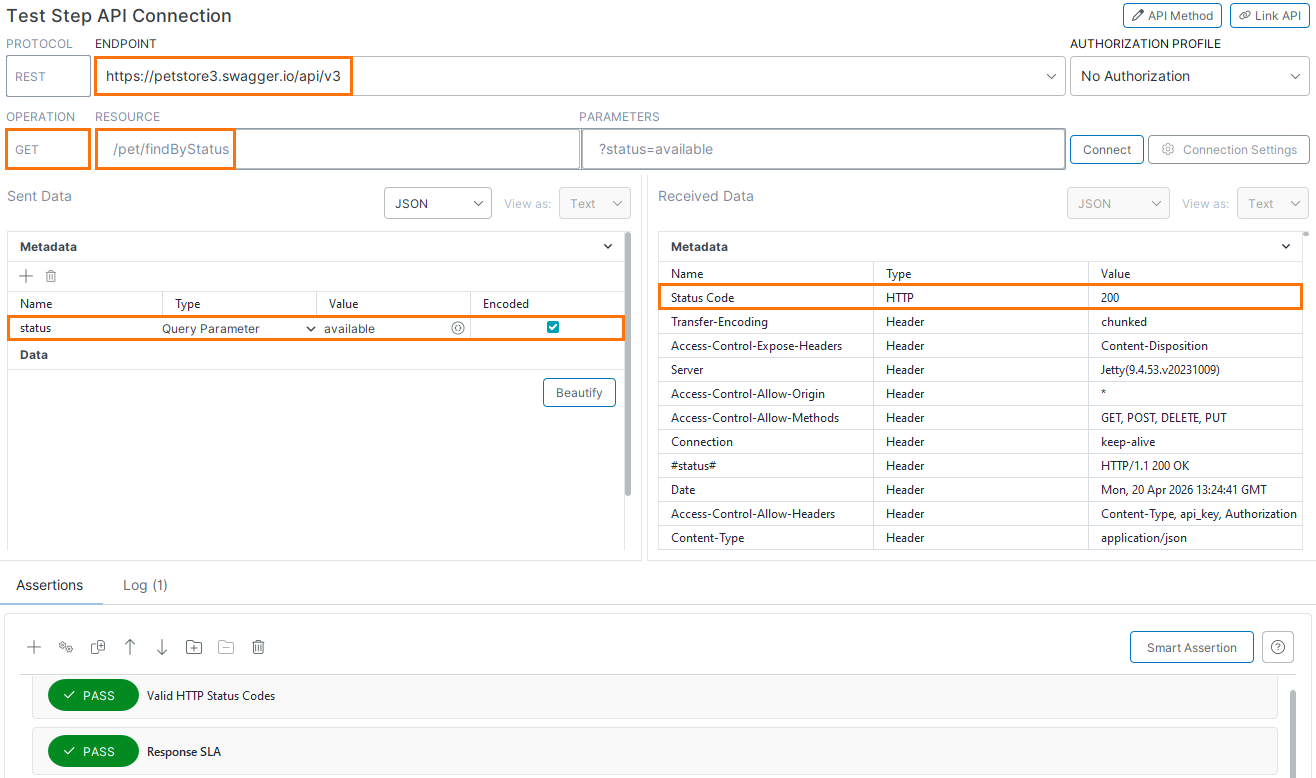
Here is a brief description of the API Connection test step editor:
 |
Item | Description |
|---|---|
Protocol | The protocol used by the test step. |
Endpoint | The service endpoint used by the request. TipYou can use environments to manage endpoints. |
Authorization Profile | The authorization profile used to authenticate to the service. To learn more, see Authentication. |
Operation | The HTTP method used by the request (for example, GET, POST). TipTo change the method, use the Link API button to link the test step to another request. |
Resource | The resource path for the request. TipTo change the resource, use the Link API button to link the test step to another request. |
Parameters | Query parameters sent with the request. |
API Method | Opens the base request. If you make changes to the underlying request (for example, changing its method or endpoint, or adding or removing parameters), they affect the test step. |
Link API | Links the test step to another request. It updates the base request and, therefore, the test step’s method, endpoint, and the list of parameters inherited from it. |
Metadata - Request parameters. ReadyAPI takes the parameters from the test step's base request. You can add or remove parameters in the test step without affecting the base request.
Parameters can be Encoded. In values of encoded parameters, URL-illegal characters such as the space character are percent-encoded. Disable encoding if values are already encoded.
To learn about the types of REST parameters, see REST Parameters.
Data - The request body.
Metadata – The HTTP status and response headers.
Data – The response body.
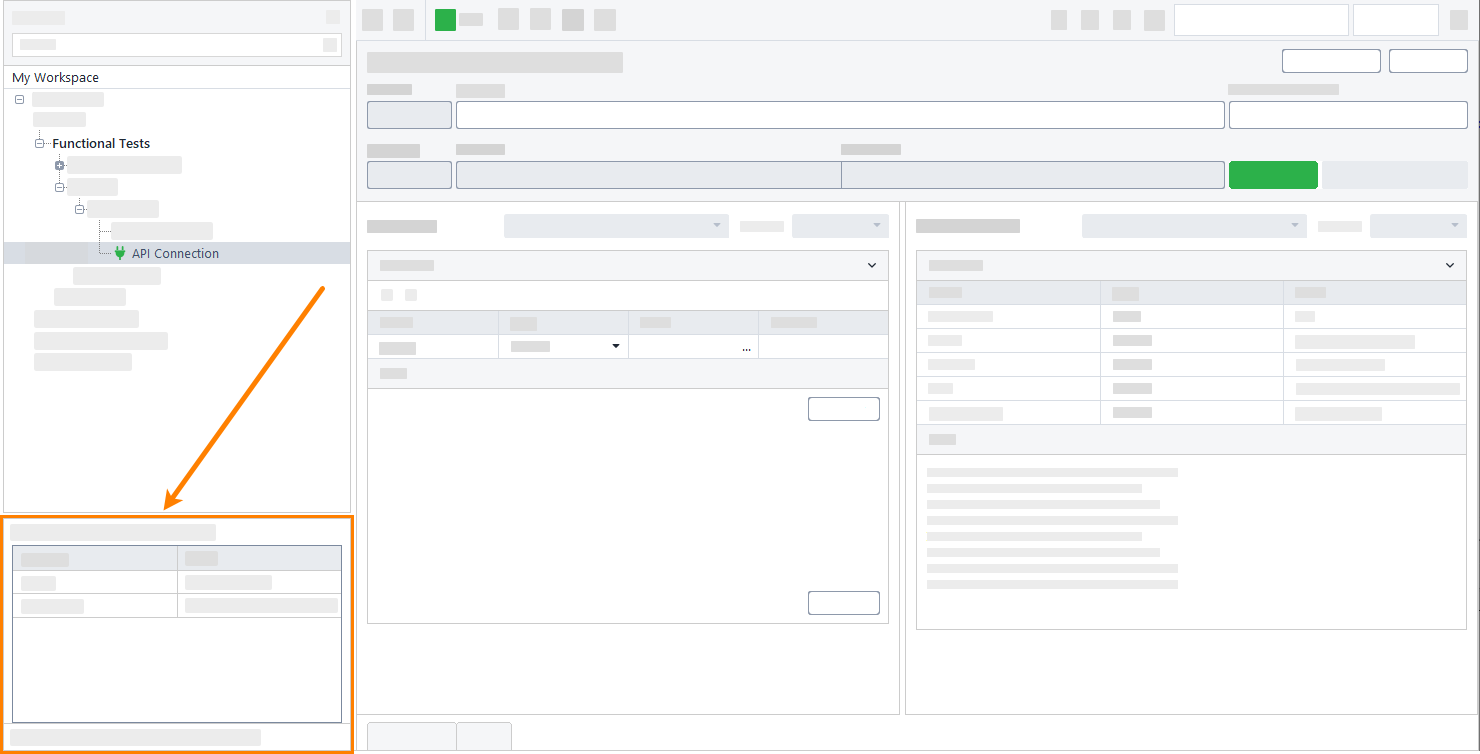
Besides the test step editor, you can adjust test step behavior by using its properties:
 |
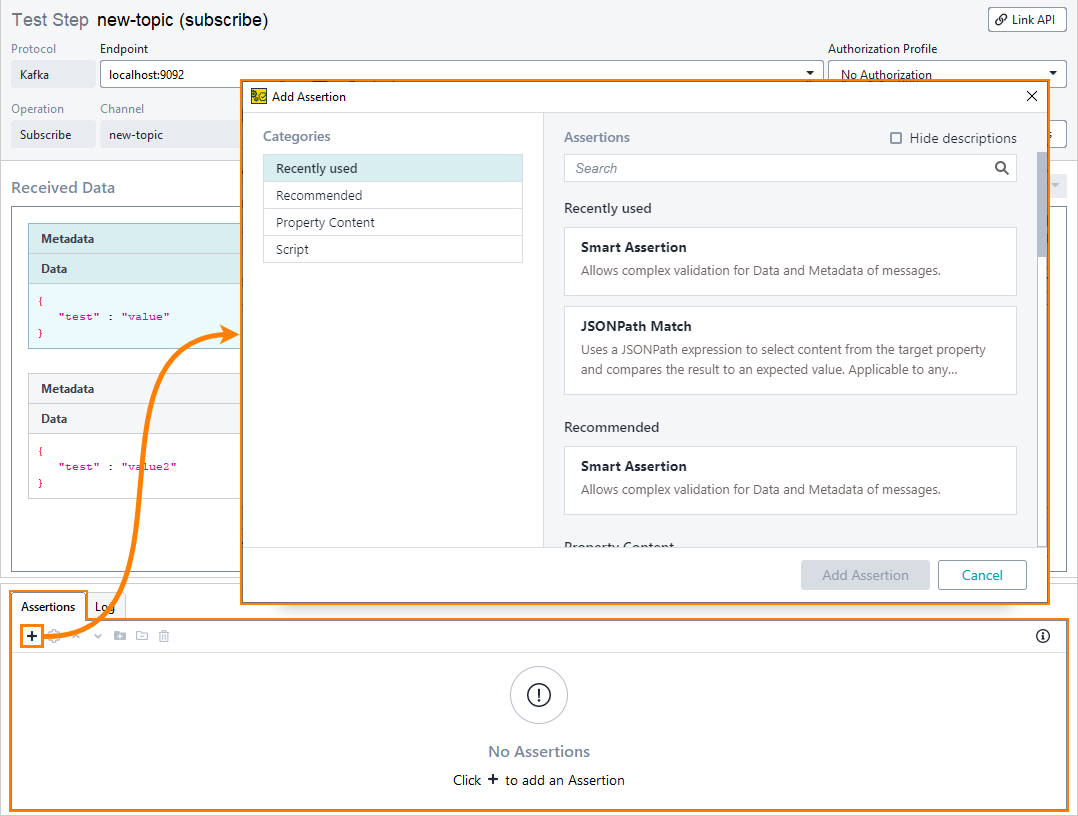
To check incoming messages, you use assertions:
 |
Important
For Kafka, assertions are only available in the Subscribe mode.
Tip
To create complex verification conditions, you can organize assertions into assertion groups. This is particularly useful for Kafka services because one test step receives multiple messages. For example, you can add two JSONPath Match assertions to an assertion group and configure it so that the test step passes if either of those assertions passes.
Filter assertions
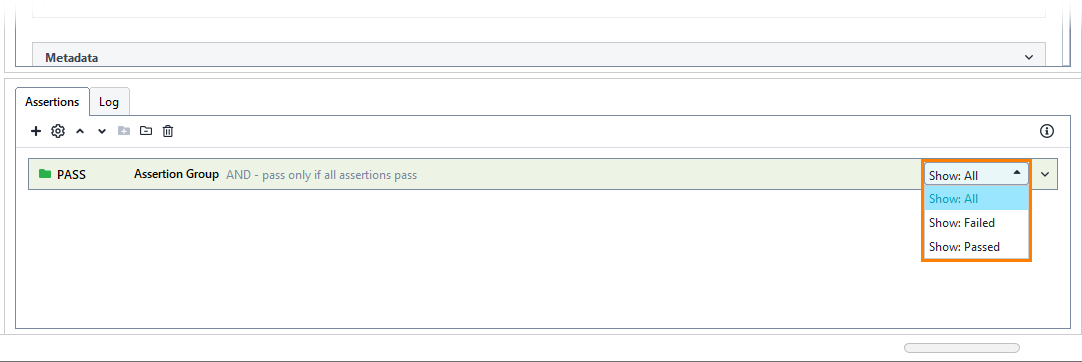
For Kafka, you can filter the messages to show only those that either passed or failed a certain assertion. To do that, point to an assertion and select the needed option from the drop-down list.
Important
You can set a filter only for one assertion at a time.
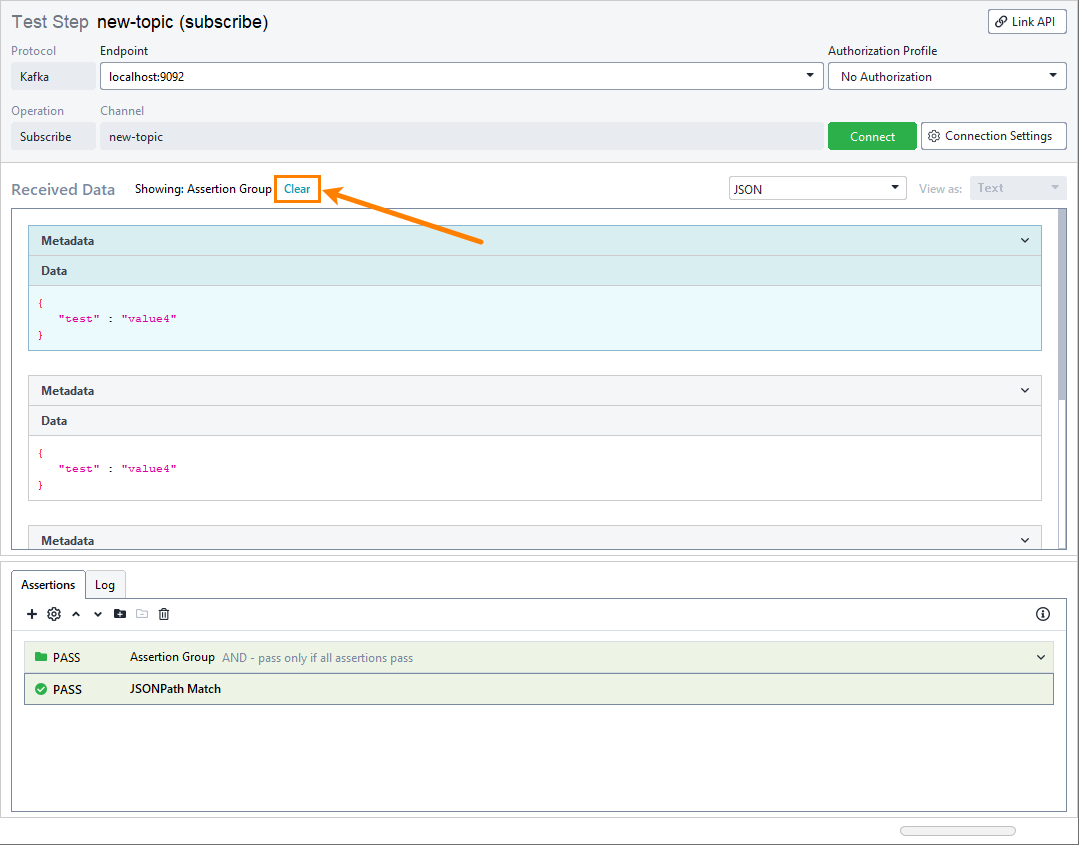
To delete the filter, click Clear:
 |
Available assertions
Logging
While the test step editor is open, brief information on sent messages is listed in the Log tab. If the test step is run as part of a test case, you can see a more detailed log in the Transaction Log panel.