Simulating Consumers
Consuming events is one part of message exchange in Kafka, the other being producing events. You can use ReadyAPI to simulate an event consumer and read events from topics on your Kafka broker.
Use case
Let's consider an example in which you want to verify that your payment system works correctly. The system reads events from the payments topic and, if the payment is successful, publishes events to the payment-confirmation topic.
To ensure the system works, you can use ReadyAPI to simulate a consumer. You can subscribe to the payment-confirmation topic and assert that events are published to it.
Tip
If you want to simulate a complex scenario, you can also use ReadyAPI to simulate an event producer and publish payment events to the system.
Consume events
1. Add a Kafka API to the project
To start testing Kafka APIs, you should first add one to the project. To learn how to do it, see Adding a Kafka API to the Project.
2. Create a test step
To produce a Kafka event in ReadyAPI, you use the API Connection test step based on a Subscribe operation:
Open a test case and add API Connection Test Step.
In the dialog that appears, select a Subscribe operation and click Add Test Step.
Note
In AsyncAPI 3.0, the Subscribe operation is replaced with Receive. The workflow remains the same regardless of the AsyncAPI version you use.

Alternatively:
Right-click a Subscribe operation in the APIs node in the Navigator and select Add to Test Case.
In the dialog that appears, select a test case and click Add Test Step:

3. Subscribe to the topic
To consume events from the topic, select Connect. ReadyAPI will connect to the topic and consume events that are published to it. The test step will remain connected to the topic until its disconnect criteria are met.
 |
In the sections below, you can read more about connection settings and the message editor. Kafka authentication settings are covered in Authentication in Kafka.
4. Add assertions
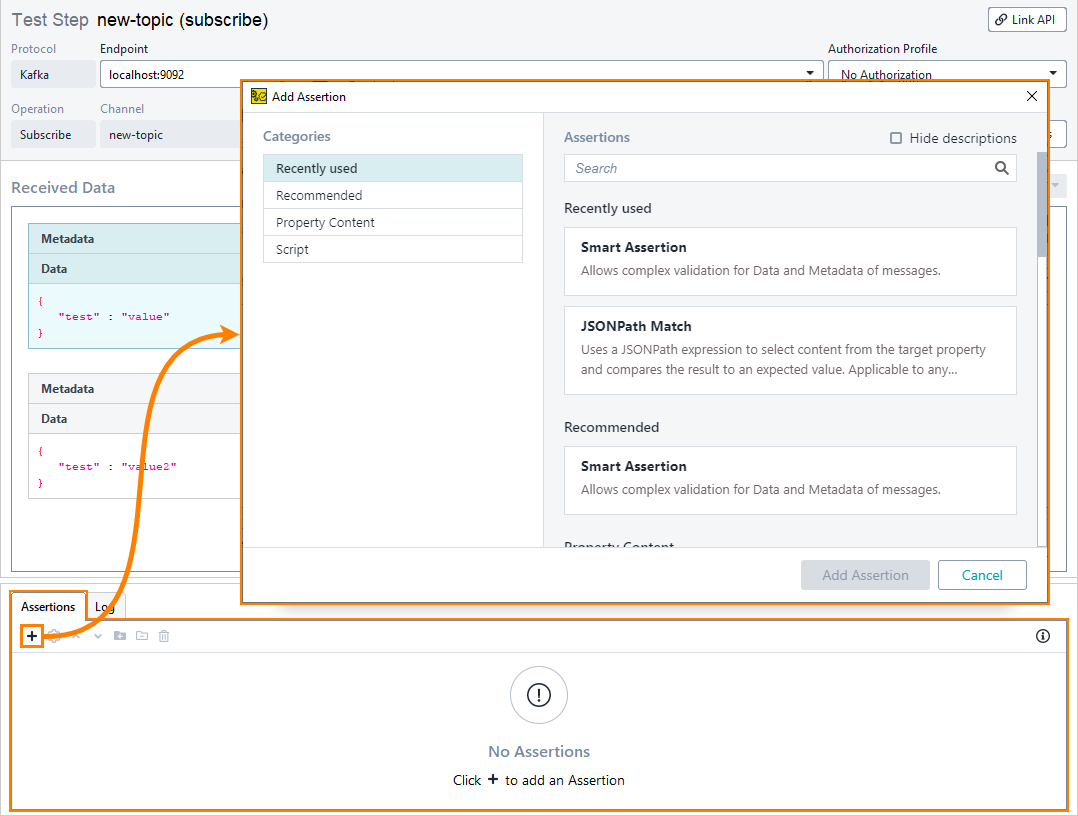
To validate messages in the topic, add assertions to the test step. Assertions will be applied to every message that the Subscribe test step consumes from the topic.
 |
Tip
Assertion groups are particularly useful for the API Connection test step because a single test step can receive multiple messages. For example, you can add two JSONPath Match assertions to an assertion group and configure it so that the test step passes if either of those assertions passes.
To learn more about the Assertions panel and assertions available in the API Connection test step, see API Connection Test Step.
Test step settings
Test step toolbar
The test step toolbar contains settings that allow you to modify the connection and authorization settings for the test step:
 |
Connection settings
To open the connection settings, select Connection Settings in the test step toolbar.
Option | Description |
|---|---|
Confluent Settings | Used to connect to the Confluent schema registry. Only available when the JSON via Avro or JSON via Protobuf message format is selected.
|
Subscribe Settings | Other parameters that your Kafka provider might require. |
Close Subscription When | Settings that dictate when the subscription to the topic will be closed. Based on the chosen mode, the connection will close when either of these conditions is met, or when all of them are.
|
Reset to Default | Resets connection settings to the default. Default settings depend on the environment selected:
|
Property list
You can also change the test step behavior by using the step properties on the API Connection Test Step Properties panel in the Navigator.
Property | Description |
|---|---|
Name | The test step’s name. |
Description | Text that describes the test step. |
Idle Time | Duplicates the Idle Time setting in the Connection Settings. |
Messages Received | Duplicates the Messages Received setting in the Connection Settings. |
Run Time | Duplicates the Run Time setting in the Connection Settings. |
Received data
The Received Data window is where you will see the messages that the test step consumes from the topic.
 |
Message format – The format of messages in the topic. Currently, two formats are supported:
JSON – Messages in the topic are regular JSONs. In this case, ReadyAPI will simply retrieve the messages without processing them.
JSON via Avro (Schema Registry) – Messages in the topic have been serialized using an Avro schema stored in the schema registry. In this case, ReadyAPI will deserialize messages using the provided schema. To set up a connection to the schema registry, go to Connection Settings.
JSON via Protobuf (Schema Registry) – Messages in the topic have been serialized using a Protobuf schema stored in the schema registry. In this case, ReadyAPI will deserialize messages using the provided schema. To set up a connection to the schema registry, go to Connection Settings.
Custom – Messages in the topic have been serialized using an Avro or Protobuf schema stored in a file. In this case, ReadyAPI will deserialize messages using the provided schema.
Metadata – Parameters that were passed with the message.
There are two types of parameters:
Header – Kafka headers sent with the message.
Kafka – Two parameters,
KeyandPartition, that each Kafka message has.
Data – The message itself.