Project Editor
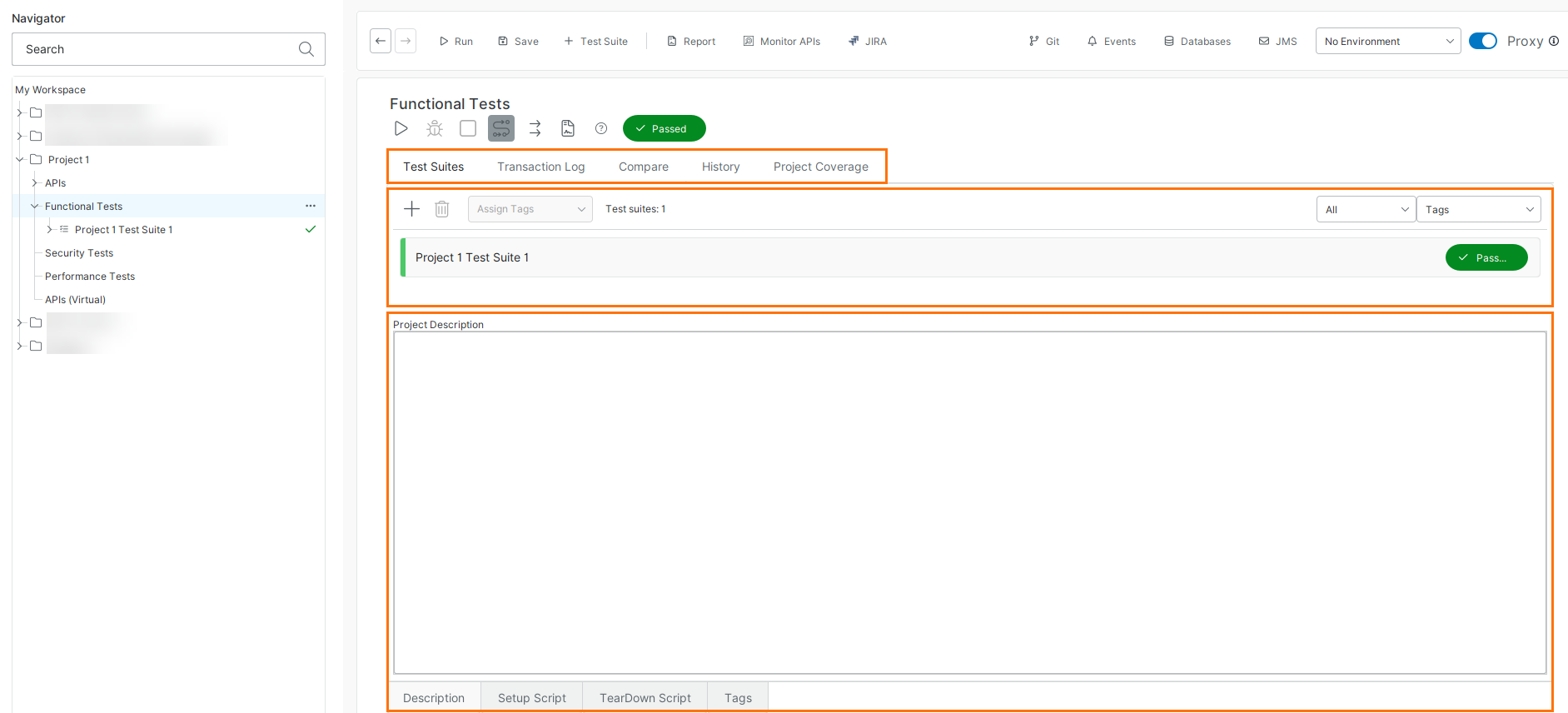
ReadyAPI organizes your work into projects, displayed in the Navigator. A project can include functional tests, load tests, and service simulations.
 |
Toolbar
Use the toolbar to run, stop, and manage test execution, and to access common actions for the selected item.
The following table describes the available toolbar controls and their functions:
Control | Description |
|---|---|
Run the selected test suites. | |
Debug Groovy Script steps in this project. | |
Stop the test run. | |
| Run test suites in sequence. |
| Run test suites in parallel. |
| Create a report for this item. |
Show online help. | |
Passed, Failed, Not executed, Running | Status. |


Test suites page
Manage test suites
Use the Test Suites page to create, organize, and manage test suites within your project.
The following actions are available for managing test suites:
Action | Description |
|---|---|
Adds a new test suite. | |
Removes the selected test suite. | |
Assigns tags to the selected test suites. |
Configure project settings
Use the project settings panel to define project-level configuration, including descriptions, scripts, and tags.
The following tabs let you configure different aspects of the project:
Tab | Description |
|---|---|
Description | Enter project description. |
Setup Script | Runs at the start of the project execution. To learn more, see Setup, TearDown, and Report Scripts. |
TearDown Script | Runs after the project execution completes. To learn more, see Setup, TearDown, and Report Scripts. |
Tags | Manage the list of tags used in the project. See the Tags Panel section. |
Other editor pages
You can navigate to related pages to view test results, compare runs, and analyze coverage.
Use the following links to access additional editor pages:
Page | Learn more |
|---|---|
Transaction Log | |
Compare | |
History | |
Coverage |
Work with tags
Use tags to group test suites within a project. In particular, this can be used to run only a group of test suites associated with the specific tag or exclude these suites from the test run.
Note
Tags are always alphanumeric.
You can edit all tags in the project from the Tags panel.
Add tags
In the Navigator, click Functional Tests.
Select the test suite.
From the Assign Tags dropdown, select an existing tag or assign a new one by typing the name. Press Enter.

The specified tag is added to the selected test suite.
Remove tags
In the Navigator, click Functional Tests.
Select the test suite.
From the Assign Tags dropdown, clear the selected tag. Press Enter.
The selected tag is removed from the test suite.
Focus test run on desired test cases
Open the list of selected tags.
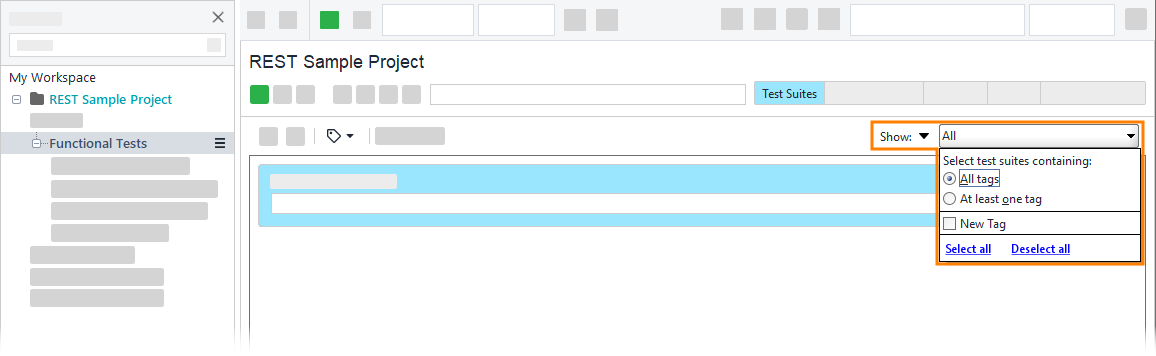
To include the tagged test suites in the test run and exclude others, select from the Show/Hide drop-down menu.
Select a filtering rule:
Select to show test suites only with all the selected tags. For example, if you select and , ReadyAPI will only show test suites that contain both and .
Select to show test suites with any of the selected tags. For example, if you select and , ReadyAPI will show test suites that contain either , , or both.
Select the tags you need.
 |
Exclude specific test suites from the test run
Open the list of selected tags.
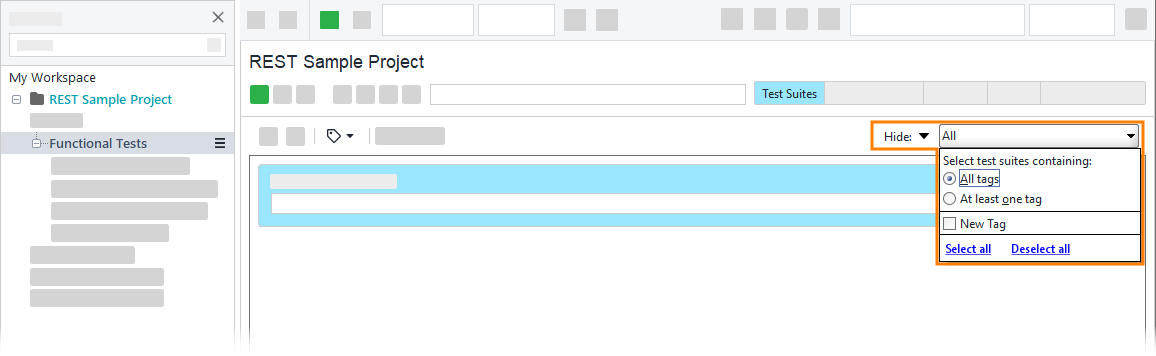
To exclude the test suites from the test run, select Hide from the Show/Hide drop-down menu.
Select a filtering rule:
Select to show test suites only with all the selected tags. For example, if you select and , ReadyAPI will hide only test suites that contain both and .
Select to show test suites with any of the selected tags. For example, if you select and , ReadyAPI will hide test suites that contain either , , or both.
Select the tags you need.
 |
Tags panel
You can manage all tags in the project from the Tags panel. The table lists all tags and the number of test suites and test cases each tag is assigned to. You assign tags to specific test suites on the Test Suites page of the Projects editor, or to specific test cases on the Test Cases page of the Test Suite editor. See above to learn how to assign tags to test suites and Test Suite Editor to learn how to assign tags to test cases.
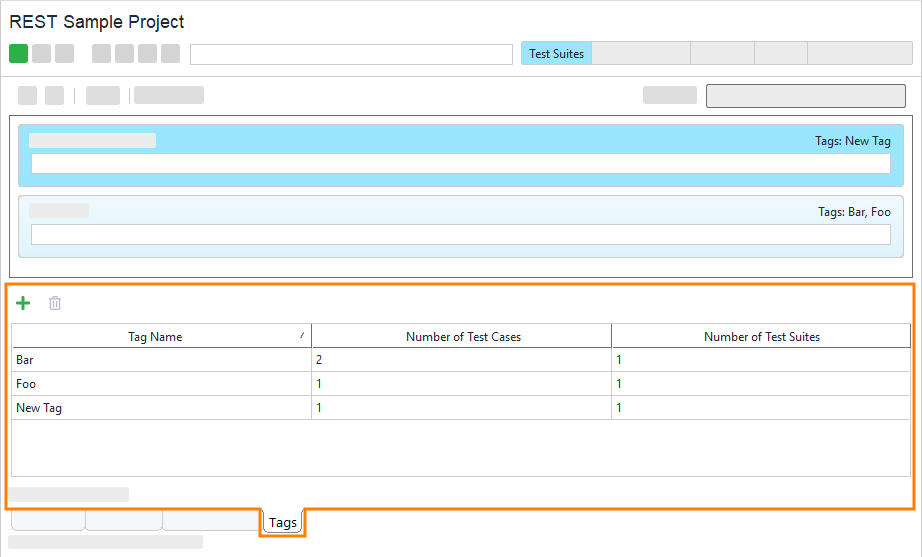 |
To add a tag, click  on the toolbar and specify the name of the new tag and click OK.
Note
The newly created tag is not assigned to any test suite or test case. You have to assign it manually.
To delete a tag, select the tag and click  on the toolbar. ReadyAPI will unassign the tag from all test suites and test cases and remove it.
To rename a tag, double-click the tag name and enter a new name.
To sort the table, click the header of the column you want to sort the table by. The first click sorts the table in ascending order, and the second click sorts in descending order.