Test Suite Editor
A test suite groups related test cases into logical units for execution and management.
A project can contain multiple test suites, which you can run in sequence or in parallel (see Test Suites).
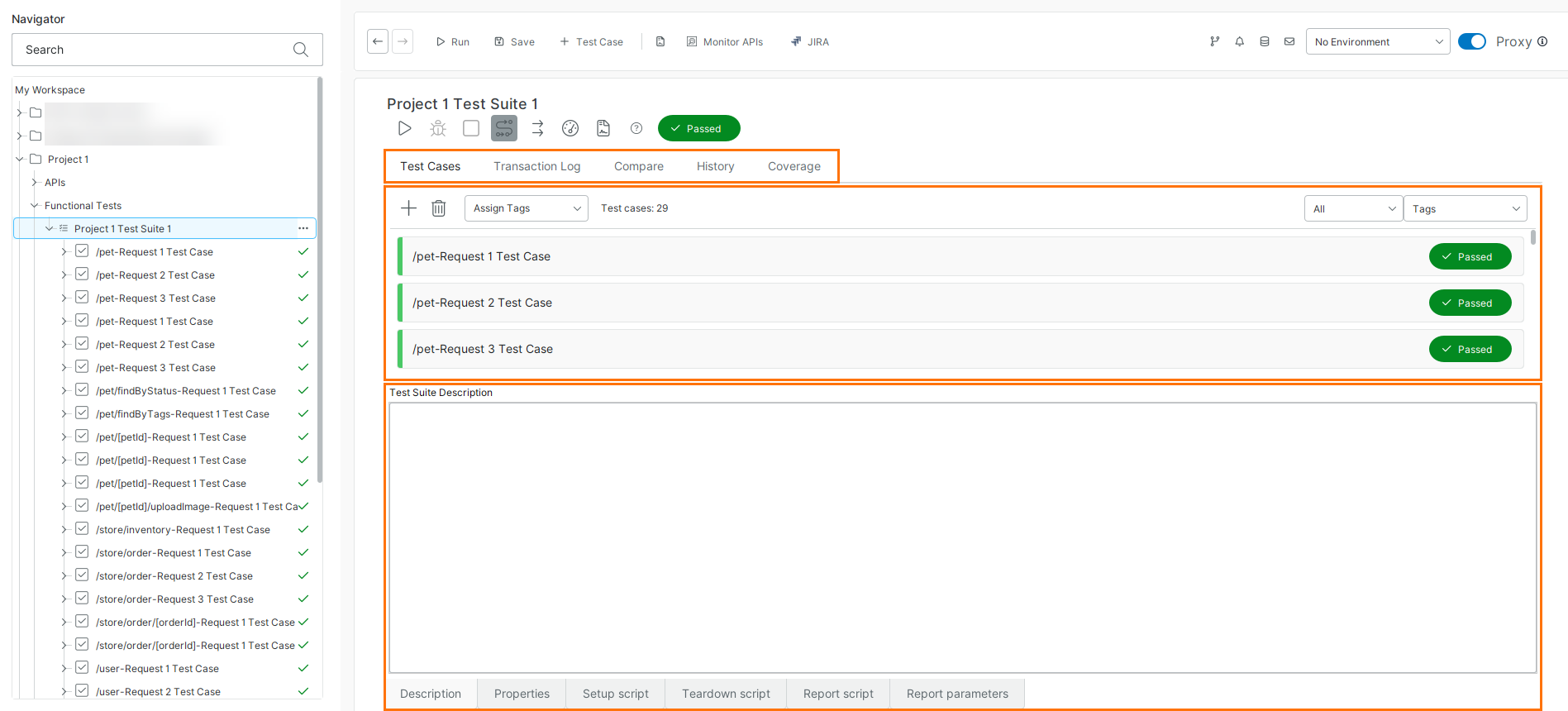 |
Toolbar
Use the toolbar to run, stop, and manage test execution, and to access common actions for the selected item.
The following table describes the available toolbar controls and their functions:
Control | Description |
|---|---|
Run the selected test suites. | |
Debug Groovy Script steps in this project. | |
Stop the test run. | |
| Run test suites in sequence. |
| Run test suites in parallel. |
Select contained test cases to run with performance tests. | |
| Create a report for this item. |
Show online help. | |
Passed, Failed, Not executed, Running | Status. |


Test Cases Page
Manage test cases
Use the Test Cases page to create, organize, and manage test cases within your project. To learn more, see Managing Test Cases.
The Test Cases page gives you an overview of the contained test cases and their run status. It allows you to add, remove, or modify test cases, as well as assign tags and use them to filter test cases for a test run. For more info, see Working with Tags.
The following actions are available for managing test cases:
Action | Description |
|---|---|
Adds a new test case. | |
Removes the selected test case. | |
Assigns tags to the selected test cases. |
Configure test suite settings
Use the project settings panel to define test suite-level configuration, including descriptions, scripts, and tags.
The following tabs let you configure different aspects of the test suite:
Tab | Description |
|---|---|
Description | Enter test suite description. |
Properties | Manage the list of test suite properties. See the Test Suite Properties section. |
Setup Script | Runs at the start of the test suite execution. To learn more, see Setup, TearDown, and Report Scripts. |
TearDown Script | Runs after the test suite execution completes. To learn more, see Setup, TearDown, and Report Scripts. |
Report Script | Specify a script that is run when you generate a report. To learn more, see Script Extensions. |
Report Parameters | Manage the list of parameters used for the report creation. To learn more, see Script Extensions. |
Other Editor Pages
You can navigate to related pages to view test results, compare runs, and analyze coverage.
Use the following links to access additional editor pages:
Page | Learn more |
|---|---|
Transaction Log | |
Compare | |
History | |
Coverage |
Test Suite Properties
Besides editor panels, you can adjust test case behavior by using its properties in the Test Suite Properties tab in the Navigator.
Test Suite Properties
Property | Description |
|---|---|
Name | The name of the test suite. ImportantSpecial characters in the name, including (but not limited to) |
Custom Test Suite Properties
Custom Test Suite Properties tab in the Navigator and the Properties panel in the Test Suite Editor, you can create any number of properties. These properties are available to child test cases and other test suites in your project. To manage the property list, use the toolbar:
Property | Description |
|---|---|
Create a new property. | |
Move a property up. | |
Move a property down. | |
Sort properties in alphabetical order. | |
| Clear property values. |
| Load properties from a file. |
| Save the property list to a file. |
Remove the selected property. | |
| Store value locally (exclude from saved project). |


Custom test suite properties can be stored locally in your workspace file by selecting the checkbox on the right. To learn more, see Locally Stored Properties .
Work With Tags
Tags help you group test cases within a test suite. You can run only the tests containing tagged test cases. Also, you can exclude test cases with specific tags from the test run. Tags are always alphanumeric.
You can edit all tags in the project from the Tags tab in the Project editor.
Add Tags
In the Navigator, click Test Suite.
Select the test case.
From the Assign Tags dropdown, select an existing tag or assign a new one by typing the name. Press Enter.
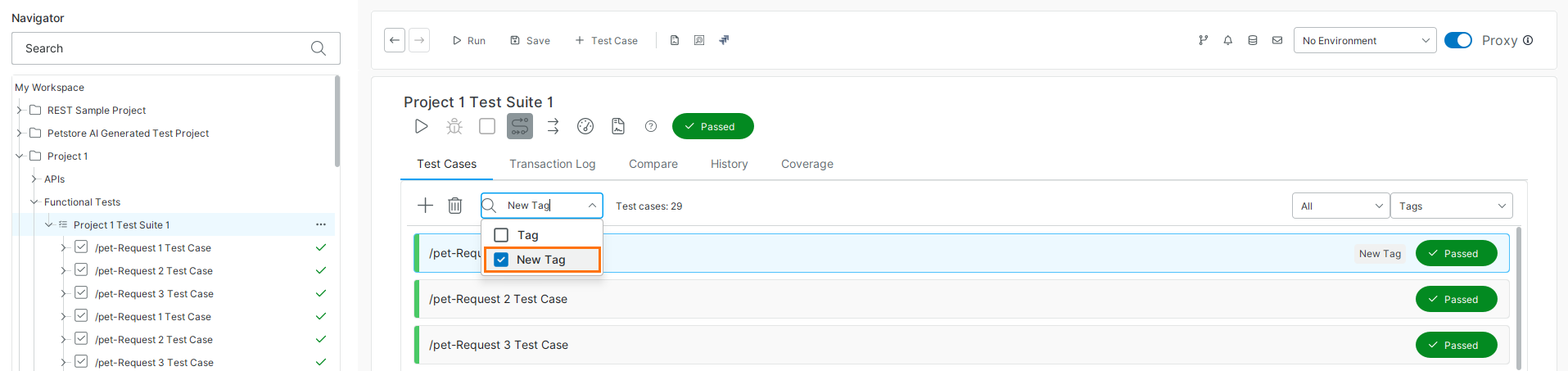
The specified tag is added to the selected test case.
Remove Tags
In the Navigator, click Test Suite.
Select the test case.
From the Assign Tags dropdown, clear the selected tag. Press Enter.
The selected tag is removed from the test case.
Focus Test Run on Desired Test Cases
Open the list of selected tags.
To include the tagged test cases to the test run and exclude others, select from the Show/Hide drop-down menu.
Select a filtering rule:
Select to show test cases only with all the selected tags. For example, if you select and , ReadyAPI will only show test cases that contain both and .
Select to show test cases with any of the selected tags. For example, if you select and , ReadyAPI will show test cases that contain either , , or both.
Select the tags you need.
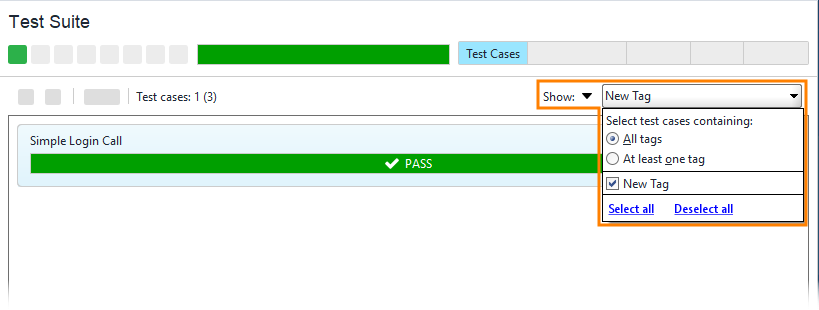 |
Exclude Specific Test Cases from Test Run
Open the list of selected tags.
To exclude the test cases from the test run, select from the Show/Hide drop-down menu.
Select a filtering rule:
Select to show test cases only with all the selected tags. For example, if you select and , ReadyAPI will hide only test cases that contain both and .
Select to show test cases only with any of the selected tags. For example, if you select and , ReadyAPI will hide test cases that contain either , , or both.
Select the tags you need.
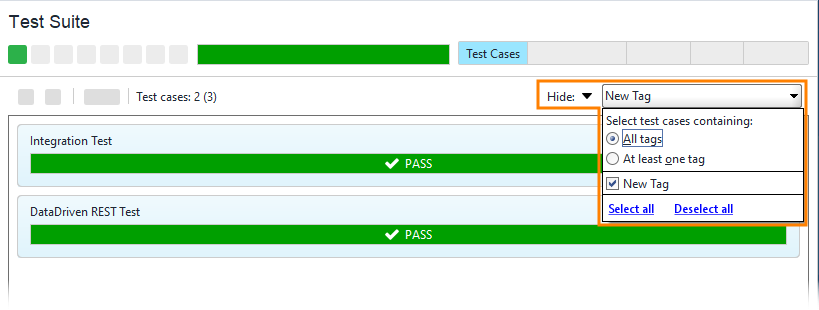 |