About ReadyAPI Dashboard
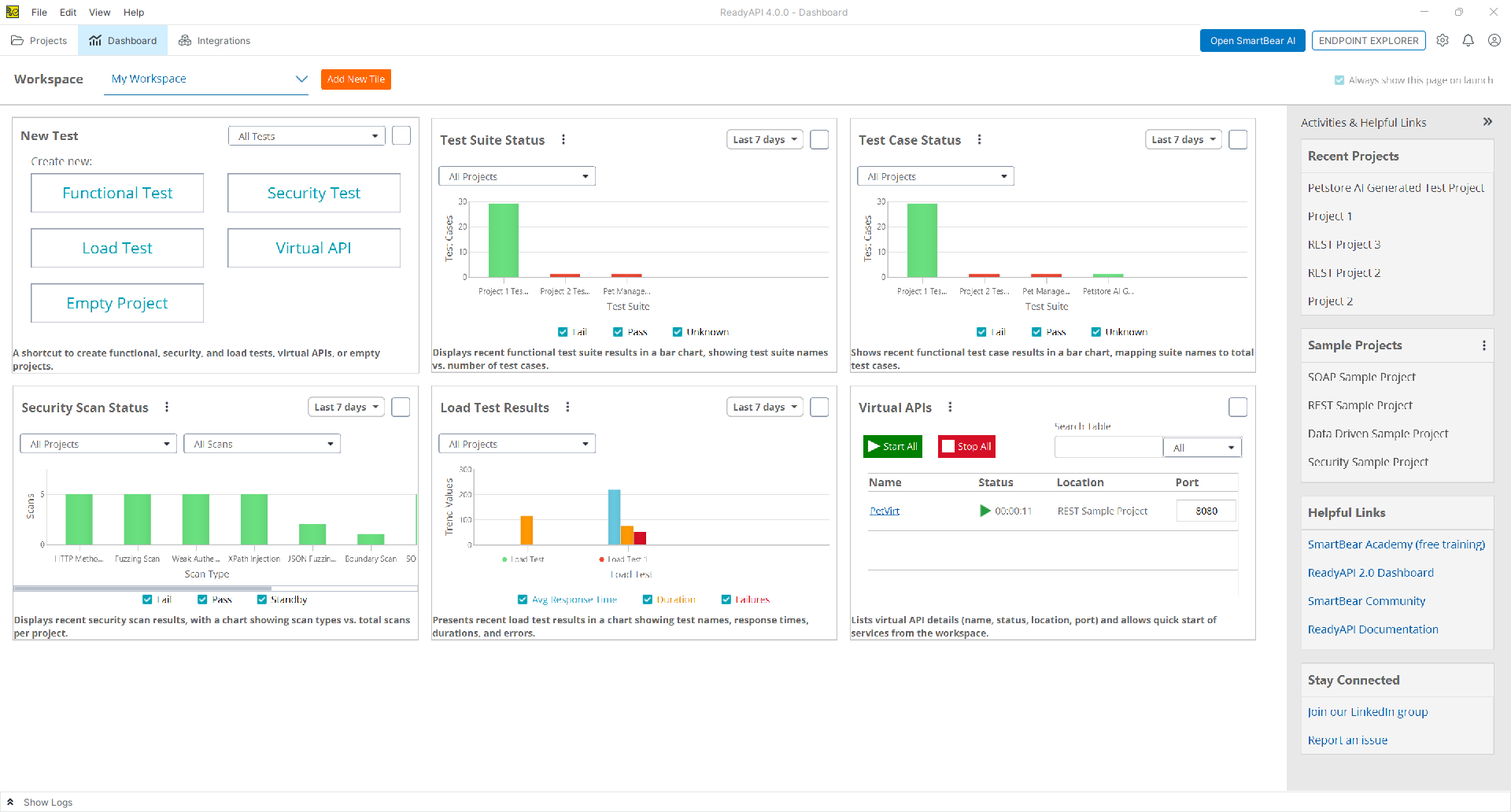
The ReadyAPI Dashboard includes multifunctional tiles that collect, organize, and display information about recent test runs. You can also use the tiles to create new tests and projects.
When you start ReadyAPI for the first time, the Dashboard workspace displays sample data in the tiles. This data demonstrates the tile functionality and remains inactive.
The Activities & Helpful Links panel provides quick access to recent projects, sample projects, documentation, and community resources. You can use this panel to add sample projects to your workspace and access additional ReadyAPI information. To hide or how the panel, click  or
or  .
.
The following image shows a sample Dashboard workspace:
 |
Tiles
Dashboard tiles interact with ReadyAPI Test functional tests and security tests, ReadyAPI Performance, and ReadyAPI Virtualization. Tiles are available if you have the respective Pro license.
Important
By default, tiles display sample data. Run a test in a module for which you have a Pro license to display actual results in the tiles.
The following tiles are available on the Dashboard:
Working With the Dashboard
To Add a Tile
To add a new tile to the Dashboard:
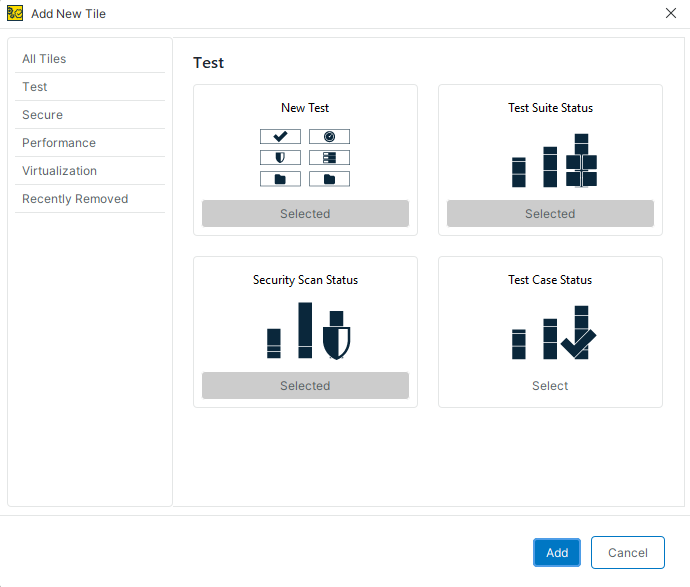
Click Add New Tile or right-click anywhere within the Dashboard and select Add New Tile.
In the Add New Tile dialog, select a tile. Use the tabs on the left to navigate through the available tiles quickly. You can select and add several tiles at a time.
Click Add.
To Move a Tile
To rearrange tiles, drag a tile to a new location in the Dashboard workspace.
To Change a Workspace
Dashboard workspaces store tile layouts and recent project lists separately. ReadyAPI updates each workspace based on the projects you open and use.
To switch workspaces:
Open the Workspace drop-down list.
Select a workspace.
To add a new workspace, select Add Workspace from the drop-down list. For information about adding and managing workspaces, see Managing Workspaces.
To Delete a Tile
To remove a tile from the Dashboard workspace, use one of the following methods:
Click X on the tile.
Right-click the tile and select Remove Tile.
Click More options on the tile and select Remove Tile.
To Restore a Tile
To restore a removed tile:
Click Add New Tile or right-click anywhere within the Dashboard and select Add New Tile.
In the Add New Tile dialog, switch to the Recently Removed tab.
Select the tile to be restored.
Click Add.