Activate Trial License Online from ReadyAPI
Important Notice for ReadyAPI Customers
Starting from ReadyAPI 3.62.0, VirtServer 3.29.0, and TestEngine 1.34.0, SmartBear has deprecated file-based licenses in favor of the ID-based SmartBear License Management (SLM) system. As of October 1, 2025, file-based licenses are no longer issued, activated/deactivated, or supported; all new and updated licenses are managed through SLM. For further information and timelines, refer to the File-Based License End-of-Life Policy page.
This topic explains how to activate a trial license online when ReadyAPI is already installed on your computer. If your computer does not have an Internet connection, or if it does not meet the requirements, you can activate your trial license offline. If ReadyAPI is not installed on your computer, see Activate Trial License Online Without ReadyAPI.
Requirements
To activate a trial license, you need a functioning Internet connection.
Your network security settings should allow access to the
https://activation.smartbear.comserver through port443.Also, you will have to specify your email to which SmartBear will send a license verification link.
Activation steps
Launch ReadyAPI.
If you do not have an active license, ReadyAPI will display a message asking you to activate a license:
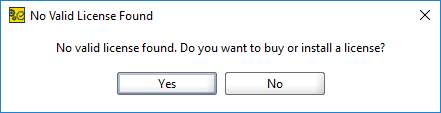
Click Yes.
If you have an active license for any tool, select Help > License Manager from the main menu.
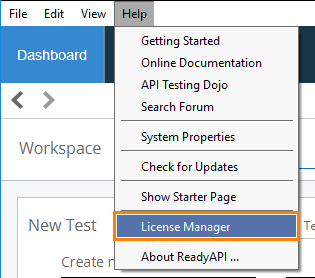
In the License Manager, select the desired tool and click Start Pro Trial.
If the License Manager has all the required contact information, it activates a trial license for the desired tool.
Otherwise, it will show an appropriate dialog. Specify the requested information and click OK.
If you do not have an active license, you must perform some additional steps:
In the Activate Trial dialog, enter your contact information:
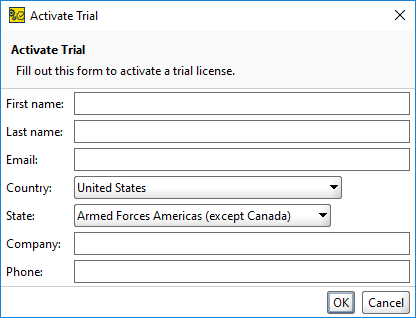
Important
Important: Enter your valid email address, since you will have to verify it.
When you click OK, ReadyAPI will display the following instructions:
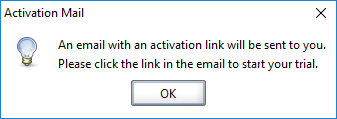
Click OK.
ReadyAPI will send your request to the SmartBear licensing server and post an email to you. The email contains a link to verify your email and activate the trial license.
Click the link. A message informing you that your email address has been verified will be displayed.
Important
If the computer where you run ReadyAPI does not have an Internet connection, you will need to download a license file from the page and complete offline activation.

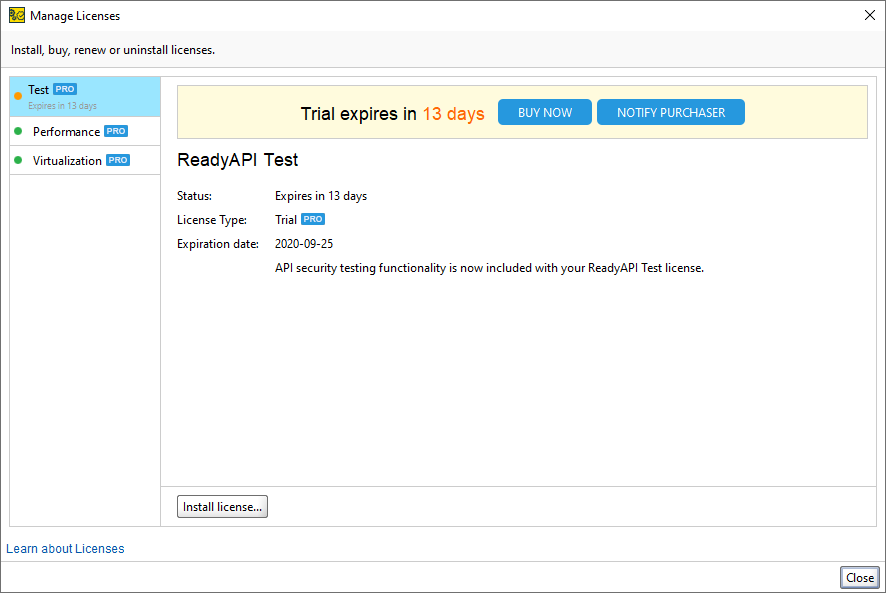
The license has been activated:
 |
In case of an error
In case of an error, you will see a message explaining the problem. See Troubleshooting for information on typical issues and possible solutions.
If you are unable to solve the problem, contact our Support Team. We will be glad to help you.